
Einführung
The Nyko 80610 Airflo PC Game Controller is designed to enhance your PC and Mac gaming experience. This controller features an ergonomic design for comfortable use and an integrated airflow system to help keep your hands cool during extended gaming sessions. This manual provides detailed instructions for setting up, operating, maintaining, and troubleshooting your Airflo controller.
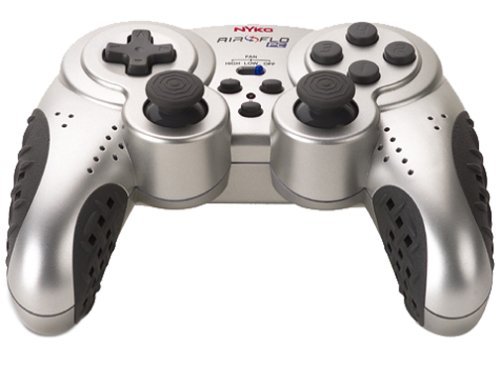
Image of the Nyko 80610 Airflo PC Game Controller, showcasing dank seines ergonomischen Designs und der Tastenanordnung.
Aufstellen
Packungsinhalt
- Nyko 80610 Airflo PC Game Controller (Set of two 12-button gamepads)
- Driver Installation CD (if applicable)
- Benutzerhandbuch (dieses Dokument)
Systemanforderungen
- Operating System: Windows 2000/XP/Vista/7/8, Mac-Intel OS X
- Verfügbarer USB-Port
Installation
- Ensure your computer is powered on and running.
- Suchen Sie einen verfügbaren USB-Anschluss an Ihrem Computer.
- Plug the USB connector of the Nyko Airflo controller into the USB port.
- For most Windows operating systems, the controller will be automatically detected and drivers installed. If prompted, follow the on-screen instructions.
- If automatic installation does not occur, insert the provided Driver Installation CD into your computer's optical drive and follow the installation wizard.
- Once installed, the controller is ready for use. It is recommended to have the gamepad plugged in and ready before launching a game to ensure proper recognition.
Bedienungsanleitung
Grundlegende Bedienelemente
The Nyko Airflo controller features a standard gamepad layout, including:
- Two Analog Sticks: For precise movement and camera control.
- D-Pad (Directional Pad): For directional input.
- Action Buttons: Typically labeled for in-game actions.
- Shoulder Buttons/Triggers: Located on the top of the controller.
- Start and Select/Back Buttons: For menu navigation and game functions.
Luftstromfunktion
The integrated airflow system helps to cool your hands during intense gaming. The controller includes a switch or button to activate and adjust the fan speed. While effective, the fan may produce some noise, especially on higher settings.
- Locate the fan control switch/button on the controller.
- Toggle the switch or press the button to turn the fan on/off or cycle through different speed settings.
Spielkonfiguration
Most PC games allow for controller configuration within their settings menu. You may need to:
- Navigate to the 'Controls' or 'Options' section of your game.
- Select 'Gamepad' or 'Controller' as the input device.
- Map the in-game actions to the corresponding buttons and sticks on your Nyko Airflo controller.
- The controller may come with mapping software that allows for custom button assignments, which can be useful for games that do not natively support the controller's default layout or for remapping keyboard commands.
Wartung
- Reinigung: Verwenden Sie ein weiches, trockenes Tuch, um den Controller abzuwischen. Bei hartnäckigem Schmutz leicht andrücken.ampBefeuchten Sie das Tuch mit Wasser. Vermeiden Sie die Verwendung von scharfen Chemikalien oder Scheuermitteln.
- Lagerung: Store the controller in a clean, dry place away from direct sunlight and extreme temperatures. Avoid wrapping the cable too tightly to prevent damage.
- Kabelpflege: Do not pull the controller by its cable. Always grasp the USB connector when plugging or unplugging it from your computer.
Fehlerbehebung
- Controller nicht erkannt:
- Stellen Sie sicher, dass das USB-Kabel sowohl mit dem Controller als auch mit dem Computer fest verbunden ist.
- Versuchen Sie, den Controller an einen anderen USB-Anschluss anzuschließen.
- Restart your computer with the controller connected.
- Verify that the necessary drivers are installed (refer to the Installation section).
- Analog Stick or D-Pad Issues:
- If analog sticks are not calibrated correctly in-game, try unplugging the gamepad, closing the game, plugging the gamepad back in, and then restarting the game.
- Some users have reported that the D-pad may not register diagonal inputs reliably or may simultaneously press adjacent directions. This can be a characteristic of the controller's design.
- Buttons Sticking or Requiring Heavy Pressing:
- Stellen Sie sicher, dass der Controller sauber und frei von Ablagerungen im Bereich der Tasten ist.
- If the issue persists, it may indicate wear or a manufacturing characteristic.
- Lüftergeräusch:
- The airflow fan may produce audible noise, especially on higher settings. This is normal operation.
Technische Daten
| Marke | Nyko |
| Modell | 80610 Airflo |
| Kompatible Geräte | Mac, Windows |
| Controllertyp | Gamepad |
| Konnektivitätstechnologie | USB (kabelgebunden) |
| Farbe | Schwarz/Silber |
| Zusätzliche Merkmale | Ergonomic, Integrated Airflow System |
| Anzahl der Tasten | 12 (per gamepad) |
| Hardware-Plattform | PC |
| Kabellänge | Extra lang |
| GTIN/UPC | 743840806103 |
| ASIN | B0000TNJWM |
Garantie und Support
For information regarding warranty coverage, technical support, or replacement parts, please contact Nyko customer service directly. Details can typically be found on the manufacturer's official webStandort oder Produktverpackung.
Bitte bewahren Sie Ihren Kaufbeleg für eventuelle Garantieansprüche auf.