
1. Einleitung
This manual provides detailed instructions for the proper setup, operation, and maintenance of your Veho VMS-004 Discovery Deluxe USB Microscope. Please read this manual thoroughly before using the device to ensure optimal performance and longevity.
The Veho VMS-004 is a versatile USB microscope designed for detailed observation and digital capture of magnified images and videos. It features up to 400x magnification, a 2.0 Megapixel CMOS lens, and adjustable LED illumination, making it suitable for various applications including educational, hobbyist, and professional use.
2. Sicherheitshinweise
- Nicht auseinanderbauen: Attempting to disassemble or modify the microscope may cause damage and void the warranty.
- Vermeiden Sie direkte Sonneneinstrahlung: Setzen Sie das Mikroskop weder direktem Sonnenlicht noch hohen Temperaturen aus.
- Vorsichtig handhaben: The lens and internal components are delicate. Avoid dropping or subjecting the device to strong impacts.
- Bleib trocken: Dieses Gerät ist nicht wasserdicht. Vermeiden Sie den Kontakt mit Wasser und hoher Luftfeuchtigkeit.
- Energiequelle: Use only the specified USB power source.
- Kinder: Keep out of reach of small children. Adult supervision is recommended during use.
3. Packungsinhalt
Überprüfen Sie, ob alle Artikel in Ihrem Paket vorhanden sind:
- Veho VMS-004 Discovery Deluxe USB Microscope
- Flexi Alloy Stand
- Software CD (for drivers and application)
- Benutzerhandbuch (dieses Dokument)
4. Produktüberschreitungview
Familiarize yourself with the main components of the Veho VMS-004 microscope.

Figure 4.1: The Veho VMS-004 Discovery Deluxe USB Microscope mounted on its flexi alloy stand.
- Mikroskopkörper: Contains the lens, CMOS sensor, and illumination LEDs.
- Fokusrad: Located on the microscope body, used to adjust the focus for clear images.
- Schnappschuss-Schaltfläche: A button on the microscope body for capturing still images.
- LED Illumination Control: A small wheel or dial to adjust the brightness of the built-in LEDs.
- USB-Kabel: For connecting the microscope to your computer.
- Flexi Alloy Stand: Provides a stable base and adjustable positioning for the microscope.

Abbildung 4.2: Nahaufnahme view of the focus wheel and magnification markings on the microscope body.

Abbildung 4.3: Vorderseite view of the microscope lens, showing the integrated LED illumination ring.
5. Einrichtung
5.1 Montage des Ständers
The flexi alloy stand provides stability and allows for precise positioning of the microscope.
- Attach the microscope holder to the flexible arm of the stand.
- Secure the microscope into the holder. Ensure it is firmly seated but not overly tightened to avoid damage.
- Stellen Sie den Ständer auf eine stabile, ebene Fläche.
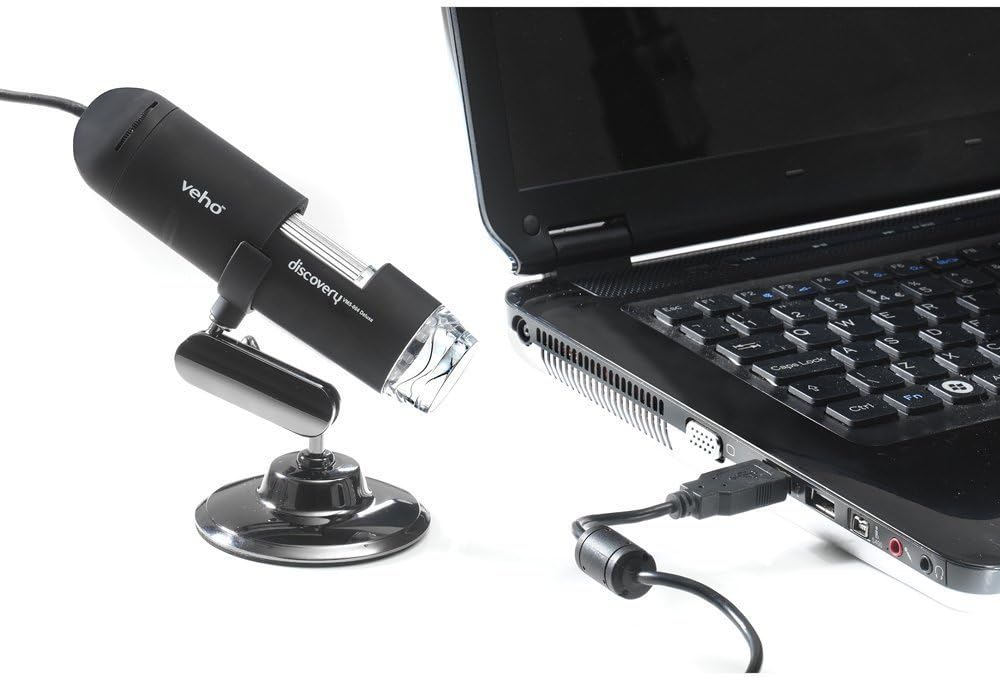
Figure 5.1: The microscope securely mounted on its flexi alloy stand.
5.2 Softwareinstallation
The Veho VMS-004 requires driver and software installation for full functionality on your computer (PC or Mac compatible).
- Insert the provided software CD into your computer's CD/DVD drive. If your computer does not have a CD drive, please visit the official Veho support website to download the necessary drivers and software.
- Follow the on-screen instructions to install the drivers and the accompanying application.
- Starten Sie Ihren Computer neu, falls Sie nach der Installation dazu aufgefordert werden.
5.3 Connecting the Microscope
Once the software is installed, connect the microscope to your computer.
- Plug the USB cable of the microscope into an available USB port on your computer.
- The computer should automatically detect the device.
- Launch the installed microscope application. You should see a live feed from the microscope's camera.

Figure 5.2: The USB microscope connected to a laptop, ready for use.
6. Bedienungsanleitung
6.1 Platzieren des Objekts
Position the object you wish to observe directly beneath the microscope lens. Adjust the flexible stand to bring the lens close to the object.

Figure 6.1: The microscope positioned over a coin for observation.
6.2 Einstellen von Vergrößerung und Fokus
The microscope offers up to 400x digital magnification. To achieve a clear image:
- Adjust the distance between the microscope lens and the object using the flexible stand.
- Rotate the focus wheel on the microscope body until the image on your computer screen is sharp and clear.
- Notiz: The effective magnification changes with the distance from the object and the focus setting.
6.3 LED Illumination Control
The microscope features built-in LEDs to illuminate your subject. To adjust the brightness:
- Locate the LED illumination control (a small wheel or dial) on the microscope cable or body.
- Rotate the control to increase or decrease the LED brightness as needed for optimal viewing.
6.4 Aufnehmen von Bildern und Videos
The included software allows you to capture still images and record videos.
- Standbild: Press the snapshot button on the microscope body or click the capture button within the software interface.
- Videoaufnahme: Use the record function within the software application to start and stop video capture.
- Gefangen files are typically saved to a default folder on your computer, which can usually be configured within the software settings.
6.5 Measurement Software
The accompanying software includes measurement capabilities. Refer to the software's help documentation for detailed instructions on how to calibrate and use the measurement tools. For accurate measurements, it is recommended to use a known reference scale in your image.
7. Wartung
- Reinigung der Linse: Verwenden Sie ein weiches, fusselfreies Tuch, das speziell für optische Linsen entwickelt wurde. Verwenden Sie keine Scheuermittel oder Lösungsmittel.
- Reinigung des Körpers: Wischen Sie das Mikroskopgehäuse und den Stativ mit einem trockenen oder leicht feuchten Tuch ab.amp, weiches Tuch.
- Lagerung: Bewahren Sie das Mikroskop bei Nichtgebrauch in einer sauberen, trockenen und staubfreien Umgebung auf.
- Software-Updates: Periodically check the Veho official website for software and driver updates to ensure compatibility and optimal performance.
8. Fehlerbehebung
| Problem | Mögliche Ursache | Lösung |
|---|---|---|
| Kein Bild auf dem Bildschirm / Gerät nicht erkannt |
|
|
| Das Bild ist unscharf oder unscharf. |
|
|
| Das Bild ist zu dunkel oder zu hell |
|
|
| Magnification does not appear to be 400x |
|
|
9. Spezifikationen
| Modellnummer | VMS-004D |
| Vergrößerung | Up to x400 (digital) |
| Linse | 2.0 Megapixel-CMOS |
| Beleuchtung | On/Off LEDs (adjustable brightness) |
| Gehäuse | Tacton Rubber Touch |
| Stand | Flexi Alloy Stand |
| Konnektivität | USB |
| Kompatibilität | PC- und Mac-kompatibel |
| Technische Daten | 13.46 x 10.92 x 22.35 cm |
| Artikelgewicht | 159 g |
| Bandtage | 5 Volt (USB-Stromversorgung) |
| Lichtquellentyp | Halogen |
| Echter Winkel von View | 30 Grad |
10. Garantie und Support
Informationen zur Garantie, zum technischen Support oder zu Serviceanfragen finden Sie auf der Ihrem Produkt beiliegenden Garantiekarte oder auf der offiziellen Veho-Website. webBewahren Sie Ihren Kaufbeleg für Garantieansprüche auf.
Veho Official WebWebsite: www.veho-world.com