
1. Einleitung
The ASUS USB-N10 Wireless-N USB Adapter provides a convenient solution for adding or upgrading wireless connectivity to your computer. This compact adapter supports IEEE 802.11b/g/n standards, offering wireless data rates of up to 150Mbps for both transmit and receive functions. It features a fast USB 2.0 interface and includes software-based WPS (Wi-Fi Protected Setup) button support for easy and secure network connections.
2. Hauptmerkmale
- Excellent Connection: Strong and convenient USB connection for fast downloads, rapid file transfers, and low-latency media streaming.
- PSP Xlink Kai Support: Play system games with PSP users worldwide via the internet.
- EZ WPS: Improve Wi-Fi security with easy WPS Wizard.
- Betriebssystem-Support: Compatible with Windows 7 and Mac 10.6 Operating Systems (and newer versions).
- Normen: IEEE 802.11b, IEEE 802.11g, IEEE 802.11n.
- Host-Schnittstelle: USB 2.0.
- Betriebsfrequenz: 2.4 - 2.5 GHz.
- Antenne: 2x Internal Antenna (MIFA antenna on USB connector).
- Betriebsarten: 11 for N. America, 14 Japan, 13 Europe (ETSI).
- Modulation: OFDM - BPSK, QPSK, 16-QAM, 64-QAM, DBPSK, DQPSK, CCK.
- Reichweite: Bis zu 150m.
- Datenrate: 802.11n: Tx - 150Mbps (Max); Rx - 150Mbps (Max), 802.11g: 6, 9, 12, 18, 24, 36, 48, 54Mbps, 802.11b: 1, 2, 5.5, 11Mbps.
- Wireless Setting: Diagnose and configure your wireless network settings with on-line troubleshooting feature.
- WPS Wizard: High-speed wireless network is just a few clicks away.
- Empfängerempfindlichkeit: -84 dBm @11 Mbps, -70 dBm @54 Mbps, -67 dBm @64-QAM, 20MHz channel spacing, -64 dBm @64-QAM, 40MHz channel spacing.
3. Packungsinhalt
The ASUS USB-N10 Wireless-N USB Adapter package typically includes:
- ASUS USB-N10 Wireless-N USB Adapter
- Schnellstartanleitung / Bedienungsanleitung
- Driver CD or USB Drive (containing necessary software)
4. Einrichtung und Installation
Follow these steps to install your ASUS USB-N10 Wireless-N USB Adapter:
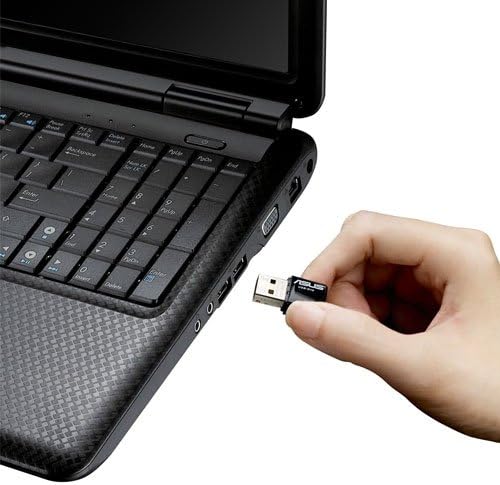
- Setzen Sie den Adapter ein: Carefully plug the ASUS USB-N10 adapter into an available USB 2.0 port on your computer. For optimal performance, especially if your computer has USB 3.0 ports, consider using one of those, though the adapter itself is USB 2.0.
- Treiber installieren:
- Insert the provided driver CD or USB drive into your computer.
- Locate and double-click the 'Setup.exe' file.
- Follow the on-screen instructions to complete the Wi-Fi driver installation. It is recommended to use the manufacturer's drivers for best compatibility and performance.
- Verbindung zu einem WLAN-Netzwerk herstellen:
- Once the drivers are installed, click on the network icon in your system tray (usually in the bottom-right corner of your screen on Windows, or top-right on Mac).
- Wählen Sie das gewünschte WLAN-Netzwerk aus der Liste der verfügbaren Netzwerke aus.
- Geben Sie bei Aufforderung den Netzwerksicherheitsschlüssel (das Passwort) ein.
- Klicken Sie auf „Verbinden“. Ihr Computer sollte nun mit dem WLAN-Netzwerk verbunden sein.

5. Betrieb des Adapters
Once installed and connected, the ASUS USB-N10 adapter operates seamlessly in the background, providing wireless internet access. You can manage your wireless connection through your operating system's network settings.
5.1. Verwendung von WPS (Wi-Fi Protected Setup)
The adapter supports WPS for quick and secure connection to compatible routers. If your router has a WPS button:
- Drücken Sie die WPS-Taste an Ihrem WLAN-Router.
- Within two minutes, activate the WPS function on your computer. This is typically done through the ASUS utility software installed with the drivers, or via your operating system's network settings.
- The adapter will automatically connect to the router securely.
6. Wartung und Pflege
- Sauber halten: Gently wipe the adapter with a soft, dry cloth to remove dust. Avoid using liquid cleaners.
- Vermeiden Sie physischen Schaden: Handle the adapter with care. Avoid dropping it or exposing it to excessive force, which could damage the USB connector or internal components.
- Optimale Platzierung: For best signal strength, ensure the adapter is not obstructed by other objects or placed in an area with high electromagnetic interference.
- Treiber-Updates: Überprüfen Sie regelmäßig den ASUS-Support. website for updated drivers to ensure optimal performance and compatibility with the latest operating system versions.
7. Fehlerbehebung
7.1. Keine drahtlose Verbindung
- Überprüfen Sie die physische Verbindung: Ensure the USB-N10 adapter is securely plugged into a functioning USB port.
- Treiberinstallation: Verify that the drivers were installed correctly. You can check this in your computer's Device Manager (Windows) or System Information (Mac). Reinstall drivers if necessary.
- WLAN aktivieren: Make sure your computer's Wi-Fi is enabled.
- Routerstatus: Confirm that your wireless router is powered on and broadcasting a Wi-Fi signal.
7.2. Langsame Verbindungsgeschwindigkeit
- Signalstärke: Check the signal strength of your Wi-Fi network. Move closer to your wireless router or access point if the signal is weak.
- Interferenz: Andere elektronische Geräte (Mikrowellen, schnurlose Telefone) können Störungen verursachen. Versuchen Sie, diese zu minimieren oder den Adapter weiter von ihnen entfernt aufzustellen.
- USB-Anschluss: Ensure the adapter is connected to a USB 2.0 port. While compatible with USB 1.1, performance will be significantly reduced.
- Router-Einstellungen: Ensure your router is configured for 802.11n mode for maximum speed.
7.3. Adapter nicht erkannt
- Versuchen Sie es mit einem anderen USB-Anschluss: Testen Sie den Adapter an einem anderen USB-Anschluss Ihres Computers.
- Starte den Computer neu: Ein einfacher Neustart kann Erkennungsprobleme oft beheben.
- Treiber neu installieren: Uninstall any existing drivers for the adapter, restart your computer, and then perform a clean installation of the drivers.
8. Spezifikationen
| Attribut | Wert |
|---|---|
| Technische Daten | 0.67 x 1.18 x 0.35 Zoll |
| Artikelgewicht | 2.4 Unzen |
| Artikelmodellnummer | USB-N10 |
| Datum der ersten Verfügbarkeit | 26. März 2010 |
| Hersteller | Asus |


9. Garantie und Support
9.1. Haftungsausschluss
Actual data throughput and Wi-Fi coverage will vary from network conditions and environmental factors, including the volume of network traffic, building material and construction, and network overhead, resulting in lower actual data throughput and wireless coverage.
9.2. Kundendienst
For technical support, warranty claims, or further assistance, please visit the official ASUS support website or contact their customer service. Refer to the product packaging or the ASUS webAuf dieser Website finden Sie die aktuellsten Kontaktinformationen und Garantiebestimmungen.