
1. Einleitung
The EDUP EP-MS150N is a 150Mbps Wireless USB WiFi Adapter designed to provide high-speed wireless connectivity for your desktop or laptop computer. Featuring an external 5dBi antenna, it enhances signal reception and transmission, ensuring a stable and reliable connection to your wireless network. This adapter supports IEEE 802.11n, 802.11g, and 802.11b standards, operating on the 2.4 GHz frequency band.
2. Installationsanleitung
2.1 Packungsinhalt
- EDUP EP-MS150N Wireless USB WiFi Adapter
- Driver CD (may vary by package)
- Kurzanleitung zur Installation
2.2 Hardware-Installation
- Setzen Sie den Adapter ein: Locate an available USB port on your computer. Carefully insert the EDUP EP-MS150N USB WiFi Adapter into the USB port. Ensure it is firmly seated.
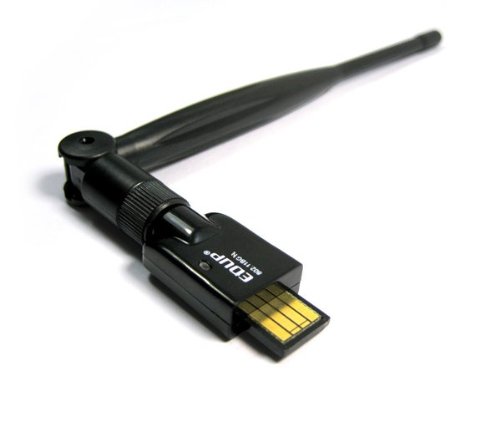
Image: The EDUP EP-MS150N Wireless USB WiFi Adapter, showing its compact design and USB connector, ready for insertion into a computer's USB port.
2.3 Treiberinstallation
For optimal performance and compatibility, it is recommended to install the latest drivers for your operating system.
- Verwendung der Treiber-CD: If your package includes a driver CD, insert it into your computer's CD-ROM drive. Follow the on-screen instructions to install the drivers.
- Treiber online herunterladen: If you do not have a CD drive or wish to obtain the latest drivers, visit the official EDUP support website. Navigate to the support section, find your model (EP-MS150N), and download the appropriate drivers for your operating system (Windows, macOS, Linux). Run the downloaded installer and follow the prompts.
- Installation überprüfen: After installation, check your computer's Device Manager (Windows) or System Information (macOS/Linux) to ensure the adapter is recognized and functioning correctly.
2.4 Verbindung zu einem drahtlosen Netzwerk
- Zugriff auf Netzwerkeinstellungen: On your computer, open the wireless network settings. This is typically found in the system tray (Windows) or menu bar (macOS/Linux).
- Nach Netzwerken suchen: Der Adapter sucht automatisch nach verfügbaren drahtlosen Netzwerken.
- Wählen Sie Netzwerk: Wählen Sie das gewünschte drahtlose Netzwerk (SSID) aus der Liste aus.
- Passwort eingeben: If prompted, enter the network security key or password (WPA/WPA2-PSK).
- Verbinden: Click 'Connect' to establish a connection. Once connected, you should have internet access.
3. Bedienungsanleitung
3.1 Checking Connection Status
To verify your wireless connection status:
- Windows: Click the network icon in the system tray. It will display the name of the connected network and its status.
- macOS: Click the Wi-Fi icon in the menu bar. It will show the connected network.
- Linux: Check the network manager applet in your desktop environment.
3.2 Disconnecting from a Network
To disconnect from a wireless network:
- Access your network settings as described above.
- Select the currently connected network.
- Choose the 'Disconnect' option.
4. Wartung
4.1 Treiberaktualisierungen
Überprüfen Sie regelmäßig die offiziellen EDUP-Websites. website for updated drivers. Keeping your drivers current can improve performance, stability, and compatibility with new operating system versions or network technologies.
4.2 Körperliche Pflege
- Halten Sie den Adapter sauber und staubfrei. Verwenden Sie zum Reinigen ein weiches, trockenes Tuch.
- Setzen Sie den Adapter keinen extremen Temperaturen, hoher Luftfeuchtigkeit oder direkter Sonneneinstrahlung aus.
- Versuchen Sie nicht, den Adapter selbst zu zerlegen oder zu reparieren, da dies zum Erlöschen der Garantie führt.
5. Fehlerbehebung
5.1 Kein Internetzugang
- Router prüfen: Vergewissern Sie sich, dass Ihr WLAN-Router eingeschaltet ist und ordnungsgemäß funktioniert.
- Verbindung überprüfen: Confirm that the adapter is properly connected to your computer's USB port and that you are connected to the correct wireless network.
- Geräte neu starten: Try restarting your computer and your wireless router.
- Fahrercheck: Ensure the drivers are correctly installed and up to date. Reinstall them if necessary.
5.2 Langsame Verbindungsgeschwindigkeit
- Signalstärke: Move closer to your wireless router to improve signal strength. Obstacles like walls and large appliances can degrade signal quality.
- Interferenz: Other electronic devices (e.g., cordless phones, microwaves) operating on the 2.4 GHz band can cause interference. Try changing your router's wireless channel.
- Router-Einstellungen: Ensure your router is configured for optimal performance (e.g., using WPA2 encryption, appropriate channel width).
- Treiber-Update: Stellen Sie sicher, dass Sie die neuesten Treiber installiert haben.
5.3-Adapter nicht erkannt
- USB-Anschluss: Versuchen Sie, den Adapter an einen anderen USB-Anschluss Ihres Computers anzuschließen.
- Starte den Computer neu: Ein einfacher Neustart kann Erkennungsprobleme oft beheben.
- Treiberinstallation: Reinstall the drivers for the adapter.
- Geräte-Manager (Windows): Check Device Manager to see if the adapter appears under 'Network adapters' or 'Other devices'. If it has a yellow exclamation mark, reinstall drivers.
6. Spezifikationen
| Modellnummer | EP-MS150N |
| Marke | EDUP |
| Drahtlose Standards | IEEE 802.11n, IEEE 802.11g, IEEE 802.11b |
| Frequenzbereich | 2.4 - 2.4835 GHz |
| Drahtlose Geschwindigkeit | Bis zu 150 Mbit/s |
| Antennentyp | Externe 5dBi-Antenne |
| Schnittstelle | USB |
| Effektiver Arbeitsabstand | Up to 200 meters indoors, 830 meters outdoors (environment dependent) |
| UPC | 847231017403 |
7. Garantie und Support
7.1 Produktgarantie
EDUP products typically come with a limited warranty. Please refer to the warranty card included with your product or visit the official EDUP website for detailed warranty terms and conditions specific to the EP-MS150N model. Keep your purchase receipt as proof of purchase for warranty claims.
7.2 Technischer Support
For technical assistance, driver downloads, or further inquiries, please visit the official EDUP support website. You may find FAQs, troubleshooting guides, and contact information for customer service there. When contacting support, please have your product model number (EP-MS150N) and a description of your issue ready.