
Einführung
This manual provides essential information for setting up, operating, maintaining, and troubleshooting your ASUS G53SX-DH71 Full HD 15.6-Inch Gaming Laptop. Please read this manual thoroughly to ensure proper use and to maximize the performance and longevity of your device.
Produkt überview
The ASUS G53SX-DH71 is a high-performance gaming laptop designed for immersive gaming experiences. It features an Intel Core i7 processor, NVIDIA GeForce GTX 560M graphics, and a 15.6-inch Full HD display.
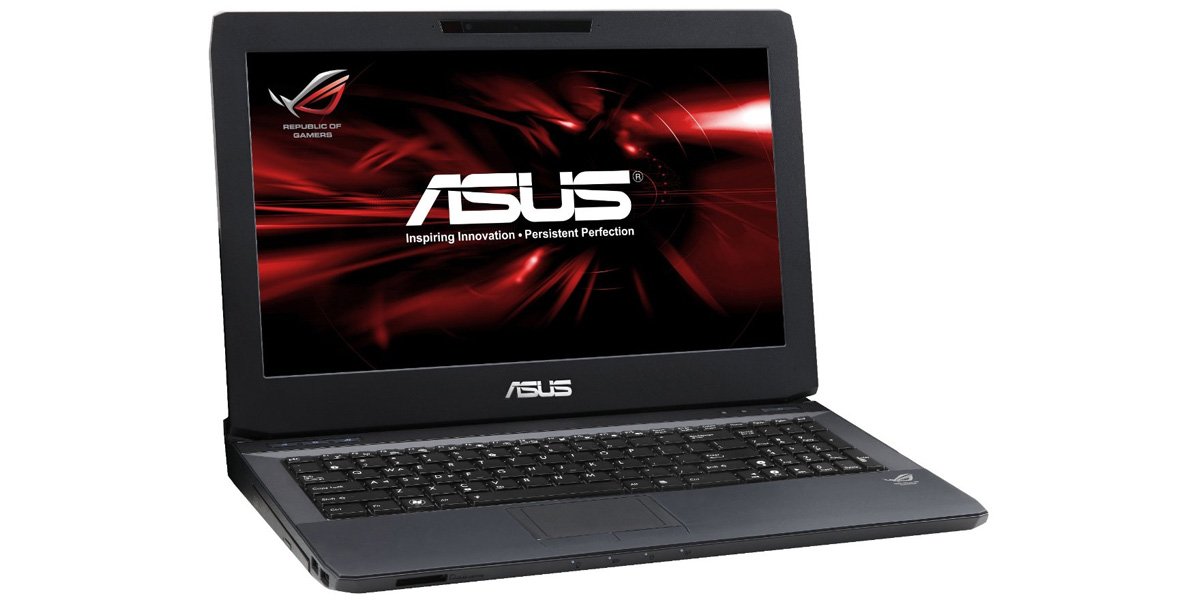
Figure 1: ASUS G53SX-DH71 Gaming Laptop.
Installationshandbuch
1. Auspacken und Erstinspektion
- Nehmen Sie den Laptop und sämtliches Zubehör vorsichtig aus der Verpackung.
- Verify that all components are present: laptop, power adapter, power cord, and any included documentation.
- Überprüfen Sie den Laptop auf sichtbare Beschädigungen. Sollten Sie Beschädigungen feststellen, kontaktieren Sie umgehend Ihren Händler.
2. Anschließen des Netzteils
- Schließen Sie das Netzkabel an das Netzteil an.
- Stecken Sie den Netzadapter in eine geerdete Steckdose.
- Connect the DC output plug of the AC adapter to the power input port on your laptop.
- Allow the battery to charge for at least 3 hours before initial use, even if the battery indicator shows a full charge.
3. Erster Start und Einrichtung des Betriebssystems
- Öffnen Sie den Laptopdeckel und drücken Sie den Netzschalter.
- Follow the on-screen instructions to complete the Windows 7 Home Premium 64-bit operating system setup. This typically involves selecting language, region, accepting license agreements, and creating a user account.
- Connect to a Wi-Fi network when prompted to ensure the system can download necessary updates.
Bedienung Ihres Laptops
Tastatur und Touchpad
The laptop features a full-sized keyboard and a multi-touch touchpad. The keyboard includes a numeric keypad and backlit keys for use in low-light conditions. The touchpad supports gestures for navigation and control.

Figure 2: Keyboard and Touchpad detail.
- Funktionstasten (Fn): Combine the Fn key with F1-F12 keys for various functions such as adjusting brightness, volume, or disabling the touchpad (Fn+F9).
- Touchpad: Use the touchpad for cursor control. Two physical buttons below the touchpad serve as left and right mouse clicks.
Energieverwaltungsmodi
Your laptop offers several power modes to optimize performance or battery life. These can typically be accessed via a dedicated button or through the operating system's power options.
- Hohe Leistung: Maximizes system speed and responsiveness, ideal for gaming and demanding applications.
- Ruhiges Büro: Reduces fan noise and power consumption for general productivity tasks.
- Entertainment (Theater): Optimizes display and audio settings for media consumption.
- Batteriesparmodus: Extends battery life by reducing performance and background activity.
Audio and Graphics
The ASUS G53SX-DH71 is equipped with advanced audio and NVIDIA GeForce GTX 560M graphics for an immersive experience. Ensure drivers are up-to-date for optimal performance.
Video 1: Republic of Gamers product overview. This video highlights the laptop's gaming capabilities, 3D audio, and powerful graphics processing unit (GPU) with Intel Core i7 processor.
Wartung und Pflege
- Reinigung: Use a soft, lint-free cloth to clean the screen and exterior. Avoid harsh chemicals.
- Batteriepflege: To prolong battery life, avoid fully discharging the battery frequently. Store the laptop in a cool, dry place if not used for extended periods.
- Belüftung: Ensure the laptop's ventilation openings are not blocked to prevent overheating.
Fehlerbehebung
Häufige Probleme und Lösungen
- Kein Strom:
- Stellen Sie sicher, dass das Netzteil sowohl mit dem Laptop als auch mit einer funktionierenden Steckdose fest verbunden ist.
- Überprüfen Sie die Funktionsfähigkeit der Steckdose, indem Sie ein anderes Gerät anschließen.
- Check if the battery is completely drained. Allow it to charge for a while before attempting to power on.
- Screen Display Issues (e.g., white screen, black screen, pixelation):
- Starten Sie den Laptop neu.
- Connect an external monitor to determine if the issue is with the laptop's display or the graphics card.
- Ensure graphics drivers are updated.
- If the issue persists, it may indicate a hardware problem with the display cable or panel. Contact ASUS support for assistance.
- Überhitzung:
- Ensure ventilation vents are clear of obstructions.
- Use the laptop on a hard, flat surface rather than soft surfaces like beds or couches.
- Consider using a cooling pad.
- Reinigen Sie die Lüftungsschlitze mit Druckluft vom Staub.
- Langsame Leistung:
- Check power management settings and ensure the laptop is in "High Performance" mode when needed.
- Schließen Sie nicht benötigte Hintergrundanwendungen.
- Führen Sie einen Virenscan durch.
- Stellen Sie sicher, dass ausreichend freier Speicherplatz auf der Festplatte vorhanden ist.
Technische Daten
| Besonderheit | Spezifikation |
|---|---|
| Marke | ASUS |
| Modellnummer | G53SX-DH71 |
| Bildschirmgröße | 15.6 Zoll |
| Bildschirmauflösung | 1920 x 1080 Pixel (Full-HD) |
| Prozessor | Intel Core i7-2670QM (2.2 GHz) |
| RAM | 12 GB DIMM (1333 MHz) |
| Festplatte | 750 GB 7200 RPM Serial ATA |
| Grafik-Coprozessor | NVIDIA GeForce GTX 560M 2GB GDDR5 |
| Betriebssystem | Windows 7 Home Premium 64-Bit |
| Kabelloser Typ | 802.11bgn |
| USB 2.0-Anschlüsse | 3 |
| USB 3.0-Anschlüsse | 1 |
| Audioausgänge | 1 |
| Artikelgewicht | 2.1 Pfund |
| Technische Daten | 11.7 x 15.6 x 0.8 Zoll |
| Farbe | Schwarz |
| Batterien | 1 Lithium-Ionen-Akku (im Lieferumfang enthalten) |
Garantie und Support
Informationen zur Garantie und zum technischen Support finden Sie in der Ihrem Produkt beiliegenden Dokumentation oder auf der offiziellen ASUS-Supportseite. webBewahren Sie Ihren Kaufbeleg für Garantieansprüche auf.
- ASUS-Kundendienst WebWebsite: www.asus.com/support/
- Produktregistrierung: Register your product online to receive updates and support.