
1. Einleitung
The Brother DCP-J132W is a compact and versatile multifunction inkjet printer designed for home and small office use. It offers printing, scanning, and copying functionalities, along with wireless connectivity for convenient use from various devices. This manual provides essential information to help you get the most out of your printer.
2. Sicherheitshinweise
Please read these safety instructions carefully before using the printer to prevent injury and damage to the machine.
- Always place the printer on a flat, stable surface.
- Do not block or cover the ventilation slots.
- Verwenden Sie ausschließlich das mit dem Drucker gelieferte Netzkabel.
- Setzen Sie den Drucker weder Wasser noch übermäßiger Feuchtigkeit aus.
- Tintenpatronen sollten für Kinder unzugänglich aufbewahrt werden.
- Vor der Reinigung oder Wartung den Drucker vom Stromnetz trennen.
3. Lieferumfang
Prüfen Sie, ob alle Komponenten in der Verpackung vorhanden sind:
- Brother DCP-J132W Multifunction Printer
- Ink Cartridges (Starter Set)
- Netzkabel
- Installations-CD-ROM
- Quick Setup Guide
Note: A USB cable is not typically included and may need to be purchased separately if you prefer a wired connection.
4. Einrichtung
4.1 Auspacken und erste Platzierung
- Remove the printer from its packaging and remove all protective tapes and packing materials.
- Place the printer on a stable, level surface near a power outlet.
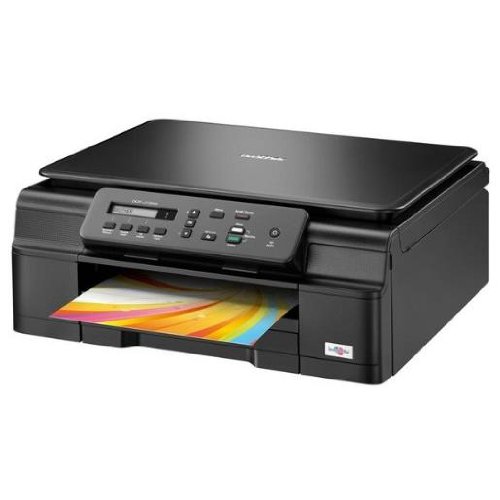
Abbildung 4.1: Vorderseite view of the Brother DCP-J132W printer, showing the paper output tray with a colorful document.
4.2 Einsetzen der Tintenpatronen
- Open the ink cartridge cover located on the front of the printer.
- Unpack each ink cartridge (Black, Cyan, Magenta, Yellow).
- Insert each cartridge into its corresponding slot, pressing down until it clicks into place.
- Schließen Sie die Tintenpatronenabdeckung. Der Drucker startet nun den Tintenladevorgang.
4.3 Papier einlegen
- Pull out the paper tray completely from the printer.
- Adjust the paper guides to fit the paper size you are loading (e.g., A4).
- Load paper into the tray, print side down. Do not overfill.
- Schieben Sie das Papierfach vorsichtig wieder in den Drucker, bis es einrastet.
4.4 Stromversorgung anschließen
- Schließen Sie das Netzkabel an den Stromeingang des Druckers an.
- Stecken Sie das andere Ende des Netzkabels in eine Steckdose.
- Drücken Sie den Netzschalter, um den Drucker einzuschalten.
4.5 Softwareinstallation und Netzwerkverbindung
Install the printer drivers and software from the included CD-ROM or download the latest versions from the official Brother support webFolgen Sie den Anweisungen auf dem Bildschirm zur Installation.
- Drahtloses Setup: During software installation, select the wireless connection option and follow the prompts to connect your printer to your Wi-Fi network. You may need your network SSID and password.
- USB-Verbindung: If using a USB cable (not included), connect it to the printer and your computer when prompted by the installation software.

Abbildung 4.2: Schräg view of the Brother DCP-J132W printer, highlighting its compact design and control panel.
5. Bedienung des Druckers
5.1 Dokumente drucken
- Open the document or image you wish to print on your computer or mobile device.
- Wählen Sie im Menü der Anwendung die Option „Drucken“.
- Choose "Brother DCP-J132W" as your printer.
- Adjust print settings (e.g., paper size, color/grayscale, number of copies) as needed.
- Klicken Sie auf „Drucken“.
5.2 Dokumente scannen
- Place the document face down on the scanner glass, aligning it with the guide marks.
- Schließen Sie den Scannerdeckel.
- On your computer, open the Brother ControlCenter software or a scanning application.
- Select "Scan" and choose your desired scan settings (e.g., resolution, color mode, destination).
- Click "Scan" to begin the process.
5.3 Dokumente kopieren
- Legen Sie das Dokument mit der bedruckten Seite nach unten auf das Scannerglas.
- On the printer's control panel, press the "Copy" button.
- Use the arrow keys to select the number of copies or other settings (e.g., quality).
- Press "Start" (Color or Black & White) to begin copying.
6. Wartung
6.1 Austauschen der Tintenpatronen
When an ink cartridge is low or empty, a message will appear on the printer's display or your computer. Use genuine Brother LC121 or LC123 series ink cartridges for optimal performance.
- Öffnen Sie die Tintenpatronenabdeckung.
- Drücken Sie den Entriegelungshebel für die leere Patrone und entnehmen Sie diese.
- Unpack a new cartridge and insert it firmly into the correct slot until it clicks.
- Schließen Sie die Tintenpatronenabdeckung.
6.2 Reinigung des Druckkopfes
If print quality declines (e.g., missing lines, streaking), perform a print head cleaning from the printer's control panel or through the printer driver software on your computer. Refer to the on-screen instructions for the cleaning procedure.
6.3 Reinigung des Scannerglases
To ensure clear scans and copies, regularly clean the scanner glass with a soft, lint-free cloth moistened with a non-abrasive glass cleaner. Avoid spraying cleaner directly onto the glass.
7. Fehlerbehebung
This section addresses common issues you might encounter with your Brother DCP-J132W printer.
- Drucker schaltet sich nicht ein:
- Stellen Sie sicher, dass das Netzkabel fest mit dem Drucker und einer funktionierenden Steckdose verbunden ist.
- Versuchen Sie, ein anderes Gerät an die Steckdose anzuschließen, um zu überprüfen, ob sie Strom liefert.
- Papierstaus:
- Carefully open all covers and remove any jammed paper following the instructions on the printer's display or in the full user guide.
- Ensure paper is loaded correctly and not overfilled in the paper tray.
- Schlechte Druckqualität:
- Prüfen Sie den Tintenstand und tauschen Sie leere oder fast leere Patronen aus.
- Perform a print head cleaning and alignment from the printer's maintenance menu.
- Stellen Sie sicher, dass Sie das für Ihre Druckeinstellungen geeignete Papier verwenden.
- Probleme mit der drahtlosen Verbindung:
- Verify that the printer is within range of your Wi-Fi router.
- Restart your router, computer, and printer.
- Re-run the wireless setup utility from the printer's control panel or the Brother software.
- Stellen Sie sicher, dass Ihr WLAN-Passwort korrekt eingegeben ist.
For more detailed troubleshooting, refer to the comprehensive user manual available on the Brother support webWebsite.
8. Spezifikationen
| Besonderheit | Detail |
|---|---|
| Marke | Bruder |
| Modellname | DCPJ132W |
| Konnektivitätstechnologie | WLAN, USB |
| Druckerausgabe | Farbe |
| Maximale Druckgeschwindigkeit (Farbe) | 27 Seiten pro Minute |
| Maximale Druckgeschwindigkeit (Schwarzweiß) | 27 Seiten pro Minute |
| Maximale Druckauflösung (Farbe) | 1200 x 1200 dpi |
| Maximale Druckauflösung (Schwarzweiß) | 1200 x 1200 dpi |
| Produktabmessungen (TxBxH) | 16.1 cm (Breite) x 41 cm (Länge) x 16.1 cm (Höhe) |
| Max Supported Paper Size | A4 |
| Printing Media Support | Plain paper, Glossy photo paper, Transparencies |
| Scannertyp | Pritsche |
| Scannerauflösung | 2400 dpi |
| Duplexdruck | Automatisch |
| Kompatible Patronen | LC121BK/C/M/Y & LC123BK/C/M/Y |
| Max. Blatteingabekapazität | 250 |
9. Garantie und Support
9.1 Garantieinformationen
The Brother DCP-J132W typically comes with a manufacturer's warranty. Please refer to the warranty card included with your product or visit the official Brother website for specific terms and conditions applicable in your region. The availability of spare parts in the EU is guaranteed for 1 year.
9.2 Kundendienst
For technical assistance, driver downloads, or further information, please visit the official Brother support webAuf dieser Website finden Sie häufig gestellte Fragen, Anleitungen zur Fehlerbehebung und Kontaktinformationen zum Kundendienst.
Brother-Kundendienst WebWebsite: www.brother.eu/support