
1. Produktüberschreitungview
The TP-Link TL-WA750RE is a 150Mbps Universal Wireless Range Extender designed to expand the coverage of an existing wireless network. It eliminates Wi-Fi dead zones by boosting the wireless signal to previously unreachable or hard-to-wire areas. Its compact, wall-mounted design allows for flexible deployment and easy relocation within your home or office.
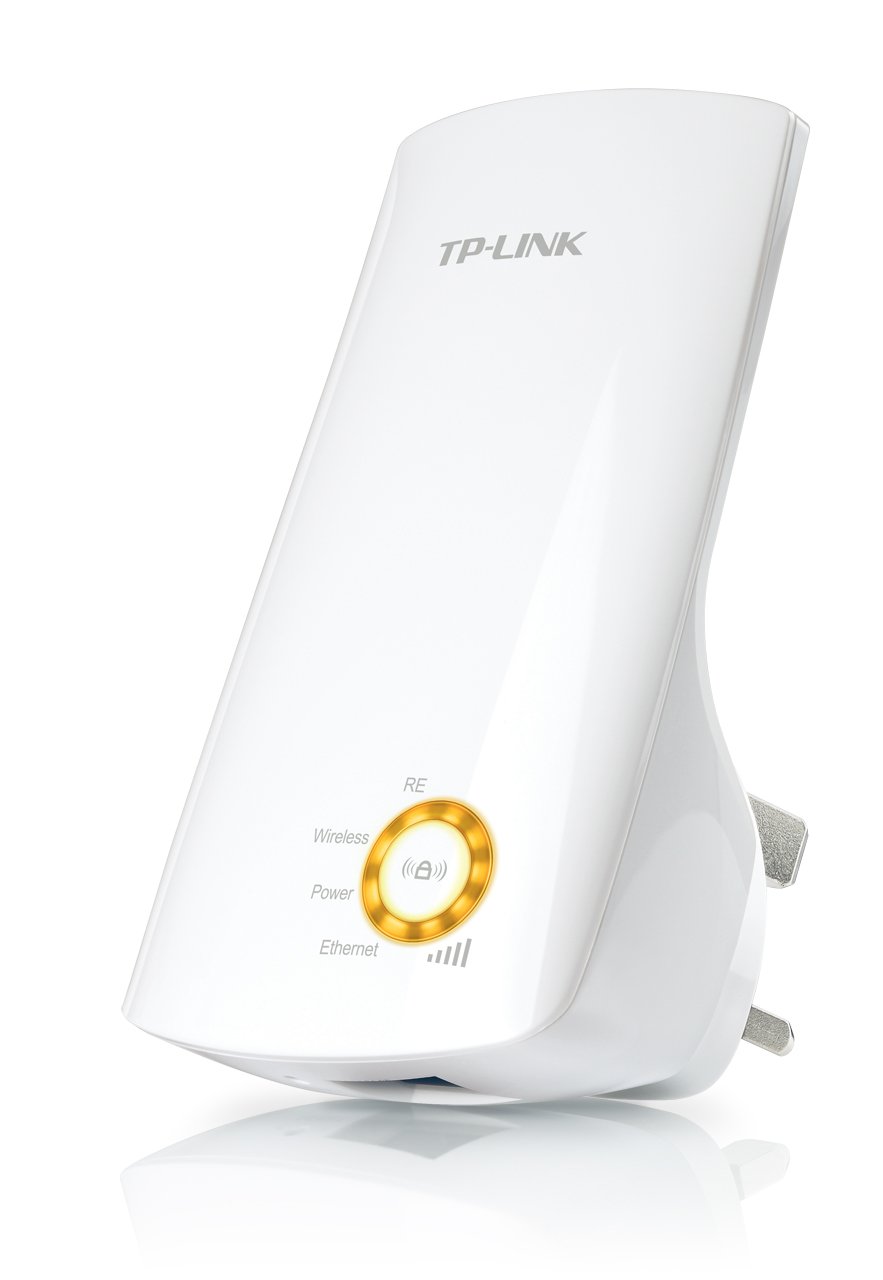
Abbildung 1: TP-Link TL-WA750RE Universal Wireless Range Extender. This image shows the device in its retail packaging, highlighting its compact design and wall-plug form factor.
2. Hauptmerkmale
- Range Extender-Modus: Boosts wireless signal to eliminate Wi-Fi dead zones and extend network coverage.
- Kompaktes Design: Small size and wall-mounted design for easy deployment and flexible movement.
- WPS-Taste: Allows for instant setup and secure connection with compatible routers.
- Intelligente Signalanzeige: Helps users find the optimal location for placing the range extender for best performance.
- Universelle Kompatibilität: Works seamlessly with all 802.11n/g/b wireless devices.
3. Packungsinhalt
Das Produktpaket umfasst typischerweise folgende Artikel:
- TP-Link TL-WA750RE 150Mbps Universal Wireless Range Extender
- Bedienungsanleitung
4. Installationsanleitung
4.1. Quick Setup using WPS Button
- Einstecken: Plug the TL-WA750RE into an electrical outlet near your wireless router.
- WPS auf dem Router aktivieren: Press the WPS button on your main wireless router. Refer to your router's manual for the exact location and procedure.
- WPS auf dem Extender aktivieren: Within two minutes, press the WPS button on the TL-WA750RE. The Signal LED on the extender should begin to flash.
- Warten auf Verbindung: The Signal LED will turn solid blue or green when a successful connection is established.
- Extender versetzen: Unplug the extender and move it to a location between your router and the Wi-Fi dead zone. Ensure the Signal LED indicates a strong connection (e.g., solid blue or green) in the new location.
4.2. Manual Setup via Web Browser
- Einstecken: Plug the TL-WA750RE into an electrical outlet near your computer.
- Verbindung zum Extender herstellen: Connect your computer to the extender's Wi-Fi network (e.g., "TP-LINK_Extender_XXXXXX"). No password is required initially.
- Zugang Web Schnittstelle: Öffnen Sie ein web Browser und Typ http://tplinkrepeater.net or the extender's default IP address (usually 192.168.0.254) into the address bar.
- Einloggen: Enter "admin" for both the username and password when prompted.
- Befolgen Sie die Anweisungen auf dem Bildschirm: Use the Quick Setup wizard to select your main Wi-Fi network and enter its password.
- Extender versetzen: Once configured, unplug the extender and move it to an optimal location between your router and the desired coverage area.
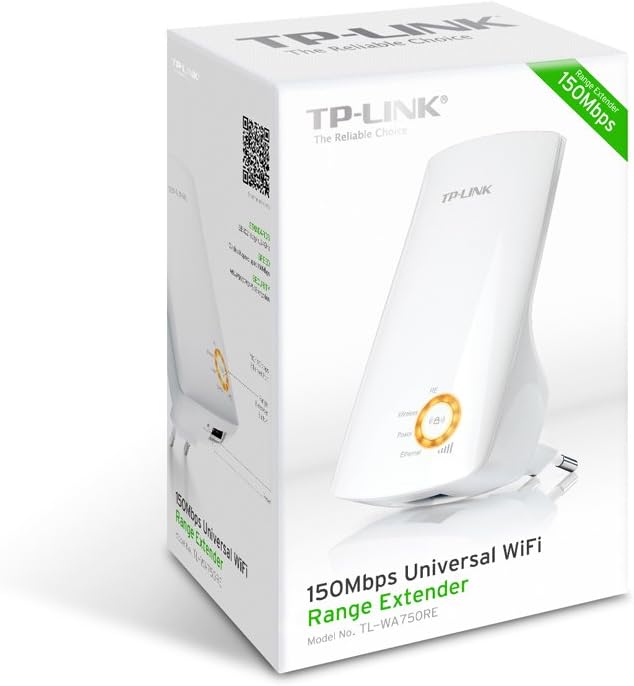
Abbildung 2: Seite view of the TL-WA750RE. This image illustrates the physical layout of the device, including the WPS button and Ethernet port, which are crucial for setup and operation.
5. Betrieb des Reichweitenverlängerers
Once the TL-WA750RE is successfully set up, it will automatically extend your existing Wi-Fi network. Devices within the extended range can connect to the network name created by the extender (e.g., "YourNetworkName_EXT").
5.1. Intelligente Signalanzeige
The Smart Signal Indicator LEDs on the front of the device provide real-time feedback on the signal strength received from your main router. This helps you determine the best placement for the extender:
- Durchgehend blau/grün: Ausgezeichnete Signalstärke.
- Durchgängig rot: Weak signal strength. Consider relocating the extender closer to your router.
- Aus: No connection to the main router.
5.2. Ethernet-Port-Nutzung
The TL-WA750RE includes an Ethernet port. This port can be used to connect a wired device, such as a desktop computer, gaming console, or smart TV, to your wireless network, providing a stable wired connection in the extended Wi-Fi area.
6. Wartung
- Reinigung: Reinigen Sie das Gerät mit einem weichen, trockenen Tuch. Verwenden Sie keine flüssigen oder Aerosol-Reinigungsmittel.
- Platzierung: Avoid placing the extender in direct sunlight, near heat sources, or in areas with high humidity.
- Firmware-Updates: Überprüfen Sie regelmäßig die offizielle TP-Link-Website. webWebsite für Firmware-Updates zur Gewährleistung optimaler Leistung und Sicherheit.
- Aus- und Wiedereinschalten: If the device experiences issues, try unplugging it from the power outlet for 10 seconds and then plugging it back in.
7. Fehlerbehebung
- Frage 1: Was soll ich tun, wenn ich nicht auf den Extender zugreifen kann? web Verwaltungsseite?
- A1: Ensure your computer is connected to the extender's network. Verify that http://tplinkrepeater.net is correctly typed in the browser. If issues persist, try using the extender's IP address (e.g., 192.168.0.254) or reset the extender to factory defaults.
- Q2: My extended network has poor signal or frequent disconnections.
- A2: Check the Smart Signal Indicator on the extender. If it's red or off, the extender is too far from your main router. Relocate the extender to a position where the indicator shows a strong signal (solid blue/green). Ensure there are no major obstructions between the router and the extender.
- Frage 3: Wie setze ich den Extender auf die Werkseinstellungen zurück?
- A3: With the extender powered on, use a pin to press and hold the Reset button (usually a small hole) for approximately 5-10 seconds until all LEDs flash briefly. The extender will then restart with factory default settings.
8. Spezifikationen
| Marke | TP-Link |
| Modellnummer | TL-WA750RE |
| Wireless-Standard | 802.11b/g/n |
| Datenübertragungsrate | 150 Mbit/s |
| Frequenz | 2.4 GHz |
| Besondere Merkmale | Smart Signal Indicator, WPS Button |
| Steckertyp | RJ45 (Ethernet-Anschluss) |
| Artikelgewicht | 0.4 Pfund |
| Farbe | Weiß |
9. Garantie und Support
9.1. Garantieinformationen
This TP-Link TL-WA750RE device comes with a 2 Jahr Garantie Ab Kaufdatum. Bitte bewahren Sie Ihren Kaufbeleg für Garantieansprüche auf. Die Garantie deckt Material- und Verarbeitungsfehler bei normalem Gebrauch ab.
9.2. Technischer Support
Für technische Unterstützung, Fehlerbehebung oder weitere Anfragen besuchen Sie bitte den offiziellen TP-Link-Support. website or contact their customer service. You can find detailed support resources, FAQs, and contact information at www.tp-link.com/support.