
1. Einleitung
The Comfast CF-WU720N is a compact 150Mbps Wireless USB Adapter designed to provide high-speed wireless connectivity for your desktop or notebook computer. It allows you to connect to a wireless network and access the internet, share files, and enjoy online gaming at speeds up to 150Mbps. This adapter is compliant with IEEE 802.11b/g/n standards and supports USB 2.0 for efficient data transfer.
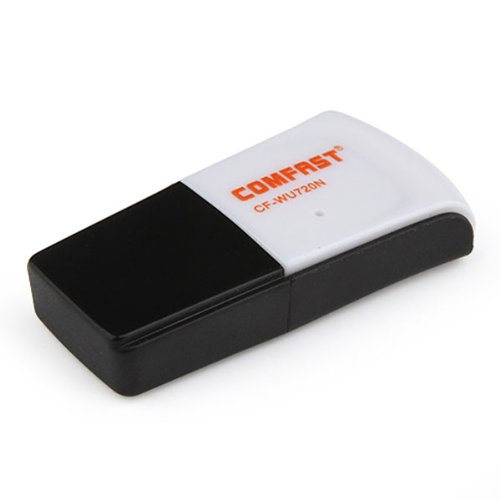
Image 1.1: The Comfast CF-WU720N Wireless USB Adapter, a compact device for wireless connectivity.
2. Produktmerkmale
- Meets IEEE 802.11b/g/n wireless standards.
- Supports USB 2.0 interface for broad compatibility.
- Utilizes Realtek 8191 SU chipset for reliable performance.
- Achieves wireless connection rates up to 150Mbps.
- Supports wireless roaming technology for seamless connectivity.
- Strong compatibility with various popular operating systems.
- Compact size: approximately 39 x 12 x 7mm (1.5 x 0.7 x 0.3 inches).
- Leichtes Design: ca. 5 g.
3. Packungsinhalt
Bitte überprüfen Sie, ob alle Artikel im Paket vorhanden sind:
- 1 x Comfast CF-WU720N Wireless USB Adapter
- 1 x Schnellinstallationsanleitung
- 1 x CD-ROM Driver
- 1 x Garantiekarte

Image 3.1: The retail packaging for the Comfast CF-WU720N, showing the adapter inside.
4. Einrichtung und Installation
4.1. Treiberinstallation
Before connecting the USB adapter, it is recommended to install the necessary drivers from the provided CD-ROM. This ensures proper functionality and compatibility with your operating system.
- Insert the driver CD-ROM into your computer's optical drive.
- If the installer does not launch automatically, navigate to "My Computer" or "This PC," open the CD-ROM drive, and run the setup executable (e.g., "setup.exe" or "autorun.exe").
- Folgen Sie den Anweisungen auf dem Bildschirm, um die Treiberinstallation abzuschließen. Möglicherweise werden Sie nach der Installation aufgefordert, Ihren Computer neu zu starten.
- Notiz: If your computer does not have an optical drive, you may need to download the latest drivers from the manufacturer's official webWebsite.
4.2. Anschließen des USB-Adapters
Once the drivers are installed, you can connect the Comfast CF-WU720N Wireless USB Adapter to your computer.
- Locate an available USB 2.0 or 3.0 port on your desktop or laptop computer.
- Carefully insert the Comfast CF-WU720N adapter into the USB port. Ensure it is fully seated.
- The operating system should automatically detect the adapter and configure it using the installed drivers. A small LED indicator on the adapter may light up or blink, indicating activity.
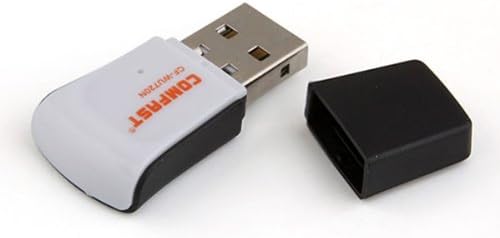
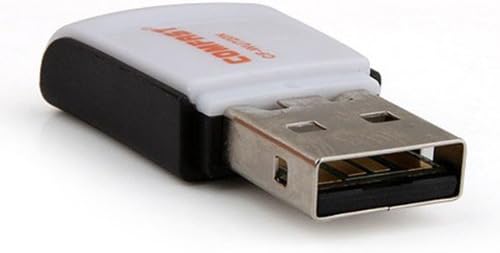
Image 4.1: The Comfast CF-WU720N adapter with its protective cap removed, revealing the USB connector. Image 4.2: A side view of the adapter, highlighting its compact design and USB interface.
5. Bedienungsanleitung
After successful driver installation and adapter connection, you can now connect to a wireless network.
- Zugriff auf Netzwerkeinstellungen:
- Windows: Klicken Sie auf das Symbol für das drahtlose Netzwerk in der Taskleiste (normalerweise unten rechts).
- macOS: Klicken Sie auf das WLAN-Symbol in der Menüleiste (normalerweise oben rechts).
- Linux: Access network settings through your desktop environment's network manager.
- Wählen Sie Ihr Netzwerk aus: A list of available wireless networks (SSIDs) will appear. Select the name of your desired network.
- Verbinden: Click "Connect" or "Join." If the network is secured, you will be prompted to enter the network security key (password).
- Verbindung bestätigen: Once connected, the network icon will typically change to indicate a successful connection, and you should be able to access the internet.
6. Wartung
To ensure optimal performance and longevity of your Comfast CF-WU720N Wireless USB Adapter, follow these simple maintenance guidelines:
- Sauber halten: Wischen Sie den Adapter vorsichtig mit einem weichen, trockenen Tuch ab, um Staub zu entfernen. Vermeiden Sie die Verwendung von flüssigen Reinigern oder Lösungsmitteln.
- USB-Anschluss schützen: When not in use, keep the protective cap on the USB connector to prevent dust and damage.
- Vermeiden Sie extreme Bedingungen: Setzen Sie den Adapter keinen extremen Temperaturen, hoher Luftfeuchtigkeit oder direkter Sonneneinstrahlung aus.
- Gehen Sie vorsichtig damit um: Vermeiden Sie es, den Adapter fallen zu lassen oder starken Stößen auszusetzen.
- Treiber-Updates: Überprüfen Sie regelmäßig die Herstellerangaben. webWebsite für aktualisierte Treiber, um optimale Leistung und Kompatibilität zu gewährleisten.
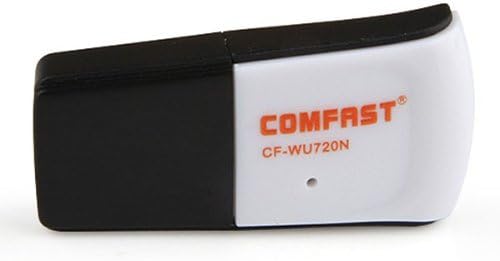
Image 6.1: The Comfast CF-WU720N adapter with its protective cap in place, ready for storage or transport.
7. Fehlerbehebung
If you encounter issues with your Comfast CF-WU720N Wireless USB Adapter, refer to the following common solutions:
| Problem | Mögliche Lösung |
|---|---|
| Adapter nicht erkannt / Keine WLAN-Netzwerke sichtbar. |
|
| Es kann keine Verbindung zu einem bestimmten WLAN-Netzwerk hergestellt werden. |
|
| Langsame Verbindungsgeschwindigkeit oder häufige Verbindungsabbrüche. |
|
8. Spezifikationen
| Besonderheit | Detail |
|---|---|
| Modell | CF-WU720N |
| Drahtlose Standards | IEEE 802.11b/g/n |
| Schnittstelle | USB 2.0 |
| Chipsatz | Realtek 8191 SU |
| Drahtlose Geschwindigkeit | Bis zu 150 Mbit/s |
| Frequenzbereich | 2.4 GHz |
| Sicherheitsfunktionen | WPA/WPA2, WPA-PSK/WPA2-PSK, 64/128-bit WEP |
| Betriebssysteme | Windows XP/Vista/7/8/10, macOS, Linux (driver dependent) |
| Abmessungen (L x B x H) | Ca. 39 x 12 x 7 mm (1.5 x 0.7 x 0.3 Zoll) |
| Gewicht | Ca. 5g |
9. Garantie und Support
This product comes with a warranty as specified on the included Warranty Card. Please refer to the card for details regarding warranty period, terms, and conditions.
For technical support, driver updates, or further assistance, please visit the official Comfast webSie können die Website besuchen oder sich an den Kundendienst wenden. Die Kontaktdaten finden Sie in der Regel auf der Produktverpackung oder beim Hersteller. webWebsite.
Bitte bewahren Sie Ihren Kaufbeleg für Garantiezwecke auf.