
1. Einleitung
This manual provides detailed instructions for the installation, operation, and maintenance of your ASUS Z97-A ATX DDR3 LGA 1150 Motherboard. Please read this manual thoroughly before proceeding with installation to ensure proper setup and optimal performance.
Hauptmerkmale
- 5-Way Optimization by Dual Intelligent Processors 5: Integrated system tuning for performance, efficiency, digital power, fan control, and networking.
- SATA Express & M.2 Support: High-speed data transfer interfaces up to 10Gb/s for modern storage devices.
- Turbo App: Application-specific optimization for enhanced performance.
- Remote GO!: Remote control and media streaming capabilities.
- Crystal Sound 2: Enhanced audio solution for clear sound reproduction.
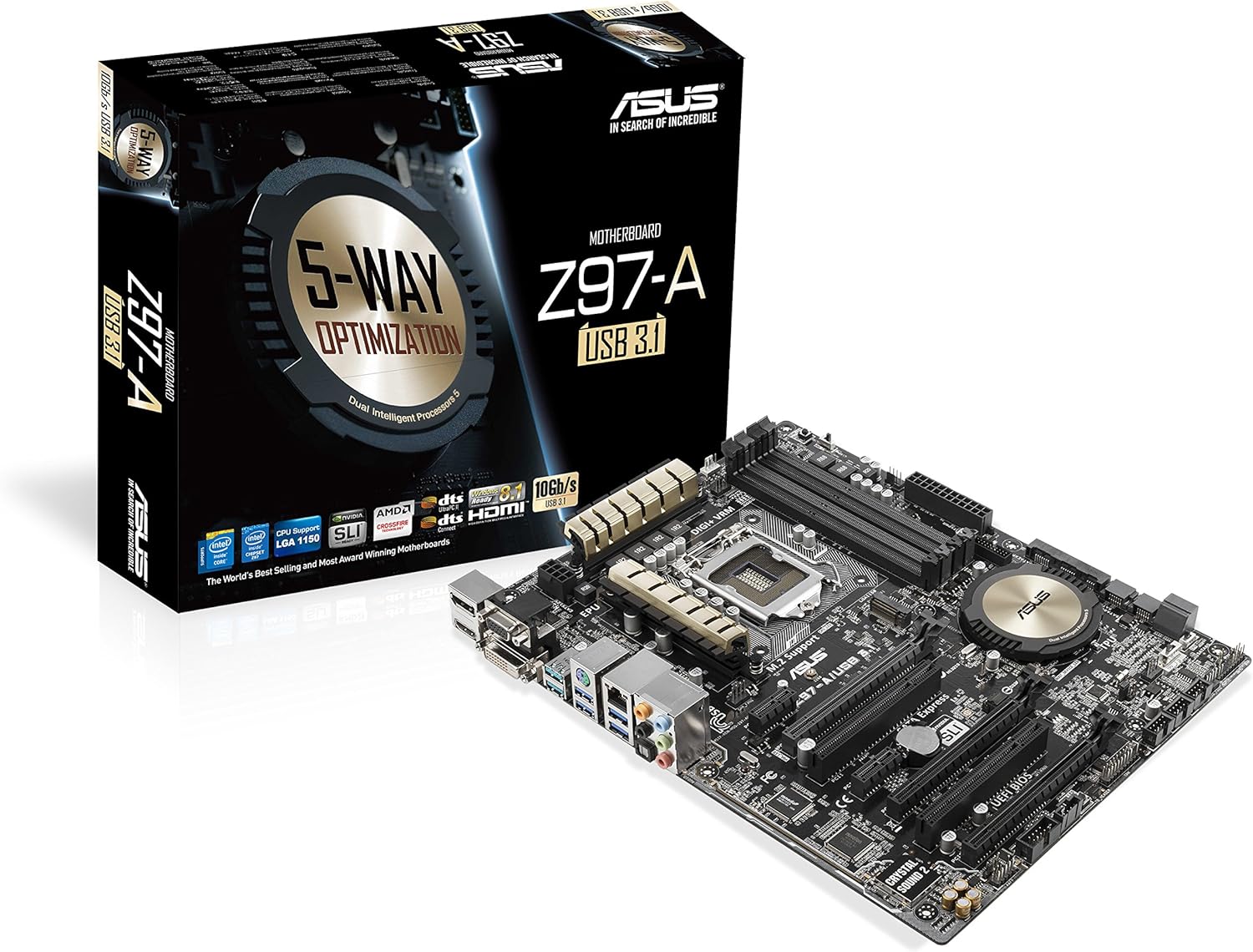
Figure 1: ASUS Z97-A Motherboard and its retail packaging.
2. Einrichtung und Installation
2.1 Bevor Sie beginnen
- Sicherheitsvorkehrungen: Always disconnect the power supply before installing or removing any components. Wear an anti-static wrist strap to prevent electrostatic discharge (ESD) damage.
- Komponentenkompatibilität: Ensure all components (CPU, RAM, GPU, power supply) are compatible with the ASUS Z97-A motherboard. Refer to the specifications section for details.
2.2 Schritte zur Komponenteninstallation
- Installieren Sie die CPU: Carefully open the CPU socket lever, align the CPU with the socket (matching the golden triangle on the CPU to the triangle on the socket), gently place the CPU into the socket, and close the lever.
- Installieren Sie den CPU-Kühler: Attach the CPU cooler according to its manufacturer's instructions. Ensure proper thermal paste application and secure mounting.
- Einbau von Speichermodulen (RAM): Open the clips on the DIMM slots. Align the RAM module with the slot key, press down firmly on both ends until the clips snap into place. For dual-channel operation, install modules in matching color slots.
- Speichergeräte installieren: Connect SATA drives to the SATA 6Gb/s ports using SATA data cables. If using an M.2 SSD, install it into the M.2 slot and secure it with the provided screw.
- Installation von Erweiterungskarten: Insert graphics cards or other PCIe cards into the appropriate PCIe slots. Ensure they are seated firmly and secured with a screw to the chassis.
- Stromversorgung anschließen: Connect the 24-pin ATX power connector and the 8-pin CPU power connector from your power supply to the motherboard. Connect power to all other components (graphics card, storage drives).
- Motherboard im Gehäuse montieren: Carefully place the motherboard into your PC case, aligning it with the standoffs. Secure the motherboard with screws.
- Frontpanel-Kabel anschließen: Connect the power button, reset button, HDD LED, power LED, and USB/audio headers from your case to the corresponding pins on the motherboard. Refer to the motherboard layout diagram for exact locations.

Abbildung 2: Draufsicht view of the ASUS Z97-A Motherboard, showing component layout.

Figure 3: Rear I/O panel of the ASUS Z97-A Motherboard, featuring various connectivity options.

Figure 4: Included accessories for the ASUS Z97-A Motherboard, such as the I/O shield and cables.
3. Bedienung Ihres Systems
3.1 Erster Start und BIOS/UEFI-Einrichtung
Upon the first power-on, your system will typically enter the BIOS (Basic Input/Output System) or UEFI (Unified Extensible Firmware Interface) setup utility. This interface allows you to configure fundamental system settings.
- Zugriff auf BIOS/UEFI: Drücken Sie die DEL Schlüssel oder F2 key during the Power-On Self-Test (POST) to enter the BIOS/UEFI setup.
- Grundeinstellungen: Configure boot order, date/time, and enable/disable integrated peripherals. Save changes before exiting.
3.2 Software-Dienstprogramme
ASUS provides a suite of software tools to enhance your motherboard's functionality and performance. The primary utility is KI-Suite 3.
- 5-Wege-Optimierung: Automatically tunes your system for optimal performance, energy efficiency, digital power control, fan settings, and network prioritization.
- Fan Xpert 3: Advanced fan control for precise cooling and reduced noise.
- USB 3.0 Boost: Accelerates USB 3.0 transfer speeds.
4. Wartung
4.1 Treiber- und BIOS-Updates
Regularly updating your motherboard's drivers and BIOS/UEFI firmware is crucial for system stability, performance, and compatibility with new hardware or software.
- Treiber: Download the latest drivers for your chipset, audio, LAN, and other integrated components from the official ASUS support webWebsite.
- BIOS/UEFI: Überprüfen Sie den ASUS-Support. website for the latest BIOS/UEFI versions. Follow the provided instructions carefully for updating to avoid system instability.
4.2 Physikalische Reinigung
Dust accumulation can lead to overheating and reduced component lifespan. Regular cleaning is recommended.
- Frequenz: Clean your system every 3-6 months, or more frequently in dusty environments.
- Verfahren: Use compressed air to remove dust from fans, heatsinks, and other components. Ensure the system is powered off and unplugged before cleaning.
5. Fehlerbehebung
Dieser Abschnitt behandelt häufig auftretende Probleme, die bei der Einrichtung oder im Betrieb auftreten können.
- Kein Strom: Verify all power cables are securely connected to the motherboard and components. Check the power supply unit (PSU) switch.
- Kein Bildschirm: Ensure the monitor is connected to the correct video output (either integrated graphics or a dedicated graphics card). Reseat the graphics card and RAM modules.
- System startet nicht: Check for any diagnostic LEDs or POST codes on the motherboard that might indicate a specific component failure. Reseat CPU, RAM, and expansion cards.
- Komponente nicht erkannt: Verify that the component is correctly installed and its drivers are up-to-date. Check BIOS/UEFI settings to ensure the component is enabled.
- Überhitzung: Ensure CPU cooler is properly installed, fans are spinning, and case airflow is adequate. Clean dust from heatsinks and fans.
If issues persist, consult the detailed troubleshooting guide on the ASUS support webWebsite oder wenden Sie sich an den technischen Support.
6. Spezifikationen
| Besonderheit | Spezifikation |
|---|---|
| Marke | ASUS |
| Serie | Z97-A |
| CPU-Sockel | LGA 1150 |
| Kompatible Prozessoren | Intel Core i3-4xxx, Intel Core i5-4xxx, Intel Core i7-4xxx, Intel Core i3-5xxx, Intel Core i5-5xxx, Intel Core i7-5xxx |
| Chipsatztyp | Intel Z97 |
| RAM-Speichertechnologie | DDR3 SDRAM |
| Speichergeschwindigkeit | 1600 MHz (bis zu 3200 MHz OC) |
| Speicherkapazität (Max.) | 32 GB |
| Produktabmessungen (L x B x H) | 10.4 x 2.7 x 12.9 Zoll |
| Artikelgewicht | 3.2 Unzen |
| USB 2.0-Anschlüsse | 2 (rear) + internal headers |
| USB 3.0-Anschlüsse | 6 (4 rear, 2 via internal header) |
| Videoausgänge | DisplayPort, HDMI, DVI, VGA |
| LAN | Intel Gigabit LAN |
| Audio | Realtek ALC892 8-Kanal High Definition Audio CODEC |
| Speicherschnittstellen | SATA 6Gb/s, SATA Express, M.2 |
7. Garantie und Support
ASUS products are manufactured to the highest quality standards. For specific warranty terms and conditions applicable to your region, please refer to the warranty card included with your product or visit the official ASUS webWebsite.
Technische Unterstützung, Treiber-Downloads, BIOS-Updates und weitere Produktinformationen finden Sie auf der offiziellen ASUS-Supportseite. webWebsite:
8. Zusätzliche Ressourcen
Video 1: Ein überview of the ASUS Z97-A Motherboard, highlighting its features and capabilities.