
1. Einleitung
Vielen Dank für Ihren Einkauf.asing the ELECOM M-XGM10DBBK Wireless 5-Button BlueLED Mouse. This mouse is designed for comfort and precision, featuring an ergonomic shape that fits naturally in your hand and BlueLED technology for reliable tracking on various surfaces. This manual provides essential information for proper setup, operation, and maintenance of your device.
2. Produktüberschreitungview
The M-XGM10DBBK mouse is part of the "EX-G" series, known for its ergonomic design and comfortable grip. It features five buttons, including dedicated back and forward buttons, to enhance productivity.
Hauptmerkmale:
- Ergonomisches Design: Shaped to fit the hand for ultimate grip comfort.
- Blauer LED-Sensor: Provides precise tracking on a wide range of surfaces, including glass and fabric.
- 5-Button Functionality: Includes left, right, scroll wheel, and dedicated back/forward buttons.
- Drahtlose 2.4-GHz-Verbindung: Offers a stable connection with a range of approximately 10 meters (3 meters on steel desks).
- Anpassbare Schaltflächen: Button functions can be re-assigned using the free "ELECOM Mouse Assistant" software (Windows/Mac only).
- Batterieanzeige: Ein lamp indicates remaining battery life.
Komponenten:
Machen Sie sich mit den Komponenten der Maus vertraut:

Abbildung 2.1: Oben view of the mouse, highlighting the main buttons.
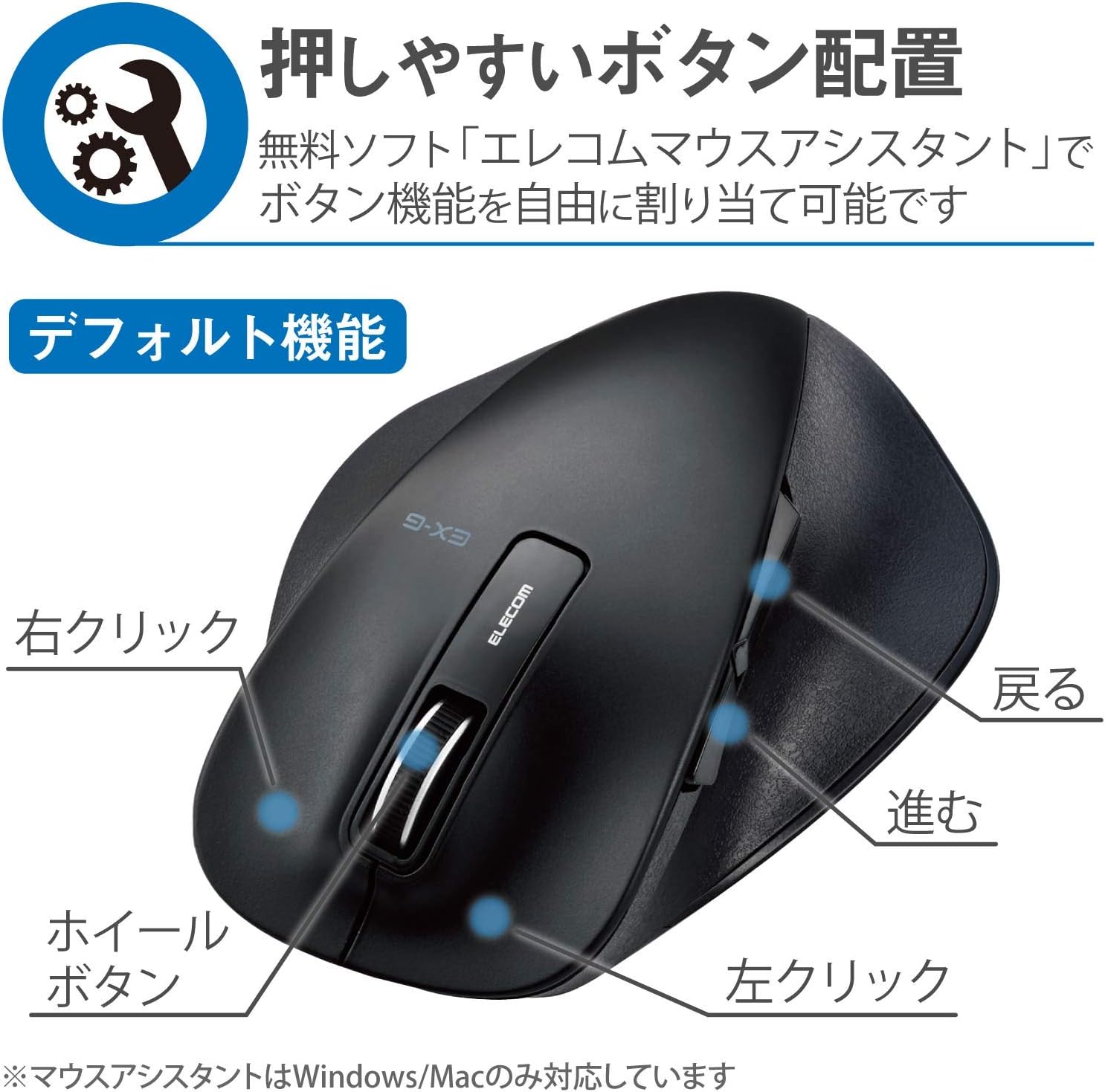
Abbildung 2.2: Seite view of the mouse, showing the back and forward buttons.
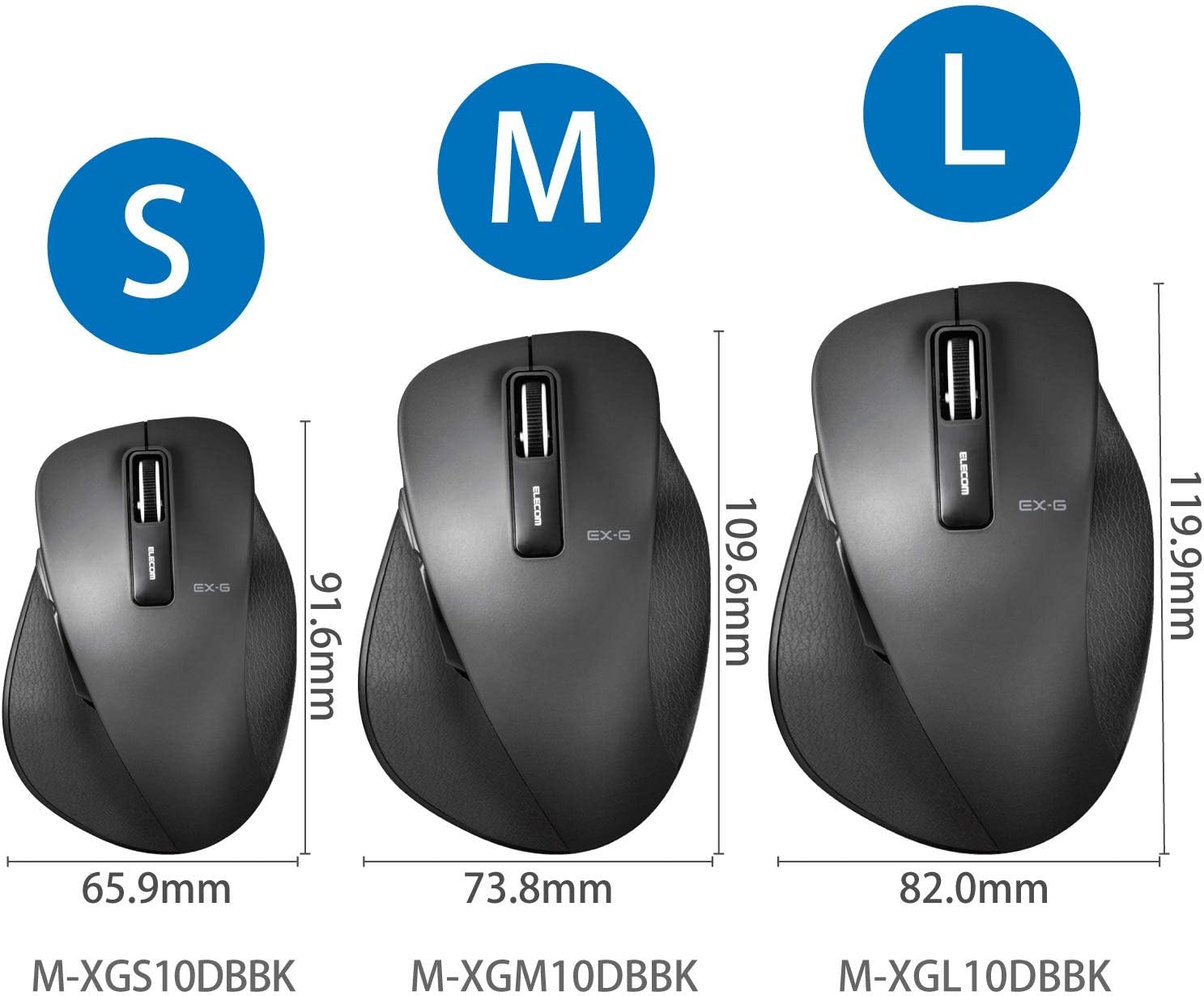
Figure 2.3: Size comparison of EX-G mice (S, M, L). The M-XGM10DBBK is the M size.

Abbildung 2.4: Unten view of the mouse, indicating the optical sensor, power switch, and receiver storage compartment.

Figure 2.5: Illustration of the durable Omron switches used for the left and right click buttons.
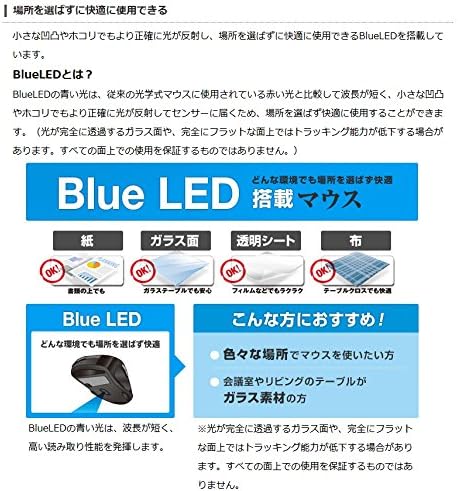
Figure 2.6: Explanation of BlueLED technology, demonstrating its versatility on different surfaces. Note: Tracking performance may decrease on completely transparent or perfectly flat surfaces.

Figure 2.7: Details on 2.4GHz wireless, battery indicator, and 2000 DPI resolution for smooth operation.

Figure 2.8: The ELECOM M-XGM10DBBK mouse is certified to work with Chromebooks.
3. Einrichtung
3.1 Einlegen der Batterie
- Locate the battery cover on the bottom of the mouse.
- Schieben Sie die Abdeckung auf.
- Insert one AA alkaline, manganese, or nickel-metal hydride battery, ensuring correct polarity (+/-).
- Schließen Sie die Batterieabdeckung fest.
3.2 Empfängeranschluss
- Nehmen Sie den USB-Empfänger aus seinem Aufbewahrungsfach an der Unterseite der Maus.
- Stecken Sie den USB-Empfänger in einen freien USB-A-Anschluss Ihres Computers.
- Ihr Computer sollte die benötigten Treiber automatisch erkennen und installieren. Dies kann einige Augenblicke dauern.
3.3 Einschalten
- Slide the power switch on the bottom of the mouse to the "ON" position.
- Die Maus ist jetzt einsatzbereit.
4. Bedienungsanleitung
4.1 Grundfunktionen
- Links Klick: Primäre Selektion und Aktivierung.
- Rechtsklick: Öffnet Kontextmenüs.
- Scrollrad: Schriftrollen und web pages vertically. Can also be clicked for middle-click functionality.
4.2 Back/Forward Buttons
The dedicated back and forward buttons located on the side of the mouse allow for quick navigation in web Browser und file Entdecker.
- Drücken Sie die Zurück button to go to the previous page or folder.
- Drücken Sie die Nach vorne button to go to the next page or folder.
4.3 Customizing Buttons (ELECOM Mouse Assistant)
For advanced customization, download the free "ELECOM Mouse Assistant" software from the official ELECOM website. This software allows you to re-assign functions to the mouse buttons according to your preferences. Please note that this software is compatible with Windows and macOS only.
5. Wartung
5.1 Reinigung
Um optimale Leistung und Hygiene zu gewährleisten, reinigen Sie Ihre Maus regelmäßig:
- Schalten Sie die Maus mit dem Netzschalter aus.
- Verwenden Sie ein weiches, trockenes Tuch, um die Oberfläche der Maus abzuwischen.
- Bei hartnäckigen Verschmutzungen leicht dampDas Tuch mit Wasser oder einer milden Reinigungslösung befeuchten und anschließend sofort trocken wischen.
- Vermeiden Sie die Verwendung aggressiver Chemikalien, Scheuermittel oder Lösungsmittel.
- Gently clean the optical sensor area on the bottom of the mouse with a cotton swab if tracking issues occur.
5.2 Batteriewechsel
When the battery indicator lamp flashes or the mouse performance degrades, replace the battery:
- Schalten Sie die Maus aus.
- Öffnen Sie die Batterieabdeckung.
- Entfernen Sie die alte Batterie und entsorgen Sie sie gemäß den örtlichen Vorschriften.
- Legen Sie eine neue AA-Batterie ein und achten Sie dabei auf die richtige Polarität.
- Close the battery cover and turn the mouse back on.
6. Fehlerbehebung
If you encounter issues with your mouse, refer to the following common problems and solutions:
| Problem | Mögliche Ursache | Lösung |
|---|---|---|
| Maus reagiert nicht | Low battery; Power switch off; Receiver not connected; Receiver interference. | Replace battery; Turn power switch ON; Ensure receiver is firmly plugged in; Try a different USB port; Move closer to the receiver. |
| Unregelmäßige Cursorbewegung | Verschmutzter optischer Sensor; Ungeeignete Oberfläche; Störungen. | Clean optical sensor; Use on a suitable mouse pad or surface; Reduce interference from other wireless devices. |
| Tasten funktionieren nicht | Softwarekonflikt; Treiberproblem. | Restart computer; Reinstall mouse drivers; Check for conflicting software. |
| Probleme mit der drahtlosen Verbindung | Distance too far; Obstructions; Interference. | Ensure mouse is within range (10m); Remove obstructions between mouse and receiver; Avoid using near other 2.4GHz devices. |
7. Spezifikationen
| Besonderheit | Detail |
|---|---|
| Modellnummer | M-XGM10DBBK |
| Verbindungsmethode | 2.4-GHz-Funkverbindung (USB-A-Empfänger) |
| Sensortyp | BlueLED Optical |
| Schaltflächen | 5 buttons (Left, Right, Scroll Wheel, Back, Forward) |
| Auflösung | 2000 DPI |
| Abmessungen (B x T x H) | 73.8 x 109.6 x 40.8 mm (M Size) |
| Gewicht | Ca. 151.95 g (inkl. Batterie) |
| Stromquelle | 1 x AA battery (Alkaline, Manganese, or Ni-MH) |
| Geschätzte Batterielebensdauer | Approx. 722 days (based on typical usage) |
| Kompatibles Betriebssystem | Windows 11, 10, RT8.1, 8.1, 7, Vista; macOS High Sierra 10.13, OS X 10.10; Chrome OS |
| Farbe | Schwarz |
8. Garantie und Support
8.1 Garantieinformationen
Dieses Produkt wird mit einem 6 Monate Garantie Die Garantie gilt ab Kaufdatum. Bitte bewahren Sie Ihren Kaufbeleg für Garantieansprüche auf. Die Garantie deckt Herstellungsfehler bei normalem Gebrauch ab. Sie deckt keine Schäden ab, die durch Missbrauch, Unfälle, nicht autorisierte Änderungen oder normale Abnutzung verursacht wurden.
8.2 Kundendienst
For technical assistance, troubleshooting, or warranty inquiries, please visit the official ELECOM website or contact ELECOM customer support. Contact details can typically be found on the ELECOM website under the 'Support' or 'Contact Us' section.