
1. Einleitung
This manual provides detailed instructions for the installation, operation, and maintenance of your SMONET Wireless Security Camera System. This system is designed to provide reliable surveillance with easy setup and remote access capabilities.
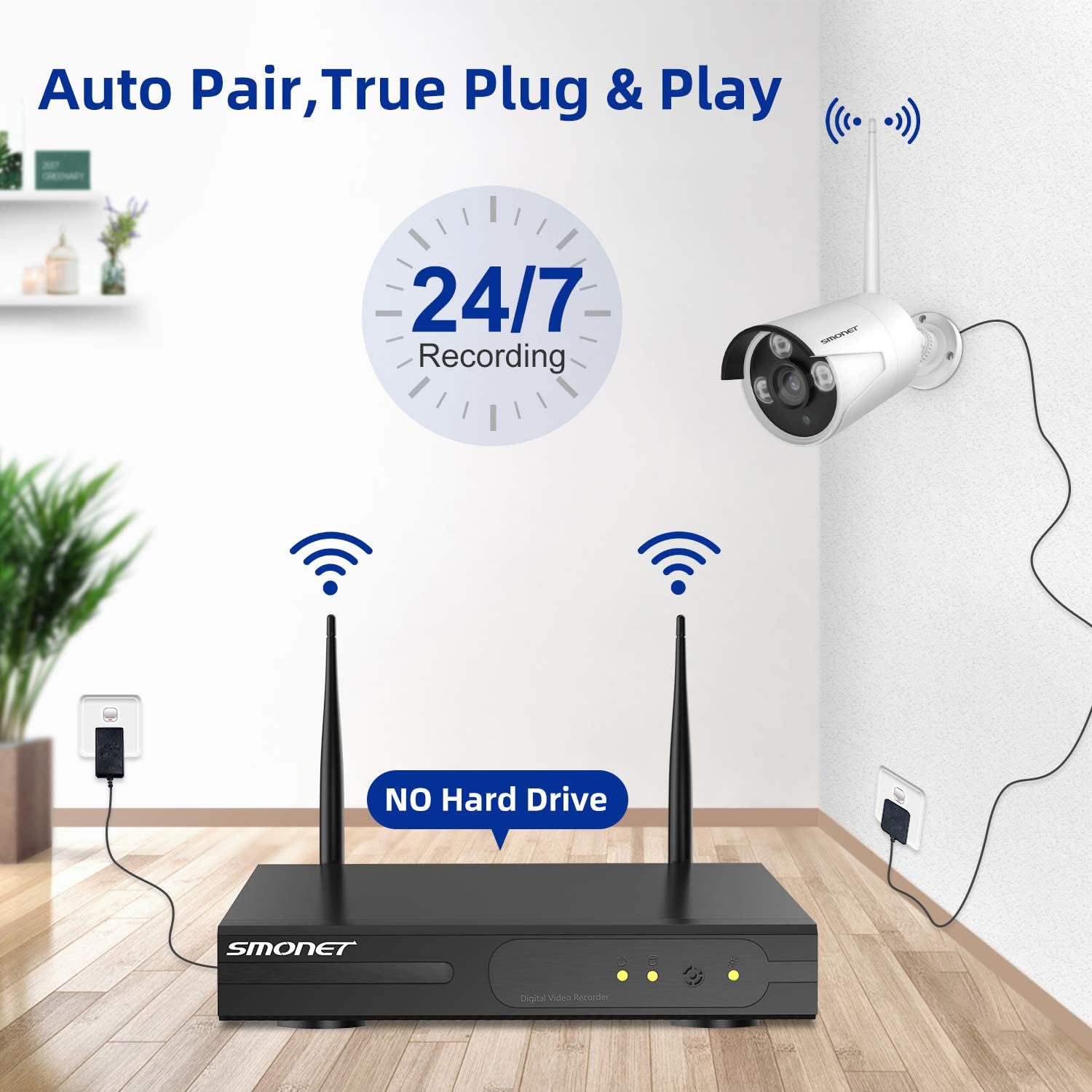
Bild 1: Überview of the SMONET Wireless Security Camera System, showing the NVR unit and four bullet-style cameras with antennas, indicating wireless connectivity and 24/7 recording capability.
2. Packungsinhalt
Bitte überprüfen Sie, ob alle unten aufgeführten Artikel in Ihrem Paket enthalten sind:
- 1 x 4CH 1080p WiFi NVR (Network Video Recorder)
- 4 x Wireless IP Cameras
- 1 x DC 12V/2A Power Adapter (for NVR)
- 4 x DC 12V/1A Power Adapters (for Cameras)
- 1 x USB Maus
- 1 x 3.3ft Network Cable
- Befestigungsschrauben und Dübel
- 1 x Benutzerhandbuch
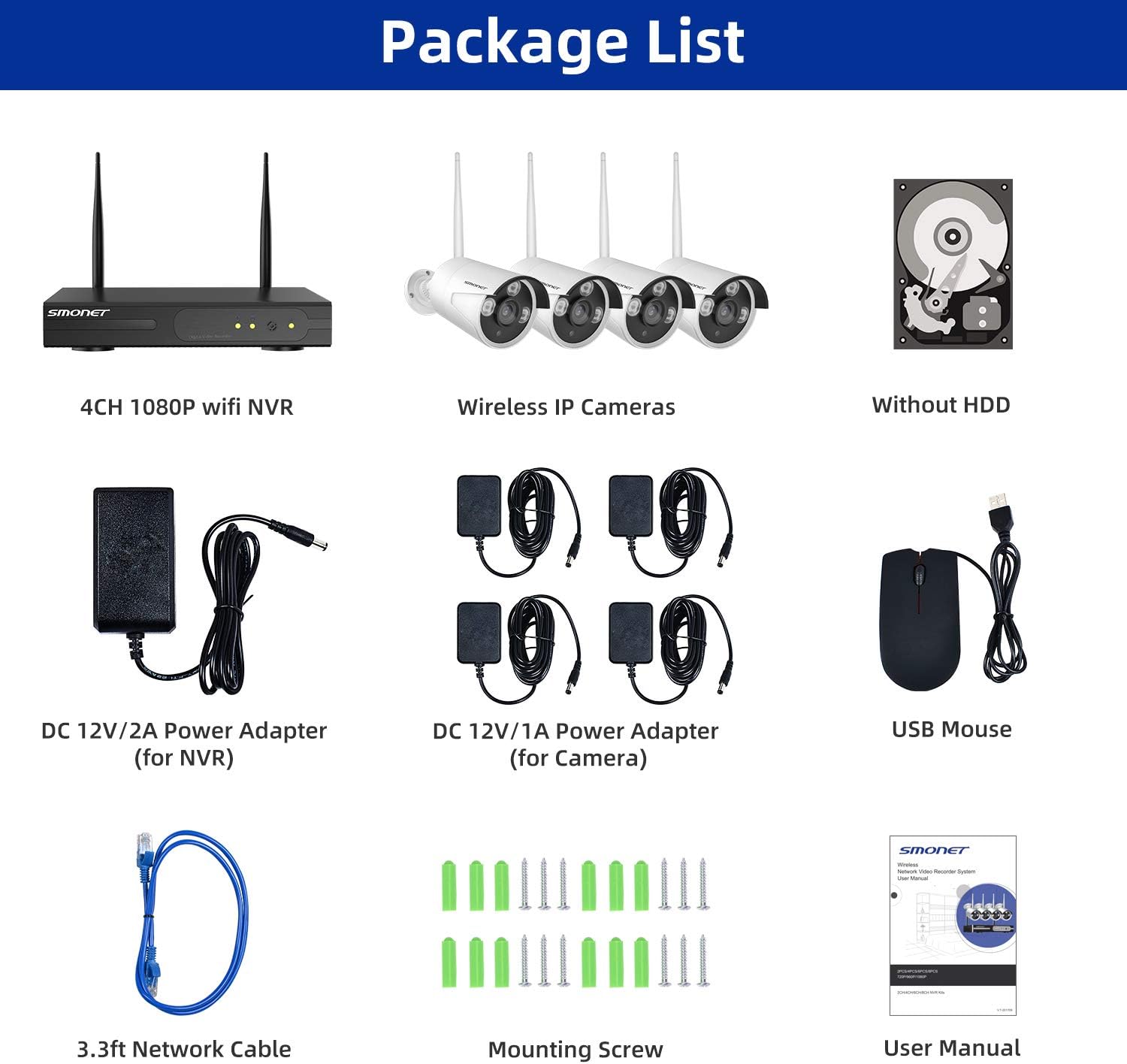
Image 2: Visual representation of the package contents, including the NVR, four cameras, power adapters, USB mouse, network cable, mounting hardware, and user manual.
3. Produktüberschreitungview
3.1 Kamerafunktionen
- 5DB Wi-Fi Antenna: For enhanced wireless signal reception.
- IP66-Metallgehäuse: Bietet Witterungsbeständigkeit für den Einsatz im Freien.
- 3 LEDs: For night vision illumination.
- Lichtsensor: Automatische Anpassung zwischen Tag- und Nachtmodus.
- 3.6-mm-Objektiv: Bietet ein breites Spektrum an view.
3.2 NVR-Anschlüsse
- VGA-Anschluss: Connect to a monitor.
- HDMI-Anschluss: Connect to a TV or monitor for high-definition output.
- WAN-Port: Connect to your router for internet access.
- USB-Anschluss: For mouse and external storage.
- Netzteil: For NVR power supply.
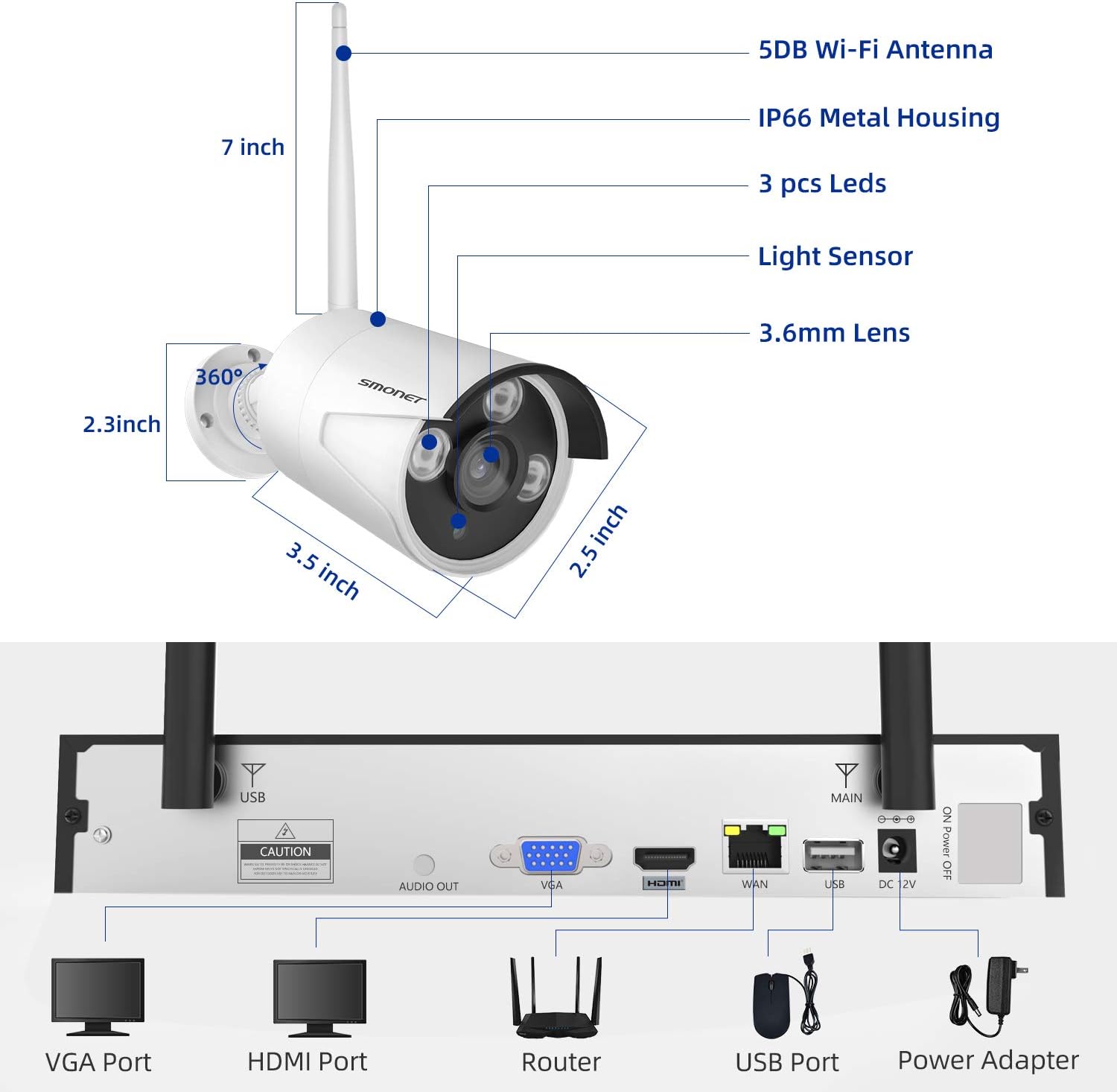
Image 3: Detailed diagram showing the dimensions of a SMONET camera and the various input/output ports on the back of the NVR unit.
4. Einrichtung
4.1 Kamerainstallation
- Choose desired locations for your cameras. Ensure they are within range of the NVR's wireless signal.
- Mount the cameras using the provided screws and wall plugs.
- Connect each camera to its dedicated DC 12V/1A power adapter and plug it into a power outlet.
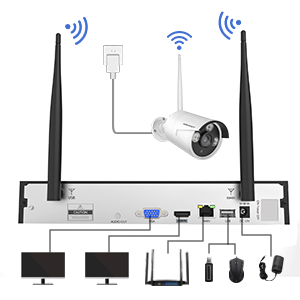
Image 4: Illustration depicting the simple setup process for the SMONET cameras, highlighting the 'Auto Pair, True Plug & Play' feature.
4.2 NVR-Verbindung
- Connect the NVR to a monitor or TV using either the VGA or HDMI port.
- Connect the NVR to your home router using the provided network cable (WAN port).
- Plug in the NVR's DC 12V/2A power adapter and power on the system.
- The cameras should automatically pair with the NVR. If not, refer to the troubleshooting section.
Video 1: A brief introduction to the SMONET Wireless Camera System, demonstrating the ease of setup and key features.
4.3 Festplatteninstallation (optional)
This system does not include a hard drive. For continuous recording and video storage, a surveillance-grade hard drive (up to 4TB) must be installed. Refer to the detailed instructions in the full user manual for hard drive installation steps.
5. Betrieb des Systems
5.1 Fernbedienung Viewing via Mobile App
The SMONET system supports remote viewing via a dedicated mobile application. This allows you to monitor your cameras from anywhere using your smartphone or tablet.
- Download the 'IP PRO' app from your device's app store (iOS or Android).
- Registrieren Sie ein neues Konto innerhalb der App.
- Add your NVR device by inputting its Cloud ID and the admin password. The Cloud ID can be found in the NVR's system settings (Main Menu > Advanced > Version > Serial Number).
- Einmal verbunden, können Sie view Live-Bilder von allen angeschlossenen Kameras.
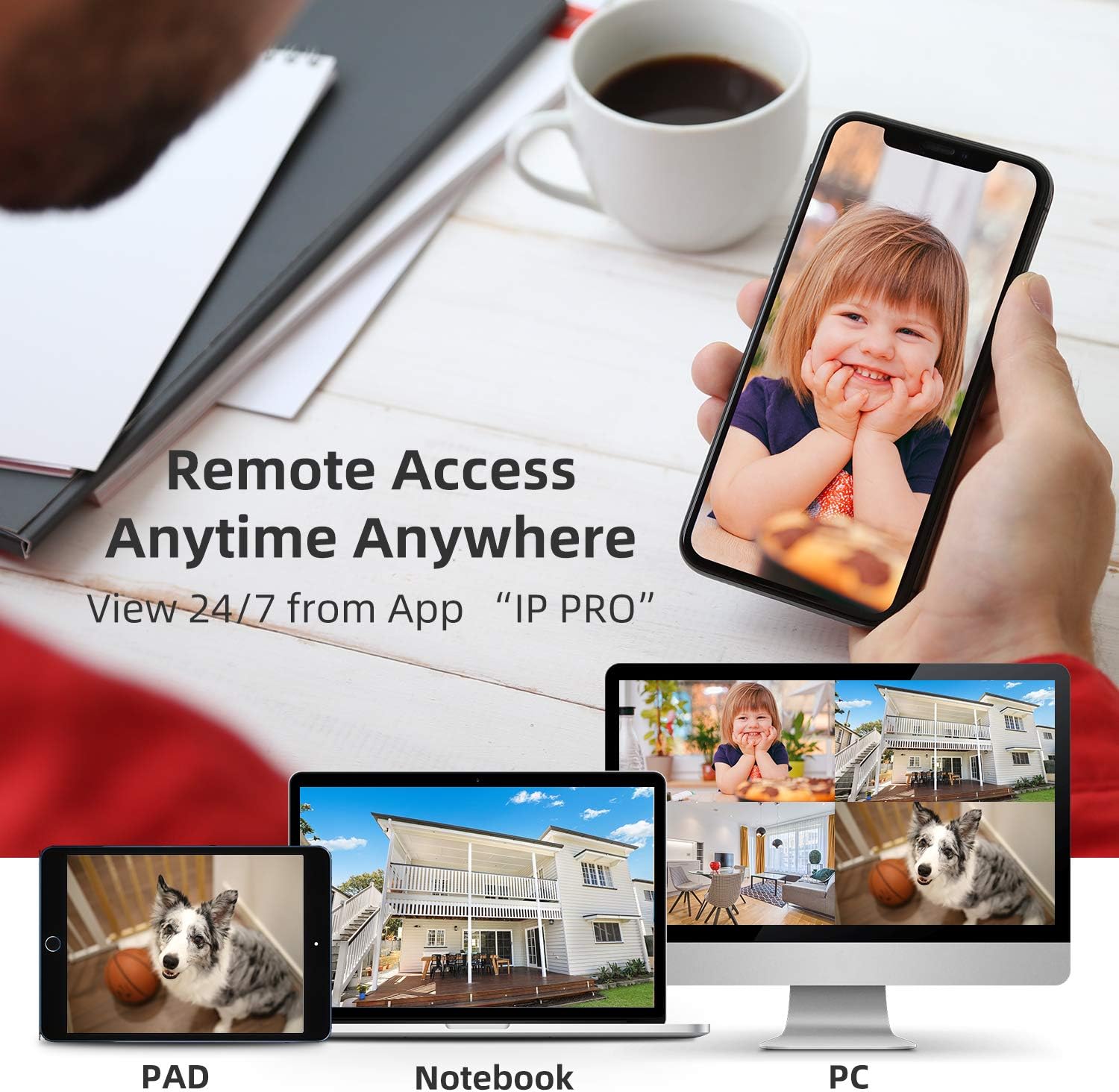
Image 5: Demonstrates remote access capabilities, showing live camera feeds on a smartphone, tablet, and laptop, accessible anytime, anywhere via the 'IP PRO' app.
5.2 Fernbedienung Viewing via PC Software
Sie können auch view your camera feeds on a computer using the VMS software.
- Download the VMS software to your computer.
- Log in using the default username 'admin' and password (leave blank if not set).
- In 'Device Manager', click 'Cloud Add' and enter your NVR's Cloud ID and password.
- Once connected, navigate to 'Live View' to see your camera feeds.
Video 2: A tutorial demonstrating how to view video from the SMONET system on a PC using the VMS software.
5.3 Bewegungserkennung
The system features real-time motion detection. When motion is detected, cameras can send email alerts or mobile notifications to you, enhancing your property's security.

Image 6: Illustrates the real-time motion detection capability, showing an alert being sent to a smartphone when movement is detected in a monitored area.
5.4 Tag- und Nachtsicht
The cameras provide clear vision both day and night. During the day, you get colorful images, and at night, the infrared LEDs enable clear black and white night vision.

Image 7: A side-by-side comparison demonstrating the system's ability to capture colorful images during the day and clear black-and-white images at night using infrared technology.
5.5 Erweiterung des Systems
The 4-channel NVR can support up to 8 cameras. You can add additional SMONET 1080P IP cameras (ASIN: B01IR4TXA8) to expand your surveillance coverage.

Image 8: Illustrates the wireless signal repeater function between cameras and the NVR, and shows how the system can be expanded to include up to 8 cameras.
6. Wartung
- Regelmäßige Reinigung: Reinigen Sie Kameralinsen regelmäßig mit einem weichen, damp Stoff, um eine klare Bildqualität zu gewährleisten.
- Firmware-Updates: Überprüfen Sie die Angaben des Herstellers webWebsite für Firmware-Updates zur Gewährleistung optimaler Leistung und Sicherheit.
- Überprüfung der Stromversorgung: Stellen Sie sicher, dass alle Netzteile fest angeschlossen und unbeschädigt sind.
- Festplattenzustand: If a hard drive is installed, regularly check its health status through the NVR interface to prevent data loss.
7. Fehlerbehebung
- Kein Bild auf dem Monitor: Check VGA/HDMI cable connections. Ensure NVR and monitor are powered on and input source is correct.
- Kameras verbinden sich nicht: Verify cameras are powered on. Ensure they are within wireless range of the NVR. If issues persist, try re-pairing cameras manually (refer to full manual for specific steps).
- Keine Fernbedienung View: Check NVR's network status (should be 'Healthy Network'). Ensure your mobile device has internet access and the Cloud ID/password are correctly entered in the app.
- Aufnahmeprobleme: Confirm a hard drive is installed and properly formatted. Check recording settings in the NVR menu.
8. Spezifikationen
| Besonderheit | Spezifikation |
|---|---|
| Marke | SMONET |
| Konnektivitätstechnologie | Kabellos |
| Anzahl der Kanäle | 4 |
| Speicherkapazität | 4 TB (Max, HDD not included) |
| Stromquelle | Battery Powered (Cameras via adapter) |
| Betriebssystem | Android, iOS (für die App) |
| Signalformat | Digitales |
| Nachtsicht | Night color (IR) |
| Bildfrequenz | 30 fps |
| Aufnahmemodus | Bewegungserkennung |
| Optische Sensorik | CMOS |
| Hardware-Schnittstelle | 802.11ac/b/g/n |
| Objektivtyp | Fest (3.6 mm) |
| Videoeingang | RJ45 (NVR) |
| Modellnummer | SN-WNK 002 |
| Artikelgewicht | 7 Pounds (System) |
| Artikelabmessungen | 12.5 x 10.5 x 6.5 Zoll (Verpackung) |
9. Garantie und Support
For warranty information and technical support, please refer to the official SMONET webBesuchen Sie die Website oder kontaktieren Sie direkt den Kundenservice. Bewahren Sie Ihren Kaufbeleg für Garantieansprüche auf.