
1. Einleitung
This manual provides detailed instructions for the Symcode 1D Mini Wireless Handheld Barcode Scanner, model MJ-2877L. This device is designed for efficient 1D barcode scanning and offers versatile connectivity options, including Bluetooth, 2.4G wireless via USB dongle, and wired USB. It is compatible with various operating systems, including Windows, Android, and iOS.

Image 1.1: Symcode 1D Mini Wireless Handheld Barcode Scanner MJ-2877L. This image displays the compact, black barcode scanner with blue buttons and a USB dongle.
2. Produktkomponenten
The Symcode MJ-2877L barcode scanner package includes the following items:
- Symcode 1D Mini Wireless Handheld Barcode Scanner
- USB-Ladekabel
- Kurzanleitung
- USB Dongle (for 2.4G wireless connection)
- Handschlaufe
- Wiederaufladbarer Lithium-Polymer-Akku
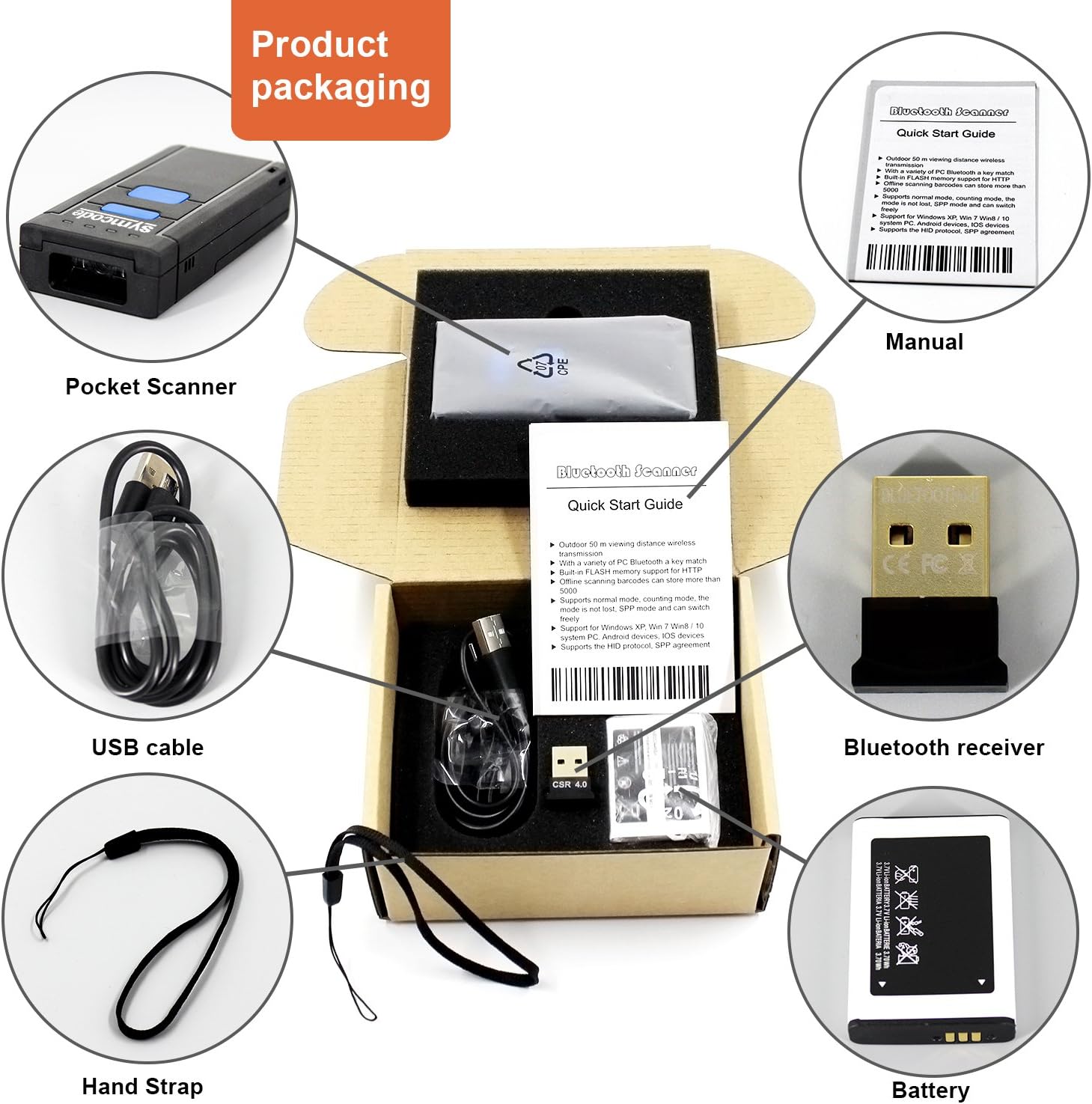
Image 2.1: Product Packaging Contents. This image shows the scanner, USB cable, quick start guide, USB dongle, hand strap, and battery as they appear in the product box.
2.1. Scanner Parts Overview

Image 2.2: Product Analysis. This diagram labels key components of the scanner: Scan window, Indicator lights, ON&OFF button, Scanning switch, Battery compartment, and Hand Strap attachment point.
- Scan-Fenster: Emits the laser for reading barcodes.
- Kontrollleuchten: Provide status feedback (e.g., power, connection, scan success).
- An / aus Schalter: Schaltet das Gerät ein oder aus.
- Scanning Switch: Triggers the barcode scan.
- Batteriefach: Beherbergt den wiederaufladbaren Akku.
- Handschlaufe: Für eine sichere Handhabung.
3. Einrichtung
3.1. Einbau und Aufladen der Batterie
- Öffnen Sie die Abdeckung des Batteriefachs.
- Setzen Sie die mitgelieferte Lithium-Polymer-Batterie ein und achten Sie dabei auf die richtige Polarität.
- Schließen Sie den Batteriefachdeckel fest.
- Connect the scanner to a USB power source using the USB charging cable. The indicator light will show charging status. A full charge takes approximately 3 hours.
3.2. Erstes Einschalten
Press and hold the ON&OFF button until the indicator lights illuminate, indicating the scanner is powered on.

Image 3.1: Product Instructions. This image illustrates the steps for battery installation, connecting the USB dongle, and operating the scanner.
4. Operating Modes and Connection
The scanner supports three connection modes: wired USB, 2.4G wireless via USB dongle, and Bluetooth.

Image 4.1: Wired and Wireless Modes. This diagram shows the scanner connecting to a computer via USB cable (wired mode) and wirelessly via a USB dongle or directly via Bluetooth to mobile devices.
4.1. Wired Mode (USB)
Connect the scanner directly to a computer's USB port using the provided USB cable. The cable serves as both a charging cable and a data transmission cable. The computer will typically recognize the scanner as a keyboard input device without requiring additional drivers.
4.2. 2.4-GHz-Funkmodus
- Stecken Sie den USB-Dongle in einen freien USB-Anschluss Ihres Computers.
- Der Computer sollte die notwendigen Treiber automatisch erkennen und installieren.
- Ensure the scanner is powered on. It will automatically attempt to pair with the dongle.
- Once paired, the scanner will function as a wireless input device.
4.3. Bluetooth-Modus
The scanner supports Bluetooth Class 4.0 + EDR, providing a wireless range of up to 10 meters and supporting HID virtual keyboard mode. This mode is suitable for connecting to smartphones, tablets, and PCs.
- Ensure the scanner is powered on and in Bluetooth pairing mode (refer to the Quick Start Guide for specific barcode scans to enter Bluetooth mode).
- On your host device (smartphone, tablet, or PC), enable Bluetooth and search for available devices.
- Select the scanner (usually named 'Symcode Scanner' or similar) from the list of found devices to pair.
- Once paired, the scanner will transmit scanned data as keyboard input to your device.
4.4. Drahtlose Reichweite

Image 4.2: Wireless Range. This diagram illustrates the typical wireless operating distances: up to 100 feet (30m) indoors with the 2.4G dongle, up to 330 feet (100m) outdoors with the 2.4G dongle, and up to 33 feet (10m) for Bluetooth connections to mobile devices.
- 2.4G Wireless (with dongle): Up to 100 feet (30 meters) indoors, up to 330 feet (100 meters) outdoors.
- Bluetooth: Bis zu 33 Fuß (10 Meter).
5. Scanning Operations
The Symcode MJ-2877L scanner is designed to read 1D linear barcodes.
5.1. How to Scan
- Point the scan window towards the barcode.
- Press the scanning switch. A red laser line will appear.
- Ensure the laser line crosses the entire barcode. A successful scan is typically indicated by an audible beep and/or a change in the indicator light.

Image 5.1: Handheld Scanning. This image shows the scanner being held in a hand, with the laser beam active, ready to scan a barcode. Example 1D barcodes are displayed next to it.
5.2. Barcode Types Supported
This scanner is compatible with common 1D barcode symbologies.
5.3. Einschränkungen
- This is a 1D barcode scanner and kann nicht read 2D barcodes (e.g., QR codes, PDF417).
- It kann nicht scan barcodes displayed on device screens.
- It may not be suitable for reading barcodes from highly reflective surfaces, such as silver foil paper.
5.4. Offline Storage
The scanner features 16MB of built-in flash memory, capable of storing over 50,000 barcodes in offline working mode. This allows for data collection without a live connection to a host device.

Image 5.2: Large Capacity. This image illustrates the scanner's 16MB storage capacity, capable of holding over 50,000 barcode entries.
6. Konfiguration
The scanner's operational settings, such as automatic reading, trigger reading, sound preferences, and sleep time, can be configured by scanning specific barcodes provided in the accompanying Quick Start Guide. Refer to the guide for a complete list of configuration barcodes and their functions.
7. Wartung
7.1. Batteriepflege
- The device is powered by a 3.7V 1000mA Li-ion battery.
- Eine vollständige Ladung ermöglicht einen ununterbrochenen Betrieb von etwa 8 Stunden.
- To prolong battery life, avoid extreme temperatures and store the scanner with a partial charge if not used for extended periods.
7.2. Reinigung
Use a soft, dry cloth to clean the exterior of the scanner. For the scan window, use a lens cleaning cloth to avoid scratches. Do not use abrasive cleaners or immerse the device in liquids.
8. Fehlerbehebung
If you encounter issues with your Symcode barcode scanner, consider the following:
- Scanner lässt sich nicht einschalten: Stellen Sie sicher, dass die Batterie richtig eingesetzt und vollständig geladen ist.
- Not scanning barcodes: Verify the scanner is powered on and the laser is active. Ensure the barcode is a 1D type and not on a screen or highly reflective surface. Check if the scanner is in the correct operating mode (e.g., connected via Bluetooth or 2.4G dongle).
- Verbindungsprobleme: For Bluetooth, ensure the scanner is in pairing mode and your host device's Bluetooth is enabled. For 2.4G wireless, ensure the USB dongle is properly inserted and recognized by the computer. Try re-pairing the device.
- No data transmission: Confirm successful pairing/connection. Ensure the application on your host device is ready to receive keyboard input.
- Loud beeping: Refer to the Quick Start Guide for configuration barcodes to adjust or disable the beep sound.
If problems persist, please refer to the detailed troubleshooting section in the full user manual or contact Symcode customer support.
9. Spezifikationen
| Modellnummer | MJ-2877L |
| Technische Daten | 3.86 x 0.83 x 1.81 Zoll |
| Artikelgewicht | 5.5 Unzen |
| Konnektivitätstechnologie | Bluetooth (Class 4.0 + EDR), 2.4G Wireless, USB Wired |
| Scan-Geschwindigkeit | 200 Scans/Sekunde |
| Lichtquelle | 650nm Visible Laser Light |
| Interner Speicher | 16 MB (speichert über 50,000 Barcodes) |
| Batterie | 3.7V 1000mA Lithium Polymer (included) |
| Durchgehende Arbeitszeit | Bis zu 8 Stunden |
| Ladezeit | Ungefähr 3 Stunden |
| Kompatible Geräte | Smartphones, Tablets, PCs (Windows XP/7/8/WinCE, Windows Mobile, Android OS, iOS) |
10. Garantie und Support
Symcode products are manufactured to high-quality standards. For warranty information, please refer to the documentation included with your purchase or contact Symcode customer service directly. If you require technical assistance, have questions about product functionality, or need to report an issue, please reach out to Symcode customer support. Contact details are typically available on the official Symcode webWebsite oder über Ihre Einkaufsplattform.