
1. Produktüberschreitungview
Der Vimtag CP1 is a wireless IP video monitoring surveillance security camera designed for remote home or business monitoring. It features high-definition video, pan/tilt functionality, two-way audio, and night vision capabilities.
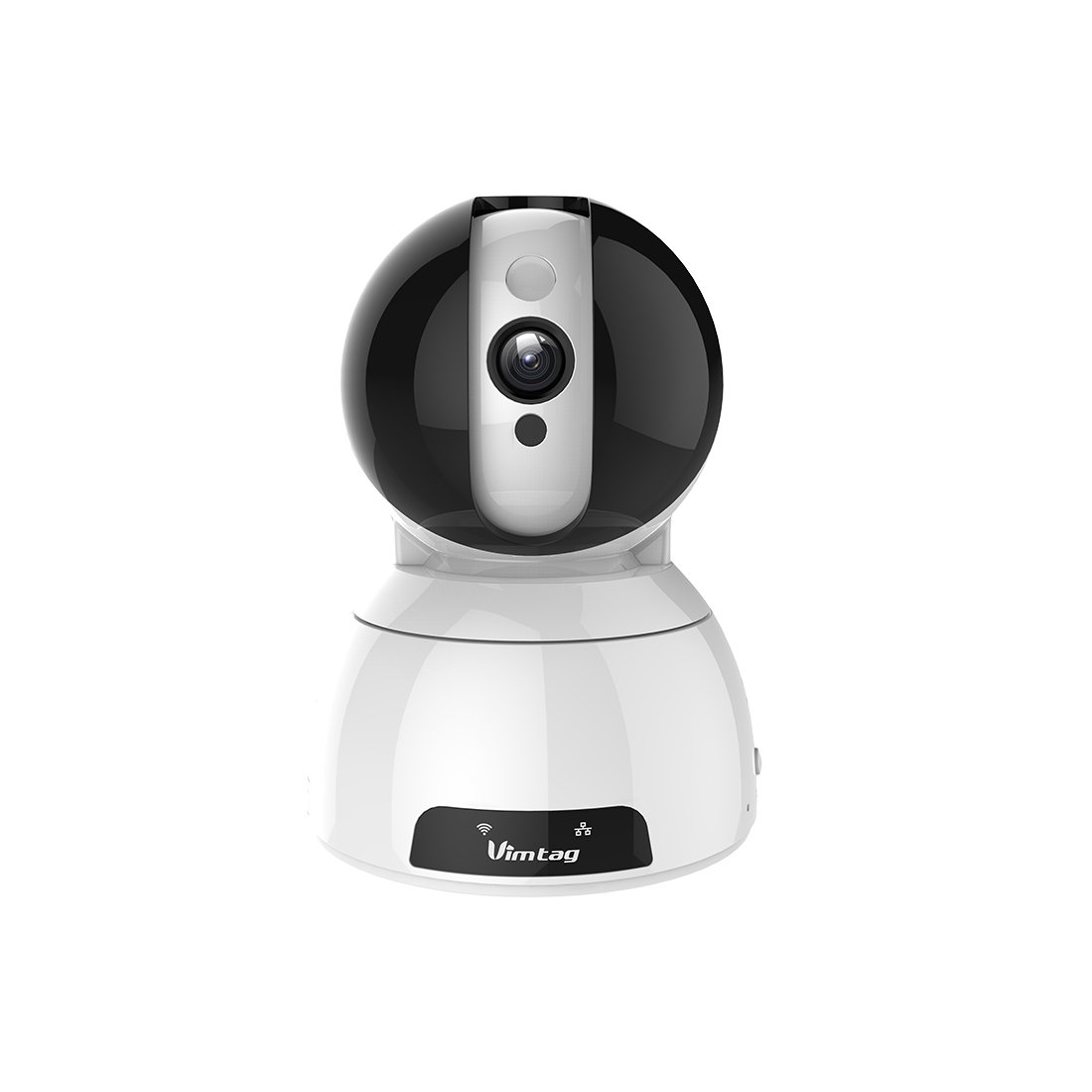
Figure 1: Vimtag CP1 Camera Front View
Hauptmerkmale:
- HD-Videoqualität: 1280 x 720p at 25 frames per second for clear monitoring.
- Schwenk- und Neigefunktion: 350-degree horizontal rotation and 100-degree vertical tilt to cover a wide area.
- Zweiwege-Audio: Eingebautes Mikrofon und Lautsprecher zur Kommunikation.
- Nachtsicht: Infrared LEDs provide clear visibility up to 10 meters in low-light conditions.
- Bewegungserkennung: Alerts with snapshots and video clips upon detecting movement.
- Lokaler und Cloud-Speicher: Supports Micro SD cards up to 64GB and optional cloud storage.
- Einfache Einrichtung: Quick Wi-Fi setup via the Vimtag mobile Anwendung.

Figure 2: Vimtag CP1 Key Features
2. Installationsanleitung
2.1 Packungsinhalt
Vor Beginn der Arbeiten vergewissern Sie sich, dass alle Artikel im Paket vorhanden sind:
- 1 x Vimtag CP1 Kamera
- 1 x Camera Rack
- 1 x Stromkabel
- 1 x Ethernet-Kabel
- 1 x Benutzerhandbuch (dieses Dokument)
2.2 Erste Einrichtungsschritte
- Einschalten: Schließen Sie das Netzkabel an die Kamera an und stecken Sie es in eine Steckdose. Die Kamera startet nun ihren Startvorgang.
- Laden Sie die App herunter: Download the free Vimtag App aus dem App Store Ihres Smartphones (iOS App Store oder Google Play Store).
- Kontoregistrierung: Open the Vimtag app and register for a new account or log in if you already have one.
- Kamera hinzufügen: Follow the in-app instructions to add your new CP1 camera. This typically involves scanning a QR code on the camera or entering its device ID.
- Wi-Fi-Konfiguration: Configure the camera to connect to your Wi-Fi network using the app. Ensure your Wi-Fi network is 2.4GHz, as 5GHz networks may not be supported.
- Montage (Optional): Use the included camera rack to mount the camera on a wall or ceiling if desired.
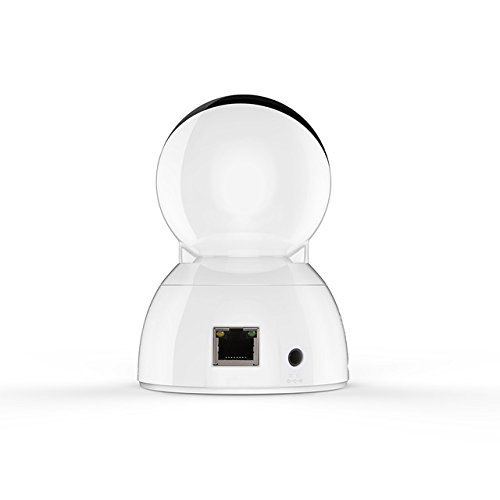
Figure 3: Vimtag CP1 Back View mit Anschlüssen
For detailed visual guidance, refer to the video tutorials available on the official Vimtag Unterstützung webWebsite.
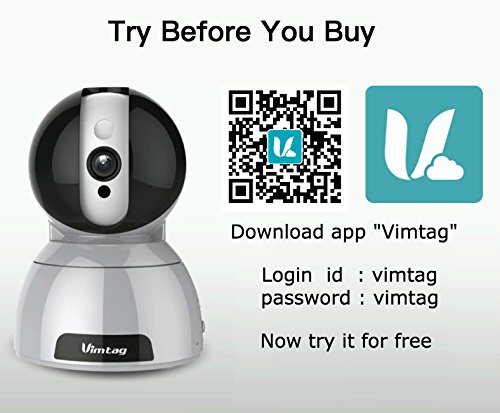
Figure 4: Vimtag App Download and Demo Information
Laden Sie Vim heruntertag App von vimtag.com/download/.
3. Bedienungsanleitung
3.1 Live View und Schwenk-/Neigesteuerung
Once the camera is connected, open the Vimtag app to access the live video feed. Use the on-screen controls to pan the camera horizontally (350 degrees) and tilt it vertically (100 degrees) to adjust the viewing-Winkel.

Abbildung 5: Schwenk- und Neigesteuerung per App
3.2 Zwei-Wege-Audio
The camera supports two-way audio. Tap the microphone icon in the app to speak through the camera's speaker, and listen to audio from the camera's built-in microphone.
3.3 Nachtsicht
The CP1 camera automatically switches to night vision mode in low-light conditions, providing clear black and white video up to 10 meters using its infrared LEDs.
3.4 Bewegungserkennung und Benachrichtigungen
Configure motion detection settings within the Vimtag app. You can set sensitivity levels and define specific areas for detection. When motion is detected, the camera can send instant notifications to your smartphone, including snapshots or short video clips.
3.5 Videoaufzeichnung und -speicherung
Die Kamera unterstützt zwei primäre Speichermethoden:
- Micro SD Karte: Insert a Micro SD card (up to 64GB, not included) into the camera's designated slot for local recording. Recordings can be accessed and managed through the app.
- Cloud-Speicher: Optional cloud storage services are available through Vimtag for remote backup and access to recorded footage.
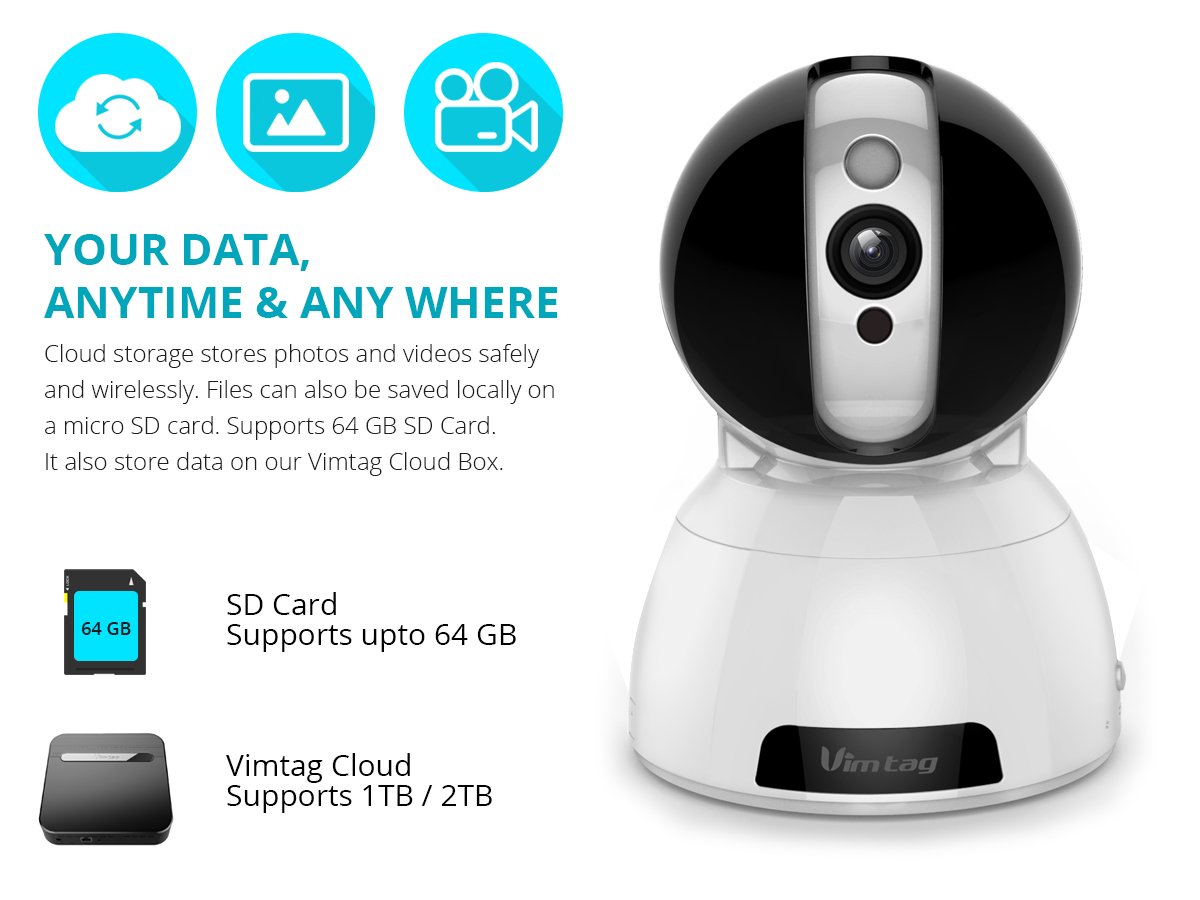
Figure 6: Storage Options for Vimtag CP1
4. Wartung
4.1 Reinigung
To maintain optimal performance, periodically clean the camera's lens and exterior. Use a soft, dry cloth. Avoid abrasive cleaners or solvents that could damage the camera's finish or lens coating.
4.2 Firmware-Updates
Vimtag may release firmware updates to improve camera performance, add features, or enhance security. Check the Vimtag app regularly for available updates and follow the in-app instructions to install them. Ensure the camera remains powered during the update process.
4.3 Umweltaspekte
Der Vimtag CP1 camera is designed for indoor use. Avoid exposing it to extreme temperatures, direct sunlight, high humidity, or water, as it is not water-resistant.
5. Fehlerbehebung
This section addresses common issues you might encounter with your Vimtag CP1 camera.
5.1 Kamera verbindet sich nicht mit WLAN
- WLAN-Band prüfen: Ensure your Wi-Fi network is 2.4GHz. The camera may not support 5GHz networks.
- Signalstärke: Platzieren Sie die Kamera näher an Ihrem WLAN-Router, um ein starkes Signal zu gewährleisten.
- Richtiges Passwort: Überprüfen Sie noch einmal, ob Sie das richtige WLAN-Passwort in der App eingeben.
- Kamera zurücksetzen: Locate the reset button on the camera (often a small pinhole) and press it for 5-10 seconds until the camera resets. Then, attempt the setup process again.
- Router-Einstellungen: Verify that your router's firewall or security settings are not blocking the camera's connection.
5.2 Schlechte Videoqualität
- Netzwerkbandbreite: Ensure your internet connection has sufficient upload speed for streaming HD video.
- App Einstellungen: Check the video quality settings within the Vimtag app; you might be able to adjust it.
- Linsenreinheit: Reinigen Sie das Kameraobjektiv mit einem weichen, trockenen Tuch.
5.3 Probleme mit der Zwei-Wege-Audioübertragung
- Lautstärkepegel: Check the volume settings on your smartphone and within the Vimtag App.
- Mikrofon-/Lautsprecherblockierung: Stellen Sie sicher, dass Mikrofon und Lautsprecher der Kamera nicht verdeckt sind.
- Netzwerk-Latenz: High network latency can affect audio quality and introduce delays.
5.4 Bewegungserkennung funktioniert nicht
- Funktion aktivieren: Verify that motion detection is enabled in the Vimtag App-Einstellungen.
- Empfindlichkeit: Passen Sie die Empfindlichkeit der Bewegungserkennung an. Ist sie zu niedrig, werden möglicherweise Ereignisse nicht erkannt.
- Erkennungszonen: Ensure the areas you want to monitor are correctly configured as detection zones.
6. Technische Daten
| Modellname | Vimtag CP1 |
| Artikelmodellnummer | 6970167642228 |
| Auflösung der Videoaufnahme | 720p (1280 x 720 Pixel) |
| Bildfrequenz | 25 Bilder pro Sekunde |
| Schwenk-/Neigebereich | 350 degrees (Pan) x 100 degrees (Tilt) |
| Digital Zoom | 4x |
| Nachtsichtentfernung | Bis zu 10 Meter (Infrarot) |
| Speicheroptionen | Micro-SD-Karte (bis zu 64 GB), Cloud-Speicher |
| Konnektivität | Wireless (Wi-Fi IEEE802.12b/g/n) |
| Stromquelle | AC Power Adapter (7 Watts) |
| Abmessungen (L x B x H) | 40 x 30 x 40 Millimeter |
| Artikelgewicht | 450 Gramm |
| Verwendung im Innen- und Außenbereich | Innenbereich |
| Wasserbeständigkeit | Nicht wasserfest |
| Kontrollmethode | App (Android, iOS), Voice |
7. Garantie und Support
7.1 Produktgarantie
Der Vimtag CP1 camera comes with a 6 Monate ErsatzgarantieDiese Garantie deckt Herstellungsfehler und Funktionsstörungen bei normalem Gebrauch ab. Bitte bewahren Sie Ihren Kaufbeleg für Garantieansprüche auf.
7.2 Kundendienst
For any queries, technical assistance, or warranty claims, please contact Vimtag customer support. Support is available via telephone, chat, Skype, and email. Refer to the official Vimtag webDie aktuellsten Kontaktinformationen finden Sie auf dieser Webseite.
Step-by-step setup instructions and video tutorials are also available on the Vimtag support portal to assist you with installation and operation.