
1. Einleitung
This manual provides essential information for the safe and efficient operation of your Argox OX-330 Barcode Monochrome Printer. Please read this manual thoroughly before using the printer and retain it for future reference. The Argox OX-330 is designed for direct thermal and thermal transfer printing, offering a resolution of 203 dpi for clear and precise label output.
2. Sicherheitshinweise
- Stromversorgung: Use only the power adapter supplied with the printer. Ensure the power outlet matches the voltage-Anforderungen.
- Platzierung: Place the printer on a stable, level surface. Avoid locations with excessive dust, humidity, or direct sunlight.
- Belüftung: Blockieren Sie keine Lüftungsöffnungen. Sorgen Sie für ausreichende Luftzirkulation um den Drucker herum.
- Handhabung: Vermeiden Sie es, den Druckkopf unmittelbar nach dem Drucken zu berühren, da er heiß sein kann.
- Reinigung: Disconnect the power cord before cleaning the printer. Use a soft, dry cloth. Do not use liquid or aerosol cleaners.
- Reparaturen: Do not attempt to repair the printer yourself. Refer all servicing to qualified service personnel.
3. Produktüberschreitungview
The Argox OX-330 is a compact desktop thermal label printer capable of both direct thermal and thermal transfer printing. It features 8MB DRAM (5MB user available) and 4MB Flash ROM (2MB user available) for efficient data processing and storage.
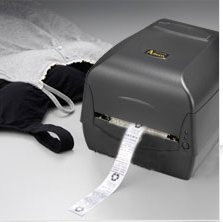
Abbildung 3.1: Argox OX-330 Barcode Monochrome Printer. This image shows the printer actively producing a label, demonstrating its primary function.
Schlüsselkomponenten:
- Druckkopf: Responsible for transferring the image onto the label.
- Media Guides: Ensure proper alignment of labels.
- Bedienfeld: Includes buttons and indicator lights for printer status and basic operations.
- Stromanschluss: Zum Anschluss des Netzteils.
- Datenports: For connecting to a computer (e.g., USB, Wi-Fi).
- Media Compartment: Where label rolls and ribbons (for thermal transfer) are loaded.
4. Einrichtung
4.1 Auspacken
- Nehmen Sie den Drucker und sämtliches Zubehör vorsichtig aus der Verpackung.
- Prüfen Sie, ob alle im Packungsinhalt aufgeführten Komponenten vorhanden sind.
- Remove any protective films or packing materials from the printer.
4.2 Stromversorgung anschließen
- Schließen Sie das Netzteil an den Stromanschluss des Druckers an.
- Stecken Sie das Netzkabel in eine geeignete Steckdose.
- Do not power on the printer until all other connections are made.
4.3 Anschließen an einen Computer
The Argox OX-330 supports Wi-Fi connectivity for seamless integration with your PC.
- Wi-Fi-Verbindung: Refer to the separate Wi-Fi setup guide for detailed instructions on connecting your printer to a wireless network. This typically involves installing the printer driver and utility software on your PC.
- USB Connection (if applicable): If using a USB cable, connect one end to the printer and the other to an available USB port on your PC.
4.4 Loading Labels and Ribbon
The OX-330 supports both Direct Thermal and Thermal Transfer printing methods. The loading procedure varies slightly depending on the method.
- Öffnen Sie die obere Abdeckung des Druckers.
- Adjust the media guides to the width of your label roll.
- Place the label roll onto the media spindle, ensuring the labels feed correctly.
- Für Thermotransfer printing, also load the ribbon according to the diagrams inside the printer's media compartment. Ensure the ribbon is taut and correctly threaded.
- Schließen Sie die obere Abdeckung.
5. Bedienungsanleitung
5.1 Ein-/Ausschalten
- So schalten Sie das Gerät ein: Press the power button located on the printer. The indicator light will illuminate.
- So schalten Sie das Gerät aus: Halten Sie den Netzschalter gedrückt, bis sich der Drucker ausschaltet.
5.2 Treiber- und Softwareinstallation
Before printing, install the appropriate printer drivers and label design software on your PC. These are typically provided on a CD with the printer or available for download from the Argox official webFolgen Sie den Anweisungen auf dem Bildschirm zur Installation.
5.3 Drucken eines Etiketts
- Ensure the printer is powered on and connected to your PC (via Wi-Fi or USB).
- Open your label design software or application from which you wish to print.
- Create or open your label design.
- Go to the 'Print' option in your software.
- Select the Argox OX-330 as your printer.
- Configure print settings such as label size, print quantity, and printing method (Direct Thermal or Thermal Transfer) if applicable. The printer supports a resolution of 203 dpi.
- Click 'Print'. The printer will begin printing your labels.
6. Wartung
Regular maintenance ensures optimal performance and extends the life of your Argox OX-330 printer.
6.1 Reinigung des Druckkopfes
The print head is a critical component and should be cleaned regularly, especially if print quality degrades.
- Schalten Sie den Drucker aus und trennen Sie das Netzkabel.
- Öffnen Sie die obere Abdeckung, um Zugang zum Druckkopf zu erhalten.
- Using a lint-free cloth moistened with isopropyl alcohol (99% pure), gently wipe the print head surface.
- Lassen Sie den Druckkopf vollständig trocknen, bevor Sie die Abdeckung schließen und die Stromversorgung wiederherstellen.
6.2 Allgemeine Reinigung
- Wischen Sie die Außenseite des Druckers mit einem weichen, trockenen Tuch ab.
- Use a soft brush or compressed air to remove dust and debris from inside the media compartment.
7. Fehlerbehebung
This section addresses common issues you might encounter with your Argox OX-330 printer.
7.1 Kein Strom
- Ensure the power cord is securely connected to both the printer and the electrical outlet.
- Überprüfen Sie die Funktionsfähigkeit der Steckdose, indem Sie ein anderes Gerät anschließen.
7.2 Mangelhafte Druckqualität
- Reinigen Sie den Druckkopf wie in Abschnitt 6.1 beschrieben.
- Ensure you are using the correct type of labels for your printing method (Direct Thermal or Thermal Transfer).
- Check if the ribbon (for thermal transfer) is correctly loaded and not depleted.
- Adjust print darkness settings in your printer driver.
7.3 Drucker reagiert nicht
- Check the connection between the printer and your PC (Wi-Fi or USB).
- Starten Sie sowohl den Drucker als auch Ihren Computer neu.
- Ensure the correct printer driver is installed and updated.
- Check the printer's status indicator lights for error messages.
7.4 Etiketten füttern nicht richtig
- Stellen Sie sicher, dass die Etiketten korrekt eingelegt sind und die Medienführungen an die Etikettenbreite angepasst sind.
- Check for any obstructions in the media path.
- Calibrate the printer for the label size if necessary (refer to printer utility software).
8. Spezifikationen
| Besonderheit | Spezifikation |
|---|---|
| Marke | Argox |
| Modellname | OX-330 |
| Drucktechnologie | Thermal (Direct Thermal & Thermal Transfer) |
| Druckauflösung | 203 dpi |
| Druckerausgabe | Einfarbig |
| Konnektivitätstechnologie | W-lan |
| Erinnerung | 8MB DRAM (5MB user available), 4MB Flash ROM (2MB user available) |
| Kompatible Geräte | PC |
| Printing Media Type | Labels |
| Artikelgewicht | 1800 Gramm |
| Produktabmessungen (T x B x H) | 16 cm (T) x 6 cm (B) x 10 cm (H) |
| Besonderheit | Kompakt |
| Beidseitiger Druck | Ja |
| Duplex | Automatisch |
9. Garantie und Support
9.1 Garantieinformationen
The Argox OX-330 Barcode Monochrome Printer comes with a 1 Jahr Garantie from the date of purchase. This warranty covers manufacturing defects under normal use. It does not cover damage caused by misuse, accidents, unauthorized repairs, or consumables.
9.2 Technischer Support
For technical assistance, troubleshooting beyond this manual, or warranty claims, please contact Argox customer support. Refer to the Argox official website or your purchase documentation for contact details and support resources.