
1. Produktüberschreitungview
The Zelotes F18 is a versatile gaming mouse designed for both wired and 2.4G wireless operation. It features an ergonomic design, adjustable DPI settings, customizable LED lighting, and multiple programmable buttons to enhance your computing and gaming experience.
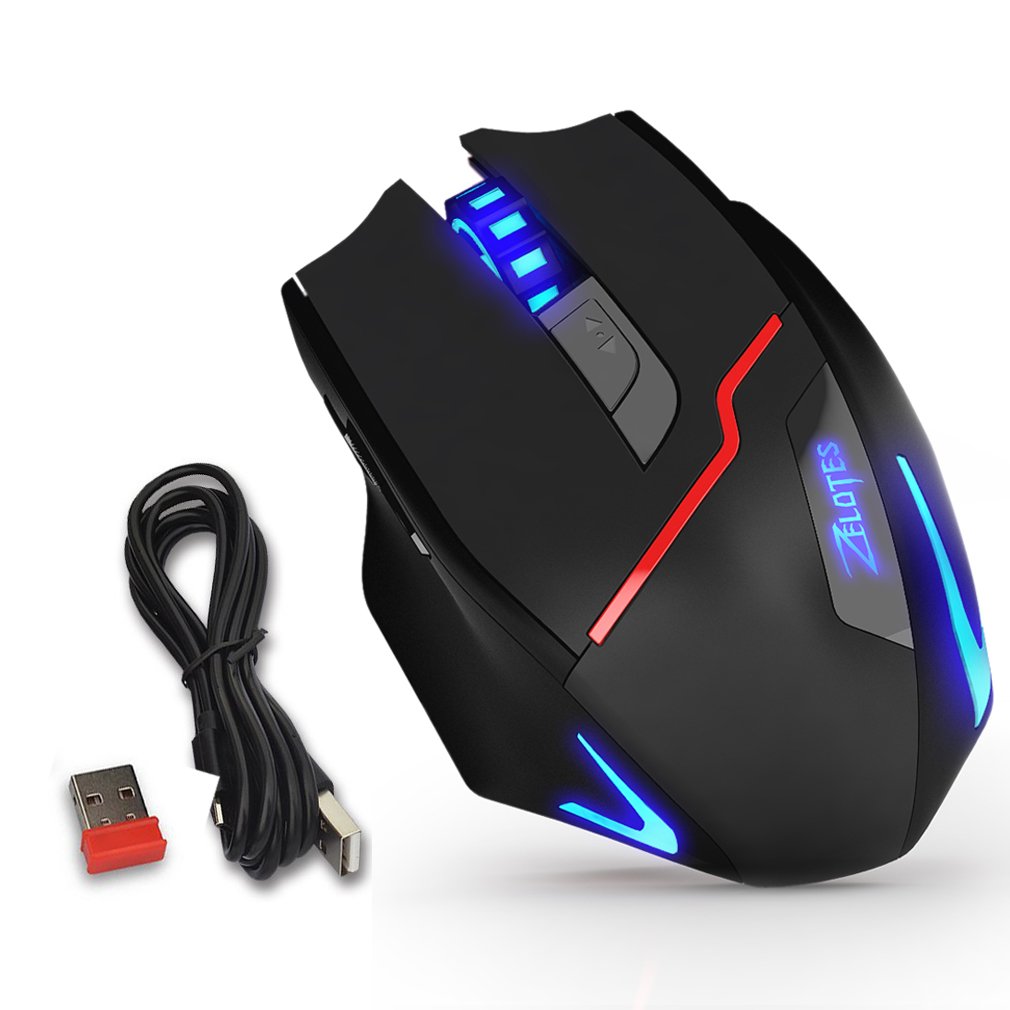
Figure 1: Zelotes F18 Gaming Mouse showcasing different LED lighting options and DPI levels.
The mouse is constructed with durable ABS material and features a braided USB cable for enhanced longevity. Its ergonomic shape is designed for comfortable long-term use.
2. Packungsinhalt
- 1 x Zelotes F18 Gaming Mouse
- 1 x USB Charging/Data Cable (1.8m braided fabric)
- 1 x USB Wireless Receiver (stored in the mouse)
- 1 x Bedienungsanleitung (evtl. nicht in deutscher Sprache).
3. Einrichtung
3.1 Drahtlose Verbindung (2.4 GHz)
- Locate the USB wireless receiver, typically stored in a compartment on the underside of the mouse.
- Stecken Sie den USB-Funkempfänger in einen freien USB-Anschluss Ihres Computers.
- Schalten Sie die Maus mit dem Netzschalter auf der Unterseite ein.
- Ihr Computer sollte die benötigten Treiber automatisch erkennen und installieren. Die Maus ist nun einsatzbereit.
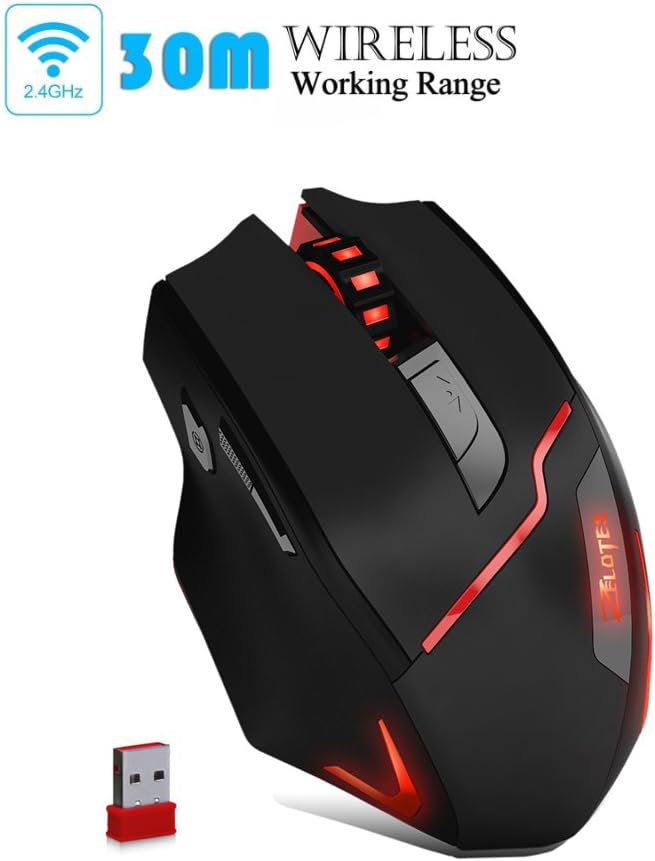
Figure 2: The Zelotes F18 mouse operating wirelessly with its USB receiver.
3.2 Kabelverbindung
- Connect the USB charging/data cable to the mouse's charging port.
- Stecken Sie das andere Ende des USB-Kabels in einen freien USB-Anschluss Ihres Computers.
- Die Maus funktioniert wie eine kabelgebundene Maus und lädt auch ihren internen Akku auf.

Figure 3: The Zelotes F18 mouse connected via its USB cable, also illustrating comfortable grip.
4. Bedienungsanleitung
The Zelotes F18 mouse features 8 buttons, each with specific functions to enhance usability and gaming performance.

Figure 4: Labeled diagram of the Zelotes F18 mouse buttons.
- Rechte Taste
- Linke Taste
- Scrollrad
- DPI-Zyklus-Taste: Press to cycle through DPI settings.
- Feuerschlüssel:
- Short Press: Performs a double-click.
- Long Press (more than 2 seconds): Switches to a triple-click function. The light will flash 3 times to indicate successful switching.
- Forward/Previous Page Button (Thumb Function): Navigates forward in web browsers or folder windows.
- Backward/Next Page Button (Thumb Function): Navigates backward in web browsers or folder windows.
- Lichtmodusschalter (Not explicitly numbered in image, but described in features):
- Short Press: Cycles through 13 different light modes (color cycle breathing, 6 single-color breathing, 6 single-color constant light).
- Long Press (more than 2 seconds): Turns off the LED lights.
4.1 DPI-Anpassung
The mouse offers 6 adjustable DPI settings for precision control. Press the DPI-Zyklus-Taste (Button 4) to switch between the following sensitivities:
- 1000 DPI (Red Light flashes orange 3 times)
- 1600 DPI (Green Light)
- 2400 DPI (Green Light)
- 3200 DPI (Light Blue Light)
- 5500 DPI (Blue Light)
- 9200 DPI (Purple Light)
The LED indicator color changes to reflect the current DPI setting.
5. Laden und Akku
The Zelotes F18 mouse features a built-in rechargeable battery. To charge the mouse, connect it to your computer using the provided USB cable. The mouse can be used normally while charging in wired mode.
When the battery is low, the mouse's performance or lighting may be affected. Connect the USB cable to recharge promptly.
6. Wartung
- Reinigung: Reinigen Sie die Maus mit einem weichen, trockenen Tuch. Bei hartnäckigem Schmutz kann ein leicht feuchtes Tuch hilfreich sein.amp Ein Tuch kann verwendet werden, achten Sie aber darauf, dass keine Flüssigkeit in die Maus gelangt.
- Lagerung: Bewahren Sie die Maus in einer trockenen Umgebung, fern von extremen Temperaturen und direkter Sonneneinstrahlung auf.
- Schutzfolie: Before initial use, ensure you remove any protective film from the mouse's foot pads to ensure smooth gliding.
7. Fehlerbehebung
- Maus reagiert nicht:
- Ensure the mouse is powered on (if in wireless mode).
- Check the USB receiver connection or the wired USB cable connection. Try a different USB port.
- Stellen Sie sicher, dass der Akku geladen ist. Schließen Sie die Maus zum Aufladen über ein USB-Kabel an.
- Die Cursorbewegung ist unregelmäßig oder langsam:
- Reinigen Sie den optischen Sensor an der Unterseite der Maus.
- Stellen Sie sicher, dass Sie die Maus auf einer geeigneten Oberfläche (z. B. einem Mauspad) verwenden.
- Adjust the DPI setting using the DPI Cycle Button.
- LED lights are off:
- Short press the Light Mode Switch to cycle through modes.
- Ensure the lights haven't been turned off by a long press of the Light Mode Switch.
- Werkseinstellungen zurückgesetzt: If you experience persistent issues, you can restore the mouse to factory settings by pressing the Left and Right buttons simultaneously for more than 2 seconds.
8. Spezifikationen
| Besonderheit | Detail |
|---|---|
| Modellnummer | F18 |
| Konnektivität | Wired (USB) / Wireless (2.4G) |
| Ortungssystem | Optical (Red Wave Type) |
| DPI-Einstellungen | 1000/1600/2400/3200/5500/9200 |
| Anzahl der Tasten | 8 |
| Kabellänge | 1.8 meters (braided fabric) |
| Arbeitsvolumentage/Aktuell | 5 V / 100 mA |
| Abmessungen (L x B x H) | 130 x 81 x 40 mm (ca. 5.1 x 3.2 x 1.6 Zoll) |
| Gewicht | 160g +/- 5g |
| Gegengewicht | 8 x 2.5 Gram tuning weights (internal) |
| Besonderheit | LED Light, Ergonomic Design |

Figure 5: Physical dimensions of the Zelotes F18 Gaming Mouse.

Figure 6: The ergonomic design of the Zelotes F18 mouse, crafted for comfort during extended use.
9. Kompatibilität
The Zelotes F18 Gaming Mouse is compatible with a wide range of operating systems, including:
- Windows 98/2000/ME/NT/XP/Vista/7/8/10
- Mac OS
- Linux
Simply connect the mouse to an available USB port for plug-and-play functionality.
10. Garantie und Support
For warranty information and technical support, please refer to the documentation included with your purchase or contact Zelotes customer service. Keep your purchase receipt as proof of purchase for warranty claims.