
SNBC BTP-M300
SNBC BTP-M300 Impact Receipt Printer User Manual
Model: BTP-M300 | Part Number: 132081
1. Produktüberschreitungview
The SNBC BTP-M300 Impact Receipt Printer is a reliable and efficient solution for point-of-sale environments. Designed for durability and ease of use, it provides fast and clear receipt printing using a ribbon mechanism. Its versatile connectivity and robust features make it an ideal choice for various business applications.
Hauptmerkmale:
- Vielseitige Konnektivität: Supports USB, Serial, and Ethernet interfaces for flexible integration.
- Hohe Druckgeschwindigkeit: Achieves a fast 4.7 lines per second print speed.
- Einfaches Einlegen von Papier: Features a "Drop and Print" paper loading mechanism.
- Logo Image Printing: Capable of storing and printing custom logo images.
- Built-in Wall Mount: Allows for flexible placement and space-saving installation.
- Langlebiges Design: Engineered for dependable performance in demanding environments.
2. Installationsanleitung
2.1 Auspacken und Packungsinhalt
Carefully unpack the printer and verify all components are present. The standard package includes:
- SNBC BTP-M300 Impact Receipt Printer
- Netzkabel
- Benutzerhandbuch (dieses Dokument)
2.2 Anschließen des Druckers
The BTP-M300 offers multiple connectivity options. Choose the appropriate connection for your system.

Abbildung 2.2.1: Rückseite view of the SNBC BTP-M300 printer, highlighting the USB, Ethernet, and power ports for connectivity.
- Stromanschluss: Connect the supplied power cord to the printer's power input port and then to a standard electrical outlet. Ensure the power switch is in the OFF position before connecting.
- USB-Verbindung: For direct connection to a computer, plug one end of a USB cable (not included) into the printer's USB port and the other end into an available USB port on your computer.
- Serielle Verbindung: For serial communication, connect a serial cable (not included) to the printer's serial port and to your host device.
- Ethernet-Verbindung: Zum Drucken im Netzwerk verbinden Sie den Ethernet-Anschluss des Druckers mit einem Ethernet-Kabel (nicht im Lieferumfang enthalten) mit Ihrem Netzwerkrouter oder -switch.
2.3 Papier einlegen
The BTP-M300 features a "Drop and Print" paper loading system for quick and easy paper replacement.

Abbildung 2.3.1: Draufsicht view of the SNBC BTP-M300 printer with the cover open, illustrating the paper roll compartment and the path for paper loading.
- Öffnen Sie die Druckerabdeckung, indem Sie den Riegel anheben.
- Insert a new paper roll into the compartment, ensuring the paper feeds from the bottom of the roll.
- Ziehen Sie ein kleines Stück Papier hinter dem Schneidewerkzeug heraus.
- Close the printer cover firmly until it clicks into place. The printer will automatically feed the paper to the correct position.
2.4 Wandmontage
The printer includes built-in wall mount capability for flexible installation. Locate the mounting holes on the back of the unit and secure it to a sturdy surface using appropriate screws (not included).

Abbildung 2.4.1: Rückseite view of the SNBC BTP-M300 printer, highlighting the integrated mounting holes for wall installation.
3. Bedienungsanleitung
3.1 Ein-/Ausschalten
Locate the power switch on the side of the printer. Flip the switch to the 'ON' position to power on the printer. The 'POWER' indicator light will illuminate. To power off, flip the switch to the 'OFF' position.
3.2 Driver Installation (Windows/macOS)
Before printing, you may need to install the appropriate printer drivers for your operating system. Drivers are typically available on the SNBC official website or included on a CD with the printer (if applicable). Follow the on-screen instructions during installation.
3.3 Grundlegendes Drucken
Once connected and drivers are installed, you can print receipts from your POS software or application. Ensure the printer is selected as the default printer in your system settings or application.
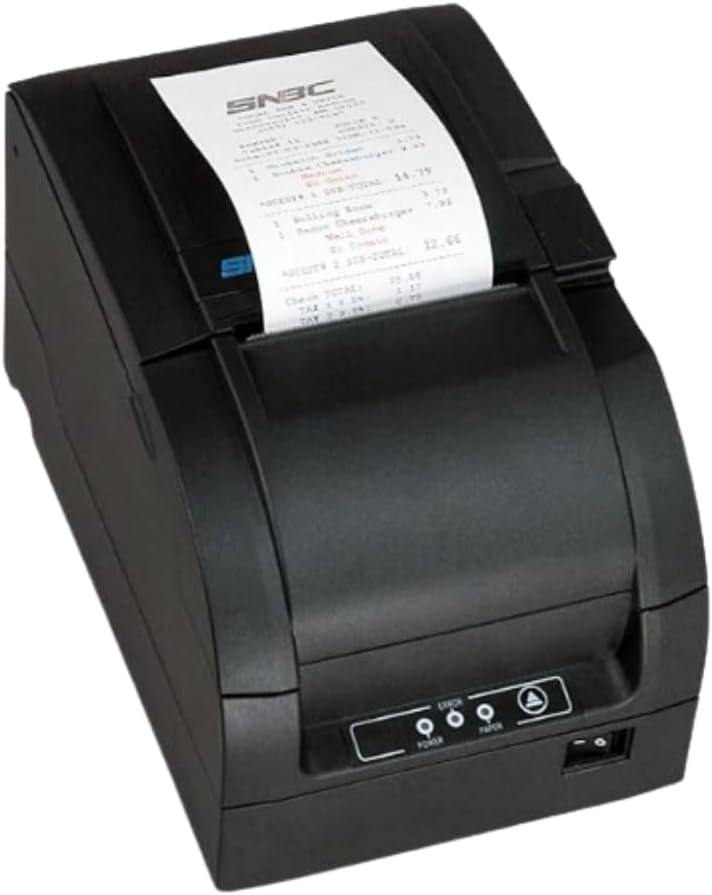
Figure 3.3.1: The SNBC BTP-M300 printer in operation, with a sample receipt being printed and emerging from the top slot.
3.4 Auto Paper Cutting
The BTP-M300 features an auto-cutter with selectable full or partial cut options. This function automatically cuts the receipt after printing. Refer to your printer's utility software or driver settings to configure the cutting mode.
3.5 Printing Logo Images
The printer supports storing and printing custom logo images. This feature typically requires specific software or utility tools provided by SNBC to upload and manage the logo data. Consult the software's documentation for detailed instructions on logo programming.
4. Wartung
4.1 Drucker reinigen
Regelmäßige Reinigung trägt zur Erhaltung der Druckqualität bei und verlängert die Lebensdauer des Druckers.
- Exterieur: Wischen Sie die Außenseite mit einem weichen,amp Tuch. Keine Scheuer- oder Lösungsmittel verwenden.
- Druckkopf: The print head should be cleaned periodically, especially if print quality degrades. Use a cotton swab lightly dampMit Isopropylalkohol abwischen. Die Oberfläche des Druckkopfes vorsichtig abwischen. Vor Gebrauch vollständig trocknen lassen.
- Paper Path/Cutter: Remove any paper dust or debris from the paper path and around the auto-cutter using a soft brush or compressed air.
4.2 Papierrollenwechsel
Replace the paper roll as described in Section 2.3 when the 'PAPER' indicator light illuminates or when the paper is running low.
4.3 Austausch der Farbbandkassette
As an impact printer, the BTP-M300 uses a ribbon cartridge. Replace the ribbon when print output becomes faint or illegible. Refer to the printer's internal diagrams or a dedicated ribbon replacement guide for specific instructions on accessing and replacing the cartridge.
5. Fehlerbehebung
This section addresses common issues you might encounter with your SNBC BTP-M300 printer.
| Problem | Mögliche Ursache | Lösung |
|---|---|---|
| Der Drucker lässt sich nicht einschalten. | Netzkabel nicht angeschlossen; Netzschalter ausgeschaltet; Kein Strom aus der Steckdose. | Ensure power cord is securely connected. Flip power switch to ON. Test outlet with another device. |
| No printing/Faint receipts. | Paper loaded incorrectly; Out of paper; Ribbon needs replacement; Incorrect driver/settings; Cable disconnected. | Reload paper correctly (refer to Section 2.3). Replace paper roll. Replace ribbon cartridge (refer to Section 4.3). Verify driver installation and printer selection. Check USB/Serial/Ethernet cable connections. |
| Schlechte Druckqualität. | Dirty print head; Worn ribbon. | Clean the print head (refer to Section 4.1). Replace the ribbon cartridge (refer to Section 4.3). |
| Papierstau. | Paper loaded incorrectly; Foreign object in paper path. | Open cover, remove jammed paper carefully. Ensure paper is loaded straight. Remove any obstructions. |
| Der Drucker wird vom Computer nicht erkannt. | Driver not installed; Incorrect cable; USB port issue. | Install/reinstall printer drivers. Use a different USB cable or port. Restart computer and printer. |
6. Spezifikationen
Detailed technical specifications for the SNBC BTP-M300 Impact Receipt Printer.
| Besonderheit | Beschreibung |
|---|---|
| Modellname | BTP-M300 |
| Artikelmodellnummer | 132081 |
| Drucktechnologie | Impact (Dot Matrix) |
| Druckgeschwindigkeit | 4.7 Zeilen pro Sekunde |
| Druckerausgabe | Monochrome (Black/Red capable with appropriate ribbon) |
| Konnektivitätstechnologie | USB, seriell, Ethernet |
| Kontrollmethode | App (via drivers/SDK) |
| Technische Daten | 6 x 6 x 6 Zoll |
| Artikelgewicht | 9.11 Pfund |
| Stromversorgung | Included Power Cord |
| Besondere Merkmale | Network-Ready, Auto-Cutter, Wall Mount Capability, Logo Printing |
7. Garantie und Support
For warranty information and technical support, please refer to the official SNBC webBesuchen Sie unsere Website oder wenden Sie sich an Ihren autorisierten Händler. Bewahren Sie Ihren Kaufbeleg als Kaufnachweis auf.
Weitere Unterstützung finden Sie unter SNBC Brand Store on Amazon.
Zugehörige Dokumente - BTP-M300
 |
BTP-S70 Thermal Receipt Printer User Manual Comprehensive user manual for the SNBC BTP-S70 Thermal Receipt Printer, covering installation, safety, specifications, maintenance, and troubleshooting. |
 |
SNBC Printer Utility v1.28 EEPROM Settings Guide Learn how to access and configure EEPROM settings for SNBC printers using the SNBC Printer Utility version 1.28. This guide covers password entry, utility navigation, and parameter adjustments. |
 |
U80II Receipt Printer User Manual Comprehensive user manual for the SNBC U80II thermal receipt printer, covering installation, safety instructions, maintenance, troubleshooting, and technical specifications. |
 |
SNBC BTP-M300A Printer: High-Performance POS Solution Discover the SNBC BTP-M300A, a reliable and efficient thermal receipt printer with an auto-cutter, USB and Serial interfaces, designed for Point-of-Sale environments. |
Ask a question about this manual
Ask about setup, troubleshooting, compatibility, parts, safety, or missing instructions. Manuals+ will review the question and use this page’s manual context to help answer it.