
1. Einführung und Endeview
The AULA Excalibur 109R is a one-handed mechanical gaming keyboard designed for enhanced gaming performance. It features customizable RGB LED backlighting, blue mechanical switches for tactile feedback, and programmable macro keys. The ergonomic design includes a removable wrist rest for comfort during extended use.
Zu den Hauptmerkmalen gehören:
- Customizable RGB LED Backlight with 5 pre-programmed modes and user-defined profiles.
- 8 programmable keys for macros and hotkeys.
- Durable Blue Mechanical Switches with an ultra-long lifetime of up to 50 million clicks.
- Ergonomic design with a removable wrist rest to reduce fatigue.
- 100% Anti-Ghosting with all Key Roll-over on USB.
- Compatibility with Windows XP, Vista, 7, 8, 10, and MAC OS X.
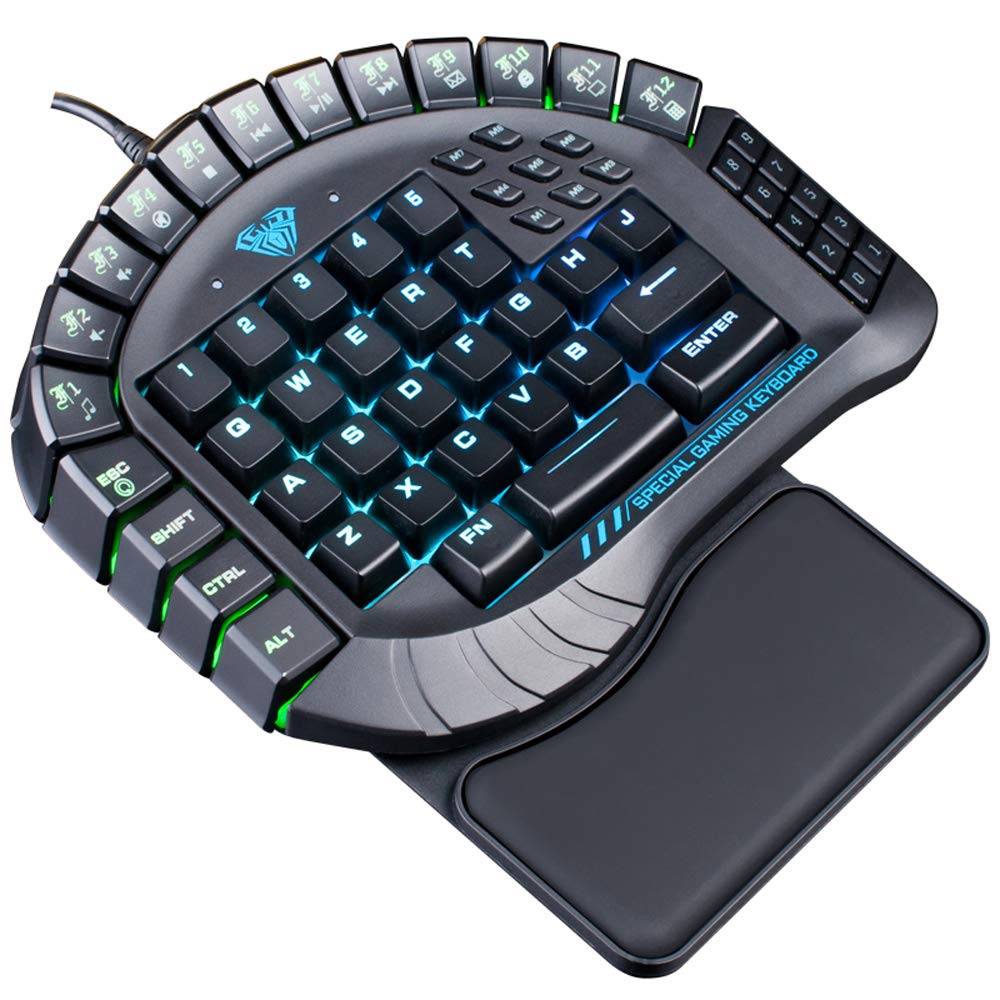
Abbildung 1: Draufsicht view of the AULA Excalibur 109R keyboard with RGB backlighting active.
2. Einrichtungsanweisungen
2.1 Anschließen der Tastatur
The AULA Excalibur 109R keyboard is a plug-and-play device. Connect the USB connector from the keyboard directly to an available USB port on your computer. No additional drivers are typically required for basic functionality on supported operating systems.
2.2 Anbringen der Handgelenkauflage
For enhanced ergonomic comfort, attach the removable wrist rest to the keyboard. Align the wrist rest with the bottom edge of the keyboard and secure it into place. The wrist rest is designed to provide support during long gaming sessions.

Abbildung 2: Nahaufnahme view of the ergonomic, removable wrist rest.
3. Bedienungsanleitung
3.1 RGB-Hintergrundbeleuchtungsanpassung
The keyboard features customizable RGB backlighting. It comes with 5 pre-programmed lighting modes. You can also create and save 5 customized backlighting profiles. Refer to the included software or the manufacturer's website for detailed instructions on customizing lighting effects and profiles.

Abbildung 3: Die Tastaturdarstellungasing dynamic RGB backlighting.
3.2 Programmierung von Makrotasten
The AULA Excalibur 109R includes 8 independent macro keys and 10 hotkeys accessible via the Fn key. These keys can be programmed to execute complex commands or sequences with a single press. Programming is typically done through the dedicated software provided with the keyboard or available for download from the manufacturer's official website. Consult the software's user interface for specific programming steps.
3.3 Schlafmodus
To conserve power, the keyboard will automatically enter sleep mode after 10 minutes of inactivity. To reactivate the keyboard, simply press any key.
Video 1: Demonstration of the AULA Excalibur 109R keyboard's RGB backlighting and key responsiveness. This video illustrates the dynamic lighting effects and the tactile feedback of the mechanical keys.
4. Wartung
4.1 Reinigung
Reinigen Sie die Tastatur mit einem weichen, trockenen Tuch. Bei hartnäckigem Schmutz kann ein leicht feuchtes Tuch hilfreich sein.amp cloth with mild soap can be used, ensuring no liquid enters the key switches or internal components. Avoid using harsh chemicals or abrasive cleaners.
4.2 Liquid Spill Precaution
Keep the device away from liquids and chemicals. In the event of a liquid spill, immediately unplug the keyboard. The keyboard is designed with drainage holes at the bottom. Deploy the keyboard feet to allow any liquid to drain out. Allow the keyboard to dry completely before reconnecting it.

Abbildung 4: Unterseite view of the keyboard, highlighting the drainage holes for liquid spills.
5. Fehlerbehebung
5.1 Tastatur reagiert nicht
- Stellen Sie sicher, dass das USB-Kabel sowohl mit der Tastatur als auch mit dem Computer fest verbunden ist.
- Versuchen Sie, die Tastatur an einen anderen USB-Anschluss Ihres Computers anzuschließen.
- If the keyboard is in sleep mode, press any key to reactivate it.
- Testen Sie die Tastatur an einem anderen Computer, um festzustellen, ob das Problem an der Tastatur oder an der Computerkonfiguration liegt.
5.2 Probleme mit der Hintergrundbeleuchtung
- Verify that the keyboard's lighting functions are enabled. Refer to the operating instructions for backlight customization.
- Bei Verwendung von benutzerdefiniertem Profiles, ensure they are correctly loaded via the software.
- Ensure the keyboard's software/drivers are up to date, if applicable, as they control advanced lighting features.
5.3 Macro Key Malfunction
- Confirm that the macro keys have been programmed correctly using the dedicated software.
- Check for any conflicts with other software or system settings that might interfere with macro execution.
- Ensure the software is running in the background if required for macro functionality.
6. Spezifikationen
| Besonderheit | Detail |
|---|---|
| Marke | AULA |
| Modellnummer | 109R |
| Konnektivitätstechnologie | Kabelgebunden (USB) |
| Tastaturbeschreibung | Gaming, Mechanik |
| Schaltertyp | Blaue Schalter |
| Anzahl der Schlüssel | 60 |
| Schlüsselkraft | 60 ± 10g |
| Wichtige Route | 4.0 mm |
| Nennvolumentage/Aktuell | Gleichstrom 5 V |
| Product Dimensions (without wrist rest) | 8.4"(L) x 7.28"(W) x 1.89"(H) ± 0.02 inch |
| Product Dimensions (with wrist rest) | 8.4"(L) x 9.69"(W) x 1.89"(H) ± 0.02 inch |
| Gewicht der Tastatur | 1.1 lbs (ca. 0.5 kg) |
| Material | Plastik |
| Betriebssystemkompatibilität | Windows Vista/7/8/10, MAC OS X |
| Besondere Merkmale | Macro, Customizable RGB Backlight, Anti-Ghosting |
7. Garantieinformationen
This AULA Excalibur 109R keyboard comes with a 30 Tage Garantie from the date of purchase. This warranty covers manufacturing defects and malfunctions under normal use. It does not cover damage caused by misuse, accidents, unauthorized modifications, or improper maintenance. Please retain your proof of purchase for warranty claims.
8. Unterstützung
For further assistance, technical support, or warranty inquiries, please contact AULA customer service. Refer to the product packaging or the official AULA website for contact details and additional support resources.