
1. Einleitung
Thank you for choosing the SOMIC G310 USB Gaming Headset. This headset is designed to provide an immersive audio experience for gaming across multiple platforms, including PC, PlayStation 4, PlayStation 5, and laptops. Featuring a comfortable design, a flexible microphone, and intuitive controls, the G310 enhances your communication and audio during gameplay.

Figure 1: SOMIC G310 USB Gaming Headset Overview
2. Einrichtung
2.1 Anschließen des Headsets
The SOMIC G310 headset connects via a standard USB 2.0 interface. Simply plug the USB connector into an available USB port on your PC, PlayStation console, or laptop. The device should be automatically recognized by your system.

Figure 2: Headset with USB Cable
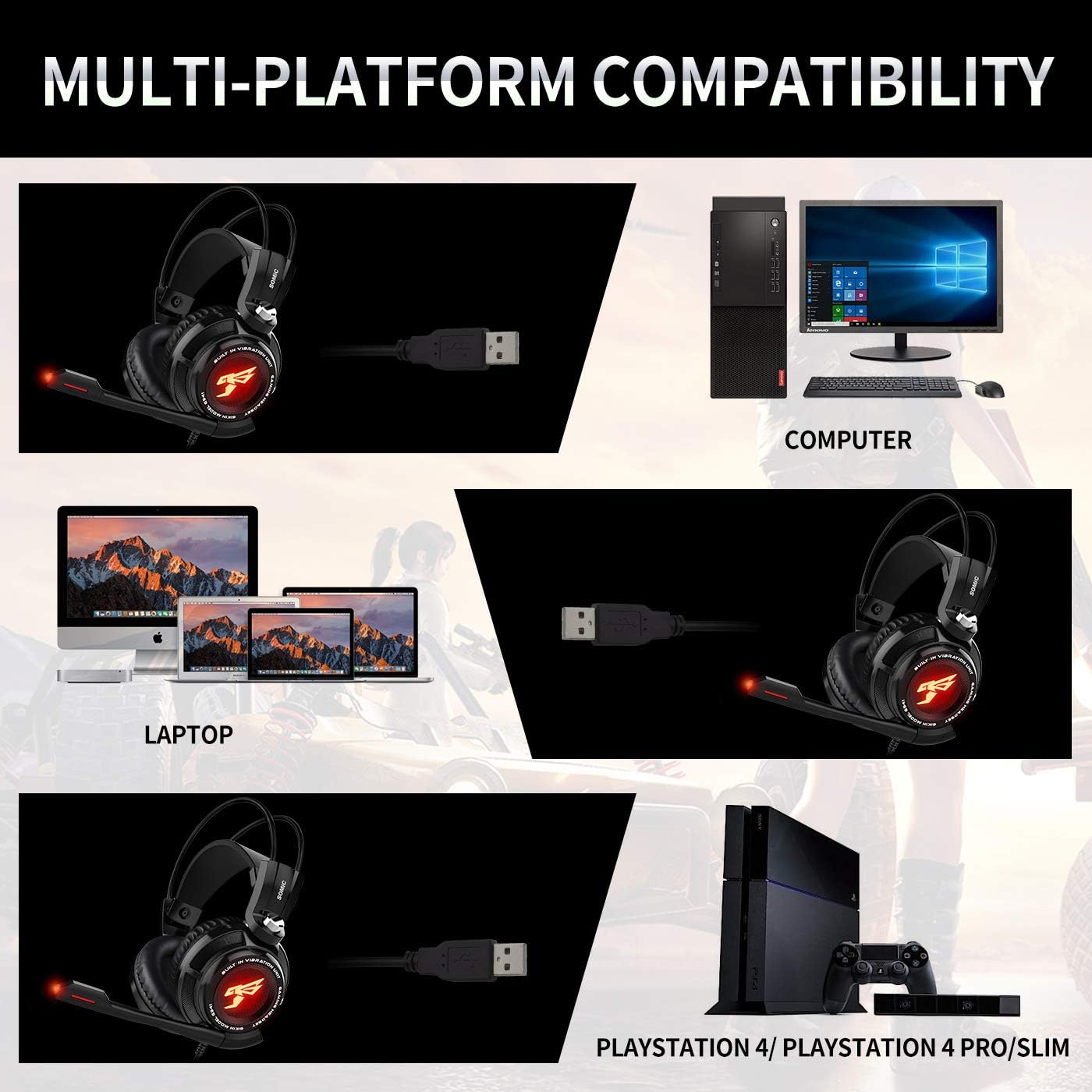
Abbildung 3: Multiplattform-Kompatibilität
2.2 Mikrofoneinstellung
The headset features an adjustable microphone. Position the microphone approximately 1-2 inches from your mouth for optimal voice clarity. The microphone arm is flexible to allow for precise positioning.

Figure 4: Adjustable Microphone Positioning
3. Bedienungsanleitung
3.1 Inline-Steuereinheit
The SOMIC G310 includes an in-line control unit on the cable for convenient access to audio settings:
- Lautstärkeregelung: Use the scroll wheel to adjust the headset's audio volume.
- Mikrofonstummschaltung: Press the 'MIC' button to mute or unmute the microphone. An indicator light on the microphone tip will show its status.
- Vibrationsfunktion: Press the 'VIB' button to activate or deactivate the vibration effect for enhanced bass feedback.

Figure 5: Headset Features and In-line Control
3.2 Virtual Surround Sound
The headset features a built-in special 40mm driver unit with 7.1 Virtual Surround Sound, providing detailed and immersive audio for gaming. This technology helps to pinpoint in-game sounds and enhance the overall experience.

Figure 6: 7.1 Virtual Surround Sound Illustration
4. Wartung
4.1 Reinigung
Um den Zustand des Headsets zu erhalten, wischen Sie die Ohrmuscheln und den Kopfbügel regelmäßig mit einem weichen, trockenen Tuch ab. Für eine gründlichere Reinigung kann ein leicht feuchtes Tuch verwendet werden.amp cloth can be used, ensuring no moisture enters the speaker grilles or microphone. Avoid using harsh chemicals or abrasive materials.
4.2 Speicherung
Bewahren Sie das Headset an einem kühlen, trockenen Ort ohne direkte Sonneneinstrahlung und extreme Temperaturen auf. Vermeiden Sie es, das Kabel zu eng aufzuwickeln, um Beschädigungen zu verhindern.
5. Fehlerbehebung
5.1 Kein Ton oder geringe Lautstärke
- Ensure the USB connector is fully inserted into the device's port.
- Check the volume control wheel on the in-line unit and adjust it to an audible level.
- Verify the audio output settings on your PC or console to ensure the SOMIC G310 is selected as the default output device.
- Increase the system volume on your connected device.
5.2 Mikrofon funktioniert nicht
- Press the 'MIC' button on the in-line control unit to ensure the microphone is not muted. The microphone tip's indicator light should be active when unmuted.
- Check the microphone input settings on your PC or console to confirm the SOMIC G310 is selected as the default input device.
- Ensure the microphone arm is properly extended and positioned.
- If issues persist, try connecting the headset to a different USB port or another compatible device to rule out port-specific problems.
5.3 Vibration Function Not Active
- Press the 'VIB' button on the in-line control unit to activate the vibration feature.
- Ensure the audio volume is sufficiently high, as the vibration effect is often more noticeable at mid to high volume levels.
6. Spezifikationen
| Besonderheit | Detail |
|---|---|
| Modellname | G310 |
| Konnektivitätstechnologie | Kabelgebunden (USB) |
| Kopfhöreranschluss | USB |
| Kompatible Geräte | Laptops, Desktops, Gaming Consoles (PS4, PS5) |
| Steuerungstyp | Volume Control, Microphone Mute, Vibration |
| Lärmschutz | Passive Geräuschunterdrückung |
| Besonderheit | Leicht |
| Artikelgewicht | 8 Unzen |
| Technische Daten | 8 x 7 x 3.5 Zoll |
| Bandtage | 5 Volt |
7. Garantie und Support
For specific warranty information, technical support, or service inquiries regarding your SOMIC G310 USB Gaming Headset, please refer to the documentation included with your product or visit the official SOMIC webWebsite. Bewahren Sie Ihren Kaufbeleg für Garantieansprüche auf.