
1. Einleitung
Thank you for choosing the Multilaser TC190 2.4 GHz Wireless Keyboard with Integrated Touchpad. This device is designed to provide a convenient and efficient input solution for your PC or Smart TV, combining a full keyboard with a multi-touch touchpad. This manual will guide you through the setup, operation, and maintenance of your new keyboard to ensure optimal performance and longevity.
2. Sicherheitshinweise
- Halten Sie das Gerät von Wasser, Feuchtigkeit und extremen Temperaturen fern.
- Versuchen Sie nicht, das Gerät selbst zu zerlegen oder zu reparieren. Überlassen Sie alle Wartungsarbeiten qualifiziertem Fachpersonal.
- Use only specified batteries (if applicable) and dispose of them properly.
- Lassen Sie das Gerät nicht fallen und setzen Sie es keinen starken Stößen aus.
- Reinigen Sie das Gerät mit einem weichen, trockenen Tuch. Verwenden Sie keine flüssigen Reiniger oder Sprays.
3. Packungsinhalt
Bitte überprüfen Sie den Packungsinhalt sorgfältig. Sollten Artikel fehlen oder beschädigt sein, wenden Sie sich bitte an Ihren Händler.
- Multilaser TC190 Wireless Keyboard with Integrated Touchpad
- USB 2.4 GHz Receiver
- Bedienungsanleitung
- (Batteries may or may not be included depending on the region/retailer)
4. Produktüberschreitungview
Familiarize yourself with the components of your Multilaser TC190 keyboard.
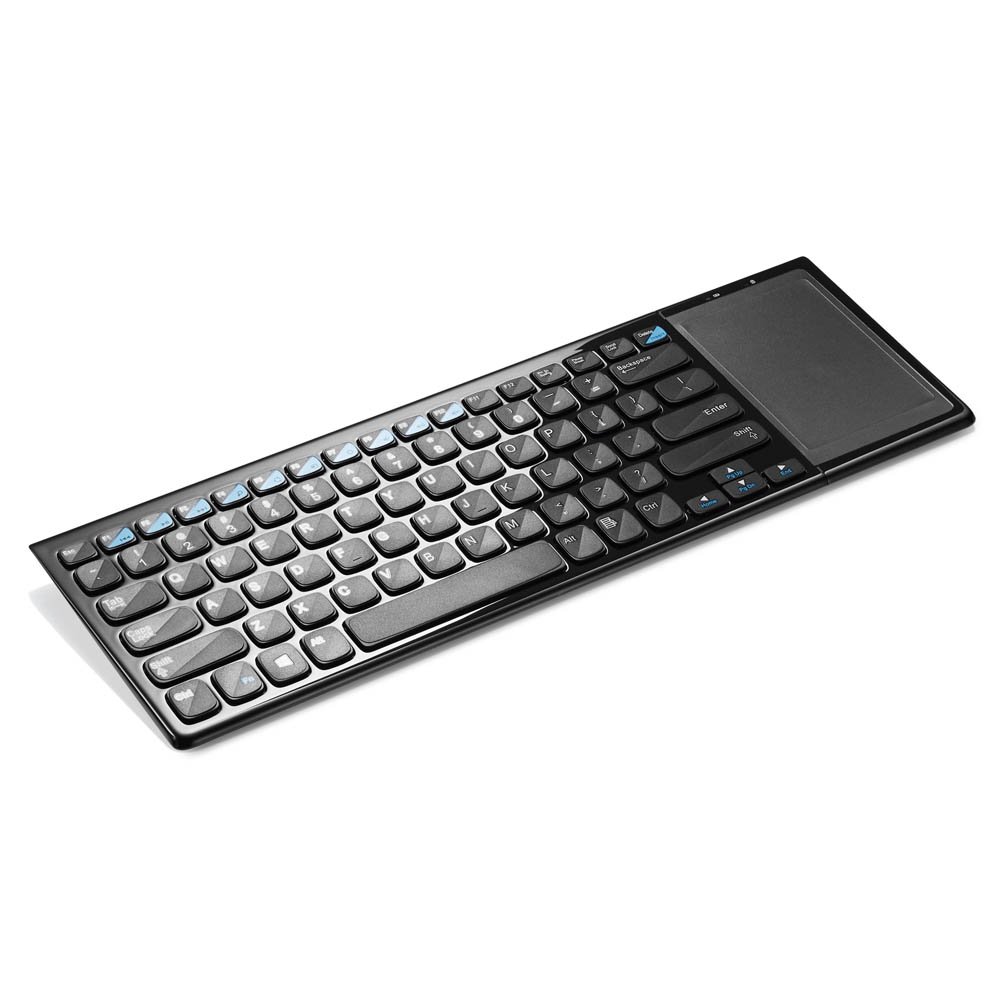
Abbildung 1: Multilaser TC190 Wireless Keyboard with Integrated Touchpad. This image shows the full keyboard layout with the touchpad located on the right side, indicating its compact design and integrated functionality.
- Tastaturbelegung: Standard QWERTY layout with multimedia function keys.
- Integriertes Touchpad: Located on the right side, supporting multi-touch gestures.
- USB-Empfängerfach: Usually located in the battery compartment for storage.
- Stromschalter: On/Off switch to conserve battery life.
- Batteriefach: For inserting required batteries.
5. Einrichtung
- Batterien installieren: Open the battery compartment cover on the back of the keyboard. Insert the required batteries (typically AAA, refer to the compartment for exact type and polarity). Close the cover securely.
- USB-Empfänger anschließen: Locate the USB 2.4 GHz receiver, usually stored inside the battery compartment. Plug the USB receiver into an available USB port on your PC or Smart TV.
- Einschalten: Slide the power switch on the keyboard to the "ON" position.
- Automatische Verbindung: The keyboard should automatically connect to your device within a few seconds. No additional drivers are typically required for most operating systems.
6. Bedienungsanleitung
6.1. Tastaturfunktionen
The Multilaser TC190 features a standard keyboard layout. Use the keys as you would with any conventional keyboard for typing text, navigating menus, and executing commands.
- Funktionstasten (Fn): Some keys may have secondary functions (e.g., volume control, media playback) accessible by pressing the Fn gleichzeitig die gewünschte Funktionstaste drücken.
- Multimedia-Tasten: Dedicated multimedia keys (if present) allow quick access to media controls.
6.2. Touchpad-Funktionen
The integrated multi-touch touchpad replaces a traditional mouse. Below are common gestures:
- Tippen mit einem Finger: Links Klick.
- Zwei-Finger-Tippen: Rechtsklick.
- Ziehen mit einem Finger: Bewegen Sie den Cursor.
- Scrollen mit zwei Fingern: Scroll up or down in documents and web Seiten.
- Zum Zoomen zusammenziehen: Use two fingers to zoom in or out (application dependent).
7. Wartung
- Reinigung: Use a soft, lint-free cloth to wipe the keyboard and touchpad. For stubborn dirt, slightly dampen the cloth with water or a mild, non-abrasive cleaner. Ensure no liquid enters the device.
- Batteriewechsel: When the keyboard's performance degrades or it stops responding, replace the batteries. Always use fresh batteries of the correct type.
- Lagerung: If storing the keyboard for an extended period, remove the batteries to prevent leakage. Store in a cool, dry place.
8. Fehlerbehebung
| Problem | Mögliche Lösung |
|---|---|
| Die Tastatur reagiert nicht. |
|
| Touchpad is not working correctly. |
|
| Connection issues / Lag. |
|
9. Spezifikationen
| Besonderheit | Detail |
|---|---|
| Marke | Multilaser |
| Modell | TC190 |
| Konnektivität | 2.4-GHz-Funk (USB-Empfänger) |
| Kompatible Geräte | PC, Smart-TV |
| Tastaturbeschreibung | Multimedia |
| Besondere Merkmale | Wireless, Integrated Multi-touch Touchpad |
| Stromquelle | Batteriebetrieben |
| Artikelgewicht | 800 Gramm |
10. Garantie und Support
Multilaser products are manufactured to high-quality standards. For information regarding warranty terms and conditions, please refer to the warranty card included with your product or visit the official Multilaser website. For technical support or customer service, please contact Multilaser customer support through their official channels.
Offiziell WebWebsite: www.multilaser.com.br (Bitte prüfen Sie die regionalen Bestimmungen.) webWebsite)