
Einführung
This manual provides comprehensive instructions for the setup, operation, and maintenance of your NETUM NT-R3 Mini 1D CCD Bluetooth Barcode Scanner. Please read this guide thoroughly to ensure proper use and to maximize the performance of your device.
Packungsinhalt
Bitte überprüfen Sie beim Auspacken, ob alle unten aufgeführten Artikel vorhanden und in gutem Zustand sind:
- 1 x NETUM Mini Bluetooth Barcode Scanner (NT-R3)
- 1 x USB-Ladekabel
- 1 x Kurzanleitung
- 1 x 2.4 GHz Adapter
Produkt überview
The NETUM NT-R3 is a compact and versatile 1D CCD barcode scanner designed for portability and ease of use. Its ring-style design allows for comfortable wear, enhancing productivity in various environments.

Image: The NETUM NT-R3 Mini Barcode Scanner, a small black electronic device with a screen and button, designed to be worn on a finger with an adjustable ring structure.
Hauptmerkmale:
- Ring Design: Magnesium alloy casing and trigger for durability and ease of use.
- 180° Drehung: Unique rotatable design for scanning from various angles.
- CCD Scanning: Reads 1D barcodes directly from LCD screens of computers or mobile devices, including poorly printed or damaged barcodes.
- Kabellose Verbindung: Supports Bluetooth (SPP, HID) and 2.4 GHz wireless connections.
- Breite Kompatibilität: Compatible with Windows XP/7/8/8.1/10, Google Android, iOS, and Mac OS X.
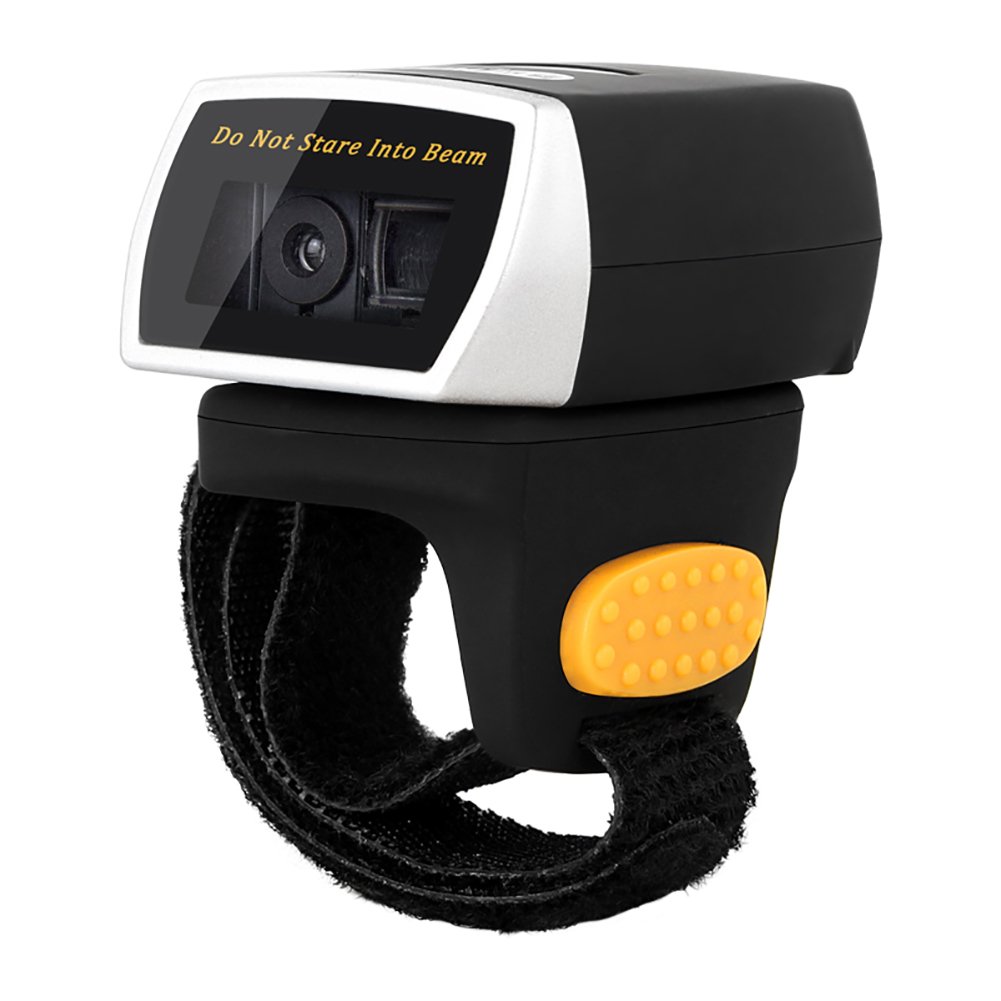
Image: The NETUM NT-R3 Mini Barcode Scanner demonstrating its 180-degree rotation design, allowing for flexible scanning angles.

Image: The NETUM NT-R3 Mini Barcode Scanner held in a hand, illustrating its compact dimensions (50mm x 44mm x 38mm) and light weight (50g), emphasizing its strong compatibility with various devices.
Einrichtung und Konnektivität
1. Aufladen des Scanners
Before initial use, fully charge the scanner using the provided USB charging cable. Connect the small end of the USB cable to the scanner's charging port and the other end to a USB power source (e.g., computer, USB wall adapter). The charging indicator light will show the charging status.
2. Ein-/Ausschalten
To power on the scanner, press and hold the trigger button for a few seconds until you hear a beep and see the indicator light. To power off, press and hold the trigger button again until the indicator light turns off.
3. Konnektivitätsoptionen
The NT-R3 scanner offers two primary connectivity methods:
Bluetooth Connection (HID Mode - Keyboard Emulation)
- Stellen Sie sicher, dass der Scanner eingeschaltet ist.
- Scan the "Bluetooth HID Mode" barcode (refer to the Quick Start Guide for specific barcodes).
- Aktivieren Sie auf Ihrem Host-Gerät (Smartphone, Tablet, Computer) Bluetooth und suchen Sie nach verfügbaren Geräten.
- Select "NETUM Barcode Scanner" or a similar name from the list of devices.
- The scanner will beep to confirm successful pairing.
In HID mode, scanned barcodes are input directly as keyboard entries into any active text field.
Bluetooth Connection (SPP Mode - Serial Port Profile)
SPP mode is typically used for applications that require direct data communication with the scanner. This mode requires specific software on the host device to interpret the data. Refer to your application's documentation for SPP setup.
- Stellen Sie sicher, dass der Scanner eingeschaltet ist.
- Scan the "Bluetooth SPP Mode" barcode (refer to the Quick Start Guide).
- Follow the instructions provided by your specific application for connecting to an SPP device.
2.4-GHz-Drahtlosverbindung
- Plug the provided 2.4 GHz adapter into a USB port on your computer.
- Stellen Sie sicher, dass der Scanner eingeschaltet ist.
- Scan the "2.4G Wireless Mode" barcode (refer to the Quick Start Guide).
- The scanner will automatically connect to the adapter. A successful connection is indicated by a specific beep or light pattern (refer to the Quick Start Guide for details).
The 2.4 GHz connection offers a wireless range of up to 10 meters (30 feet).
Betriebsarten
The NETUM NT-R3 scanner supports two data upload modes:
1. Sofort-Upload-Modus
In this mode, scanned barcodes are immediately transmitted to your connected device. This is suitable for real-time data entry.
2. Speichermodus
The scanner can store up to 2000 barcodes in its built-in flash memory. This mode is useful when working out of range of your host device. Barcodes can be uploaded later when a connection is established.
Image: A visual representation of the two upload modes. Instant Upload Mode shows barcodes being sent directly to a device. Storage Mode shows barcodes being stored internally and then uploaded later.
To switch between modes, scan the corresponding configuration barcodes found in the Quick Start Guide.
Barcodes scannen
So scannen Sie einen Barcode:
- Hold the scanner with the scanning window facing the barcode.
- Press the trigger button. A red scanning line will appear.
- Align the red scanning line across the entire barcode.
- Once successfully scanned, the scanner will emit a beep, and the indicator light will flash.
The NT-R3 is capable of reading 1D barcodes from various surfaces, including:
- Gedruckte Etiketten
- LCD screens (computers, smartphones, tablets)
- Poorly printed or damaged barcodes
Wartung
Batteriepflege
- Um die Lebensdauer des Akkus zu verlängern, vermeiden Sie häufiges vollständiges Entladen des Akkus.
- Charge the scanner regularly, even if not in constant use.
- Bewahren Sie den Scanner bei längerer Nichtbenutzung an einem kühlen, trockenen Ort auf.
Reinigung
- Use a soft, dry, lint-free cloth to clean the scanner's exterior.
- For the scanning window, use a lens cleaning cloth or a soft cloth lightly dampMit Wasser oder einem milden, nicht scheuernden Reinigungsmittel abspülen.
- Verwenden Sie keine aggressiven Chemikalien, Lösungsmittel oder Scheuermittel, da diese das Gerät beschädigen können.
Fehlerbehebung
| Problem | Mögliche Ursache | Lösung |
|---|---|---|
| Der Scanner lässt sich nicht einschalten. | Schwache Batterie. | Charge the scanner for at least 2 hours. |
| Der Scanner verbindet sich nicht via Bluetooth. | Incorrect mode selected; device not discoverable; out of range. | Ensure "Bluetooth HID Mode" or "SPP Mode" is scanned. Make sure Bluetooth is enabled on the host device and the scanner is within 10 meters. Try re-pairing. |
| Scanner does not connect via 2.4 GHz adapter. | Adapter not properly inserted; incorrect mode selected. | Ensure the 2.4 GHz adapter is securely plugged in. Scan the "2.4G Wireless Mode" barcode. |
| Der Scanner liest keine Barcodes. | Barcode is unreadable; scanner not aligned; scanner in storage mode. | Ensure the barcode is clear and well-lit. Align the red line across the entire barcode. If in storage mode, switch to instant upload mode or upload stored data. |
| Die gescannten Daten werden fehlerhaft angezeigt. | Keyboard layout mismatch (for HID mode). | Scan the appropriate keyboard layout barcode (e.g., US, UK, French) from the Quick Start Guide. |
Technische Spezifikationen
| Besonderheit | Detail |
|---|---|
| Modellnummer | NT-R3 |
| Scantechnologie | 1D CCD |
| Konnektivität | Bluetooth (SPP, HID), 2.4 GHz Wireless, USB |
| Kompatible Betriebssysteme | Windows XP/7/8/8.1/10, Google Android, iOS, Mac OS X |
| Scanrate | 260 SekundenampLes pro Sekunde |
| Speicherkapazität | Up to 2000 barcodes (in Storage Mode) |
| Akku-Typ | 1 Lithium-Metall-Batterie (im Lieferumfang enthalten) |
| Stromquelle | Batteriebetrieben |
| Betriebslautstärketage | 5 Volt |
| Maximale Lagertemperatur | 45 Grad Celsius |
| Zertifizierungen | CE, ISO, RoHS |
| Hersteller | Guangzhou Netum Electronic Technology Co.,Ltd. |
| Ursprungsland | China |
Garantie und Support
Rückgaberecht
Für dieses Produkt kann es gemäß den Rückgabebestimmungen des Verkäufers innerhalb von 30 Tagen nach dem Kauf zurückgegeben oder ersetzt werden.
Herstellerinformationen
Manufacturer: Guangzhou Netum Electronic Technology Co.,Ltd.
For further assistance or technical support, please refer to the contact information provided in your Quick Start Guide or visit the official NETUM webWebsite.
Hinweis: Informationen zur Verfügbarkeit von Ersatzteilen und garantierten Software-Updates sind derzeit nicht verfügbar.