
1. Produktüberschreitungview
The MERCUSYS MW300UM N300 Wireless Mini USB Adapter is designed to connect your desktop or laptop computer to a wireless network. It provides Wi-Fi connections up to 300Mbps, suitable for online gaming, HD streaming, and web browsing. Its compact, mini USB design ensures portability and convenience.
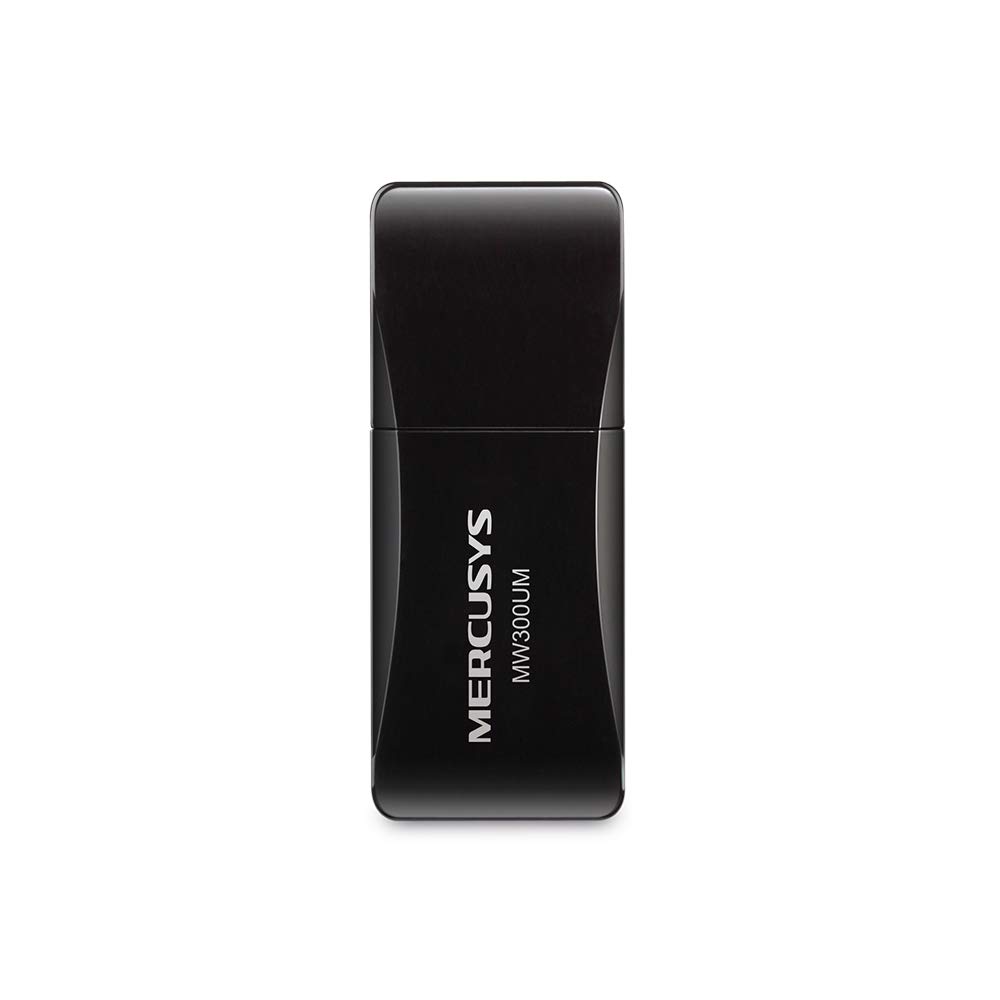
Figure 1: MERCUSYS MW300UM N300 Wireless Mini USB WiFi Adapter

Figure 2: Portable design for convenient use with laptops.
2. Packungsinhalt
Überprüfen Sie, ob Ihr Paket die folgenden Artikel enthält:
- MERCUSYS MW300UM Wireless Mini USB Adapter
- Kurzanleitung zur Installation
- Ressourcen-CD (für Treiber und Dienstprogramme)

Figure 3: MW300UM product packaging and contents.
3. Installationsanleitung
Follow these steps to install and set up your MW300UM Wireless Mini USB Adapter:
- Setzen Sie den Adapter ein: Plug the MW300UM adapter into an available USB port on your desktop or laptop computer.
- Treiber installieren:
- Insert the provided Resource CD into your computer's CD-ROM drive and follow the on-screen instructions to install the drivers and utility.
- Alternatively, if your computer does not have a CD-ROM drive or if you prefer the latest drivers, download them from the official MERCUSYS webSeite? ˅. Die website link is typically provided in the Quick Installation Guide.
- Mit WLAN verbinden: Once the drivers are installed, your computer will detect the adapter. Scan for available wireless networks, select your desired network, and enter the password to connect.

Figure 4: Easy setup process for the MW300UM adapter.
4. Bedienungsanleitung
The MW300UM adapter provides reliable wireless connectivity and can also function as a Wi-Fi hotspot.
4.1 Drahtlose Konnektivität
After successful driver installation, the adapter will enable your computer to connect to 2.4GHz wireless networks at speeds up to 300Mbps. This is suitable for various online activities including video streaming, voice calls, and online gaming.

Figure 5: MW300UM performance for various applications.
4.2 Soft AP Function
The MW300UM supports Soft AP (Access Point) functionality. If your computer has an existing wired internet connection, you can use the adapter to turn your PC or laptop into a Wi-Fi hotspot, allowing other wireless devices to connect to the internet through it. Refer to the utility software for instructions on enabling and configuring Soft AP mode.
4.3 Unterstützte Betriebssysteme
The MW300UM adapter is compatible with a wide range of Windows operating systems:
- Windows 11 (32/64bit)
- Windows 10 (32/64bit)
- Windows 8.1 (32/64bit)
- Windows 8 (32/64bit)
- Windows 7 (32/64bit)
- Windows XP (32/64bit)

Figure 6: Supported Operating Systems.
5. Wartung
To ensure optimal performance and longevity of your MW300UM adapter, follow these maintenance guidelines:
- Reinigung: Use a soft, dry cloth to gently wipe the adapter. Avoid using liquid cleaners or solvents, as they may damage the device.
- Lagerung: Bewahren Sie den Adapter bei Nichtgebrauch an einem kühlen, trockenen Ort auf und schützen Sie ihn vor direkter Sonneneinstrahlung und extremen Temperaturen.
- Handhabung: Avoid dropping the adapter or subjecting it to strong impacts. Do not attempt to disassemble or modify the device.
- USB-Anschluss: Ensure the USB port on your computer is clean and free of debris before inserting the adapter.
6. Fehlerbehebung
If you encounter issues with your MW300UM adapter, refer to the following common problems and solutions:
- Adapter nicht erkannt:
- Stellen Sie sicher, dass der Adapter fest in einem funktionierenden USB-Anschluss steckt. Versuchen Sie es mit einem anderen USB-Anschluss.
- Starten Sie Ihren Computer neu.
- Überprüfen Sie, ob die Treiber korrekt installiert sind. Installieren Sie die Treiber gegebenenfalls neu.
- Verbindung zum WLAN-Netzwerk nicht möglich:
- Prüfen Sie, ob sich andere Geräte mit demselben WLAN-Netzwerk verbinden können.
- Stellen Sie sicher, dass Sie das richtige WLAN-Passwort eingeben.
- Restart your wireless router/modem.
- Update the adapter's drivers to the latest version from the MERCUSYS webWebsite.
- Langsame WLAN-Geschwindigkeit:
- Ensure your computer is within a reasonable range of your wireless router.
- Prüfen Sie, ob Störungen durch andere elektronische Geräte (z. B. Mikrowellen, schnurlose Telefone) auftreten.
- Verify that your internet service plan supports the expected speeds.
- Aktualisieren Sie die Treiber des Adapters.
7. Spezifikationen
| Besonderheit | Spezifikation |
|---|---|
| Marke | MERCUSYS |
| Modellnummer | MW300UM |
| Hardware-Schnittstelle | USB 2.0 |
| Data Link-Protokoll | IEEE 802.11n, IEEE 802.11g, IEEE 802.11b |
| Datenübertragungsrate | 300 Megabit pro Sekunde |
| Kompatible Betriebssysteme | Windows 11/10/8.1/8/7/XP (32/64bit) |
| Produktabmessungen (L x B x H) | 17 mm (L) x 9 mm (B) x 43 mm (H) |
| Farbe | Schwarz |
| Lieferumfang | Wireless Mini USB Adapter, Quick Installation Guide, Resource CD |
8. Garantieinformationen
The MERCUSYS MW300UM Wireless Mini USB Adapter typically comes with a 3 Jahr Garantie Diese Garantie gilt ab Kaufdatum und deckt Herstellungsfehler ab. Sie gewährleistet die einwandfreie Funktion des Produkts bei normalem Gebrauch. Bitte bewahren Sie Ihren Kaufbeleg für Garantieansprüche auf.
For detailed warranty terms and conditions, refer to the official MERCUSYS weboder der in Ihrer Produktverpackung enthaltenen Garantiekarte.
9. Unterstützung
For further assistance, technical support, or to download the latest drivers and firmware, please visit the official MERCUSYS support webWebsite:
Möglicherweise finden Sie auch die Kontaktdaten des Kundendienstes in Ihrer Region auf der webauf der Website oder in der Schnellinstallationsanleitung.


