
Einführung
Thank you for choosing the MeeTion K9310 Gaming Keyboard. This manual provides detailed instructions for setting up, operating, and maintaining your new keyboard. The K9310 is designed for an enhanced gaming experience with features such as multicolor backlighting, anti-ghosting, and dedicated shortcut keys.
Packungsinhalt
- MeeTion K9310 Gaming Keyboard
- Benutzerhandbuch (dieses Dokument)
Aufstellen
Follow these steps to connect your MeeTion K9310 Gaming Keyboard to your computer:
- Packen Sie die Tastatur aus der Verpackung.
- Suchen Sie einen verfügbaren USB-Anschluss an Ihrem Computer.
- Stecken Sie den USB-Stecker der Tastatur in den USB-Anschluss.
- Your operating system (Windows XP/Vista/7/8/10) will automatically detect and install the necessary drivers. No additional software installation is typically required.
- The keyboard is ready for use once the drivers are installed.

Bild: Oben view of the MeeTion K9310 Gaming Keyboard with its USB cable, ready for connection.
Bedienungsanleitung
Hauptmerkmale
- Multicolor Key Backlit: The keyboard features vibrant multicolor backlighting for enhanced visibility and aesthetic appeal, especially in low-light conditions.
- Comfortable and Soft Keys: Designed with membrane keys offering tactile feedback, providing a comfortable typing and gaming experience.
- 19 Tasten mit Anti-Ghosting: This feature ensures that up to 19 keys can be pressed simultaneously without any input loss, crucial for complex gaming commands.
- Win Lock Function with LED Indication: Prevents accidental presses of the Windows key during gameplay, which can interrupt your game. An LED indicator shows when this function is active.
- 12 FN Shortcut Buttons: Access various multimedia and system functions quickly using the Function (FN) key in combination with the F1-F12 keys.
Steuerung der Hintergrundbeleuchtung
The K9310 keyboard features a multicolor backlight. Specific key combinations may be used to adjust brightness or switch lighting modes. Refer to the keyboard's markings for dedicated backlight control keys, often indicated by a sun or light bulb icon, or through FN key combinations.
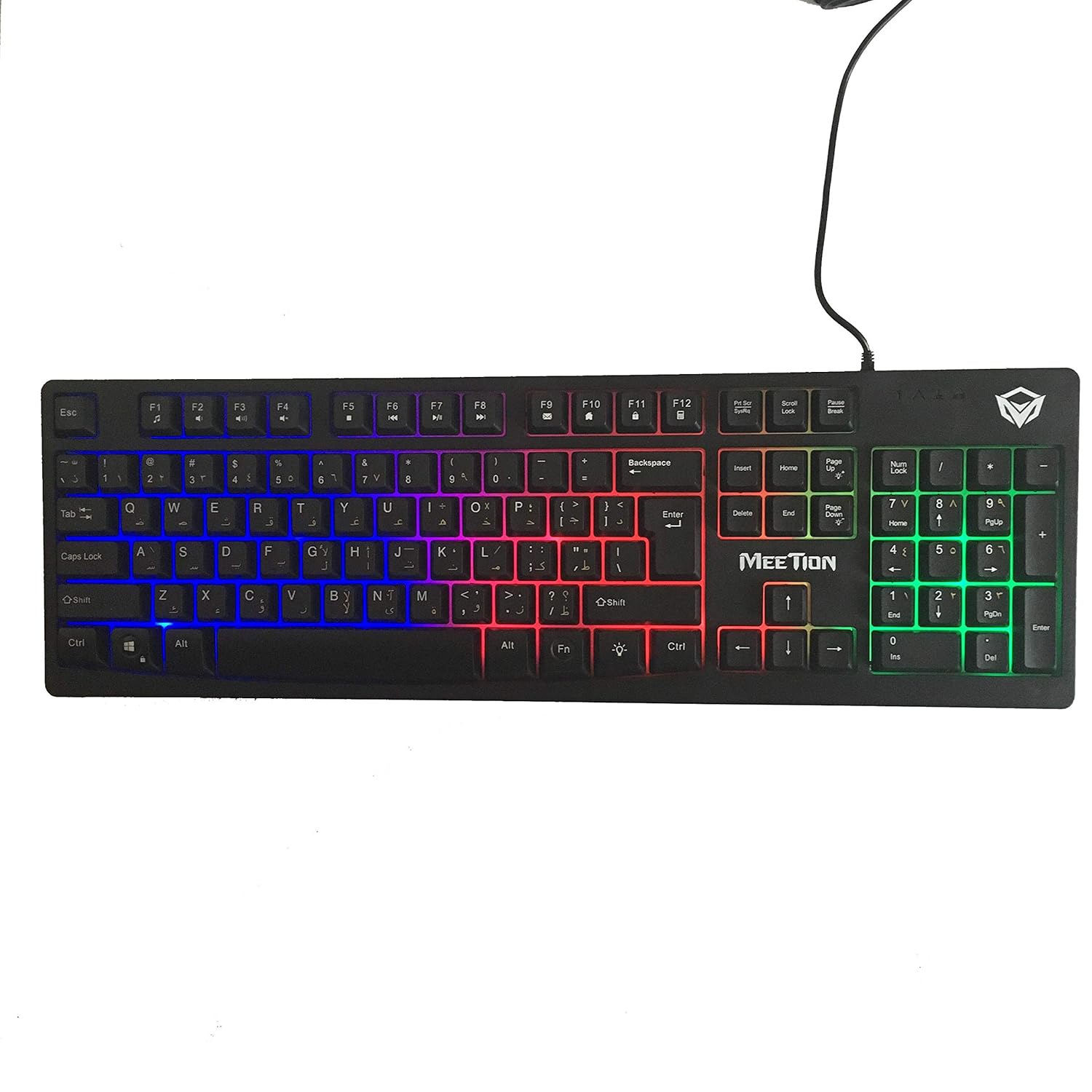
Bild: Oben view of the MeeTion K9310 Gaming Keyboard with its multicolor backlighting illuminated.
FN Shortcut Functions
The keyboard includes 12 FN (Function) shortcut buttons. To activate these functions, press and hold the FN key, then press the desired F-key (F1-F12).
| Tastenkombination | Funktion |
|---|---|
| FN + F1 | Media Player |
| FN + F2 | Lautstärke verringern |
| FN + F3 | Lautstärke erhöhen |
| FN + F4 | Stumm |
| FN + F5 | Stoppen |
| FN + F6 | Vorheriger Titel |
| FN + F7 | Abspielen/Pause |
| FN + F8 | Nächster Titel |
| FN + F9 | |
| FN + F10 | Web Browser |
| FN + F11 | Mein Computer |
| FN + F12 | Kalkulator |
Win Lock Function
To activate or deactivate the Windows key lock function, press FN + Win-Taste. When active, the Windows key will be disabled, preventing accidental presses during gaming. An LED indicator on the keyboard will typically illuminate to show the Win Lock status.
Wartung
Durch sachgemäße Wartung wird die Langlebigkeit und optimale Leistung Ihrer Tastatur gewährleistet.
- Reinigung: Use a soft, dry cloth to wipe the surface of the keyboard. For deeper cleaning, a slightly damp Man kann ein Tuch mit milder Seife verwenden, wobei darauf zu achten ist, dass keine Flüssigkeit in die Schlüsselschalter oder interne Bauteile gelangt.
- Staubentfernung: Verwenden Sie Druckluft, um Staub und Schmutz zwischen den Tasten zu entfernen.
- Vermeiden Sie Flüssigkeiten: Do not spill liquids on the keyboard. If a spill occurs, immediately disconnect the keyboard from the computer and allow it to dry completely before reconnecting.
- Lagerung: Bewahren Sie die Tastatur bei längerem Nichtgebrauch an einem kühlen, trockenen Ort fern von direkter Sonneneinstrahlung und extremen Temperaturen auf.

Abbildung: Unten view of the MeeTion K9310 Gaming Keyboard, showing the product label and rubber feet.
Fehlerbehebung
If you encounter issues with your MeeTion K9310 Gaming Keyboard, refer to the following troubleshooting steps:
- Tastatur reagiert nicht:
- Stellen Sie sicher, dass das USB-Kabel fest an einen funktionierenden USB-Anschluss Ihres Computers angeschlossen ist.
- Versuchen Sie, die Tastatur an einen anderen USB-Anschluss anzuschließen.
- Starten Sie Ihren Computer neu.
- Testen Sie die Tastatur an einem anderen Computer, um festzustellen, ob das Problem an der Tastatur oder am Computer liegt.
- Keys Not Working (e.g., 'W' key):
- Check for any debris or foreign objects lodged under the affected key. Use compressed air to clear it.
- If only specific keys are not responding, and the keyboard is otherwise functional, it might indicate a hardware issue.
- Hintergrundbeleuchtung funktioniert nicht oder flackert:
- Stellen Sie sicher, dass die Tastatur ordnungsgemäß angeschlossen ist.
- Check if the backlight brightness is set to minimum or turned off via FN key combinations.
- Wenn das Problem weiterhin besteht, könnte dies auf eine Hardwarestörung hindeuten.
- Win Lock Function Not Working:
- Ensure you are using the correct key combination (FN + Win Key) to toggle the function.
- Check the LED indicator for Win Lock status.
Technische Daten
| Besonderheit | Detail |
|---|---|
| Marke | TREFFEN |
| Modell | K9310 |
| Tastaturtyp | Gaming-Tastatur |
| Ihr/e Ansprechpartner/in | Membrane with tactile feedback |
| Layout | Cyrillic alphabet layout (Windows Keys) |
| Anti-Ghosting | 19 Tasten |
| Hintergrundbeleuchtung | Mehrfarbige Tasten mit Hintergrundbeleuchtung |
| Win Lock Function | Ja, mit LED-Anzeige |
| FN Shortcut Buttons | 12 |
| Error-Free Running Time | More than 10 million strokes |
| Betriebssystemkompatibilität | Windows XP/Vista/7/8/10 |
| Maße | 17.5 × 5.5 x 1.5 inches (approximate) |
| Gewicht | 1.2 Pfund (ungefähr) |
| Kompatible Geräte | Laptop (und Desktop-PCs) |
Garantie und Support
For warranty information or technical support, please refer to the documentation provided at the time of purchase or visit the official MEETION webBewahren Sie Ihren Kaufbeleg für eventuelle Garantieansprüche auf.