
1. Einleitung
This manual provides essential instructions for the installation, operation, and maintenance of your Xigmatek Vanguard Plus PC Case. This full tower case is designed to accommodate ATX, Micro ATX, and Mini ITX motherboards and comes with a pre-installed 600W 80PLUS Active PFC power supply. It features convenient front panel connectivity including USB 3.0 and USB 2.0 ports, along with audio jacks, and includes LED fans for enhanced cooling and aesthetics.
2. Einrichtung und Installation
Before beginning installation, ensure your workspace is clean and static-free. Refer to your motherboard and component manuals for specific installation details.
2.1. Öffnen des Gehäuses
Carefully remove the side panels of the case. Typically, this involves unscrewing thumbscrews at the rear and sliding the panels backward.
2.2. Motherboard-Installation
Install the I/O shield provided with your motherboard into the rear opening of the case. Align your ATX, Micro ATX, or Mini ITX motherboard with the standoffs inside the case. Secure the motherboard using the appropriate screws. Ensure all standoffs are correctly aligned to prevent damage.

Bild: Intern view of the Xigmatek Vanguard Plus PC case, illustrating the motherboard mounting area and drive bays.
2.3. Netzteil (PSU)
The 600W 80PLUS Active PFC power supply is pre-installed in the lower section of the case. Connect the necessary power cables to your motherboard, CPU, graphics card, and storage devices. Route cables through the designated cutouts for optimal airflow and a tidy build.
2.4. Installation des Speicherlaufwerks
Install your 2.5-inch SSDs or 3.5-inch HDDs into the available drive bays. Secure them with screws or tool-less mechanisms if provided. Connect SATA data and power cables.
2.5. Erweiterungskarten
Remove the necessary expansion slot covers at the rear of the case. Insert your graphics card or other expansion cards into the PCIe slots on your motherboard and secure them with screws.
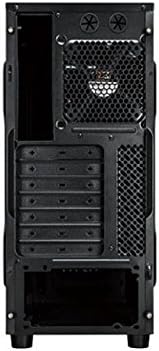
Bild: Rückseite view of the Xigmatek Vanguard Plus PC case, highlighting the expansion slots and rear fan mounting area.
2.6. Anschlüsse an der Vorderseite
Schließen Sie die Frontpanel-Kabel (USB 3.0, USB 2.0, HD-Audio, Netzschalter, Reset-Schalter, Power-LED, HDD-LED) an die entsprechenden Anschlüsse auf Ihrem Mainboard an. Die Positionen der Anschlüsse finden Sie im Handbuch Ihres Mainboards.

Bild: Vorderseite view of the Xigmatek Vanguard Plus PC case, showcasing the front panel design and an illuminated LED fan.
3. Bedienungsanleitung
Once all components are installed and cables are connected, replace the side panels. Connect your monitor, keyboard, mouse, and power cable to the rear of the PC. Press the power button on the front panel to start your system.
3.1. Anschlüsse an der Vorderseite
- USB 3.0-Anschlüsse (x2): Für Hochgeschwindigkeits-Datenübertragung mit kompatiblen Geräten.
- USB 2.0-Anschluss (x1): Für Standard-USB-Geräte.
- Microphone Input (x1): Schließen Sie Ihr Mikrofon an.
- Speaker Output (x1): Schließen Sie Ihre Kopfhörer oder Lautsprecher an.
3.2. LED Fans
The case includes LED fans that provide cooling and visual effects. These fans typically draw power directly from the power supply or motherboard fan headers and operate automatically based on system temperature or a fixed speed.
4. Wartung
Regelmäßige Wartung trägt dazu bei, die optimale Leistung und Langlebigkeit Ihrer PC-Komponenten zu gewährleisten.
- Staubfilter: Periodically check and clean any removable dust filters (e.g., on the front, top, or bottom of the case) to maintain good airflow. Use compressed air or a soft brush.
- Innenreinigung: Every few months, open the case and use compressed air to remove dust buildup from fans, heatsinks, and other components. Hold fan blades gently to prevent over-spinning during cleaning.
- Außenreinigung: Wischen Sie die Außenflächen mit einem weichen, damp Tuch. Vermeiden Sie aggressive Chemikalien.
5. Fehlerbehebung
In diesem Abschnitt werden häufig auftretende Probleme behandelt.
- Kein Strom:
- Stellen Sie sicher, dass das Netzkabel sowohl mit dem Netzteil als auch mit der Steckdose fest verbunden ist.
- Check that the power switch on the back of the PSU is in the 'ON' position.
- Verify all internal power cables (24-pin ATX, 8-pin CPU, GPU power) are correctly seated.
- Confirm the front panel power switch cable is correctly connected to the motherboard header.
- Fans Not Spinning / No LED Lights:
- Check fan power connections to the motherboard or PSU.
- Ensure LED cables (if separate) are connected.
- USB-/Audioanschluss an der Vorderseite funktioniert nicht:
- Verify that the USB 3.0, USB 2.0, and HD Audio cables from the front panel are correctly connected to the corresponding headers on your motherboard.
- Check your motherboard's BIOS/UEFI settings to ensure front panel audio/USB is enabled.
- Probleme mit der Bauteilpassung:
- Ensure all components, especially large graphics cards or CPU coolers, are compatible with the case dimensions.
- Some larger gaming motherboards or specific cooler designs may require careful planning for exhaust fan placement.
6. Spezifikationen
| Besonderheit | Detail |
|---|---|
| Marke | Xigmatek |
| Modellnummer | Vanguard Plus |
| Gehäusetyp | Voller Turm |
| Motherboard-Kompatibilität | ATX, Micro-ATX, Mini-ITX |
| Inklusive Netzteil | 600W 80PLUS Active PFC |
| Anschlüsse auf der Vorderseite | 2x USB 3.0, 1x USB 2.0, 1x Microphone, 1x Speaker |
| Kühlmethode | Air (includes LED fans) |
| Produktgewicht | 6.82 Kilogramm |
| Ursprungsland | China |
7. Garantieinformationen
The Xigmatek Vanguard Plus PC Case comes with a 2 Jahr Herstellergarantie from the date of purchase. This warranty covers defects in materials and workmanship under normal use. Please retain your proof of purchase for warranty claims. The warranty does not cover damage caused by misuse, accident, modification, or unauthorized repair.
8. Unterstützung
For technical assistance, troubleshooting beyond this manual, or warranty inquiries, please contact Xigmatek customer support through their official website or the retailer where the product was purchased. Have your product model number (Vanguard Plus) and proof of purchase ready when contacting support.