
brennan B22TB2018
Brennan B2 HiFi-System – Benutzerhandbuch
Model: B22TB2018
Marke: Brennan
Einführung
The Brennan B2 is a versatile HiFi system designed for ripping, storing, and playing your music collection. It features a built-in CD ripper, a large hard disk for storage, and a stereo power amplifier. The B2 supports various audio formats including WAV, Lossless (FLAC), and MP3, and offers connectivity options such as Sonos, Bluetooth, Spotify, YouTube, and Internet Radio.
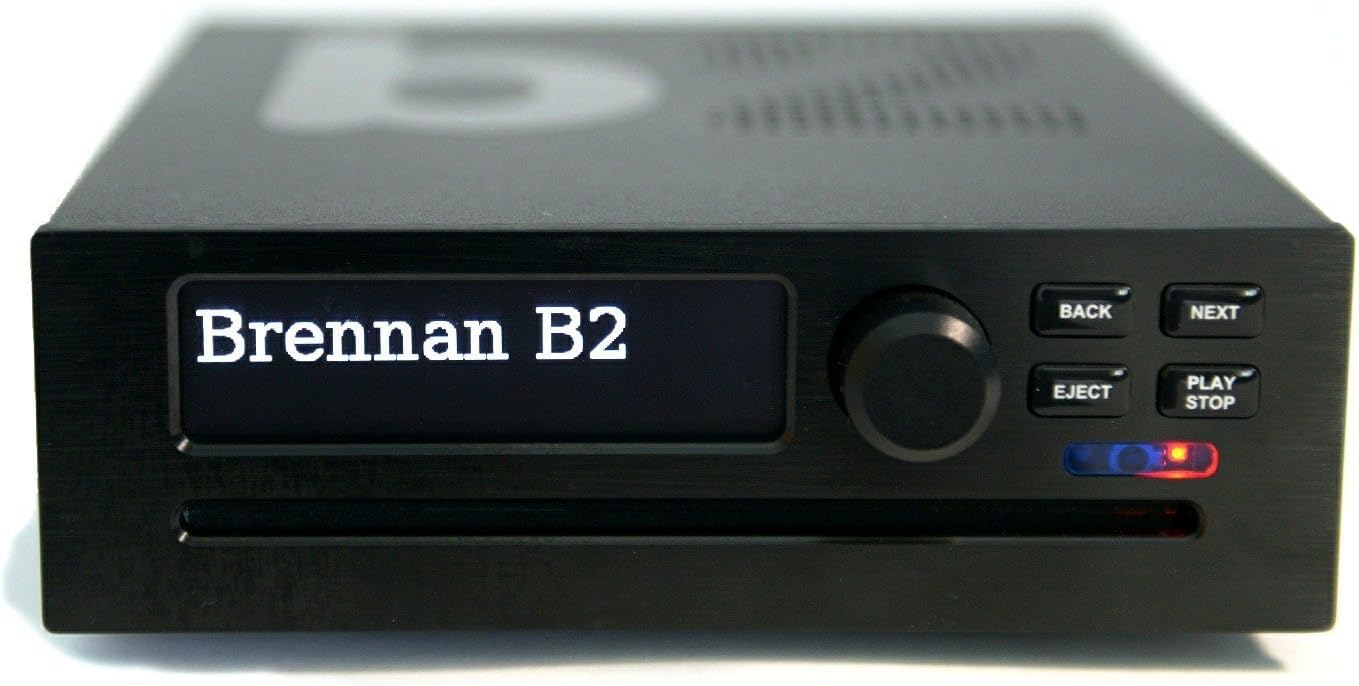
Bild: Vorderseite view of the Brennan B2, showing the display, control knob, and buttons.
Installationshandbuch
1. Auspacken und Packungsinhalt
Carefully unpack your Brennan B2 system. Ensure all components are present:
- Brennan B2 Unit (with integrated CD Player and Hard Disk)
- Netzkabel
- Benutzerhandbuch (dieses Dokument)
- Wi-Fi USB Dongle (typically pre-installed or included)
2. Physische Verbindungen
Before powering on, connect the necessary cables to the rear panel of the B2. Refer to the diagram below for port identification.

Image: Rear panel of the Brennan B2, detailing the power switch, 24V DC input, Micro USB, USB A, HDMI, Right/Left audio outputs, USB C, Line Out + SPDIF, AUX In, and Ethernet cable port.
- Stromanschluss: Connect the supplied power cord to the 24V DC input port. Ensure the power switch is in the 'Off' position before connecting.
- Audioausgang:
- Analoges Audio (RCA): Connect the Right (Red) and Left (White) RCA outputs to your ampVerstärker oder Aktivlautsprecher.
- Digital Audio (SPDIF/Optical): Use the 'Line Out + SPDIF' port for digital audio output to a compatible receiver or DAC.
- USB Ports (USB A & USB C): These ports can be used for external storage, Wi-Fi dongles, or other USB accessories. The Wi-Fi dongle is typically connected to one of these.
- HDMI: For connecting to a display for visual interface (optional).
- Ethernet: For a wired network connection, which can provide a more stable connection than Wi-Fi.
- AUX-Eingang: For connecting external audio sources to the B2.
3. Erste Inbetriebnahme und Netzwerkeinrichtung
After making all physical connections:
- Flip the 'Power On/Off' switch on the rear panel to 'On'.
- The B2 display will power on. Follow the on-screen prompts for initial setup.
- Wi-Fi-Verbindung: If using Wi-Fi, navigate to the network settings. The B2's Wi-Fi dongle primarily supports 2.4 GHz networks. If you encounter "NO NETWORK" issues, temporarily disable the 5.0 GHz band on your router during the initial connection process, then re-enable it once the B2 is connected.
- Once connected to the network, the B2 will display its IP address. This IP address is crucial for accessing the web user interface from a computer or mobile device.
Bedienungsanleitung
1. Grundlegende Steuerelemente
The front panel features a display, a rotary knob, and several buttons:
- Drehknopf: Used for navigating menus and adjusting volume.
- Zurück-Button: Kehrt zum vorherigen Menü oder Bildschirm zurück.
- Nächster Knopf: Advances to the next item or confirms selection.
- Auswurftaste: Ejects a CD from the drive.
- PLAY/STOP-Taste: Startet oder stoppt die Wiedergabe.
2. CD Ripping
The B2 allows you to rip your CD collection directly to its internal hard drive.

Image: Brennan B2 with a CD on top, illustrating the CD ripping function.
- Insert a CD into the slot-loading drive.
- The B2 will attempt to identify the CD using its internal database.
- You will be prompted to select ripping options (e.g., FLAC, MP3, or both). FLAC offers lossless quality, while MP3 provides smaller file Größen.
- The ripping process will begin automatically. Once complete, the CD will eject.
- For CDs not found in the database, the B2 will assign a numerical ID. You can later edit metadata (artist, album, track names) via the web Schnittstelle.
Note: Ripping multiple CDs consecutively is possible, but compression (especially for MP3) can take time. The B2 pauses compression during playback and resumes when idle.
3. Music Playback and Navigation
You can browse and play music stored on the B2's hard drive or from connected USB devices.

Image: The Brennan B2 display showing the "Browse Albums" menu, indicating music library navigation.
- Use the rotary knob to scroll through artists, albums, or tracks on the B2's display.
- Press the knob or NEXT button to select an item.
- Press PLAY/STOP to begin playback.
- The B2 supports creating playlists for customized listening experiences.
4. Internet Radio and Streaming Services
The B2 provides access to a vast array of Internet Radio stations and integrates with popular streaming services.

Image: The Brennan B2 displaying "BBC Radio Two", indicating active internet radio playback.
- Navigate to the 'Internet Radio' menu to browse and select stations.
- The B2 supports integration with services like Spotify and YouTube for expanded music and video content.
- Sonos-Integration: The B2 can stream its stored music library to Sonos speakers, allowing you to enjoy your ripped CDs throughout your Sonos system.
5. Bluetooth-Konnektivität
Connect Bluetooth-enabled devices to the B2 for wireless audio playback.
- Aktivieren Sie Bluetooth auf Ihrem externen Gerät (z. B. Smartphone, Tablet).
- On the B2, navigate to the Bluetooth settings and initiate pairing.
- Select the B2 from your device's Bluetooth list to establish a connection.
6. Mit dem Web Interface and Mobile App
For comprehensive control and library management, access the B2 via its web Schnittstelle oder dedizierte mobile App.
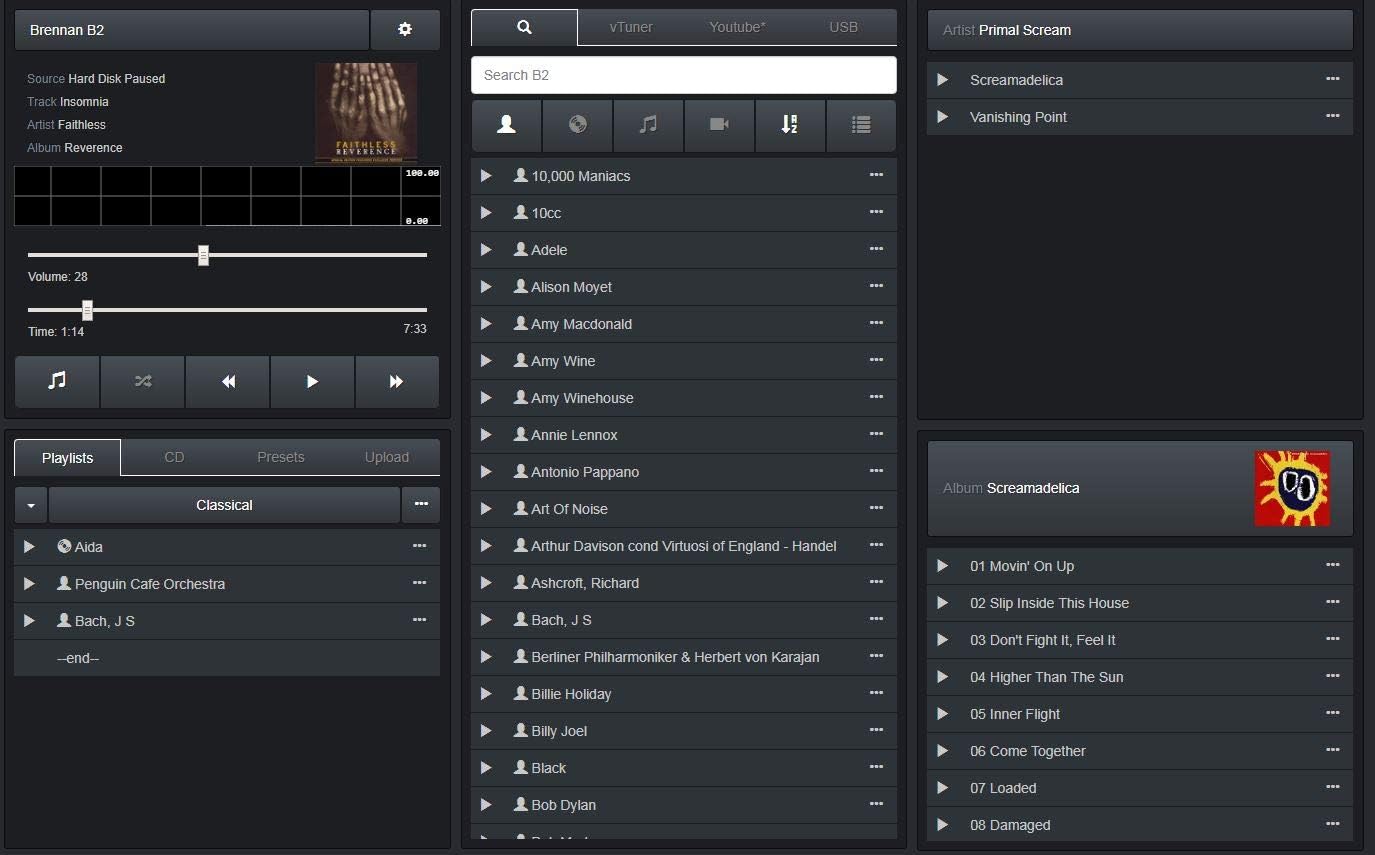
Image: Screenshot of the Brennan B2 web user interface, showing music library, playlists, and playback controls.
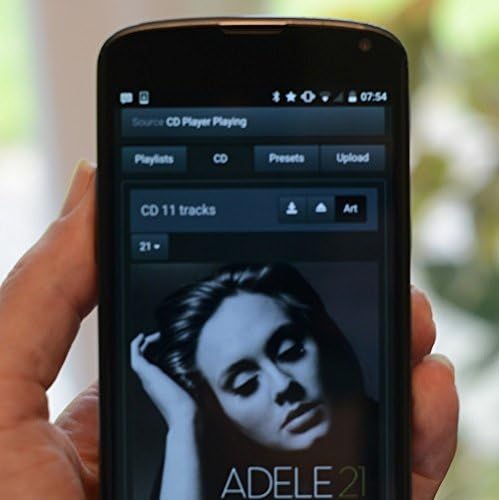
Image: A smartphone displaying the Brennan B2 mobile application, used for remote control and music selection.
- Web Schnittstelle: Öffnen Sie ein web browser on a computer or tablet and enter the B2's IP address (displayed on the B2's screen after network connection). This interface offers full control, including editing metadata for ripped CDs, managing playlists, and accessing advanced settings.
- Mobile App: Download the official Brennan app from your device's app store. The app provides convenient remote control and browsing capabilities. If the app's direct album selection is clunky, try using the "Web UI" option within the app for a more consistent experience.
Wartung
1. Software-Updates
Brennan regularly releases software updates to improve functionality and add new features. It is recommended to keep your B2's software up to date.
- Access the update function through the B2's menu or the web Schnittstelle.
- Stellen Sie während des Aktualisierungsvorgangs eine stabile Internetverbindung sicher.
2. Datensicherung
Regularly back up your music library to an external hard drive to prevent data loss.
- Connect an external USB hard drive to one of the B2's USB ports.
- Navigate to the backup options in the B2's menu or web Schnittstelle.
- You can back up your entire FLAC library. For MP3 backups, you may need to create a playlist containing all desired MP3s and then export that playlist to a USB drive.
3. Reinigung
To maintain the appearance and functionality of your B2:
- Verwenden Sie ein weiches, trockenes Tuch, um die Außenseite abzuwischen.
- Vermeiden Sie die Verwendung von flüssigen Reinigungsmitteln oder Scheuermitteln.
- Vor der Reinigung sicherstellen, dass das Gerät ausgeschaltet und vom Stromnetz getrennt ist.
Fehlerbehebung
| Problem | Mögliche Ursache | Lösung |
|---|---|---|
| "NO NETWORK" error during Wi-Fi setup | Router broadcasting on 5.0 GHz band, which the B2's Wi-Fi dongle may not support during initial connection. | Temporarily disable the 5.0 GHz band on your router. Connect the B2 to the 2.4 GHz network. Once connected, you can re-enable the 5.0 GHz band. |
| CD not identified / Metadata missing | CD not in the B2's internal database or online lookup failed. | Rip the CD, then use the web interface to manually edit the album, artist, and track information. |
| Unit freezes or becomes unresponsive (especially when touched) | Statische elektrische Entladung. | Ensure proper grounding of your audio setup. Ground yourself before touching the unit, especially in dry environments. |
| Langsam file transfer via Wi-Fi | Limitations of the Wi-Fi dongle or network congestion. | Use a wired Ethernet connection for faster and more reliable data transfer, especially for large backups or library management. |
| Mobile app issues / Clunky interface | App-specific bugs or user preference. | Try using the "Web UI" option within the mobile app, or access the B2's web interface directly from a browser on your mobile device or computer for a more robust experience. |
Technische Daten
| Modellname | B2 |
| Artikelmodellnummer | B22TB2018 |
| Marke | brennan |
| Farbe | Schwarz |
| Konnektivitätstechnologie | Bluetooth, WLAN, Ethernet |
| Speicherkapazität | 2-TB-Festplatte |
| Unterstützte Audioformate | WAV, Lossless (FLAC), MP3 |
| Im Lieferumfang enthaltene Komponenten | CD Player, Power Cord, User Manual |
| Artikelgewicht | 4.6 Pfund |
| Verpackungsabmessungen | 10.79 x 8.7 x 7.24 Zoll |
| Datum der ersten Verfügbarkeit | 31. Mai 2018 |
Garantie und Support
For warranty information, technical support, or further assistance, please refer to the official Brennan website or contact Brennan customer service directly. Details regarding specific warranty periods and service procedures are typically provided with your purchase documentation or on the manufacturer's webWebsite.
You can often find additional resources, FAQs, and community forums on the Brennan website to help with common queries and advanced usage.
Note: The manual provided with the unit may contain specific contact information.
Ask a question about this manual
Ask about setup, troubleshooting, compatibility, parts, safety, or missing instructions. Manuals+ will review the question and use this page’s manual context to help answer it.