
1. Einleitung
Thank you for choosing the Macally USB Type C Wired Mouse. This manual provides detailed instructions for setting up, operating, and maintaining your new mouse. Designed for simplicity and reliability, this plug-and-play mouse offers comfortable use with adjustable DPI settings for various computing needs.
2. Packungsinhalt
- Macally USB Type C Wired Mouse
- Bedienungsanleitung
3. Einrichtung
The Macally USB Type C Wired Mouse is designed for easy plug-and-play functionality, requiring no additional drivers for most operating systems.
- Schließen Sie die Maus an: Locate an available USB-C port on your computer (MacBook Pro, iMac, PC, Laptop, Tablet, etc.). Insert the USB-C connector of the mouse cable firmly into the USB-C port.
- Automatische Erkennung: Your operating system should automatically detect and configure the mouse. No software installation is typically required.
- Beginnen Sie mit der Verwendung: Sobald die Maus erkannt wurde, ist sie sofort einsatzbereit.

Image: The Macally USB-C mouse connected to a laptop via its USB-C cable, demonstrating the plug-and-play setup.
Video: A demonstration of connecting the wired USB-C mouse to a laptop, highlighting its plug-and-play functionality for Type-C computers.
4. Bedienungsanleitung
4.1 Grundlegende Verwendung
The mouse features a standard 3-button layout for intuitive control:
- Linksklick-Taste: Wird zum Auswählen von Elementen und zum Öffnen verwendet. files und die Ausführung von Befehlen.
- Rechtsklick-Schaltfläche: Used for accessing contextual menus and additional options.
- Scrollrad: Wird zum Durchblättern von Dokumenten verwendet und web pages. The scroll wheel can also be pressed as a middle click button for specific functions in some applications.

Bild: Eine Draufsicht view of the Macally USB-C mouse, clearly showing the left-click, right-click, and scroll wheel buttons.
4.2 DPI-Anpassung
The mouse features a dedicated DPI (Dots Per Inch) switch to adjust cursor sensitivity. This allows you to change the speed and responsiveness of the cursor to suit your preference or task.
- Drücken Sie die DPI-Taste (located below the scroll wheel) to cycle through the available sensitivity settings: 800, 1200, 1600, and 2400 DPI.
- Select the DPI setting that provides the most comfortable and efficient cursor movement for your current activity.
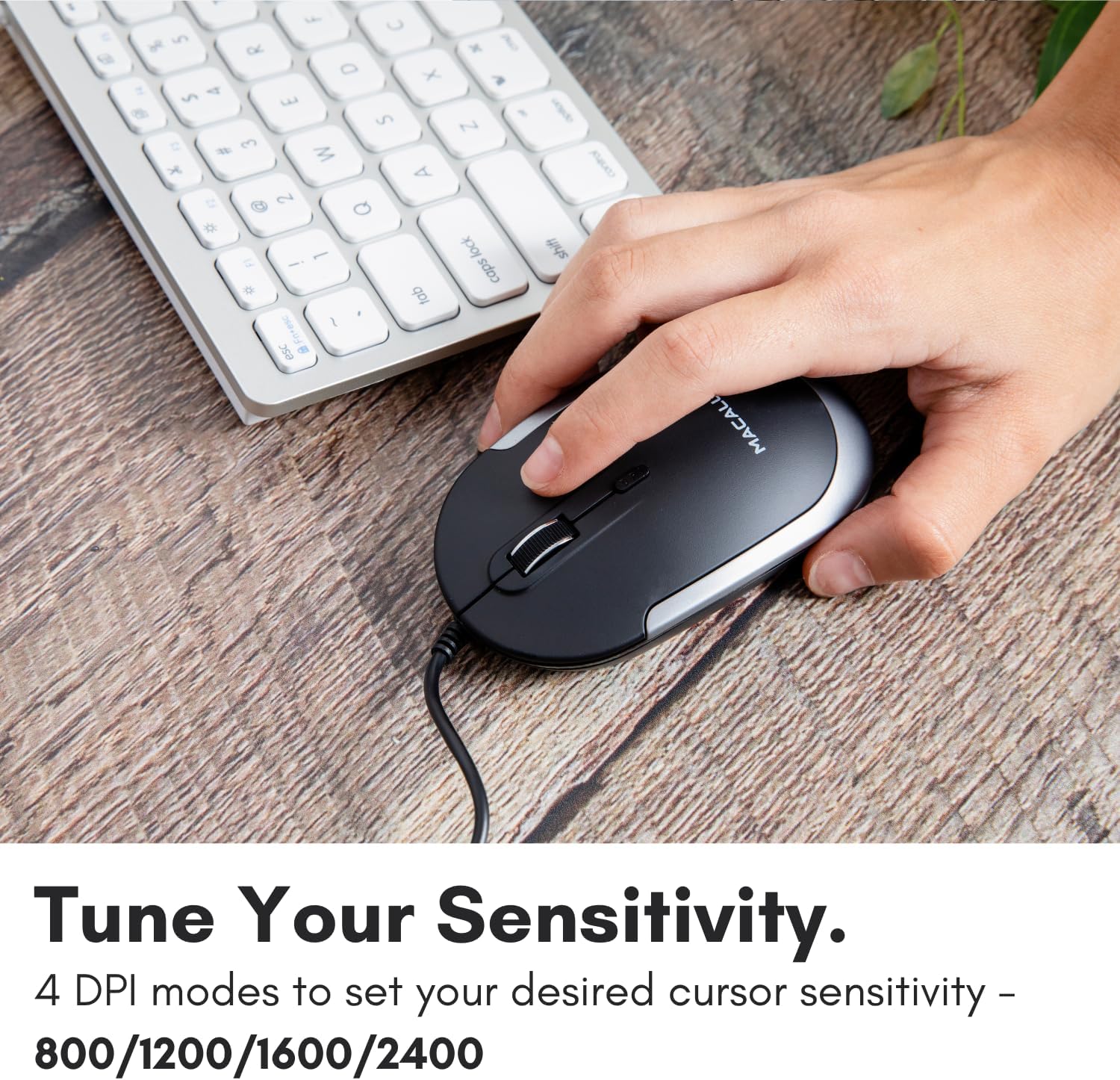
Image: A hand demonstrating how to press the DPI button on the Macally USB-C mouse to adjust sensitivity.
4.3 Kompatibilität
The Macally USB Type C Wired Mouse is universally compatible with a wide range of devices and operating systems:
- Mac (macOS)
- PC (Windows)
- iPadOS
- Android devices with USB-C ports

Image: The Macally USB-C mouse displayed with compatibility logos for Mac, PC, iPadOS, and Android operating systems.
5. Hauptmerkmale
- USB-C-Konnektivität: Specifically designed for modern laptops and computers with USB-C ports, ensuring a reliable wired connection.
- Schlankes und kompaktes Design: With a height of only 1 inch, the mouse is slim, comfortable, and portable, fitting snugly in your hand.
- Quiet Click Buttons: Reduces clicking noise by 90% compared to traditional mice, providing a quieter work environment.
- Einstellbare DPI: Easily switch between 800, 1200, 1600, and 2400 DPI settings for precise cursor control.
- 5-Foot Cable: Bietet ample length for flexible setup and comfortable use, even with desktop computers.
- Beidhändiges Design: Geeignet sowohl für Rechts- als auch für Linkshänder.

Image: The Macally USB-C mouse highlighting its elegant and slim design with dimensions.
Video: A detailed look at the Macally USB-C Optical Mouse, emphasizing its quiet click buttons and compatibility with Mac and PC.
6. Wartung
To ensure the longevity and optimal performance of your Macally USB Type C Wired Mouse, follow these simple maintenance guidelines:
- Reinigung: Verwenden Sie ein weiches, trockenes, fusselfreies Tuch, um die Oberfläche der Maus abzuwischen. Bei hartnäckigem Schmutz leicht andrücken.ampBefeuchten Sie das Tuch mit Wasser oder einer milden Reinigungslösung. Vermeiden Sie die Verwendung von scharfen Chemikalien oder Scheuermitteln.
- Optischer Sensor: Halten Sie den optischen Sensor an der Unterseite der Maus sauber und frei von Staub und Schmutz. Verwenden Sie gegebenenfalls ein Wattestäbchen oder Druckluft.
- Kabelpflege: Avoid sharp bends or excessive pulling on the USB-C cable to prevent damage. Store the cable neatly when not in use.
- Lagerung: Bewahren Sie die Maus bei Nichtgebrauch an einem sauberen, trockenen Ort fern von extremen Temperaturen auf.
7. Fehlerbehebung
If you encounter any issues with your Macally USB Type C Wired Mouse, please refer to the following common solutions:
| Problem | Lösung |
|---|---|
| Die Maus reagiert nicht. |
|
| Die Cursorbewegung ist unregelmäßig oder sprunghaft. |
|
| Buttons or scroll wheel are not working. |
|
8. Spezifikationen
| Marke | Macally |
| Modellnummer | UCDYNAMOUSESG |
| Konnektivitätstechnologie | USB-C kabelgebunden |
| Bewegungserkennungstechnologie | Optisch |
| DPI-Einstellungen | 800, 1200, 1600, 2400 |
| Kabellänge | 5 Fuß (ca. 1.5 Meter) |
| Schaltflächen | 3 (Left, Right, Scroll Wheel/Middle Click) + DPI Switch |
| Artikelgewicht | 2.56 Unzen (ca. 72.5 Gramm) |
| Produktabmessungen (L x B x H) | 2.8 x 4.21 x 1 Zoll (ca. 7.1 x 10.7 x 2.5 cm) |
| Kompatibilität | Mac (macOS), PC (Windows), iPadOS, Android (with USB-C) |
9. Garantie und Support
Macally provides a 1 Jahr Garantie for this product. For technical support, troubleshooting assistance, or warranty claims, please contact Macally customer service. You can find contact information and additional resources on the official Macally webWebsite:
WebWebsite: www.macally.com
Macally also offers easy returns and lifetime support with your purchase.