
1. Einführung und Endeview
The Glorious GMMK Compact is a 60% mechanical keyboard designed for customization and performance. It features hot-swappable switch sockets, allowing users to easily change mechanical switches without soldering. The keyboard includes per-key 16.8 million RGB lighting, customizable via software or onboard hotkeys. Its durable construction includes a full aluminum metal top plate and an ABS plastic bottom plate. The standard ANSI layout ensures compatibility with a wide range of third-party keycaps.
This keyboard comes with pre-installed Gateron Brown Tactile Mechanical switches, offering a balanced typing experience suitable for both office and gaming environments. The switches are backlit RGB SMD LED compatible, enhancing the visibility and aesthetic of the ABS keycaps.

Figure 1: Glorious GMMK Compact Mechanical Keyboard
2. Lieferumfang
Upon unboxing your Glorious GMMK Compact Mechanical Keyboard, you should find the following items:
- Glorious GMMK Compact Mechanical Keyboard
- Geflochtenes USB-C-zu-USB-A-Kabel
- Tastenkappenabzieher
- Switch Puller (integrated into the keyboard's underside)
- Additional Keycaps (e.g., standard Escape and Windows keys)
- Extra Rubber Grips

Figure 2: Keyboard with its braided USB-C cable
3. Installationsanleitung
Follow these steps to set up your Glorious GMMK Compact Mechanical Keyboard:
- Schließen Sie das Kabel an: Insert the USB-C end of the braided cable into the port on the top-left side of the keyboard. Connect the USB-A end to an available USB port on your computer or gaming console.
- Erstes Einschalten: The keyboard's RGB lighting will illuminate in a default pattern upon successful connection, indicating it is powered on and recognized by your system.
- Software installieren (optional, aber empfohlen): For full customization of RGB lighting, key remapping, and macro creation, download the Glorious GMMK software from the official Glorious PC Gaming Race webWebsite.
- Ergonomie anpassen: Utilize the built-in flip-out stands on the underside of the keyboard to adjust the typing angle for a more comfortable experience.
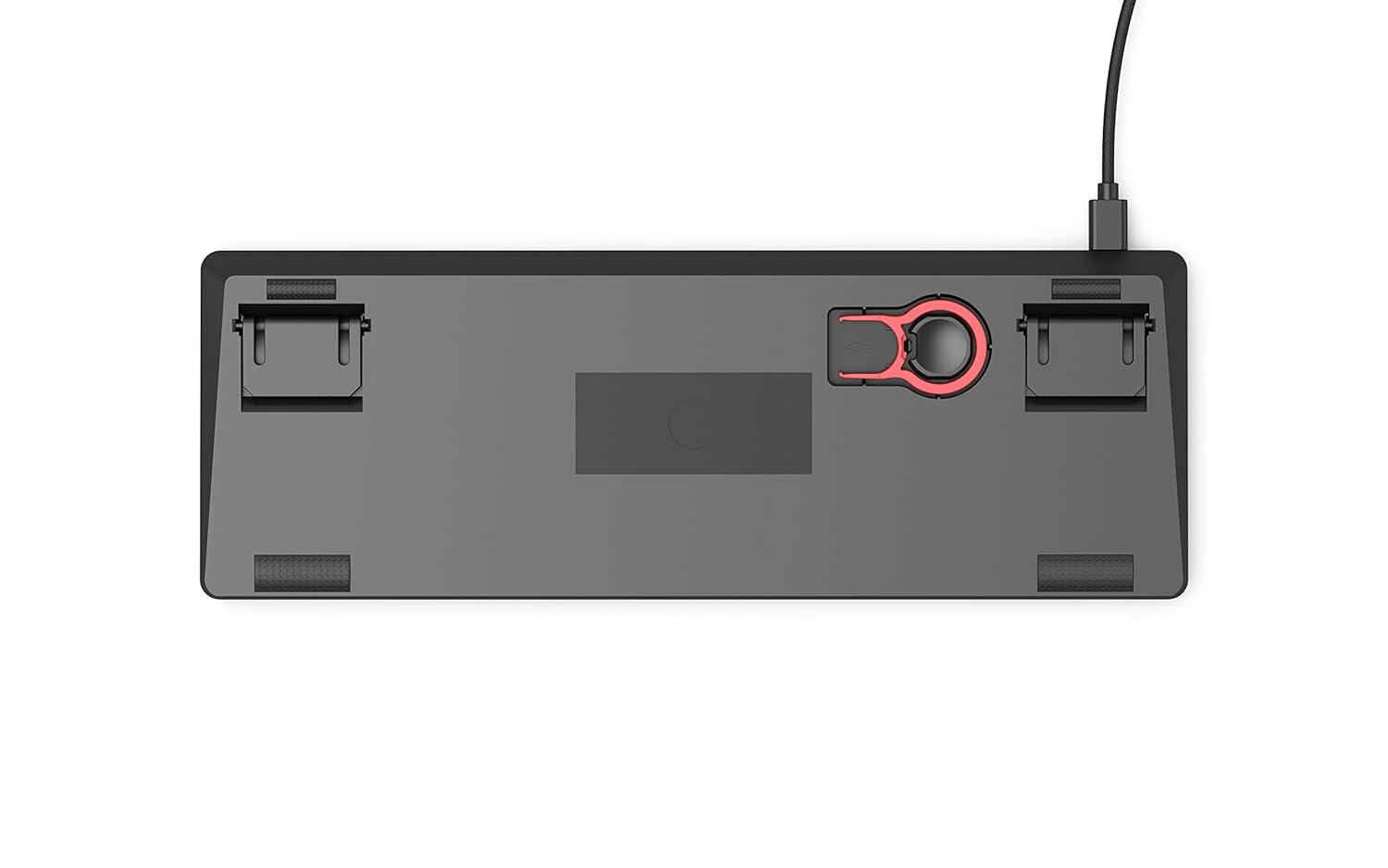
Figure 3: Underside of the keyboard with adjustable stands
4. Bedienungsanleitung
The GMMK Compact functions as a standard QWERTY keyboard. Many advanced features and RGB patterns can be controlled directly from the keyboard using hotkeys, typically involving the 'Fn' key in combination with other keys. Refer to the quick start guide included in the box or the Glorious website for a detailed list of hotkey commands.

Abbildung 4: Draufsicht view of the keyboard in operation
5. Anpassung
5.1. Hot-Swap-fähige Schalter
The GMMK Compact features hot-swappable switch sockets, allowing you to change mechanical switches without soldering. This keyboard is compatible with 3-pin mechanical switches from brands like Cherry, Gateron, and Kailh.
- Tastenkappe entfernen: Verwenden Sie den mitgelieferten Tastenkappenabzieher, um die gewünschte Tastenkappe vorsichtig zu entfernen.
- Schalter entfernen: Use the switch puller (located on the underside of the keyboard) to carefully grip and pull the switch straight up from its socket.
- Neuen Schalter installieren: Align the pins of the new 3-pin mechanical switch with the holes in the PCB. Press the switch firmly until it clicks into place. Ensure pins are not bent.
- Tastenkappe austauschen: Place the keycap onto the new switch stem and press down gently.

Figure 5: A Gateron Brown mechanical switch
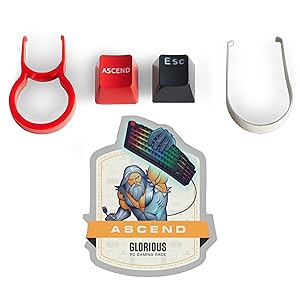
Figure 6: Keyboard PCB showing hot-swappable switch sockets
5.2. Keycap Swapping
You can easily swap out keycaps to personalize your keyboard. The GMMK Compact uses a standard ANSI layout, making it compatible with most third-party keycap sets.
- Tastenkappe entfernen: Use the keycap puller to grip the keycap and pull it straight up.
- Neue Tastenkappe installieren: Align the new keycap with the switch stem and press down firmly until it is seated.
Figure 7: RGB LED keycap detail
5.3. RGB-Beleuchtungsanpassung
The keyboard features per-key 16.8 million RGB lighting. You can customize lighting effects and colors using the Glorious GMMK software or through onboard hotkeys. Consult the quick start guide for specific hotkey combinations to cycle through effects, adjust brightness, and change colors.
Video 1: GMMK Black All Size Side-by-Side RGB ON - Demonstrates various RGB lighting effects on the keyboard.
Video 2: GMMK Compact (Black) Sound Test - Gateron Brown Switches - Provides an audio demonstration of the Gateron Brown switches.
6. Wartung
Regelmäßige Wartung trägt dazu bei, die Lebensdauer und Leistungsfähigkeit Ihrer Tastatur zu verlängern.
- Allgemeine Reinigung: Use a soft brush or compressed air to remove dust and debris from between the keycaps. Wipe the surface with a slightly damp, fusselfreies Tuch.
- Tiefenreinigung (Tastenkappen): For thorough cleaning, remove the keycaps using the keycap puller and wash them with mild soap and water. Ensure they are completely dry before reattaching.
- Deep Cleaning (Switches): If switches become dirty or sticky, they can be removed using the switch puller for individual cleaning or replacement.
7. Fehlerbehebung
If you encounter issues with your GMMK Compact keyboard, try the following troubleshooting steps:
- Tastatur reagiert nicht: Ensure the USB-C cable is securely connected to both the keyboard and your computer. Try connecting to a different USB port or a different computer to rule out port or system issues.
- RGB-Beleuchtungsprobleme: If RGB lighting is not functioning correctly, check the settings in the Glorious GMMK software. You can also try resetting the RGB patterns using the onboard hotkeys (refer to your quick start guide).
- Schlüssel werden nicht registriert: If a specific key is not working, gently remove its keycap and switch. Re-insert the switch firmly to ensure it is properly seated in the hot-swap socket. If the issue persists, consider replacing the switch.
- Software erkennt Tastatur nicht: Ensure you have the latest version of the Glorious GMMK software installed. Restart your computer and try reconnecting the keyboard.
For further assistance, visit the Glorious PC Gaming Race official website for detailed FAQs, firmware updates, and customer support resources.
8. Spezifikationen
| Modellnummer | GMMK-COMPACT-BRN |
| Tastaturlayout | 61 Tasten Standard-QWERTY (ANSI) |
| Schaltertyp | Tactile (Gateron Brown pre-installed) |
| Konnektivität | Kabelgebunden (USB-C) |
| Hintergrundbeleuchtung | Per-key 16.8 Million RGB LED |
| Abfragerate | 1000 Hz |
| Kabellänge | 6 ft. Braided (Removable) |
| Tastenkappen | ABS-Doppelspritzung |
| Abmessungen (L x B x H) | 11.5" x 4.1" x 1.4" |
| Gewicht | 816 Gramm |
| Gehäusematerial | Aluminium, ABS-Kunststoff |
| Kompatible Betriebssysteme | Windows, MacOS, Linux |
| Kompatible Geräte | PC, Laptop, Gaming Console (PS4, PS5, XBOX) |
9. Garantie und Support
The Glorious GMMK Compact Mechanical Keyboard comes with a 1-Year Limited Manufacturer Warranty. This warranty covers defects in materials and workmanship under normal use.
For warranty claims, technical support, firmware updates, or to access the latest software, please visit the official Glorious PC Gaming Race website. Their support resources include FAQs, troubleshooting guides, and contact information for direct assistance.