
Wichtige Sicherheitshinweise
To ensure safe operation and prolong the life of your monitor, please read and follow these instructions carefully:
- Vor der Reinigung des Monitors muss immer das Netzkabel aus der Steckdose gezogen werden.
- Um einen Stromschlag zu vermeiden, setzen Sie den Monitor weder Regen noch Feuchtigkeit aus.
- Sorgen Sie für ausreichende Belüftung um den Monitor herum, um eine Überhitzung zu vermeiden. Blockieren Sie die Lüftungsöffnungen nicht.
- Verwenden Sie ausschließlich das vom Hersteller mitgelieferte Netzteil und die mitgelieferten Kabel.
- Vermeiden Sie es, schwere Gegenstände auf das Netzkabel oder den Monitor zu legen.
- Sollte der Monitor beschädigt sein oder Fehlfunktionen aufweisen, versuchen Sie nicht, ihn selbst zu reparieren. Wenden Sie sich an qualifiziertes Servicepersonal.
Packungsinhalt
Before proceeding with the setup, please check the contents of your package to ensure all items are present:
- Acer CB272U smiiprx LED Monitor
- Monitorständer (Fuß und Arm)
- Netzkabel
- HDMI-Kabel
- Kurzanleitung / Garantiekarte
Aufstellen
1. Zusammenbau des Monitorständers
- Carefully remove the monitor from its packaging. Place the monitor face down on a soft, clean cloth or surface to prevent scratches to the screen.
- Attach the stand arm to the back of the monitor panel. Ensure it is securely fastened, typically by sliding it into place until it clicks or by tightening screws.
- Connect the stand base to the bottom of the stand arm. Secure the base by tightening the captive screw located underneath the base.

Abbildung 1: Rückseite view of the Acer CB272U smiiprx monitor with the stand attached, illustrating the assembly points.
2. Connecting the Monitor to Your Computer
- Connect one end of the provided HDMI cable to the HDMI port on the monitor.
- Connect the other end of the HDMI cable to the HDMI output port on your computer or graphics card.
- Stecken Sie das Netzkabel in den Stromeingang des Monitors und das andere Ende in eine geerdete Steckdose.

Abbildung 2: Schräge Rückseite view showing the input ports of the monitor, including HDMI and power connections.
Monitor bedienen
Ein- und Ausschalten
Locate the power button on the monitor's bezel. Press it once to turn the monitor on. The power indicator light will illuminate. Press it again to turn the monitor off.
Adjusting Display Settings (OSD Menu)
The On-Screen Display (OSD) menu allows you to customize various monitor settings. Use the control buttons (usually located on the back or bottom right of the monitor) to navigate the OSD menu. Common adjustments include:
- Helligkeit Kontrast: Passen Sie die Gesamthelligkeit und den Unterschied zwischen hellen und dunklen Bereichen an.
- Farbeinstellungen: Farbtemperatur, Gamma und einzelne RGB-Werte anpassen.
- Eingabequelle: Manually select the video input (e.g., HDMI).
- Audio: Lautstärkeregelung für die eingebauten Lautsprecher.
Ergonomische Anpassungen
The Acer CB272U smiiprx monitor stand offers multiple ergonomic adjustments to optimize your viewKomfort:
- Höhenverstellung: Stellen Sie den Monitor auf Augenhöhe ein.
- Neigung: Adjust the screen angle forward or backward to reduce glare.
- Schwenken: Rotate the monitor horizontally to share your screen or adjust viewing-Winkel.
- Drehpunkt: Rotate the screen to a portrait orientation for document viewing oder Codierung.
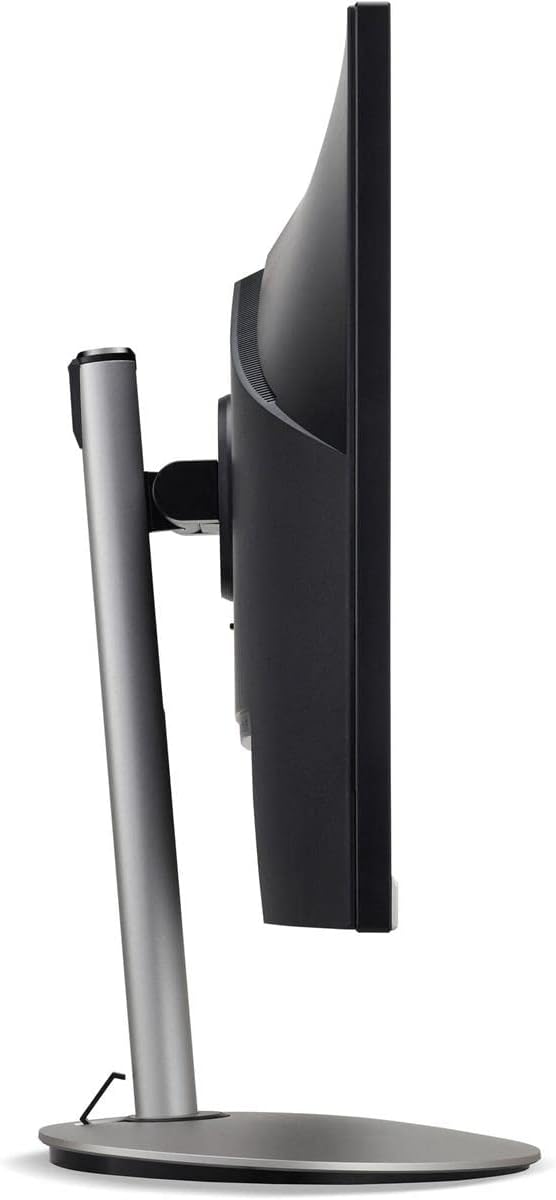
Abbildung 3: Seitenansichtfile of the monitor, illustrating its adjustable stand for ergonomic positioning.
Wartung
Cleaning the Monitor Screen and Casing
To clean your monitor, first ensure it is turned off and unplugged from the power outlet. Use a soft, lint-free cloth. For stubborn marks, lightly dampen the cloth with water or a specialized non-abrasive screen cleaner. Sprühen Sie keine Flüssigkeit direkt auf den Bildschirm oder die Oberfläche.asing. Vermeiden Sie die Verwendung von aggressiven Chemikalien, Scheuermitteln oder Lösungsmitteln.
Lagerungsrichtlinien
If you need to store the monitor for an extended period, it is recommended to use its original packaging to protect it from dust, moisture, and physical damage. Store in a cool, dry environment away from direct sunlight and extreme temperatures.
Fehlerbehebung
In der folgenden Tabelle finden Sie häufig auftretende Probleme und deren Lösungen:
| Problem | Mögliche Ursache | Lösung |
|---|---|---|
| Kein Bild auf dem Bildschirm | Stromkabel nicht angeschlossen; Videokabel nicht angeschlossen; Falsche Eingangsquelle ausgewählt. | Überprüfen Sie die Strom- und Videokabelverbindungen; Stellen Sie sicher, dass der Monitor eingeschaltet ist; Wählen Sie die richtige Eingangsquelle über das OSD-Menü aus. |
| Das Bild ist unscharf oder verzerrt. | Incorrect resolution setting; Faulty video cable. | Set the display resolution to 2560 x 1440 at 75 Hz; Try a different HDMI cable. |
| Kein Ton von den Lautsprechern | Monitor volume too low or muted; Incorrect audio output selected on computer. | Adjust monitor volume via OSD; Unmute audio; Select the monitor as the audio output device in your computer's sound settings. |
| Monitorflackern | Refresh rate mismatch; Interference; Faulty cable. | Ensure refresh rate is set to 75 Hz; Check for nearby electronic devices causing interference; Replace video cable. |
Technische Daten
Key technical specifications for the Acer CB272U smiiprx LED Monitor:
| Besonderheit | Detail |
|---|---|
| Modellname | CB272U smiiprx |
| Bildschirmgröße | 24.1 Zoll |
| Native Auflösung | 2560 x 1440 (WQHD) |
| Bildwiederholrate | 75 Hz |
| Ansprechzeit | 1 Millisecond (VRB) |
| Seitenverhältnis | 16:9 |
| Anzeigetyp | LED-backlit LCD / TFT active matrix (IPS) |
| Helligkeit | 350 cd/m² |
| Kontrastverhältnis | 1000:1 (statisch) |
| Konnektivität | HDMI |
| Adaptive Synchronisierung | FreeSync |
| Eingebaute Lautsprecher | Ja |
| Dimensions (WxDxH with stand) | 24.1 Zoll x 9.2 Zoll x 20.5 Zoll |
| Gewicht (mit Ständer) | 18.1 Pfund |

Figure 4: Monitor dimensions with stand, indicating width, depth, and height.
Garantieinformationen
The Acer CB272U smiiprx LED Monitor comes with a 3 Jahre eingeschränkte Herstellergarantie. This warranty covers defects in materials and workmanship under normal use. For complete details regarding warranty coverage, limitations, and how to make a claim, please refer to the warranty documentation included with your product or visit the official Acer support webWebsite.
Bitte bewahren Sie Ihren Kaufbeleg (Quittung oder Rechnung) auf, da dieser für jegliche Garantieleistungen benötigt wird.
Kundenservice
Should you require further assistance, technical support, or wish to download the latest drivers and firmware updates for your monitor, please visit the official Acer support webWebsite:
Die Kontaktdaten des Acer-Kundendienstes in Ihrer Region finden Sie auch im Supportbereich. webWebsite für personalisierte Unterstützung.