
Veidoo T10
Veidoo 10-inch Android Tablet PC User Manual
Modell: T10
1. Einleitung
This user manual provides detailed instructions for the safe and efficient operation of your Veidoo 10-inch Android Tablet PC. Please read this manual thoroughly before using the device and retain it for future reference. This tablet is designed for various uses, including communication, entertainment, and productivity.

This image shows the Veidoo 10-inch Android Tablet PC. The front of the tablet displays the home screen with the current time, date, and various application icons such as Camera, Gallery, Settings, and Music. The rear of the tablet, visible behind the front, is black with a subtle textured design and features the rear camera module.
2. Sicherheitshinweise
- Setzen Sie das Gerät keinen extremen Temperaturen, direkter Sonneneinstrahlung oder hoher Luftfeuchtigkeit aus.
- Lassen Sie das Gerät nicht fallen und setzen Sie es keinen starken Stößen aus.
- Verwenden Sie nur vom Hersteller zugelassene Ladegeräte und Zubehör.
- Versuchen Sie nicht, das Gerät selbst zu zerlegen oder zu reparieren. Wenden Sie sich an qualifiziertes Servicepersonal.
- Bewahren Sie das Gerät außerhalb der Reichweite von Kindern und Haustieren auf.
- Entsorgen Sie das Gerät und die Batterie verantwortungsbewusst gemäß den örtlichen Vorschriften.
3. Produktüberschreitungview
3.1 Physikalische Merkmale
Familiarize yourself with the various ports and buttons on your Veidoo Tablet PC:

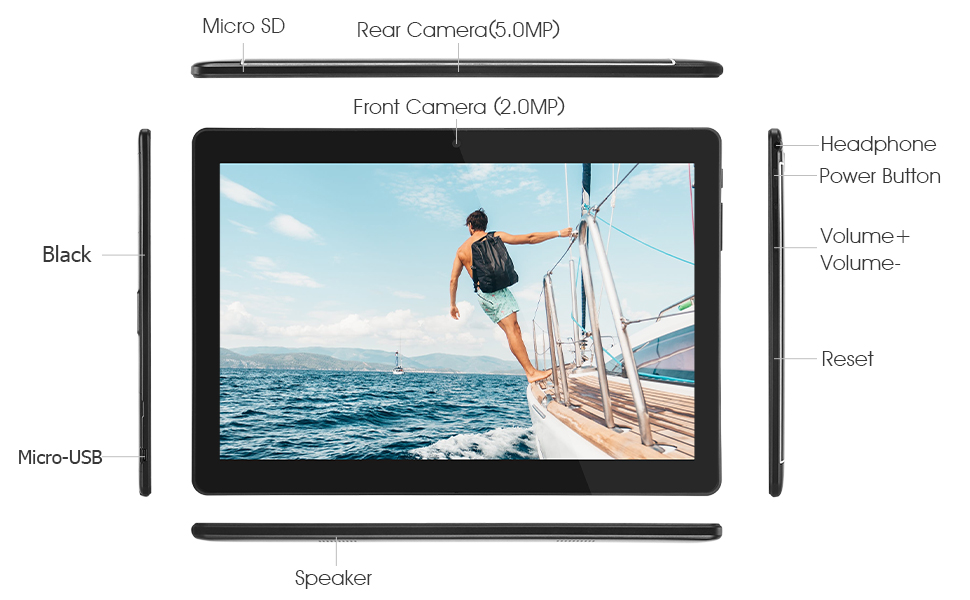
This diagram illustrates the various physical components and ports of the Veidoo 10-inch Android Tablet PC. It clearly labels the Micro SD card slot, the 5.0MP rear camera, the 2.0MP front camera, the headphone jack, the power button, the volume up and down buttons, the reset pinhole, the Micro-USB charging port, and the speaker.
- Micro-SD-Steckplatz: Für erweiterbaren Speicher.
- Rückkamera (5.0 MP): Zum Fotografieren und Filmen.
- Frontkamera (2.0 MP): Für Videoanrufe und Selfies.
- Kopfhöreranschluss: Schließen Sie 3.5-mm-Kopfhörer an.
- Netzschalter: Zum Ein-/Ausschalten gedrückt halten, zum Ein-/Ausschalten kurz drücken.
- Lautstärketasten: Lautstärke anpassen.
- Pinhole zurücksetzen: Use a thin object to reset the device if unresponsive.
- Micro-USB-Anschluss: Zum Aufladen und zur Datenübertragung.
- Lautsprecher: Audio-Ausgang.
3.2 Packungsinhalt
Stellen Sie sicher, dass alle Artikel in Ihrer Produktverpackung vorhanden sind:

This image displays the items typically found inside the Veidoo 10-inch Android Tablet PC product box. It includes the tablet itself, a black protective case, a power adapter (wall charger), a USB charging and data cable, a service warranty card, and a leaflet containing frequently asked questions and support information.
- Veidoo 10-inch Android Tablet PC
- Netzteil
- USB-Kabel
- Protective Case (optional, may vary by package)
- Benutzerhandbuch (dieses Dokument)
- Service-Garantiekarte
- FAQ Leaflet
4. Einrichtung
4.1 Laden des Akkus
Before first use, fully charge the tablet. Connect the USB cable to the tablet's Micro-USB port and the other end to the power adapter. Plug the adapter into a wall outlet. The charging indicator will show the charging status. A full charge typically takes 3-4 hours.

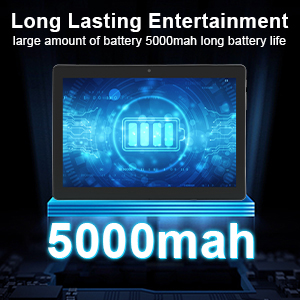
This image focuses on the Veidoo 10-inch Android Tablet PC's battery capacity, prominently displaying a battery icon and '5000mAh'. This signifies the tablet's 5000mAh battery, designed to provide extended usage time for entertainment and productivity.
4.2 Ein-/Ausschalten
- So schalten Sie das Gerät ein: Press and hold the Power button until the Veidoo logo appears on the screen.
- So schalten Sie das Gerät aus: Halten Sie die Ein-/Aus-Taste gedrückt, bis ein Menü erscheint. Wählen Sie „Ausschalten“ und bestätigen Sie.
- Schlafen/Wachen: Drücken Sie kurz die Ein-/Aus-Taste, um das Tablet in den Ruhemodus zu versetzen oder es aufzuwecken.
4.3 Einlegen von SIM- und Micro-SD-Karten
The tablet supports dual SIM cards for 3G phone calls and a Micro SD card for expandable storage.
- Suchen Sie den SIM-/SD-Kartensteckplatz an der Seite des Tablets.
- Carefully open the slot cover.
- Insert the SIM card(s) and/or Micro SD card into the designated slots with the gold contacts facing down. Ensure they are correctly seated.
- Schließen Sie die Abdeckung des Steckplatzes fest.
This image demonstrates the storage capabilities of the Veidoo 10-inch Android Tablet PC, showing multiple applications and content open. It highlights the device's 16GB internal storage (ROM) and its ability to expand storage up to 32GB via a Micro SD card, allowing for ampPlatz für Apps, Fotos und Videos.
4.4 Ersteinrichtung
Beim ersten Einschalten führt Sie das Tablet durch den Ersteinrichtungsprozess:
- Wählen Sie Ihre bevorzugte Sprache.
- Stellen Sie eine Verbindung zu einem Wi-Fi-Netzwerk her.
- Melden Sie sich mit Ihrem Google-Konto an oder erstellen Sie ein neues. Dies ist erforderlich, um Apps aus dem Google Play Store herunterzuladen.
- Bildschirmsperre einrichten (PIN, Muster, Passwort).
- Review und die Allgemeinen Geschäftsbedingungen akzeptieren.
5. Bedienung des Tablets
5.1 Grundlegende Navigation
- Klopfen: Wählen Sie ein Element aus oder öffnen Sie eine App.
- Tippen und halten: Access context menus or move icons.
- Wischen: Durch Bildschirme oder Listen scrollen.
- Pinch-to-Zoom: Bilder vergrößern oder verkleinern und web Seiten.
5.2 Konnektivität (WLAN & Bluetooth)
- W-lan: Gehe zu Einstellungen > Netzwerk & Internet > WLAN. Turn Wi-Fi on, select your network, and enter the password.
- Bluetooth: Gehe zu Einstellungen > Verbundene Geräte > BluetoothSchalten Sie Bluetooth ein, suchen Sie nach Geräten und koppeln Sie das gewünschte Zubehör.
5.3 Making Phone Calls (3G)
With a valid SIM card inserted, you can make and receive 3G phone calls:

This image shows a group of four individuals participating in a video call using the Veidoo 10-inch Android Tablet PC. This illustrates the tablet's capability for video conferencing and its 3G phone call functionality, allowing users to connect with others remotely.
- Öffnen Sie die Telefon App.
- Dial the number using the keypad or select a contact.
- Tippen Sie auf die Anrufschaltfläche, um den Anruf einzuleiten.
5.4 Verwenden der Kameras
The tablet is equipped with a front and rear camera for photos and videos.
- Öffnen Sie die Kamera App.
- Wechseln Sie mithilfe des Kamerasymbols zwischen Front- und Rückkamera.
- Tippen Sie auf den Auslöser, um ein Foto aufzunehmen oder die Videoaufnahme zu starten/stoppen.
5.5 Speicherverwaltung
Du kannst view and manage your tablet's internal and external storage:
- Gehe zu Einstellungen > Speicher.
- Here you can see storage usage and free up space by deleting unnecessary fileoder das Deinstallieren von Apps.
5.6 Installing and Uninstalling Apps
This image features the Veidoo 10-inch Android Tablet PC showcasing its Android 10 operating system with a multitude of application icons. This highlights that the device is GMS (Google Mobile Services) certified, ensuring access to Google Play Store and other Google services.
- Installieren: Öffnen Sie die Google Play Store app, search for your desired app, and tap Installieren.
- Deinstallieren: Gehe zu Einstellungen > Apps & Benachrichtigungen > Alle Apps anzeigen. Select the app you wish to uninstall and tap Deinstallieren.
6. Wartung
- Reinigung: Reinigen Sie Bildschirm und Gehäuse mit einem weichen, fusselfreien Tuch. Vermeiden Sie Scheuermittel und Lösungsmittel.
- Software-Updates: Prüfen Sie regelmäßig auf Systemaktualisierungen in Einstellungen > System > Systemupdate um optimale Leistung und Sicherheit zu gewährleisten.
- Batteriepflege: To prolong battery life, avoid fully discharging the battery frequently. Store the tablet in a cool, dry place when not in use for extended periods.
- Datensicherung: Um Datenverlust zu vermeiden, sollten Sie wichtige Daten regelmäßig in einem Cloud-Speicher oder auf einem externen Speichermedium sichern.
7. Fehlerbehebung
| Problem | Mögliche Lösung |
|---|---|
| Das Tablet lässt sich nicht einschalten. | Ensure the battery is charged. Connect the charger and wait a few minutes before attempting to power on. If unresponsive, try pressing the reset pinhole. |
| Der Bildschirm reagiert nicht | Restart the tablet by holding the Power button. If that doesn't work, use the reset pinhole. Ensure the screen is clean and dry. |
| Keine Verbindung zum WLAN möglich | Check if Wi-Fi is enabled in settings. Ensure the Wi-Fi password is correct. Restart your router and the tablet. |
| Apps stürzen ab oder frieren ein. | Schließen Sie die App und öffnen Sie sie erneut. Leeren Sie den App-Cache in Einstellungen> Apps & Benachrichtigungen. Update the app or uninstall and reinstall it. Ensure sufficient storage space. |
| Schlechte Akkulaufzeit | Reduce screen brightness. Close unused apps running in the background. Turn off Wi-Fi, Bluetooth, and GPS when not in use. Limit background data usage. |
8. Spezifikationen
Key technical specifications for the Veidoo 10-inch Android Tablet PC (Model T10):

This image provides a visual summary of the Veidoo Tablet PC's key specifications. It highlights features such as 1GB RAM, a 2MP front and 5MP rear camera setup, a 10.1-inch IPS HD display with 1280x800 resolution, 16GB of internal storage, Android 10 operating system, Wi-Fi connectivity, a Quad-Core CPU, and dual SIM card support.
| Besonderheit | Detail |
|---|---|
| Modellname | Touch (T10) |
| Anzeigegröße des Standbildschirms | 10.1 Zoll |
| Bildschirmauflösung | 800 x 1280 (IPS) |
| RAM | 1 GB (DDR3 SDRAM) |
| Festplatten-/Flash-Speichergröße | 16 GB (erweiterbar auf bis zu 32 GB über Micro-SD-Karte) |
| Kabelloser Typ | 802.11b, 802.11b/g (Wi-Fi), Bluetooth |
| Durchschnittliche Akkulaufzeit | 6 Hours (5000mAh Lithium Polymer) |
| Hardware-Plattform | Android |
| Betriebssystem | Android 6.0 Marshmallow (GMS Certified) |
| Artikelgewicht | 2.86 Pfund |
| Technische Daten | 9.49 x 6.69 x 0.37 Zoll |
| Hinteren Webcam Auflösung | 5 Megapixel |
| Front Webcam Auflösung | 2 Megapixel |
| Anzahl der Prozessoren | 4 (Quad-Core) |
| Stromquelle | Batteriebetrieben, kabelgebunden |
9. Garantie und Support
Your Veidoo Tablet PC comes with a service warranty. Please refer to the included Service Warranty Card for specific terms and conditions, including warranty period and coverage details.
For technical support, troubleshooting assistance, or warranty claims, please contact Veidoo customer service. Contact information can typically be found on the warranty card or the official Veidoo website. When contacting support, please have your model number (T10) and purchase information ready.
You can also visit the official Veidoo store on Amazon for more information and support resources: Veidoo Store
Ask a question about this manual
Ask about setup, troubleshooting, compatibility, parts, safety, or missing instructions. Manuals+ will review the question and use this page’s manual context to help answer it.