
FLYLINKTECH CD10
FLYLINKTECH Dash Cam CD10 User Manual
Modell: CD10
Einführung
This manual provides detailed instructions for the installation, operation, and maintenance of your FLYLINKTECH Dash Cam CD10. Please read this manual thoroughly before using the device to ensure proper functionality and safety.

Abbildung: Vorder- und Rückseite view of the FLYLINKTECH Dash Cam CD10, highlighting its compact design and 1.5-inch LCD screen.
Produkteigenschaften
- Full HD 1080P Video: Records video at 1080p resolution for clear details.
- 170°-Weitwinkelobjektiv: Covers up to 5 traffic lanes, reducing blind spots.
- G-Sensor and Emergency Lock: Automatische Kollisionserkennung und Videosperre files.
- WDR-Funktion: Enhances video quality in various lighting conditions, including low light.
- Loop-Aufnahme: Überschreibt älteste filewird ausgelöst, wenn der Speicher voll ist, um eine kontinuierliche Aufzeichnung zu gewährleisten.
- 1.5-Zoll-LCD-Bildschirm: Compact display for easy viewNavigation und Navigation.
- Parkmonitor: Records incidents when the vehicle is parked.
- Bewegungserkennung: Initiates recording when motion is detected.
- Nachtsicht: Improved low-light performance.

Image: Diagram illustrating key features of the dash cam, including 1080P resolution, 1.5-inch LCD, G-Sensor, motion detection, loop recording, 170-degree wide angle, WDR, and super night vision.
Packungsinhalt
Bitte überprüfen Sie den Packungsinhalt nach dem Auspacken:
- FLYLINKTECH Dash Cam CD10
- Saugnapfhalterung
- Klebebefestigung
- Statische Aufkleber
- Car Charger with additional USB port
- Micro-USB-Kabel
- Benutzerhandbuch (dieses Dokument)
Note: An SD card is not included and must be purchased separately.

Image: All items included in the product package: the dash cam, packaging box, car charger, micro USB cable, suction cup mount, adhesive mount, and user manual.
Setup und Installation
1. Einlegen der Micro-SD-Karte
Before first use, insert a high-speed Micro SD card (Class 10 or higher, up to 32GB recommended) into the dash cam's SD card slot. Ensure the card is inserted correctly until it clicks into place.
2. Montage der Dashcam
Choose between the suction cup mount or the adhesive mount for installation.
- Saugnapfhalterung:
- Reinigen Sie die Stelle an der Windschutzscheibe, an der Sie die Kamera anbringen möchten.
- Attach the dash cam to the suction cup mount.
- Drücken Sie den Saugnapf fest gegen die Windschutzscheibe und betätigen Sie den Hebel, um ihn zu sichern.
- Klebehalterung:
- Reinigen Sie die Windschutzscheibe gründlich.
- Apply the static sticker to the windshield first, then attach the adhesive mount to the static sticker for easier removal later.
- Befestigen Sie die Dashcam an der Klebehalterung.
- Um eine starke Verbindung zu gewährleisten, drücken Sie 30 Sekunden lang fest.
Position the dash cam near the rearview Spiegel, um sicherzustellen, dass er Ihre Sicht nicht behindert view der Straße.
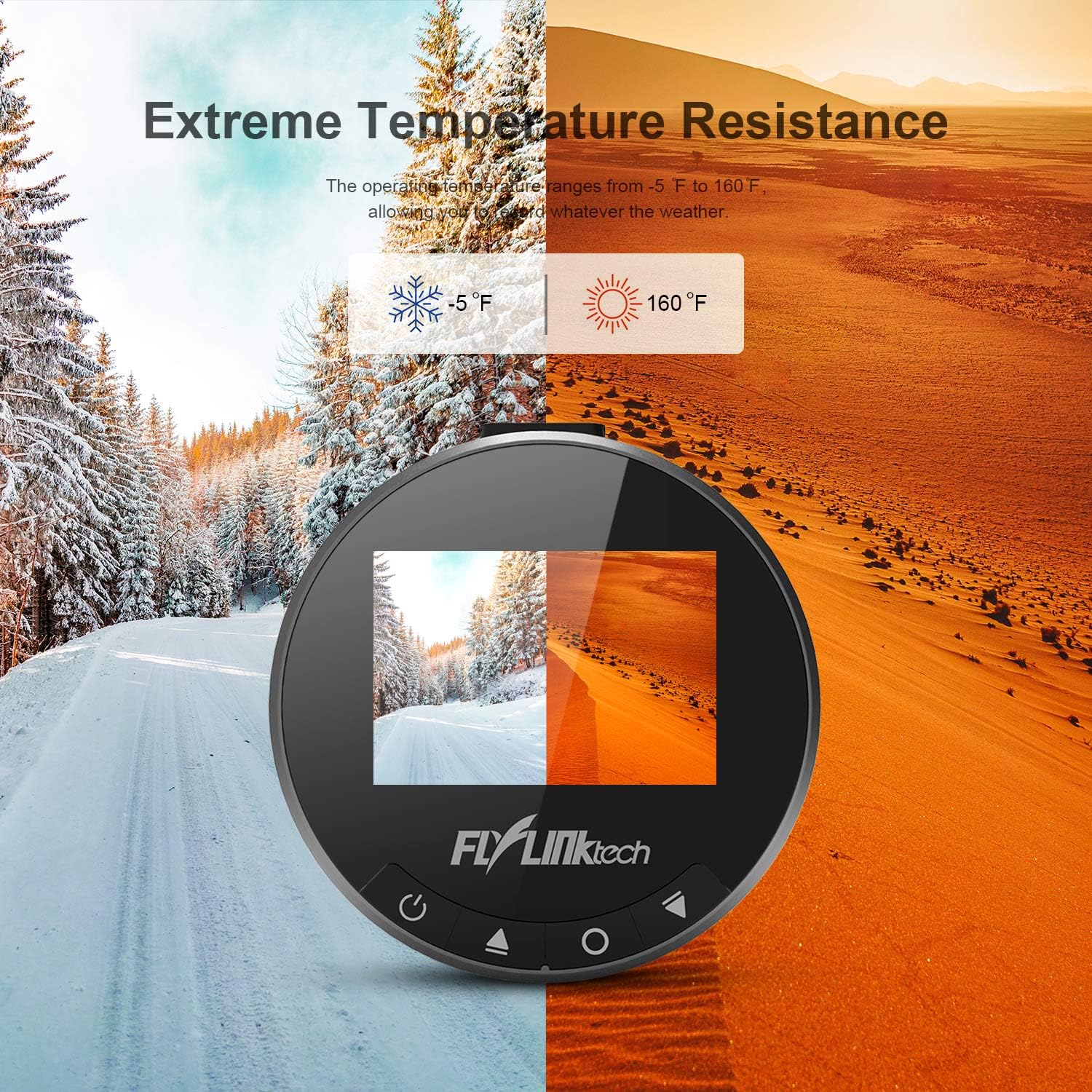
Bild: Ein Example of the dash cam installed on a car's windshield, showing optimal placement to avoid obstructing the driver's view while covering the road ahead.
3. Stromversorgung anschließen
Connect the provided car charger to your vehicle's cigarette lighter socket and the Micro USB cable to the dash cam's power port. Route the cable neatly along the windshield and dashboard to avoid interference with driving.
Bedienungsanleitung
1. Ein-/Ausschalten
- The dash cam will automatically power on and begin recording when connected to power and the vehicle ignition is turned on.
- To manually power on/off, press and hold the Power button (usually marked with a power symbol) on the device.
2. Grundlegende Aufnahme
Once powered on, the dash cam will automatically start loop recording. Video files are saved in segments (e.g., 1, 3, 5, or 10 minutes) and the oldest fileDie Dateien werden überschrieben, wenn die SD-Karte voll ist.

Image: Visual representation of the loop recording function, showing how older video segments are automatically replaced by new ones to ensure continuous recording.
3. G-Sensor (Notverriegelung)
The built-in G-Sensor detects sudden impacts or rapid deceleration. When triggered, the current video segment is automatically locked and protected from being overwritten, serving as crucial evidence in case of an accident.

Image: Illustrations depicting the G-Sensor activating upon collision and the 24-hour parking monitor function, which records incidents when the vehicle is parked.
4. Parkmonitor
When enabled, the Parking Monitor function uses the internal battery to detect impacts or motion around the vehicle while parked. It will automatically start recording for a short period to capture any incidents.
5. Bewegungserkennung
In Motion Detection mode, the camera will only record when it detects movement in its field of view, conserving storage space. This feature is typically used when the vehicle is stationary.
6. WDR (breiter Dynamikbereich)
WDR technology helps the camera perform optimally in challenging lighting conditions, such as strong backlight or low light, by balancing exposure to produce clearer images.

Image: Comparison showing how WDR improves image clarity in varying light conditions, alongside an illustration of the 170-degree wide angle coverage across multiple lanes.
Wartung
- Reinigung: Use a soft, dry cloth to clean the camera lens and screen. Do not use liquid cleaners or abrasive materials.
- Formatierung der SD-Karte: It is recommended to format the Micro SD card regularly (e.g., once a month) within the dash cam's settings to prevent data corruption and ensure optimal recording performance. This will erase all data on the card.
- Temperatur: Avoid exposing the dash cam to extreme temperatures outside its operating range (-20°C to 70°C / -5°F to 160°F) for prolonged periods.
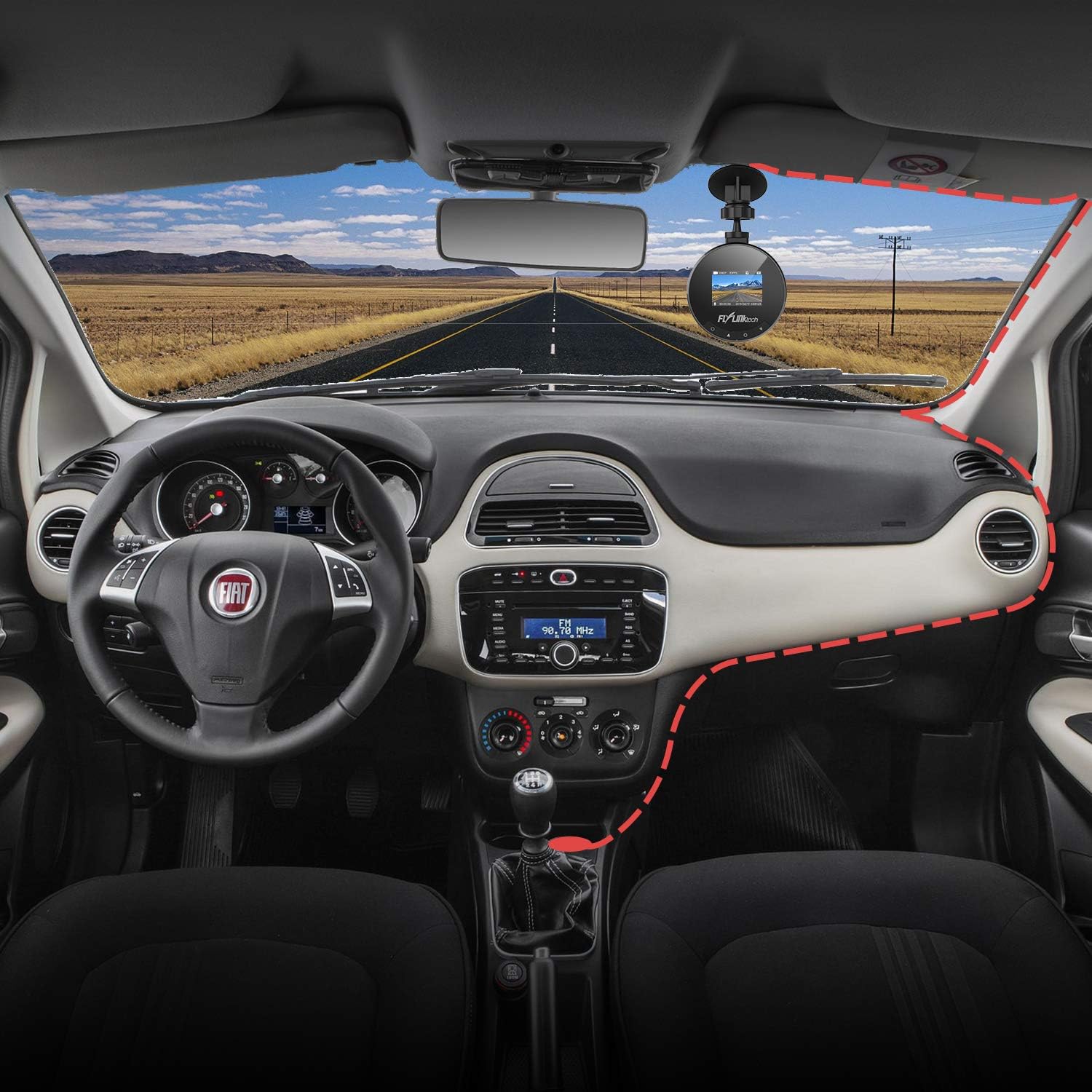
Image: Visual representation of the dash cam's ability to withstand extreme temperatures, from cold winter conditions (-5°F) to hot desert environments (160°F).
Fehlerbehebung
- Kamera lässt sich nicht einschalten:
- - Stellen Sie sicher, dass das Autoladegerät ordnungsgemäß sowohl an die Dashcam als auch an die Steckdose des Fahrzeugs angeschlossen ist.
- - Check if the vehicle's cigarette lighter socket is functioning.
- - Try a different USB cable or car charger if available.
- Die Aufnahme stoppt oder friert ein:
- - Format the Micro SD card within the camera's settings.
- - Ensure you are using a high-speed (Class 10 or higher) Micro SD card.
- - The SD card may be full; enable loop recording or replace the card.
- Schlechte Videoqualität:
- - Reinigen Sie die Kameralinse.
- - Stellen Sie sicher, dass die Schutzfolie von der Linse entfernt wurde.
- - Adjust settings for WDR or exposure if available.
- Saugnapf hält nicht:
- - Clean both the windshield and the suction cup thoroughly.
- - Moisten the suction cup slightly before applying.
- - Ensure the lever is fully engaged after pressing the cup to the windshield.
Technische Daten
| Besonderheit | Detail |
|---|---|
| Bildschirm | 1.5-Zoll-LCD-Bildschirm |
| Öffnung | F1.8 |
| G-Sensor | Integriert |
| Videoauflösung | 1080P Full HD |
| Fotoauflösung | 12M / 10M / 8M / 5M / 3M / 2M / 1.3M |
| Videomodus | Normal / Loop Recording / Motion Detection / Parking Monitor |
| Betriebstemperatur | -20°C bis 70°C (-5°F bis 160°F) |
| Maße | 5.99 x 5.99 x 3 cm |
| Gewicht | 280g |
| Konnektivität | USB |
Garantie und Support
FLYLINKTECH provides a 2-year worry-free warranty for all dashboard cameras.
For technical support or warranty claims, please contact FLYLINKTECH customer service through the contact information provided in your product packaging or on the official FLYLINKTECH webWebsite.