
rockspace F-253
rockspace WLAN-Repeater – Benutzerhandbuch
Modell: F-253
1. Produktüberschreitungview
The rockspace WiFi Extender is designed to expand the coverage of your existing wireless network, eliminating Wi-Fi dead zones and providing stable, high-speed internet access throughout your home or office. It supports dual-band operation (2.4GHz and 5GHz) for optimal performance.
- Dual Band High Speed: Offers combined speeds of up to 1167 Mbps (300Mbps for 2.4GHz and 867Mbps for 5GHz), ideal for HD streaming and online gaming.
- Breite Abdeckung: Extends Wi-Fi coverage up to 1292 sq.ft., reaching previously uncovered areas.
- Intelligente Signalanzeige: Helps in finding the best placement for optimal signal extension.
- Hohe Kompatibilität: Works with all 802.11 a/b/g/n/ac standard routers and gateways.
- Access Point Function: Includes a Gigabit Ethernet port for wired connections or to function as a wireless access point.
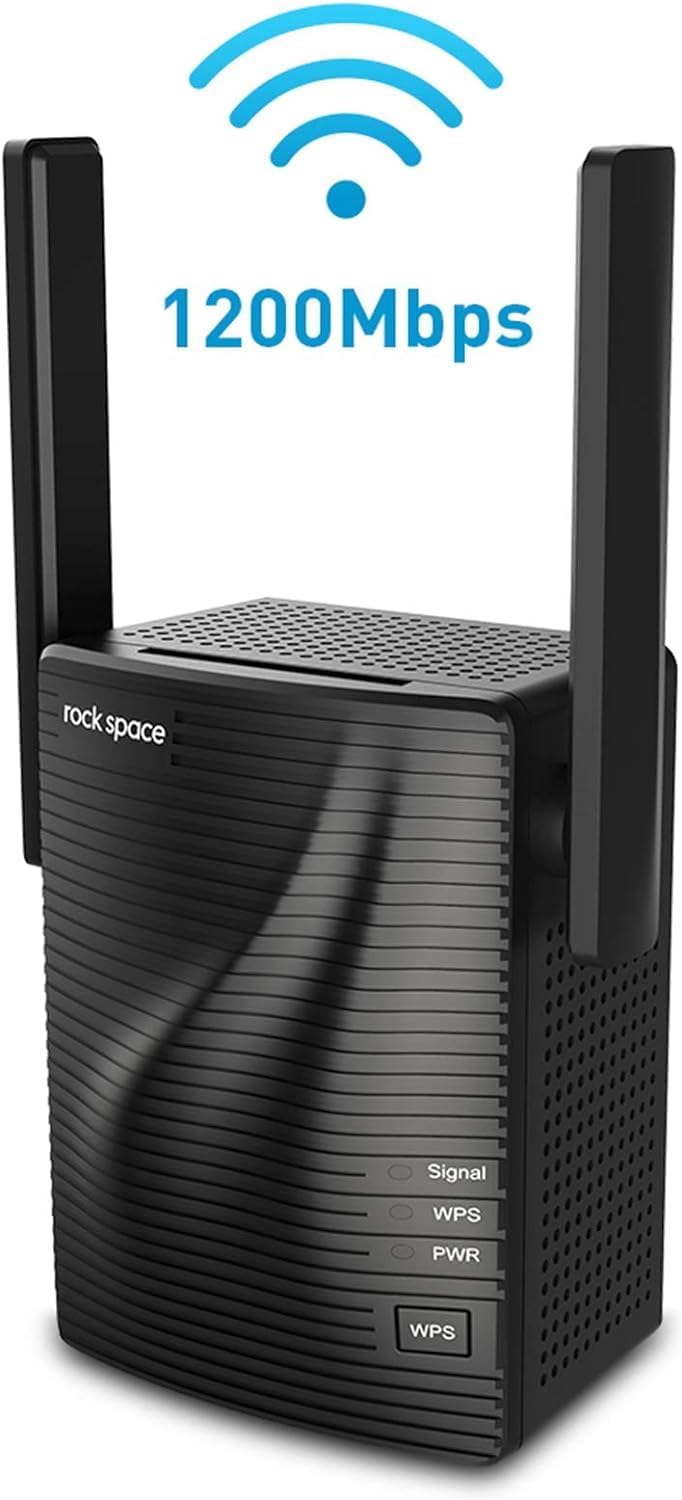
Abbildung 1: Vorderseite view of the rockspace WiFi Extender, showing indicator lights and WPS button.
2. Packungsinhalt
Bitte überprüfen Sie den Packungsinhalt nach dem Auspacken:
- rockspace WiFi Extender (Model F-253)
- Kurzanleitung zur Installation
- Garantiekarte
- Antenna (pre-attached)
3. Spezifikationen
| Besonderheit | Detail |
|---|---|
| Marke | Rockspace |
| Modellnummer | F-253 |
| Kabelloser Typ | 802.11a/b/g/n/ac |
| Datenübertragungsrate | Up to 1200 Mbps (300Mbps 2.4GHz, 867Mbps 5GHz) |
| Frequenzbandklasse | Dualband |
| Steckertyp | RJ45 (Ethernet-Anschluss) |
| Betriebssystemkompatibilität | Windows XP/Vista/7/8/8.1/10, Mac OS, iOS, Android, Linux |
| Artikelgewicht | 9.1 Unzen |
| Produktabmessungen (L x B x H) | 3 x 2.5 x 2.5 Zoll |
4. Einrichtungsanweisungen
The rockspace WiFi Extender offers two primary setup methods: WPS (Wi-Fi Protected Setup) for quick connection, and Web Browser setup for more detailed configuration.
4.1. WPS-Einrichtung (Empfohlen für eine schnelle Einrichtung)
- Plug the rockspace WiFi Extender into a power outlet near your existing router. Wait for the PWR indicator light to turn solid blue.
- Drücken Sie die WPS-Taste auf Ihrem Router.
- Within two minutes, press the WPS button on the rockspace WiFi Extender. The WPS indicator light will blink during the connection process.
- Once the WPS indicator light on the extender turns solid blue, the setup is complete. The Signal indicator light will also turn on, indicating a successful connection.

Figure 2: Visual guide for one-click WPS setup.
4.2. Web Browser-Setup
- Plug the rockspace WiFi Extender into a power outlet. Wait for the PWR indicator light to turn solid blue.
- On your mobile device or computer, turn off your mobile data (if applicable) and connect to the Wi-Fi network named "rockspace_EXT". This network does not require a password.
- Öffnen Sie ein web browser (e.g., Chrome, Safari) and enter
re.rockspace.localor192.168.0.254in der Adressleiste. - Follow the on-screen instructions to create a login password for the extender.
- Select the existing Wi-Fi network you wish to extend from the list.
- Geben Sie das Passwort für Ihr bestehendes WLAN-Netzwerk ein.
- The extender will then create extended networks (e.g., "YourNetworkName_EXT" and "YourNetworkName_5GEXT").
- Once setup is complete, reconnect your devices to the new extended Wi-Fi networks.

Figure 3: Setting up the extender via a web browser on a mobile phone.

Figure 4: Illustration of dual-band performance (2.4GHz and 5GHz) provided by the extender.

Figure 5: Depiction of stable dual band transmission for various devices.
4.3. Videoanleitung zur Einrichtung
For a visual walkthrough of the setup process, please refer to the official rockspace setup video:
Video 1: Official setup guide for the rockspace AC 1200 WiFi Extender, demonstrating both WPS and web Methoden zur Browsereinrichtung.
5. Bedienungsanleitung
After successful setup, the rockspace WiFi Extender will broadcast extended Wi-Fi networks. To ensure optimal performance, consider the following:
- Anschließen von Geräten: Connect your Wi-Fi enabled devices (smartphones, tablets, laptops, smart TVs) to the new extended network names (e.g., "YourNetworkName_EXT" or "YourNetworkName_5GEXT"). Use the same password as your original router's Wi-Fi network.
- Optimale Platzierung: Place the extender roughly halfway between your main router and the Wi-Fi dead zone you wish to cover. The Signal LED indicator on the extender will help you determine the best location:
- Blau: Proper position, good signal strength.
- Rot: Too far from the router, move closer.
- Aus: No signal, move closer to the router.
- Nutzung des Ethernet-Anschlusses: The Gigabit Ethernet port can be used to connect a wired device (like a desktop PC, gaming console, or smart TV) to the extended network, providing a stable wired connection. It can also be used to connect the extender directly to your router, functioning as a wireless access point.

Figure 6: Guide illustrating optimal placement of the WiFi extender between the router and the dead zone.
6. Wartung
To ensure the longevity and optimal performance of your rockspace WiFi Extender:
- Bewahren Sie das Gerät an einem gut belüfteten Ort auf, um eine Überhitzung zu vermeiden.
- Vermeiden Sie es, den Extender in der Nähe von großen Metallgegenständen, Betonwänden oder anderen elektronischen Geräten aufzustellen, die Störungen verursachen könnten.
- Periodically check for firmware updates on the official rockspace webWebsite, um optimale Leistung und Sicherheit zu gewährleisten.
- Clean the device gently with a dry, soft cloth. Do not use liquid cleaners.
7. Fehlerbehebung
If you encounter issues with your rockspace WiFi Extender, try the following solutions:
- Extender not connecting to router:
- Ensure the extender is plugged into a working power outlet and the PWR light is solid.
- If using WPS, ensure you press the WPS button on both the router and extender within the two-minute window.
- If Web Browser setup fails, double-check that your mobile device's cellular data is off and you are connected to the "rockspace_EXT" network. Verify the correct address (
re.rockspace.localor192.168.0.254) is entered. - Confirm you are entering the correct password for your existing Wi-Fi network.
- Poor signal or frequent disconnections:
- Relocate the extender. It should be placed where it receives a strong signal from your main router (Signal LED is blue) but is also close enough to the dead zone. Avoid placing it too close to the router or too far away.
- Check for interference from other electronic devices (microwaves, cordless phones, Bluetooth devices).
- Ensure your devices are connected to the extended network (ending in _EXT or _5GEXT) and not the original, weaker signal.
- Extended network names are confusing:
- Während web browser setup, you may have the option to customize the extended network names to be different from your original network, which can help in distinguishing them.
- How to Reset the Extender:
- If all else fails, you can perform a factory reset. With the extender powered on, use a needle-shaped object (like a paperclip) to long-press the "RESET" button (usually a small pinhole) on the extender for about 8-10 seconds until all indicator lights blink. This will restore the extender to its factory default settings, and you will need to set it up again.
8. Garantie und Support
For warranty information and technical support, please refer to the documentation included with your product or visit the official rockspace website. Always exercise caution when dealing with electrical devices.
Legal Disclaimer: Please be careful when using electricity.
Ask a question about this manual
Ask about setup, troubleshooting, compatibility, parts, safety, or missing instructions. Manuals+ will review the question and use this page’s manual context to help answer it.