
1. Einleitung
Thank you for choosing the Targus W620 Wireless Optical Mouse. This manual provides detailed instructions for setting up, operating, and maintaining your mouse to ensure optimal performance and longevity. The Targus W620 offers reliable 2.4 GHz wireless connectivity, a precise 1600 DPI optical sensor, and a compact design suitable for both office and mobile use.
2. Packungsinhalt
Bitte prüfen Sie das Paket auf folgende Artikel:
- Targus W620 Wireless Optical Mouse
- USB-Empfänger
- 2 x AAA-Batterien
3. Produktüberschreitungview
Familiarize yourself with the components of your Targus W620 Wireless Optical Mouse.
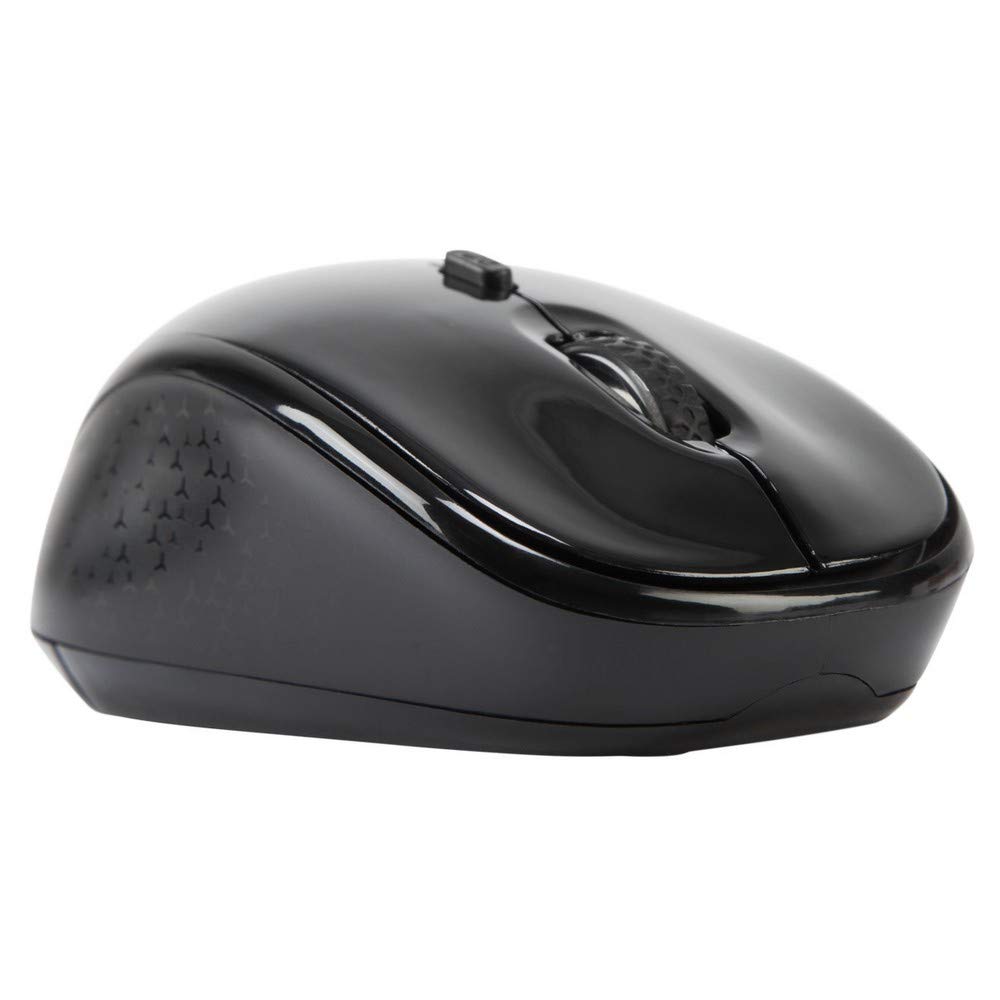
Bild 3.1: Spitze view of the Targus W620 Wireless Optical Mouse. This image displays the primary buttons and scroll wheel.
- Linksklick-Taste: Standardmäßige primäre Klickfunktion.
- Rechtsklick-Schaltfläche: Standardmäßige Sekundärklickfunktion.
- Scrollrad: Für vertikales Scrollen und Mittelklick-Funktion.
- DPI-Taste: Passt die Mausempfindlichkeit (DPI) an.
- Optischer Sensor: Located on the bottom, detects mouse movement.
- Batteriefach: Located on the bottom, holds two AAA batteries.
- USB-Empfängerspeicher: A dedicated slot on the bottom for storing the USB receiver when not in use.

Bild 3.2: Unten view of the mouse, highlighting the battery compartment and optical sensor.
4. Einrichtungsanweisungen
Follow these steps to set up your Targus W620 Wireless Optical Mouse:
- Batterien installieren:
- Suchen Sie die Abdeckung des Batteriefachs an der Unterseite der Maus.
- Schieben Sie die Abdeckung auf.
- Legen Sie die beiden AAA-Batterien ein und achten Sie dabei auf die richtige Polarität (+/-).
- Schließen Sie den Batteriefachdeckel fest.
- USB-Empfänger anschließen:
- The USB receiver is typically stored in a slot on the bottom of the mouse for transport. Gently remove it.
- Stecken Sie den USB-Empfänger in einen freien USB-Port Ihres Computers.

Bild 4.1: The mouse with its USB receiver, ready for connection.
- Einschalten:
- There is no explicit power switch on this model; the mouse activates upon movement and connection.
- Ihr Computer sollte die benötigten Treiber automatisch erkennen und installieren. Dies kann einige Augenblicke dauern.
- Once drivers are installed, the mouse is ready for use.
5. Bedienungsanleitung
The Targus W620 Wireless Optical Mouse is designed for intuitive use. Here are its primary functions:
- Grundlegende Navigation: Move the mouse on a flat surface to control the cursor on your screen.
- Links Klick: Wird zum Auswählen von Elementen und zum Öffnen verwendet. files oder aktivierende Funktionen.
- Rechtsklick: Dient zum Aufrufen von Kontextmenüs oder sekundären Funktionen.
- Scrollrad: Rotate the wheel to scroll vertically through documents and web pages. Press the scroll wheel for a middle-click function, often used for opening links in new tabs or auto-scrolling.
- DPI-Anpassung: Press the DPI button (located behind the scroll wheel) to cycle through the available DPI settings (800, 1200, 1600 DPI). This changes the sensitivity of the mouse cursor. A higher DPI means the cursor moves further with less physical mouse movement.
6. Wartung
Durch sachgemäße Wartung wird die Langlebigkeit und Leistungsfähigkeit Ihrer Maus sichergestellt.
- Reinigung: Reinigen Sie die Außenseite der Maus mit einem weichen, trockenen und fusselfreien Tuch. Bei hartnäckigem Schmutz leicht andrücken.ampBefeuchten Sie das Tuch mit Wasser. Vermeiden Sie die Verwendung von scharfen Chemikalien oder Scheuermitteln.
- Optischer Sensor: Keep the optical sensor area on the bottom of the mouse clean and free from dust or debris to ensure accurate tracking.
- Batteriewechsel: When the mouse performance degrades or stops responding, it is likely time to replace the batteries. Follow the steps in Section 4.1 to replace the two AAA batteries.
- Lagerung: When transporting or storing the mouse, always place the USB receiver back into its dedicated storage slot on the bottom of the mouse to prevent loss.
7. Fehlerbehebung
If you encounter issues with your Targus W620 mouse, try the following solutions:
| Problem | Mögliche Lösung |
|---|---|
| Mouse not responding or cursor not moving. |
|
| Die Cursorbewegung ist unregelmäßig oder sprunghaft. |
|
| Die DPI-Taste ändert die Empfindlichkeit nicht. |
|
| Probleme mit der drahtlosen Verbindung. |
|
8. Spezifikationen
| Marke | Targus |
| Modellnummer | AMW620AP |
| Konnektivitätstechnologie | 2.4 GHz Wireless (Radio Frequency) |
| Bewegungserkennungstechnologie | Optical (BlueTrace Technology) |
| DPI-Stufen | 800 / 1200 / 1600 DPI (einstellbar) |
| Anzahl der Tasten | 4 (Left, Right, Scroll Wheel, DPI) |
| Handausrichtung | Right (Comfortable for ambidextrous use) |
| Stromquelle | 2 x AAA-Batterien (im Lieferumfang enthalten) |
| Artikelgewicht | 26 Gramm |
| Betriebssystemkompatibilität | Linux, Windows XP (Compatible with modern Windows and macOS) |
| Hardware-Plattform | Mac, PC |
| Farbe | Schwarz |
9. Garantie und Support
Garantieinformationen: The Targus W620 Wireless Optical Mouse comes with a 3 Jahr Herstellergarantie Diese Garantie gilt ab Kaufdatum und deckt Material- und Verarbeitungsfehler bei normalem Gebrauch ab. Bitte bewahren Sie Ihren Kaufbeleg für Garantieansprüche auf.
Kundendienst: For technical assistance, troubleshooting beyond this manual, or warranty inquiries, please visit the official Targus website or contact their customer support service. Refer to the contact information provided with your product packaging or on the Targus official webWebsite.