
SHHHMOUSE SHHH2659Black
SHHHMOUSE Silent Wireless Mouse User Manual
Model: SHHH2659Black | Brand: SHHHMOUSE
1. Einleitung
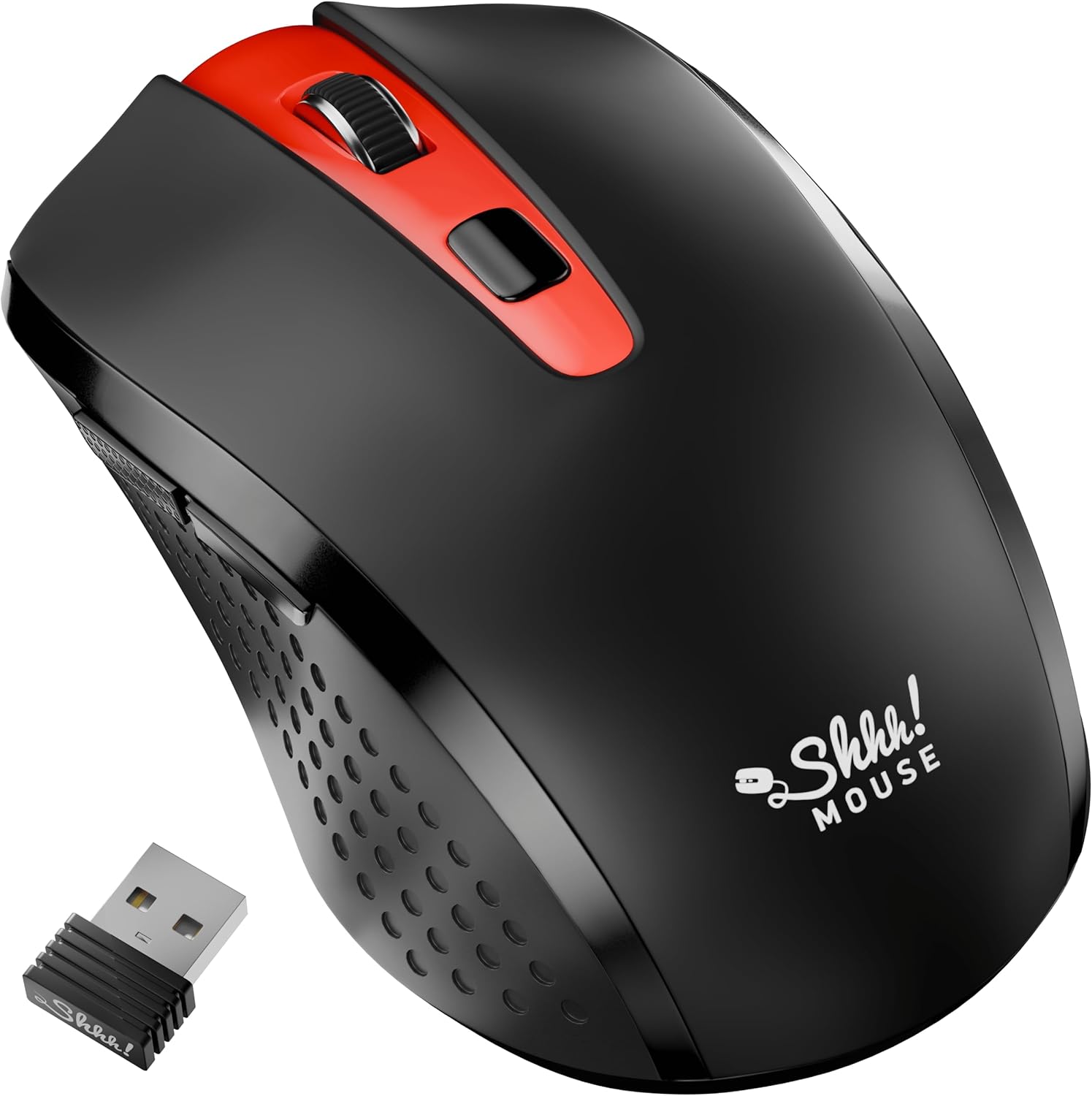
Thank you for choosing the SHHHMOUSE Silent Wireless Mouse. This manual provides essential information for setting up, operating, and maintaining your new mouse. Designed for quiet operation and ergonomic comfort, this mouse enhances your productivity without disturbing those around you.
Hauptmerkmale:
- Quiet Mouse Wireless: Enjoy silent clicks with a noiseless clicking mechanism for a peaceful working environment.
- Ergonomischer Komfort: Experience a comfortable grip that reduces strain during extended work sessions.
- Precision Elevated: Advanced optical sensor for high-precision cursor control.
- Plug & Play: Seamless connection via USB receiver, no extra software or drivers required.
- Erweiterte Nutzungszeit: Up to 18 months of battery life for prolonged use.
2. Lieferumfang
Überprüfen Sie, ob alle Artikel im Paket vorhanden sind:
- 1 x SHHHMOUSE Silent Wireless Mouse
- 1 x USB Empfänger
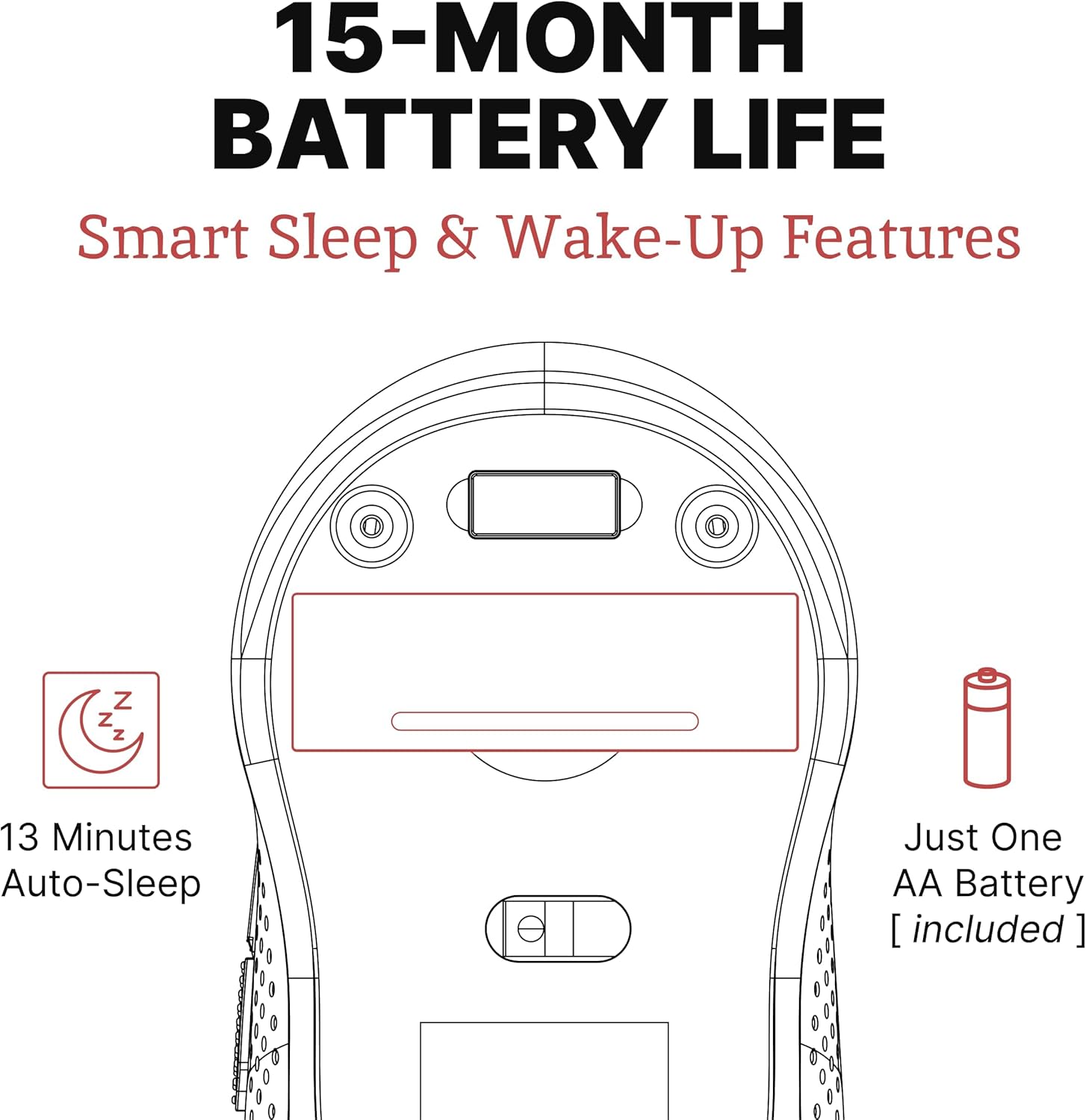
- 1 x AA-Batterie
3. Installationsanleitung
Follow these steps to set up your SHHHMOUSE Silent Wireless Mouse:
- Batterie einlegen: Open the battery compartment on the underside of the mouse. Insert the provided AA battery, ensuring correct polarity.
- USB-Empfänger suchen: The tiny USB receiver is typically stored inside the battery compartment for safe keeping during transport. Remove it.
- Receiver anschließen: Plug the USB receiver into an available USB port on your laptop, desktop, or Chromebook.
- Einschalten: Schalten Sie die Maus mit dem Netzschalter auf der Unterseite ein.
- Automatische Verbindung: Die Maus sollte sich automatisch mit Ihrem Gerät verbinden. In der Regel sind keine zusätzlichen Treiber erforderlich.


Einrichtungsvideo:
Video 1: "New Silent Portable Wireless Shhhmouse i440" - This video demonstrates the unboxing and initial setup of the mouse, including battery insertion and USB receiver connection.
4. Bedienung Ihrer Maus
Tastenfunktionen:
- Links-/Rechtsklick: Standard mouse functions for selection and context menus. These are ultra-silent buttons.
- Scrollrad: Used for vertical scrolling. Also functions as a middle click button. Features an anti-slip design.
- DPI-Schalter: Located near the scroll wheel, this button allows you to adjust the mouse sensitivity (DPI).
- Seitentasten: Typically configured for 'Page Up' and 'Page Down' functions, useful for web Durchsuchen und Dokumentnavigation.

Adjusting DPI (Sensitivity):
Press the DPI switch button to cycle through different sensitivity levels (e.g., 800, 1200, 1600 DPI). Choose the setting that best suits your task and preference for cursor speed.

Smart Sleep & Wake-Up Features:
To conserve battery life, the mouse will enter a smart sleep mode after 13 minutes of inactivity. To wake it up, simply click any button or move the mouse.
5. Wartung
Batteriewechsel:
When the mouse's performance degrades or the low power indicator (if present) illuminates, it's time to replace the battery. Open the battery compartment on the underside, remove the old AA battery, and insert a new one, observing polarity.
Reinigung:
To maintain optimal performance, regularly clean your mouse. Use a soft, dry cloth to wipe the exterior. For the optical sensor, use a cotton swab lightly dampened with rubbing alcohol, ensuring no liquid enters the mouse's interior.
6. Fehlerbehebung
| Problem | Mögliche Ursache | Lösung |
|---|---|---|
| Maus reagiert nicht | Low battery; USB receiver disconnected; Mouse power off. | Replace battery; Re-insert USB receiver; Turn on mouse power switch. |
| Unregelmäßige Cursorbewegung | Verschmutzter optischer Sensor; Ungeeignete Oberfläche; Störungen. | Clean optical sensor; Use on a smooth, opaque surface; Move mouse closer to receiver or away from other wireless devices. |
| Kurze Akkulaufzeit | Frequent use; Battery type. | Ensure mouse enters sleep mode when idle; Use high-quality alkaline batteries. |
7. Spezifikationen
| Besonderheit | Detail |
|---|---|
| Marke | SHHHMOUSE |
| Modellnummer | SHHH2659Black |
| Konnektivitätstechnologie | USB Wireless (2.4G) |
| Bewegungserkennungstechnologie | Optisch |
| Besonderheit | Soundless Clicks |
| DPI-Stufen | Einstellbar (z. B. 800, 1200, 1600) |
| Akku-Typ | 1 x AA Batterie (im Lieferumfang enthalten) |
| Durchschnittliche Akkulaufzeit | Bis zu 15 Monate |
| Artikelgewicht | 2.29 Unzen |
| Produktabmessungen (L x B x H) | 4.22 x 2.5 x 0.04 Zoll |
| Hardware-Plattformkompatibilität | Windows XP/Vista/Win7, Mac 10.x, Chromebook, PC, Laptop |
| Farbe | Schwarz & Rot |
8. Garantie und Support
SHHHMOUSE products are designed for durability and reliability. For specific warranty information, please refer to the warranty card included with your product or visit the official SHHHMOUSE webWebsite.
For further assistance or technical support, please contact SHHHMOUSE customer service through the contact information provided on the product packaging or the brand's official webWebsite.
Eine ausführliche Bedienungsanleitung (PDF) steht ebenfalls zum Download bereit: Benutzerhandbuch herunterladen
Ask a question about this manual
Ask about setup, troubleshooting, compatibility, parts, safety, or missing instructions. Manuals+ will review the question and use this page’s manual context to help answer it.