
Logilink CU0150
LogiLink USB 2.0 Connection Cable
Modell: CU0150
Marke: LogiLink
1. Produktüberschreitungview
This LogiLink USB 2.0 cable is designed to connect Micro-USB devices such as smartphones, tablets, and e-readers to standard USB (Type A) ports found on laptops, desktop computers, external hard drives, power adapters, and wall/car chargers. It provides a reliable and efficient solution for both high-speed data synchronization and charging.

Figure 1: LogiLink USB 2.0 Cable (USB-A to 90° Angled Micro-USB).
2. Hauptmerkmale
- Universelle Kompatibilität: Connects USB (Type A) male to Micro-USB male, compatible with a wide range of Micro-USB enabled devices.
- Hochgeschwindigkeitsleistung: Supports USB 2.0 standard for data transfer rates up to 480 Mbps and efficient charging.
- Angled Micro-USB Connector: Features a 90-degree angled Micro-USB plug for convenient use in tight spaces or during device usage (e.g., gaming, video watching) to prevent cable strain.
- Langlebige Konstruktion: Equipped with a flexible, premium quality cotton braided cable jacket for enhanced durability and tangle resistance.
- Optimale Länge: 1 meter (approximately 3.3 feet) length provides flexibility without excessive clutter.
- Unverwechselbares Design: Vibrant red color for easy identification.

Figure 2: Identification of USB-A and Micro-B Connectors.

Figure 3: The 90-degree angled Micro-USB connector design.
3. Einrichtung und Verbindung
Connecting your LogiLink USB 2.0 cable is a straightforward plug-and-play process. No special drivers or software are required for basic functionality.
- Ports identifizieren: Locate the standard USB Type-A port on your host device (e.g., computer, wall charger, power bank) and the Micro-USB port on your target device (e.g., smartphone, tablet).
- USB-A anschließen: Insert the USB Type-A end of the LogiLink cable into the corresponding port on your host device. Ensure it is fully seated.
- Connect Micro-USB: Carefully insert the 90-degree angled Micro-USB end into the Micro-USB port on your target device. The angled design allows for a more ergonomic connection, especially when using the device during charging or data transfer.
Once connected, your device should automatically begin charging or be recognized by your computer for data transfer, depending on the host device.
4. Bedienungsanleitung
4.1. Laden Sie Ihr Gerät auf
To charge your Micro-USB device:
- Connect the USB-A end of the cable to a compatible USB power source (e.g., wall adapter, car charger, power bank, computer USB port).
- Connect the Micro-USB end to your smartphone, tablet, or other Micro-USB device.
- Your device's charging indicator should activate, signifying that it is receiving power.

Figure 4: Charging a smartphone using the LogiLink cable and a power bank.
4.2. Datensynchronisation
To transfer data between your Micro-USB device and a computer:
- Verbinden Sie das USB-A-Ende des Kabels mit einem freien USB-Anschluss an Ihrem Computer.
- Connect the Micro-USB end to your smartphone, tablet, or other Micro-USB device.
- Ihr Computer sollte das angeschlossene Gerät erkennen. Möglicherweise müssen Sie ein „File Transfer" or "MTP" mode on your device if prompted.
- You can now access your device's storage to transfer files, photos, videos, and other data. The cable supports data transfer speeds up to 480 Mbps, typical for USB 2.0.

Figure 5: High-speed data transfer at 480 Mbps.
4.3. Enhanced User Experience (Gaming/Media)
The 90-degree angled Micro-USB connector is particularly beneficial for users who frequently use their devices while charging, such as during mobile gaming or watching videos. This design helps to:
- Reduce strain on the cable and the device's port.
- Provide a more comfortable grip, as the cable runs alongside the device rather than protruding directly.
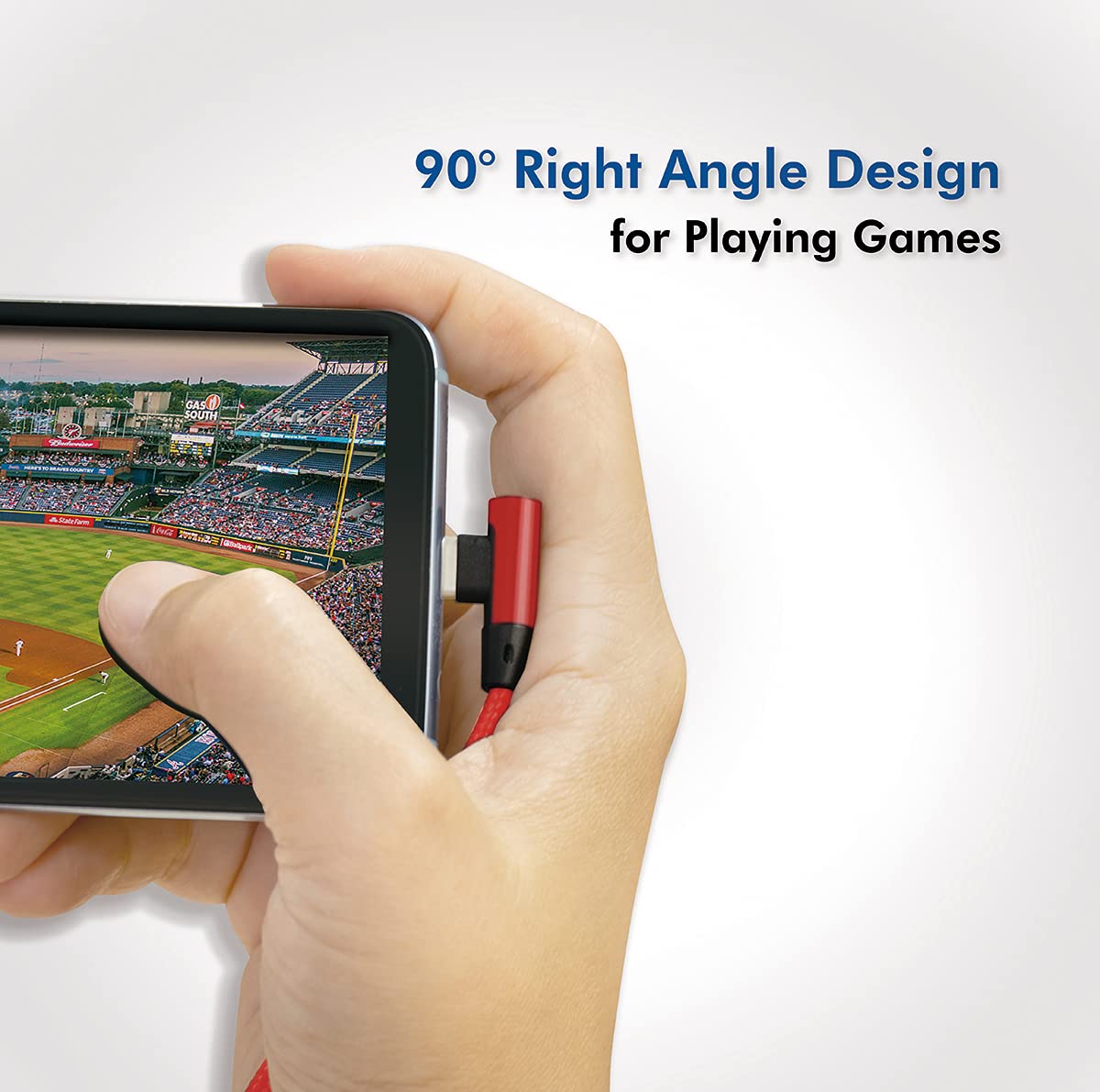
Figure 6: Ergonomic design for comfortable use during gaming.

Figure 7: Ideal for mobile gaming and media consumption.
5. Pflege und Wartung
Proper care will extend the lifespan of your LogiLink cable:
- Lagerung: Store the cable in a cool, dry place away from direct sunlight and extreme temperatures. Avoid tightly coiling or bending the cable excessively.
- Handhabung: Always grasp the connector housing when plugging or unplugging the cable. Avoid pulling directly on the cable itself, as this can damage the internal wires.
- Reinigung: Sollten die Anschlüsse verschmutzt sein, wischen Sie sie vorsichtig mit einem trockenen, fusselfreien Tuch ab. Verwenden Sie keine flüssigen Reinigungsmittel oder Scheuermittel.
- Schutz: Keep the cable away from pets and young children to prevent chewing or accidental damage.
6. Fehlerbehebung
If you encounter issues with your LogiLink cable, consider the following common solutions:
- Gerät lädt/synchronisiert nicht:
- Stellen Sie sicher, dass beide Enden des Kabels vollständig und sicher in die jeweiligen Anschlüsse eingesteckt sind.
- Try connecting the cable to a different USB port on your computer or a different power adapter.
- Test the cable with another compatible device to determine if the issue is with the cable or the device/port.
- Check the Micro-USB port on your device for any debris or lint that might be obstructing the connection.
- Langsames Laden/Datenübertragung:
- Ensure the power source (e.g., wall charger) provides sufficient current for your device. Some devices require higher amperage for fast charging.
- Verify that your computer's USB port is functioning correctly and is not overloaded with other devices.
- Close any unnecessary applications on your computer or device that might be consuming bandwidth or processing power.
Sollte das Problem nach Durchführung dieser Schritte weiterhin bestehen, konsultieren Sie bitte den Supportbereich.
7. Technische Daten
| Modellnummer | CU0150 |
| Steckertyp | USB 2.0 (USB Type A Male to Micro-USB Male) |
| Datenübertragungsrate | Bis zu 480 Mbit/s |
| Kabellänge | 1 Meter (ca. 3.3 Fuß) |
| Farbe | Rot (RAL3024) |
| Mantelmaterial | Flexible Cotton Braided |
| Besondere Merkmale | 90° Angled Micro-USB Connector |
| Kompatible Geräte | Smartphones, Tablets, e-Readers, and other Micro-USB enabled devices |
| Produktabmessungen (Verpackung) | 10.5 x 15 x 7 cm; 24 Gramm |
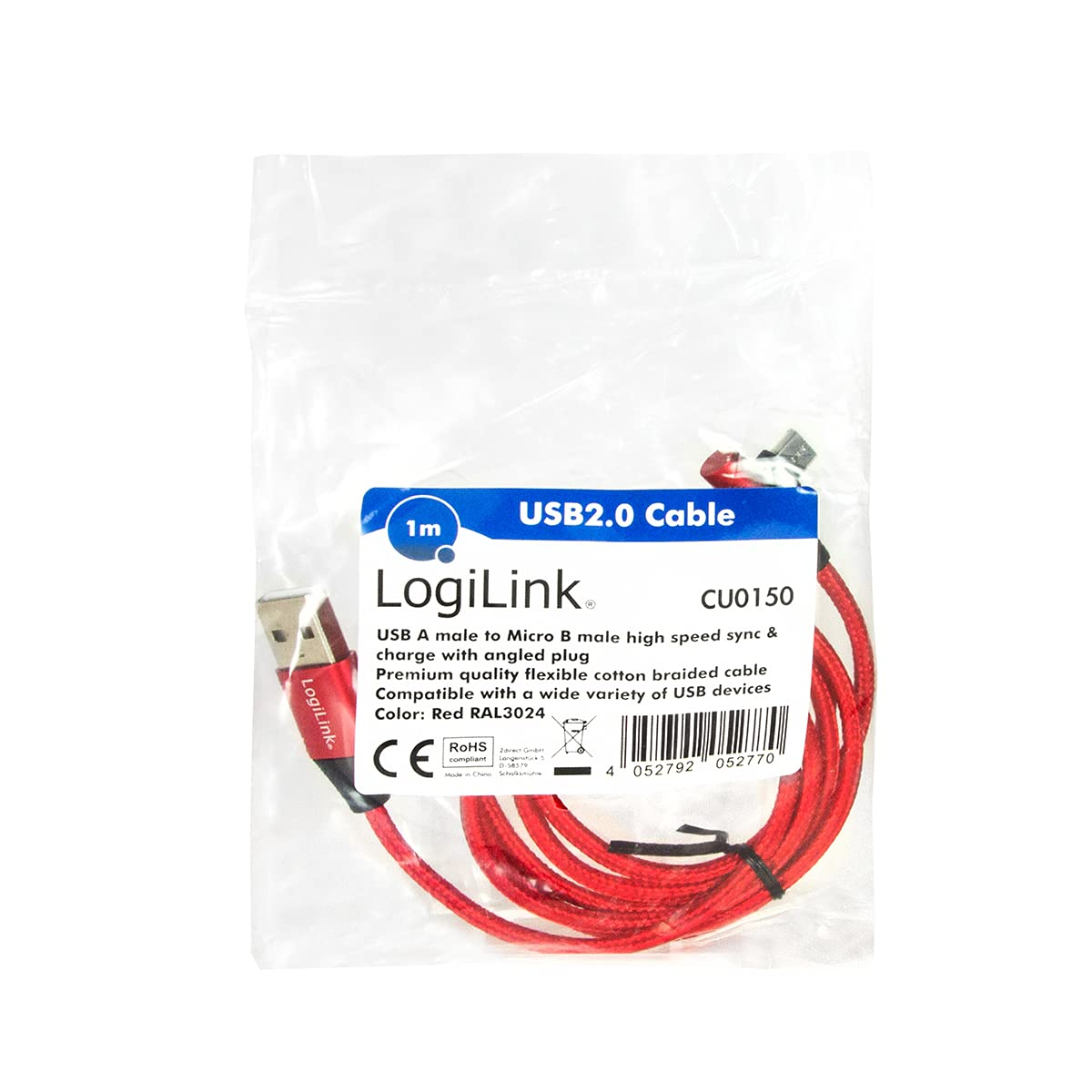
Figure 8: Product packaging with key specifications.

Figure 9: LogiLink cable and its packaging.
8. Garantieinformationen
LogiLink products are manufactured to high-quality standards and are typically covered by a manufacturer's warranty. For detailed information regarding the warranty period, terms, and conditions applicable to your LogiLink USB 2.0 Connection Cable, please refer to the warranty card included with your purchase or visit the official LogiLink webWebsite.
Bitte bewahren Sie Ihren Kaufbeleg für Garantieansprüche auf.
9. Kundendienst
Should you require further assistance, have questions, or need to report an issue with your LogiLink USB 2.0 Connection Cable, please contact LogiLink customer support through their official channels:
- WebWebsite: Visit the official LogiLink webWebsite mit häufig gestellten Fragen, Hilfestellungen und Kontaktformularen.
- E-Mail/Telefon: Refer to the LogiLink website or product packaging for specific email addresses or phone numbers for your region.
When contacting support, please have your product model number (CU0150) and proof of purchase ready.
Ask a question about this manual
Ask about setup, troubleshooting, compatibility, parts, safety, or missing instructions. Manuals+ will review the question and use this page’s manual context to help answer it.