
Einführung
This manual provides instructions for the Speedlink PIAVO Wireless Ergonomic Vertical Mouse (Model SL-630019-BK-01). This ergonomic mouse is designed to promote a natural, relaxed wrist posture, reducing strain on the hand, arm, shoulder, and neck during extended computer use. It features 5 buttons, adjustable DPI settings, and wireless 2.4 GHz connectivity.

Abbildung 1: Speedlink PIAVO Wireless Ergonomic Vertical Mouse, front view. This image shows the overall ergonomic design of the mouse.
Packungsinhalt
Bitte überprüfen Sie, ob alle Artikel im Paket vorhanden sind:
- Speedlink PIAVO Wireless Ergonomic Vertical Mouse
- USB-A-Empfänger
- Batterie (vorinstalliert oder separat enthalten)
- Bedienungsanleitung (dieses Dokument)

Abbildung 2: Packaging of the Speedlink PIAVO Wireless Ergonomic Vertical Mouse. The box indicates "Wireless Vertical Mouse" and "10m Range".
Aufstellen
- Batterie einlegen: If the battery is not pre-installed, open the battery compartment on the underside of the mouse and insert the included battery, ensuring correct polarity.
- USB-Empfänger anschließen: Locate an available USB-A port on your computer or laptop. Insert the USB-A receiver into the port.
- Maus einschalten: Locate the On/Off switch on the underside of the mouse. Slide the switch to the "On" position.
- Treiberinstallation: The mouse is designed for plug-and-play operation. Your operating system (e.g., Windows) should automatically detect and install the necessary drivers. This process typically takes a few seconds.
- Testen: Once installed, move the mouse to test cursor movement. If the cursor does not respond, ensure the mouse is powered on and the USB receiver is securely connected.

Abbildung 3: Underside of the mouse, illustrating the battery compartment and the On/Off switch. Ensure the switch is in the 'On' position for operation.
Bedienungsanleitung
The Speedlink PIAVO mouse features 5 buttons and adjustable DPI settings for optimal control.
- Linksklick-Taste: Standardmäßige primäre Klickfunktion.
- Rechtsklick-Schaltfläche: Standardmäßige Sekundärklickfunktion.
- Scrollrad: Zum Durchblättern von Dokumenten und web Seiten. Kann auch für eine Mittelklick-Funktion gedrückt werden.
- DPI-Umschalttaste: Located near the scroll wheel. Press this button to cycle through the available DPI settings (800, 1200, 1600 DPI). This adjusts the cursor speed and sensitivity.
- Vorwärts-/Rückwärtstasten: Located on the side of the mouse, typically used for navigation in web Browser bzw file Entdecker.
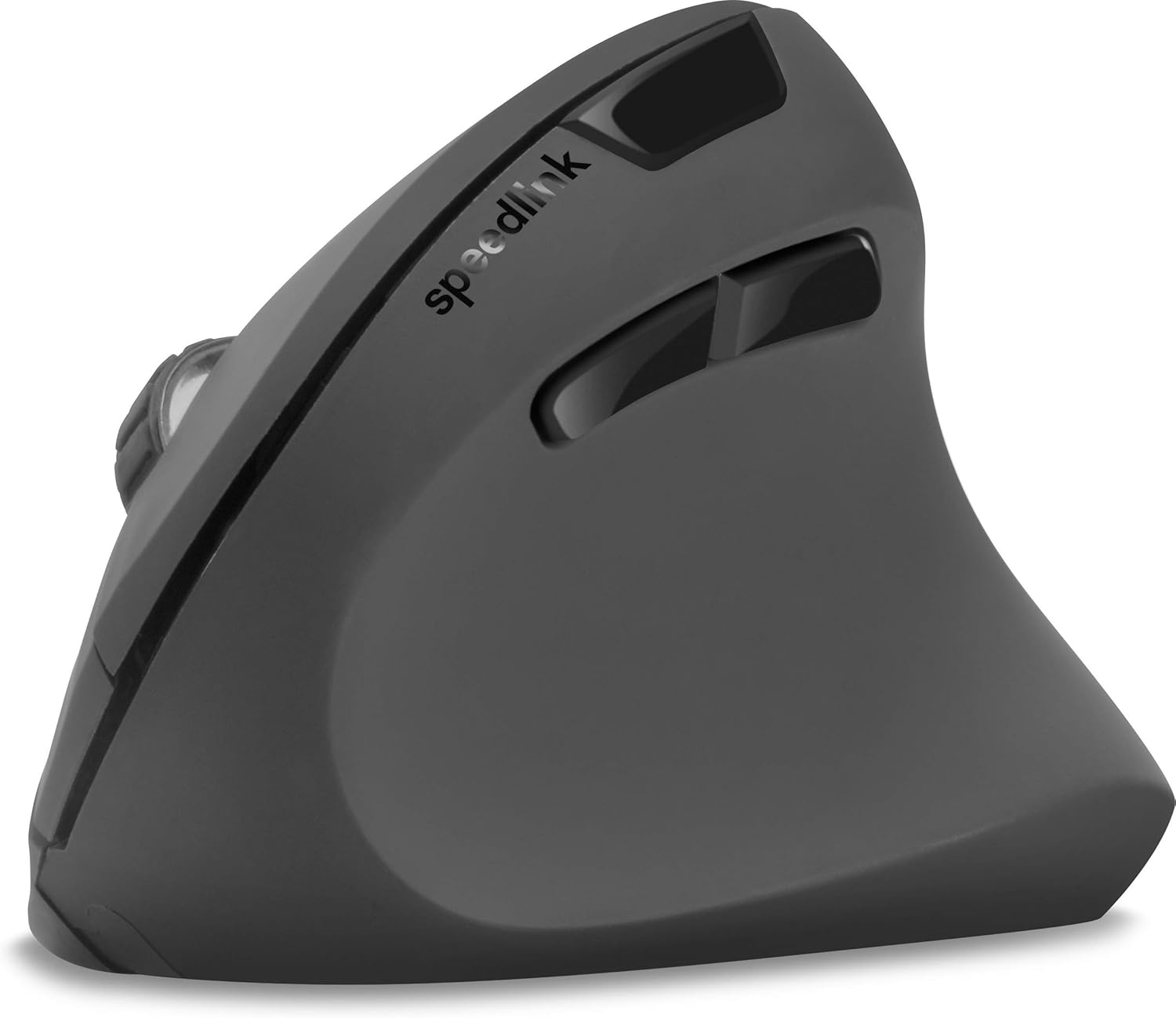
Abbildung 4: Von oben nach unten view of the mouse, highlighting the left/right click buttons, scroll wheel, and DPI switch button.

Abbildung 5: Seite view of the mouse, illustrating the ergonomic grip and the forward/backward navigation buttons.
Energiesparmodus
The mouse features an energy-saving mode to conserve battery life. If the mouse is inactive for a period, it will enter a sleep state. To wake it up, simply move the mouse or press any button.
Wartung
To ensure the longevity and optimal performance of your Speedlink PIAVO mouse, follow these maintenance guidelines:
- Reinigung: Reinigen Sie die Außenseite der Maus mit einem weichen, trockenen Tuch. Bei hartnäckigem Schmutz kann ein leicht feuchtes Tuch helfen.amp cloth can be used, but ensure no moisture enters the mouse. Avoid using harsh chemicals or abrasive cleaners.
- Sensorreinigung: Occasionally, dust or debris may accumulate around the optical sensor on the underside of the mouse. Use a soft brush or compressed air to gently clean the sensor area.
- Batteriewechsel: When the mouse performance degrades or it stops responding, it may be time to replace the battery. Open the battery compartment, remove the old battery, and insert a new one of the same type, observing polarity.
- Lagerung: When not in use for extended periods, it is recommended to switch off the mouse using the On/Off switch to conserve battery life. Store the mouse and USB receiver in a dry, dust-free environment.
Fehlerbehebung
| Problem | Mögliche Ursache | Lösung |
|---|---|---|
| Maus reagiert nicht / Cursor bewegt sich nicht. |
|
|
| Unregelmäßige Cursorbewegung. |
|
|
| DPI setting resets after sleep/reboot. | This is a known characteristic for some mice; the DPI setting may revert to default. | Press the DPI switch button to select your preferred sensitivity after waking the mouse or restarting the computer. |
Technische Daten
| Modellnummer | SL-630019-BK-01 |
| Konnektivität | Wireless 2.4 GHz via USB-A Receiver |
| Bewegungserkennung | Optisch |
| Anzahl der Tasten | 5 |
| DPI-Einstellungen | 800, 1200, 1600 DPI (einstellbar) |
| Handausrichtung | Rechtshändig |
| Drahtlose Reichweite | Bis zu 10 Meter |
| Stromquelle | Battery-powered (Battery included) |
| Kompatible Betriebssysteme | Windows |
| Gewicht | 106 Gramm |
| Farbe | Schwarz |
Garantie und Support
Informationen zu den genauen Garantiebedingungen und den Kontaktdaten des Kundendienstes sind in den bereitgestellten Produktdaten nicht enthalten. Bitte beachten Sie die Produktverpackung oder die offizielle Website des Herstellers. webAuf dieser Website finden Sie die aktuellsten Informationen zu Garantie und Support.
Weitere Unterstützung finden Sie unter Speedlink official webWebsite.