
ROCCAT ROC-12-940-BN
Roccat Vulcan 122 Mechanical Gaming Keyboard User Manual
Modell: ROC-12-940-BN
1. Einleitung
The Roccat Vulcan 122 is a high-performance mechanical gaming keyboard designed for precision and durability. It features Roccat's unique Titan switches, advanced AIMO RGB lighting, and a robust aluminum construction. This manual provides detailed instructions for setting up, operating, maintaining, and troubleshooting your keyboard.

Image: The Roccat Vulcan 122 keyboard shown with a Roccat mouse and headset, demonstrating its vivid, dynamic lighting synergy with AIMO.
Hauptmerkmale:
- Unique design with lowered keycaps and reduced reaction time.
- RGB lighting with configurable LED effects and adjustable AIMO effects.
- High-quality and resistant design with robust materials and an anodized aluminum surface.
- Advanced anti-ghosting with N-Key Rollover (NKRO).
- Programmable macro keys and ROCCAT Easy-Shift[+].
2. Einrichtung
2.1 Anschließen der Tastatur
To connect your Roccat Vulcan 122 keyboard:
- Packen Sie die Tastatur und das Zubehör aus.
- Plug the USB connector from the keyboard into an available USB port on your computer.
- Das Betriebssystem erkennt und installiert automatisch die notwendigen Treiber.
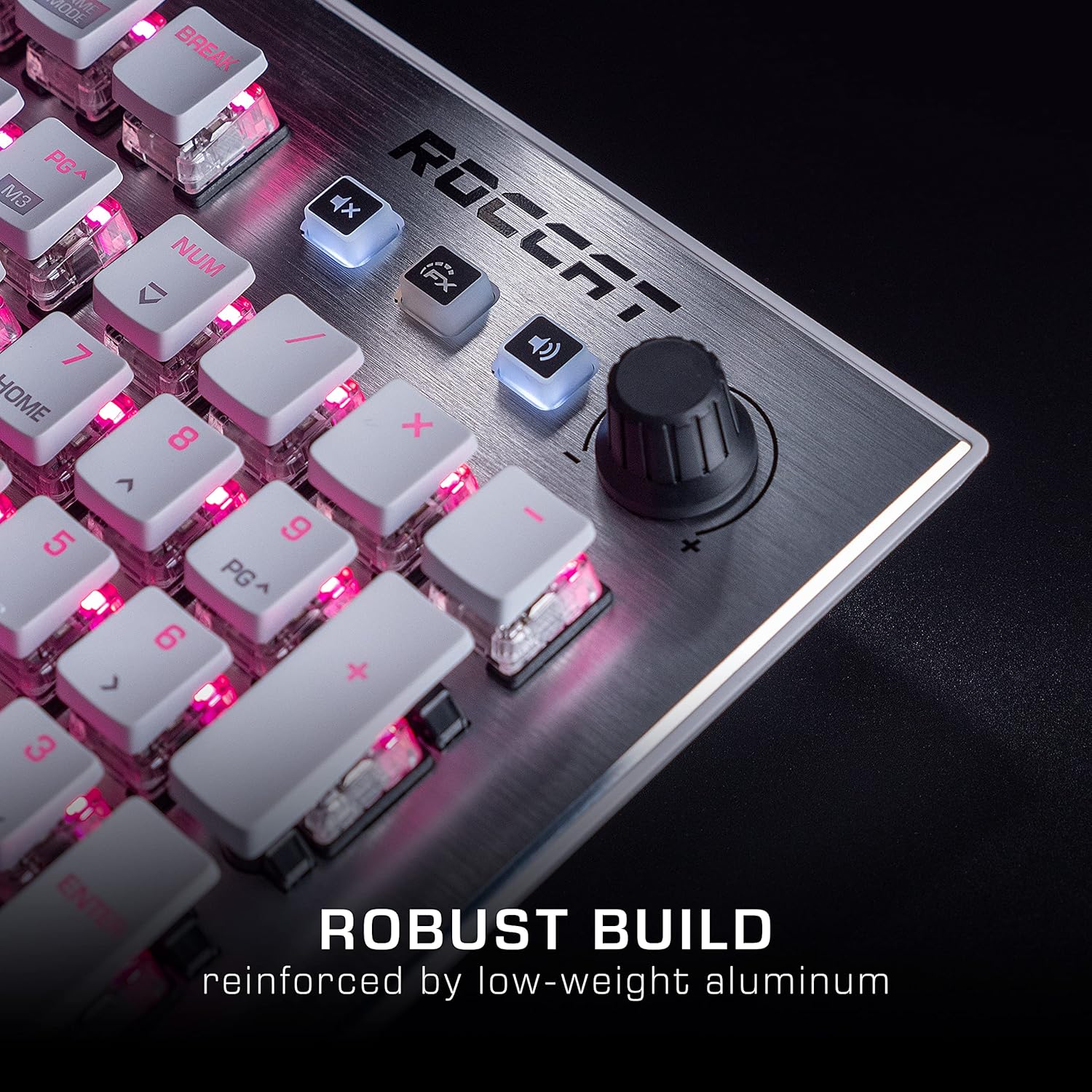
Image: The Roccat Vulcan 122 keyboard shown with its detachable wrist rest, ready for connection.
2.2 Softwareinstallation (ROCCAT Swarm)
For full functionality and customization, install the ROCCAT Swarm software:
- Besuchen Sie die offizielle ROCCAT-Website. webSeite? ˅ (www.roccat.com) und navigieren Sie zum Supportbereich.
- Download the latest version of the ROCCAT Swarm software for your operating system.
- Führen Sie das Installationsprogramm aus und folgen Sie den Anweisungen auf dem Bildschirm.
- After installation, launch ROCCAT Swarm to configure your keyboard settings, lighting, and macros.
3. Bedienung der Tastatur
3.1 Standard-Tastenfunktionen
The Vulcan 122 functions as a standard QWERTY keyboard. All alphanumeric keys, function keys (F1-F12), navigation keys, and the numeric keypad operate as expected.
3.2 Mediensteuerung
The keyboard features dedicated media controls for convenient audio management.
- Lautstärkeregler: Located in the upper right corner, rotate to adjust system volume.
- Stummschaltfläche: Drücken Sie diese Taste, um den Ton stummzuschalten/die Stummschaltung aufzuheben.
- FX-Taste: Cycles through lighting effects or other programmable functions.

Bild: Eine Nahaufnahme view of the mixer-style media controls on the Roccat Vulcan 122, including the volume knob and dedicated function keys.
3.3 RGB Lighting Customization (AIMO)
The Vulcan 122 features advanced RGB lighting with Roccat's AIMO intelligent lighting system. Use the ROCCAT Swarm software to:
- Select from various pre-set lighting effects.
- Customize individual key illumination.
- Helligkeit und Geschwindigkeit der Effekte anpassen.
- Synchronize lighting with other AIMO-compatible devices.
3.4 Programmable Macro Keys and Easy-Shift[+]
The keyboard includes programmable macro keys and the Easy-Shift[+] function, allowing you to assign secondary functions to keys.
- Use the ROCCAT Swarm software to record and assign macros to designated keys.
- Easy-Shift[+] allows you to double the number of assignable functions by holding down the Easy-Shift[+] key (usually Caps Lock by default, configurable in Swarm) and pressing another key.
3.5 Anti-Ghosting with NKRO
The Vulcan 122 features advanced anti-ghosting technology with N-Key Rollover (NKRO), ensuring that every key press is registered accurately, even when multiple keys are pressed simultaneously.

Image: A hand demonstrating typing on the Roccat Vulcan 122 keyboard, emphasizing the ergonomic design of the keys for comfortable use.
4. Wartung
4.1 Reinigung der Tastatur
To ensure the longevity and optimal performance of your Vulcan 122 keyboard, regular cleaning is recommended.
- Trennen Sie die Tastatur vor der Reinigung vom Computer.
- Mit einem weichen, fusselfreien Tuch leichtampened with water or a mild cleaning solution to wipe the keycaps and surface. Avoid harsh chemicals.
- For dust and debris between keys, use compressed air. The raised keycap design makes cleaning easier.
- Stellen Sie sicher, dass die Tastatur vollständig trocken ist, bevor Sie sie wieder anschließen.

Image: A close-up of the Roccat Vulcan 122 keyboard keys, illustrating their design which facilitates easy cleaning and resistance to dust and liquids.
5. Fehlerbehebung
If you encounter issues with your Roccat Vulcan 122 keyboard, refer to the following common problems and solutions:
- Tastatur reagiert nicht:
- Stellen Sie sicher, dass das USB-Kabel sowohl mit der Tastatur als auch mit dem Computer fest verbunden ist.
- Versuchen Sie, die Tastatur an einen anderen USB-Anschluss anzuschließen.
- Starten Sie Ihren Computer neu.
- Prüfen Sie im Geräte-Manager Ihres Betriebssystems, ob die Tastatur deaktiviert ist.
- RGB-Beleuchtung funktioniert nicht oder fehlerhaft:
- Ensure the ROCCAT Swarm software is installed and up to date.
- Überprüfen Sie die Beleuchtungseinstellungen in der Swarm-Software.
- Perform a firmware update for the keyboard via Swarm.
- Tasten werden nicht erkannt oder bleiben unerkannt:
- Clean the affected keys as described in the Maintenance section.
- Ensure the keyboard's firmware is up to date.
- Testen Sie die Tastatur an einem anderen Computer, um systemspezifische Probleme auszuschließen.
- ROCCAT Swarm software not detecting keyboard:
- Stellen Sie sicher, dass die Tastatur ordnungsgemäß angeschlossen ist.
- Restart the Swarm software and your computer.
- Installieren Sie die ROCCAT Swarm-Software neu.
- Check for any conflicting software or drivers.
6. Spezifikationen
| Besonderheit | Detail |
|---|---|
| Marke | ROCCAT |
| Modellname | Vulkan 122 |
| Modellnummer | ROC-12-940-BN |
| Tastaturbeschreibung | Mechanisch |
| Schaltertyp | Taktil |
| Material | Aluminium |
| Besondere Merkmale | Hintergrundbeleuchtung |
| Kompatible Geräte | Laptop (PC) |
| Betriebssystemunterstützung | Windows 10, Windows 7, Windows 8 |
| Technische Daten | 46.2 x 23.5 x 3.2 cm |
| Artikelgewicht | 1.15 kg |

Bild: Eine explodierte view diagram illustrating the components of a Roccat Titan Tactile mechanical switch, highlighting its design for swift and precise response.
7. Garantie und Support
7.1 Garantieinformationen
Your Roccat Vulcan 122 keyboard is covered by a manufacturer's warranty. The specific terms and duration of the warranty may vary by region and retailer. Please retain your proof of purchase for warranty claims. For detailed warranty information, refer to the warranty card included with your product or visit the official ROCCAT webWebsite.
7.2 Technischer Support
For technical assistance, driver updates, or further inquiries, please visit the official ROCCAT support page:
You can find FAQs, troubleshooting guides, and contact information for customer service on their webWebsite.
Ask a question about this manual
Ask about setup, troubleshooting, compatibility, parts, safety, or missing instructions. Manuals+ will review the question and use this page’s manual context to help answer it.