
1. Einleitung
Welcome to the user manual for your Google Pixel 4 XL smartphone. This guide provides essential information to help you get started, understand its features, and maintain your device. The Google Pixel 4 XL is designed to offer a seamless Android experience with advanced camera capabilities, intuitive gesture controls, and the integrated Google Assistant.

Figure 1.1: Google Pixel 4 XL (Oh So Orange)
2. Einrichtung
2.1 Was ist in der Box?
- Google Pixel 4 XL Smartphone
- Netzteil
- USB-Kabel (USB-C auf USB-C)
- OTG Dongle (USB-A to USB-C adapter)
- SIM-Karten-Auswurfwerkzeug
- Kurzanleitung
2.2 Einlegen der SIM-Karte
- Locate the SIM card tray on the side of your Pixel 4 XL.
- Führen Sie das SIM-Karten-Auswurfwerkzeug in die kleine Öffnung neben dem Fach ein und drücken Sie fest, bis das Fach herausspringt.
- Place your Nano SIM card into the tray with the gold contacts facing down. Ensure it fits securely.
- Schieben Sie den SIM-Kartenhalter vorsichtig wieder in das Telefon, bis er einrastet.

Abbildung 2.1: Lage des SIM-Kartenfachs
2.3 Erste Inbetriebnahme und Einrichtung
- Press and hold the Power button (located on the right side) until the Google logo appears.
- Follow the on-screen instructions to select your language, connect to Wi-Fi, and transfer data from an old device if desired.
- Melden Sie sich mit Ihrem Google-Konto an oder erstellen Sie ein neues.
- Set up security features such as Face Unlock.
2.4 Aufladen des Geräts
Connect the USB cable to the AC adapter and plug it into a power outlet. Connect the other end of the USB cable to the USB-C port at the bottom of your Pixel 4 XL. The device supports fast charging. For optimal battery health, avoid fully discharging the battery frequently.
3. Bedienungsanleitung
3.1 Grundlegende Navigation
The Pixel 4 XL uses a touchscreen interface for navigation. Swipe up from the bottom to go to the home screen, swipe from the left or right edge to go back, and swipe up and hold to view aktuelle Apps.

Figure 3.1: Pixel 4 XL Front Display
3.2 Google-Assistent
The new Google Assistant is integrated into the Pixel 4 XL. You can activate it by squeezing the sides of your phone or by saying "Hey Google." Use your voice to send texts, share photos, get directions, and more.
3.3 Kamerafunktionen
The Pixel 4 XL camera offers advanced photography capabilities:
- Point and Shoot: Capture brilliant color and control exposure balance.
- Nachtsicht: Take clear photos in low-light conditions, including astrophotography for capturing the Milky Way.
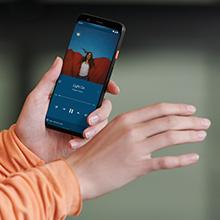
Figure 3.2: Using the Pixel 4 XL Camera
3.4 Motion Sense (Quick Gestures)
Utilize Quick Gestures to control your phone without touching it. Wave your hand above the screen to skip songs, silence calls, and more. Motion Sense functionality is available in specific regions including the US, Canada, Singapore, Australia, Taiwan, and most European countries.
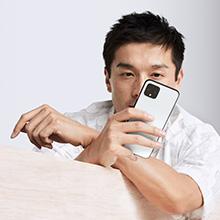
Figure 3.3: Motion Sense in Action
3.5 Call Screen
The Google Assistant's Call Screen feature helps filter out spam calls. It can proactively screen unknown callers and provide a transcript of the conversation, allowing you to decide whether to answer.
3.6 Offizielles Produktvideo
Video 3.1: An official video from Google Inc showcasing the features of the Google Pixel 4, including Google Assistant and Motion Sense. This video provides a visual overview of key functionalities.
4. Wartung
4.1 Reinigung Ihres Geräts
To clean your Pixel 4 XL, use a soft, lint-free cloth. Avoid abrasive materials, solvents, or aerosol sprays. For stubborn marks, slightly dampBefeuchten Sie das Tuch mit Wasser. Tauchen Sie das Gerät nicht in Wasser ein.
4.2 Softwareaktualisierungen
Google regularly releases software updates to improve performance, add features, and enhance security. Ensure your device is connected to Wi-Fi and has sufficient battery life before installing updates. You can check for updates in Settings > System > System update.
4.3 Batteriepflege
So verlängern Sie die Akkulaufzeit:
- Vermeiden Sie extreme Temperaturen.
- Use the provided charger or a compatible Qi-certified wireless charger.
- Enable Adaptive Battery in settings to optimize app usage.
- Disable features like Motion Sense and Always-on Display if not actively needed to conserve power.
4.4 Datensicherung
Regularly back up your data to your Google Account. This includes photos, videos, contacts, and app data. Go to Settings > System > Backup to manage your backup settings.
5. Fehlerbehebung
5.1 Häufige Probleme und Lösungen
- Gerät reagiert nicht: Halten Sie den Netzschalter etwa 30 Sekunden lang gedrückt, um einen Neustart zu erzwingen.
- Apps stürzen ab: Clear the cache and data for the problematic app in Settings > Apps & notifications > See all apps > [App Name] > Storage & cache.
- Verbindungsprobleme (WLAN/Bluetooth): Try toggling Wi-Fi or Bluetooth off and on. If the issue persists, reset network settings in Settings > System > Reset options > Reset Wi-Fi, mobile & Bluetooth.
- Schlechte Akkulaufzeit: Review battery usage in Settings > Battery to identify apps consuming excessive power. Adjust screen brightness and disable unnecessary features.
5.2 Werksreset
Durch das Zurücksetzen auf Werkseinstellungen werden alle Daten auf Ihrem Telefon gelöscht und der ursprüngliche Werkszustand wiederhergestellt. Dadurch lassen sich hartnäckige Softwareprobleme beheben. Warning: Back up all important data before proceeding.
- Gehen Sie zu Einstellungen > System > Optionen zurücksetzen.
- Tippen Sie auf „Alle Daten löschen (Werkseinstellungen zurücksetzen)“.
- Bestätigen Sie Ihre Entscheidung und folgen Sie den Anweisungen auf dem Bildschirm.
6. Spezifikationen
Key technical specifications for the Google Pixel 4 XL:
| Besonderheit | Spezifikation |
|---|---|
| Marke | |
| Modellname | Pixel 4 XL |
| Betriebssystem | Android |
| Speicherkapazität | 64 GB |
| Größe des installierten RAM-Speichers | 6 GB |
| Bildschirmgröße | 6.3 Zoll |
| Auflösung | 1440 x 2960 |
| Bildwiederholrate | 120 Hz |
| CPU Modell | Snapdragon S3 |
| CPU-Geschwindigkeit | 2.84 GHz |
| Farbe | Oh So Orange |
| Anzahl der SIM-Kartensteckplätze | Einzelne SIM |
| Steckertyp | USB Typ C |
| Biometrische Sicherheitsfunktion | Gesichtserkennung |
| Wasserbeständigkeit | Wasserfest |
| Kopfhöreranschluss | Kein Kopfhöreranschluss |
| Front Photo Sensor Resolution | 8 Megapixel |
| Auflösung der Videoaufnahme | 4k (30fps) |
| Anzeigetyp | OLED |
| Mobilfunkanbieter | Freigeschaltet |
| Durchschnittliche Batterielebensdauer | 12 Stunden |
7. Garantieinformationen
Your Google Pixel 4 XL comes with a 2 Jahr Herstellergarantie. This warranty covers defects in materials and workmanship under normal use. It does not cover damage caused by accidents, misuse, unauthorized repairs, or normal wear and tear.
For detailed terms and conditions, please refer to the warranty card included with your product or visit the official Google support webWebsite.
8. Unterstützung
If you require further assistance or encounter issues not covered in this manual, please utilize the following resources:
- Online-Hilfe: Visit the official Google Pixel Help Center for comprehensive articles, FAQs, and troubleshooting guides.
- Community-Foren: Engage with other Pixel users and experts in Google's official product forums.
- Kontaktieren Sie den Support: Access direct support options (chat, phone, email) through the Google Pixel Help Center.
Always ensure you are referring to official Google support channels for accurate and up-to-date information.