
Einführung
Welcome to your new MageGee GK710 Pink Gaming Keyboard and Mouse Combo. This manual provides detailed instructions for setup, operation, and maintenance to ensure optimal performance and a satisfying user experience. Please read this manual thoroughly before using the product.
Packungsinhalt
- MageGee GK710 Pink Gaming Keyboard
- MageGee Pink Gaming Mouse
- Integrated USB Cables
Installationsanweisungen
Anschließen von Tastatur und Maus
The MageGee GK710 keyboard and mouse combo utilizes standard USB connections for both devices. No additional drivers are required for basic functionality, making it a plug-and-play solution.
- Suchen Sie einen freien USB 2.0-Anschluss an Ihrem Computer.
- Stecken Sie den USB-Stecker der Tastatur in den USB-Anschluss.
- Stecken Sie den USB-Stecker der Maus in einen anderen freien USB-Anschluss.
- Your operating system will automatically detect and install the necessary drivers.
- The devices are now ready for use.

Image: Close-up of the pink gaming mouse, highlighting its USB connection and plug-and-play capability. The mouse features a geometric pattern and illuminated scroll wheel.
Bedienungsanleitung
Tastaturfunktionen
The GK710 keyboard features a standard 104-key layout with several enhanced functions designed for gaming and productivity.
Anti-Ghosting-Schlüssel
The keyboard supports 19 anti-ghosting keys, allowing simultaneous key presses without conflict. These keys include Q, A, Z, W, S, X, E, D, C, B, Space, Up, Down, Left, Right, Tab, Alt, Ctrl, and Shift.
Multimedia-Funktionstasten
Durch Drücken der Taste können Sie auf die Multimedia-Steuerung zugreifen. Fn key in combination with the designated function keys (F1-F10).

Image: The MageGee GK710 keyboard displaying the 10 dedicated multimedia function keys located above the F-keys, labeled for quick access to common applications and media controls.
- Fn + F1: Web Browser
- Fn + F2: Mein Computer
- Fn + F3: Email
- Fn + F4Musikplayer
- Fn + F5: Taschenrechner
- Fn + F6: Lautstärke runter
- Fn + F7: Lauter
- Fn + F8: Vorheriges Lied
- Fn + F9: Wiedergabe/Pause
- Fn + F10: Nächster Titel
Anpassung der Hintergrundbeleuchtung
The keyboard features 7 single-color lighting modes. To adjust the backlight:
- Drücken Fn + ESC repeatedly to cycle through brightness levels (Dim, Bright, Breathing, Off).
- The backlight will automatically turn off after 10 minutes of inactivity to conserve energy.
Gaming Mode Features
- Disable WIN Key: Drücken Sie Fn + GEWINNEN to disable the Windows key during gameplay, preventing accidental interruptions. Press again to re-enable.
- WASD Key Swap: Drücken Sie Fn + W to swap the functionality of the WASD keys with the arrow keys. Press again to revert to standard layout.
Mausfunktionen
The gaming mouse offers adjustable DPI settings and an aesthetic breathing backlight.
DPI-Anpassung
The mouse supports four adjustable DPI levels. Press the DPI button located on top of the mouse to cycle through the settings. An indicator light will change color to show the current DPI:
- Rot: 800 DPI (suitable for web browsing and general tasks)
- Grün: 1600 DPI (ideal for daily use)
- Blau: 2400 DPI (recommended for gaming)
- Lila: 3200 DPI (for professional gaming requiring high precision)
Atmende Hintergrundbeleuchtung
The mouse features an automatic 7-color breathing backlight that cycles through various colors when connected.
Hauptmerkmale
- Langlebiges Design: Features suspension keycaps and a waterproof, dust-resistant membrane switch for enhanced longevity and easy cleaning.
- Taktiles Feedback: The crater structure of the keycaps provides a comfortable and responsive typing experience, crucial for both gaming and extended typing sessions.
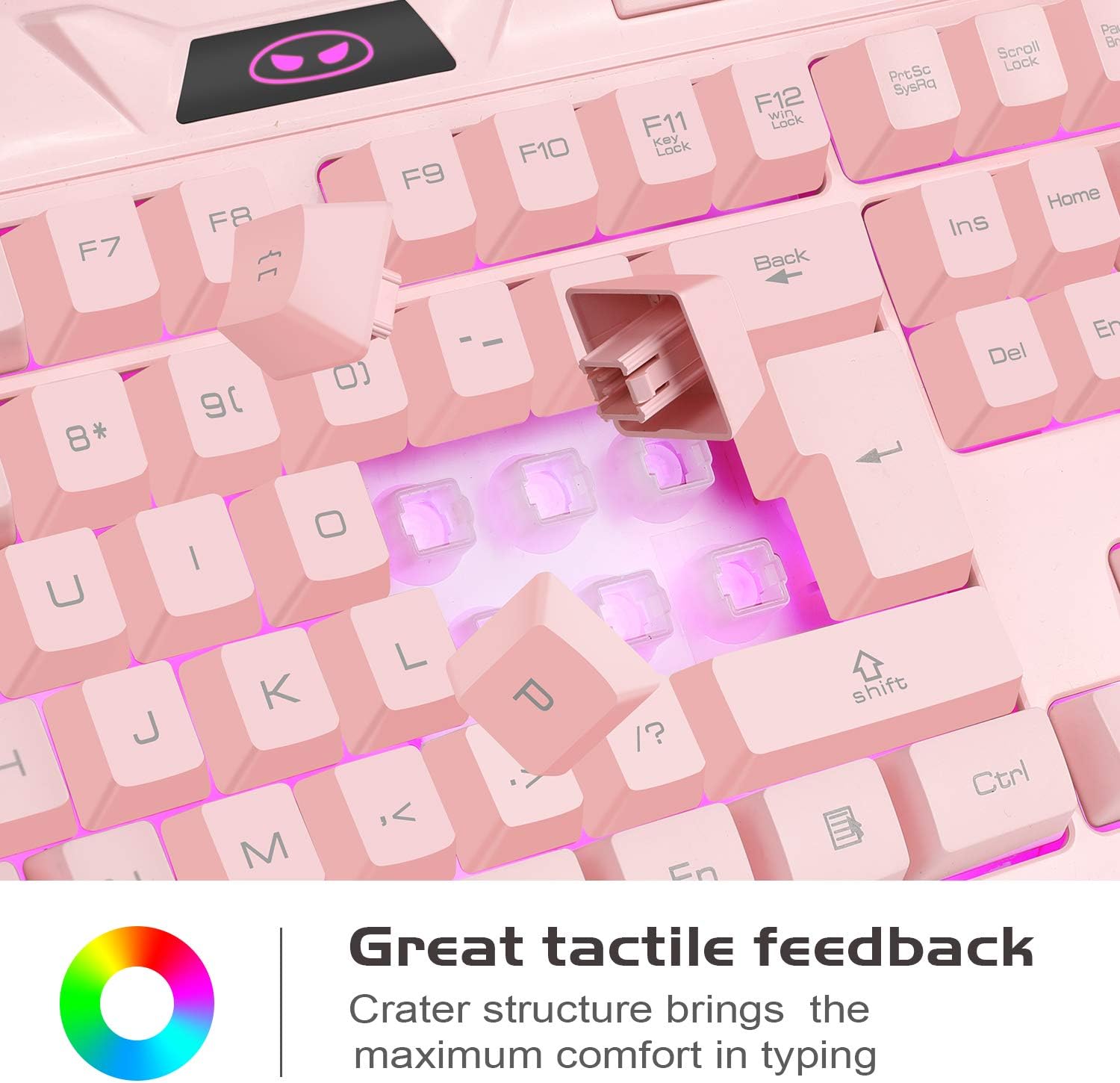
Bild: Eine Nahaufnahme view of the keyboard's keycaps, illustrating the crater structure designed to provide enhanced tactile feedback during typing.
- Ergonomisches Mausdesign: The mouse is contoured for a comfortable grip, reducing fatigue during prolonged use.
- Breite Kompatibilität: Compatible with a broad range of operating systems including Windows 98/2000/ME/XP/Vista/Win7/Win8 and Linux.
Wartung
Reinigung der Tastatur
Due to its waterproof and dust-resistant design, the keyboard is easy to clean and maintain.
- Trennen Sie die Tastatur vor der Reinigung vom Computer.
- Benutzen Sie ein weiches, leichtamp Tuch zum Abwischen der Tastenkappen und der Oberfläche.
- For stubborn dirt, a small amount of mild soap can be used, ensuring no liquid enters the USB connector.
- Lassen Sie die Tastatur vollständig trocknen, bevor Sie sie wieder an Ihren Computer anschließen.
Reinigung der Maus
- Trennen Sie die Maus von Ihrem Computer.
- Benutzen Sie ein weiches, leichtamp cloth to gently wipe the surface of the mouse.
- Vermeiden Sie die Verwendung von aggressiven Chemikalien oder Scheuermitteln, da diese die Oberfläche beschädigen können.
- Ensure the mouse is completely dry before reconnecting.
Fehlerbehebung
Tastatur oder Maus reagieren nicht
- Stellen Sie sicher, dass die USB-Kabel fest in die USB-Anschlüsse des Computers eingesteckt sind.
- Versuchen Sie, die Geräte an verschiedene USB-Anschlüsse Ihres Computers anzuschließen.
- Starten Sie Ihren Computer neu, um die USB-Verbindungen zu aktualisieren.
- Testen Sie Tastatur und Maus an einem anderen Computer, um festzustellen, ob das Problem an den Geräten oder an Ihrem System liegt.
Hintergrundbeleuchtung funktioniert nicht
- For the keyboard, ensure the backlight is not set to 'Off' mode by pressing Fn + ESC um durch die verschiedenen Modi zu schalten.
- For the mouse, the backlight is automatic and should be on when connected. If not, try reconnecting the mouse.
Schlüssel werden nicht korrekt registriert
- Ensure the WASD keys are not swapped with arrow keys (press Fn + W to toggle this function).
- Clean around the affected keys to remove any debris that might be obstructing key presses.
Technische Daten
| Besonderheit | Detail |
|---|---|
| Modell | GK710 |
| Tastaturtyp | Membran |
| Anzahl der Schlüssel | 104 |
| Anti-Ghosting | 19 keys (Q, A, Z, W, S, X, E, D, C, B, Space, Up, Down, Left, Right, Tab, Alt, Ctrl, Shift) |
| Multimedia-Schlüssel | 10 (Fn combinations) |
| Tastaturbeleuchtung | 7 single-color modes, adjustable brightness (Fn+ESC) |
| Maus-DPI-Einstellungen | 800 / 1200 / 2400 / 3200 DPI |
| Hintergrundbeleuchtung der Maus | 7-farbiges Atmungslicht |
| Konnektivität | Kabelgebundener USB 2.0 |
| Kabellänge | 180 cm (ca. 5.9 Fuß) |
| Betriebslautstärketage | 5V |
| Betriebsstrom | 10 mAh |
| Kompatibilität | Linux, Win XP, Win 2000, Win Vista, Win7, Win8 |
| Tastaturabmessungen | Ca.. 460mm x 188.5mm x 28.5mm |
| Abmessungen der Maus | Ca.. 120mm x 70mm x 41mm |
| Gewicht | 1.02 kg (combined package weight) |

Image: Technical diagram illustrating the precise dimensions of both the MageGee GK710 pink gaming keyboard and its accompanying mouse.
Garantie und Support
For any issues or questions regarding your MageGee GK710 Pink Gaming Keyboard and Mouse Combo, please contact our customer service team. We value your feedback and are committed to providing assistance.
Bitte konsultieren Sie Ihre Kaufunterlagen oder die des Händlers. webDie genauen Garantiebedingungen und Kontaktinformationen finden Sie auf der Webseite.