
Einführung
The Homcloud Mini 8S Wi-Fi Camera is designed to enhance your home security with smart, intuitive features. This camera allows you to monitor, program, and automate your home devices directly from your smartphone, providing control from anywhere. It integrates seamlessly into your smart home ecosystem, offering convenience and peace of mind.
Zu den Hauptmerkmalen gehören:
- Full HD 1080p Video Recording
- Night Vision up to 10 meters
- Motion Detection with Live Notifications
- Two-Way Audio and Noise Reduction
- SD-Karten- und Cloud-Speicheroptionen
- Wi-Fi-Konnektivität
- Compatibility with Homcloud App, Amazon Alexa, and Google Home

Image: The Homcloud Mini 8S Wi-Fi Camera on a desk, highlighting its key features such as HD Video, Night Vision, SD Card & Cloud storage, Motion Detection, and Live Notifications.
Produktkomponenten
The Homcloud Mini 8S Wi-Fi Camera package typically includes the following items:
- Homcloud Mini 8S Wi-Fi Camera
- USB-Stromkabel
- Netzteil (kann je nach Region variieren)
- Montagezubehör (für die Wandmontage)
- Benutzerhandbuch (dieses Dokument)

Image: The Homcloud Mini 8S Wi-Fi Camera positioned on a desk, demonstrating its compact design and typical indoor placement.
Installationshandbuch
Follow these steps to set up your Homcloud Mini 8S Wi-Fi Camera:
- Download the Homcloud App: Suchen nach "Homcloud" in the Apple App Store or Google Play Store, or scan the QR code below to download the official application.
- Ein Konto erstellen: Open the Homcloud app and register for a new account or log in if you already have one.
- Schalten Sie die Kamera ein: Connect the camera to a power source using the provided USB cable and power adapter. Wait for the indicator light to flash, indicating it's ready for pairing.
- Gerät hinzufügen: In the Homcloud app, tap the "+" icon (usually in the top right corner) to add a new device. Select "Security Camera" or "Smart Camera" from the device list.
- Mit WLAN verbinden: Follow the in-app instructions to connect the camera to your 2.4GHz Wi-Fi network. You may need to scan a QR code displayed on your phone screen with the camera lens.
- Platzierung: Position the camera in your desired location. It supports standalone placement or wall mounting. Ensure it has a clear view des Bereichs, den Sie überwachen möchten.

Image: Multiple smartphones displaying the Homcloud application interface, along with the Homcloud logo and a QR code for easy app download. The QR code links to https://smartapp.tuya.com/homcloudsmart.
Bedienungsanleitung
Once your Homcloud Mini 8S Wi-Fi Camera is set up, you can control and monitor it using the Homcloud app:
- Live View: Öffnen Sie die App und wählen Sie Ihre Kamera aus. view live video feed in Full HD 1080p resolution.
- Zweiwege-Audio: Use the microphone and speaker icons in the app to communicate with people near the camera.
- Nachtsicht: The camera automatically switches to night vision mode in low-light conditions, providing clear black and white video up to 10 meters.
- Bewegungserkennung: Enable motion detection in the app settings to receive instant notifications on your smartphone when movement is detected. You can adjust sensitivity levels.
- Aufzeichnung und Speicherung:
- SD-Karte: Insert a microSD card (not included) into the camera's slot for local video storage. The camera supports continuous recording or event-triggered recording.
- Cloud-Speicher: Subscribe to Homcloud's cloud storage service (if available) for secure off-site video backup.
- Smart Home Integration: Connect your Homcloud account with Amazon Alexa or Google Home to control the camera using voice commands (e.g., "Alexa, show me the living room camera").
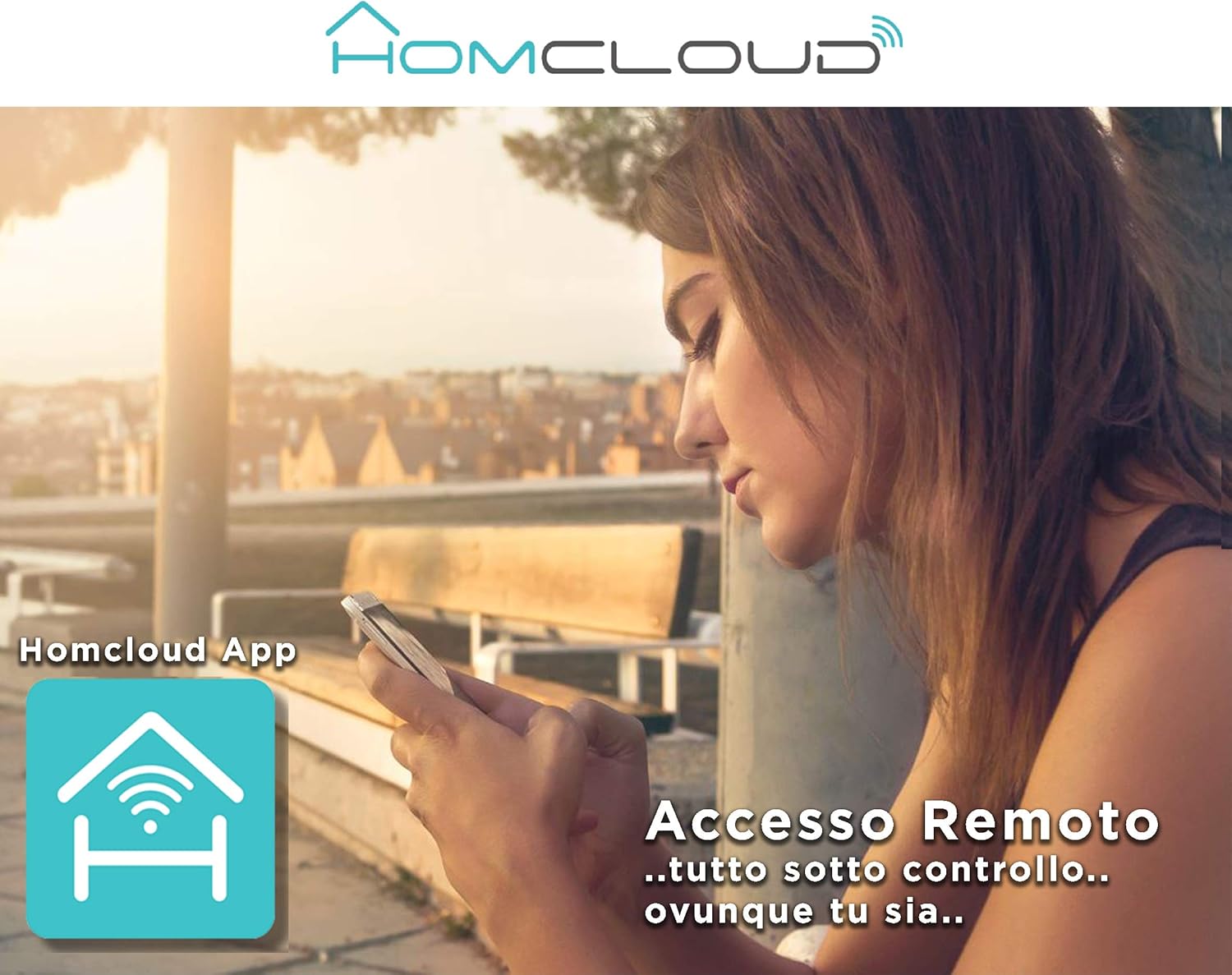
Image: A woman using her smartphone, illustrating the remote access capabilities of the Homcloud App to control and monitor the camera from any location.

Image: A family enjoying their smart home, demonstrating the integration of Homcloud solutions with Amazon Alexa and Google Assistant for convenient control.
Wartung
Durch sachgemäße Wartung wird die Langlebigkeit und optimale Leistung Ihrer Kamera gewährleistet:
- Reinigung: Wischen Sie Objektiv und Gehäuse der Kamera vorsichtig mit einem weichen, trockenen Tuch ab. Vermeiden Sie die Verwendung von scharfen Chemikalien oder scheuernden Materialien, die das Objektiv zerkratzen oder das Gehäuse beschädigen könnten.asing.
- Firmware-Updates: Regularly check the Homcloud app for available firmware updates. Keeping your camera's firmware up-to-date ensures you have the latest features, security patches, and performance improvements.
- Stromversorgung: Use only the original power adapter and cable provided with the camera. Ensure the power connection is secure and free from damage.
- Umfeld: The camera is designed for indoor use. Avoid exposing it to extreme temperatures, direct sunlight, high humidity, or water. While it is listed as "waterproof" in some specifications, this typically refers to splash resistance and not full submersion or outdoor exposure.
Fehlerbehebung
If you encounter issues with your Homcloud Mini 8S Wi-Fi Camera, refer to the following common solutions:
- Kamera offline:
- Check if the camera is powered on and the power cable is securely connected.
- Ensure your Wi-Fi router is working and the internet connection is stable.
- Starten Sie die Kamera neu, indem Sie sie vom Stromnetz trennen und wieder anschließen.
- Verify that the camera is within range of your Wi-Fi router.
- If the issue persists, try re-pairing the camera with the Homcloud app.
- Schlechte Videoqualität:
- Reinigen Sie das Kameraobjektiv mit einem weichen Tuch.
- Ensure adequate lighting in the monitored area, especially for color video.
- Prüfen Sie die Stärke Ihres WLAN-Signals; ein schwaches Signal kann die Streaming-Qualität beeinträchtigen.
- Bewegungserkennung funktioniert nicht:
- Verify that motion detection is enabled in the Homcloud app settings for your camera.
- Passen Sie die Empfindlichkeit der Bewegungserkennung an.
- Stellen Sie sicher, dass keine Hindernisse die Sicht der Kamera blockieren. view.
- Verbindung zur App nicht möglich:
- Make sure your smartphone is connected to a 2.4GHz Wi-Fi network during the pairing process.
- Confirm that you are entering the correct Wi-Fi password.
- Reset the camera (refer to the app or product for specific reset instructions, usually a small button) and try the pairing process again.
Technische Daten
| Besonderheit | Detail |
|---|---|
| Marke | Homcloud |
| Modellnummer | TY-WCM8S |
| Auflösung der Videoaufzeichnung | 1080p Full HD |
| Effektive Videoauflösung | 1080 |
| Bildfrequenz | 25 fps |
| Drahtlose Kommunikationstechnologie | W-lan |
| Konnektivitätsprotokoll | W-lan |
| Viewing-Winkel | 100 Grad |
| Nachtsichtbereich | 10 Meter |
| Besondere Merkmale | Two-Way Audio, Noise Reduction, HD Resolution, Night Vision |
| Empfohlene Verwendung | Sicherheit in Innenräumen |
| Innen-/Außenbereich | Innenbereich |
| Kompatible Geräte | Homcloud App, Amazon Alexa, Android, Google Home, Smart Life, iOS |
| Stromquelle | Stromkabel |
| Bandtage | 5 Volt |
| Energieaufnahme | 2.5 Watt |
| Material | Plastik |
| Abmessungen (L x B x H) | 8 x 5 x 9 cm |
| Gewicht | 350 Gramm |
| Montagetyp | Wandhalterung |
| Wasserbeständigkeit | Waterproof (Note: Typically splash resistant for indoor use) |
Garantie und Support
For warranty information, please refer to the documentation provided at the time of purchase or visit the official Homcloud website. If you require technical assistance or have questions not covered in this manual, please contact Homcloud customer support through their official channels.
You can find more information and support resources on the Homcloud website or through the Homcloud application.