
1. Einleitung
The HUAWEI MateDock 3 is a compact and versatile docking station designed to expand the connectivity options of your compatible devices. It provides multiple ports including HDMI, VGA, USB-A, USB-C, an integrated microSD card reader, and a LAN (RJ45) connection. This manual provides instructions for setting up, operating, and maintaining your MateDock 3.

Abbildung 1.1: Oben view of the HUAWEI MateDock 3, showcasing sein kompaktes Design und das integrierte USB-C-Kabel.
2. Packungsinhalt
Stellen Sie sicher, dass alle Artikel im Paket vorhanden sind:
- HUAWEI MateDock 3 Multi-Port Docking Station
- Benutzerhandbuch (dieses Dokument)
3. Produktüberschreitungview
The MateDock 3 features a range of ports to enhance your device's connectivity. Familiarize yourself with the port layout:

Image 3.1: Detailed diagram of the HUAWEI MateDock 3 ports, including LAN, USB-A, HDMI, VGA, microSD, and USB-C.
- USB-C-Eingangskabel: Connects to your host device (laptop, tablet, smartphone).
- HDMI-Anschluss: Connects to an external display for video and audio output.
- VGA-Anschluss: Connects to an external display for video output.
- USB-A-Anschluss: Connects to USB peripherals such as keyboards, mice, or external storage.
- USB-C-Anschluss: For power delivery to the host device or connecting other USB-C peripherals.
- LAN (RJ45)-Anschluss: Provides wired Ethernet network connectivity.
- microSD-Kartenleser: For reading and writing data to microSD cards.
4. Einrichtung und Installation
The HUAWEI MateDock 3 is designed for plug-and-play functionality, requiring no driver installation for most operating systems.
- Verbindung zum Hostgerät herstellen: Plug the integrated USB-C cable of the MateDock 3 into an available USB-C port on your laptop, tablet, or smartphone.
- Stromanschluss (optional): If your host device requires charging or if you are connecting power-intensive peripherals, connect a USB-C power adapter to the USB-C port on the MateDock 3.
- Peripheriegeräte anschließen: Connect your desired external devices (monitor, keyboard, mouse, Ethernet cable, microSD card) to the corresponding ports on the MateDock 3.
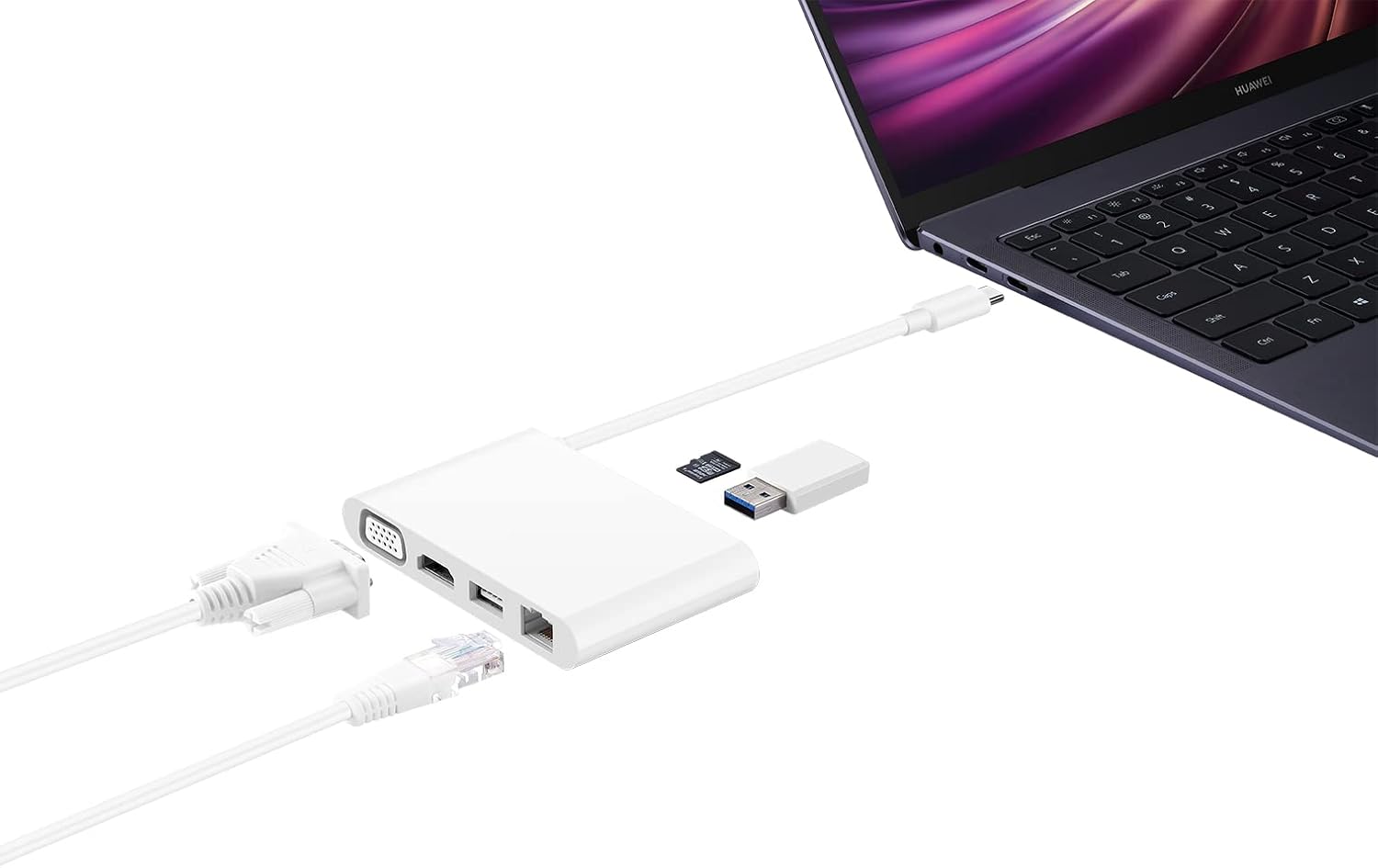
Image 4.1: The MateDock 3 in use, connected to a laptop, demonstrating connections for a monitor, Ethernet, and USB devices.
5. Bedienungsanleitung
5.1. Video Output (HDMI / VGA)
- Connect an HDMI cable from your monitor/TV to the HDMI port on the MateDock 3.
- Alternatively, connect a VGA cable from your monitor/projector to the VGA port on the MateDock 3.
- Your host device should automatically detect the external display. You may need to adjust display settings (e.g., mirror, extend) in your operating system.
- Notiz: Es kann jeweils nur ein Videoausgang (HDMI oder VGA) verwendet werden.
5.2. USB Peripherals (USB-A / USB-C)
- Plug your USB-A devices (e.g., mouse, keyboard, USB flash drive) into the USB-A port.
- The USB-C port on the dock can be used for power delivery to your host device or for connecting other USB-C peripherals.
5.3. Netzwerkverbindung (LAN)
- Connect an Ethernet cable from your router or network switch to the LAN (RJ45) port on the MateDock 3.
- Your host device will establish a wired network connection.
5.4. microSD-Kartenleser
- Insert a microSD card into the designated slot on the MateDock 3.
- The card will appear as a removable drive on your host device, allowing you to access its contents.
6. Wartung und Pflege
- Keep the MateDock 3 clean and dry. Avoid exposure to liquids or excessive humidity.
- Setzen Sie das Gerät keinen extremen Temperaturen aus.
- Clean the exterior with a soft, dry cloth. Avoid abrasive cleaners.
- Handle the integrated USB-C cable with care to prevent damage.
7. Fehlerbehebung
- Keine Anzeigeausgabe:
- Ensure the MateDock 3's USB-C cable is securely connected to your host device.
- Verify that the HDMI or VGA cable is firmly connected to both the dock and the display.
- Überprüfen Sie die Anzeigeeinstellungen Ihres Hostgeräts, um sicherzustellen, dass der externe Monitor erkannt und korrekt konfiguriert wird.
- Try connecting only one video output (HDMI or VGA) at a time.
- USB-Geräte funktionieren nicht:
- Ensure the USB device is properly inserted into the USB-A or USB-C port.
- If the device requires external power, ensure the MateDock 3 is connected to a power source via its USB-C port.
- Test the USB device directly with your host device to rule out device-specific issues.
- Keine Netzwerkverbindung:
- Verify that the Ethernet cable is securely connected to both the MateDock 3 and your router/switch.
- Check your host device's network settings.
- Ensure your router/switch is functioning correctly.
- microSD Card Not Detected:
- Ensure the microSD card is fully inserted into the slot.
- Check if the card is formatted correctly and readable by your host device.
8. Spezifikationen
| Besonderheit | Detail |
|---|---|
| Modellnummer | 55031424 |
| Abmessungen (L x B x H) | 9.4 x 5.9 x 1.4 cm |
| Gewicht | 86 g |
| Hardware-Schnittstelle | HDMI, VGA, USB-A, USB-C, LAN (RJ45), microSD |
| Anzahl der Ports | 5 (excluding input USB-C cable and microSD slot) |
| Kompatible Geräte | Devices with USB-C ports supporting video output and power delivery |
| Farbe | Weiß |
9. Garantieinformationen
For detailed warranty information, please refer to the warranty card included with your product packaging or visit the official Huawei webBewahren Sie Ihren Kaufbeleg als Kaufnachweis für Garantieansprüche auf.
10. Kundendienst
If you encounter any issues or have questions not covered in this manual, please contact Huawei customer support through their official webWebsite oder die in Ihrer Produktdokumentation angegebenen Kontaktinformationen.