
MEIZE k105
MEIZE Tablet 10.1 Inch User Manual
Model: k105 | Brand: MEIZE
Einführung
Thank you for choosing the MEIZE 10.1 Inch Tablet. This manual provides essential information for setting up, operating, and maintaining your device. Please read it carefully to ensure optimal performance and longevity of your tablet.

Figure 1: MEIZE 10.1 Inch Tablet
This image displays the MEIZE 10.1 Inch Tablet from an angled perspective, showcasing its vibrant display with a variety of application icons and widgets, including a clock, calendar, weather, and common communication apps.
Produkteigenschaften
The MEIZE 10.1 Inch Tablet is designed for versatile use, offering a blend of performance and connectivity. Key features include:
- Anzeige: 10.1-inch HD IPS touchscreen with 1280x800 resolution for clear and vibrant visuals.
- Leistung: Powered by a 1.3 GHz Quad-Core processor and 2GB RAM for smooth operation.
- Lagerung: 32GB internal storage, expandable up to 128GB via microSD card (not included).
- Konnektivität: Dual SIM card slots for 3G phone calls and multi-network connection, Wi-Fi (802.11 b/g/n), Bluetooth 4.0, GPS, and OTG.
- Kameras: Equipped with a 5MP rear camera and a 2MP front camera.
- Batterie: 6000mAh rechargeable lithium battery for extended usage.
- Betriebssystem: Android 9.0 Pie.

Figure 2: High-Definition IPS Screen
This image highlights the tablet's 1280x800 IPS screen, emphasizing its fast response time and wide 178-degree viewing angle, ideal for immersive visual experiences.

Abbildung 3: Front- und Rückkamera
This image illustrates the tablet's camera capabilities, featuring a 2MP front camera suitable for video calls and a 5MP rear camera for capturing photos and videos.
Lieferumfang
Beim Auspacken sollten Sie die folgenden Artikel vorfinden:
- 1 x MEIZE Tablet
- 1 x Netzteil
- 1 x USB-Kabel
- 1 x Benutzerhandbuch
Installationshandbuch
1. Erstes Aufladen
Before first use, fully charge your MEIZE tablet. Connect the provided USB cable to the tablet's charging port and the other end to the power adapter. Plug the adapter into a wall outlet. The charging indicator will typically light up.
2. Einlegen der SIM- und SD-Karten
The tablet supports dual SIM cards for 3G phone calls and a microSD card for expandable storage.
- Suchen Sie das SIM-/SD-Kartenfach an der Seite des Tablets.
- Carefully open the tray cover.
- Insert your SIM cards (SIM1, SIM2) and/or microSD card into the designated slots, ensuring correct orientation as indicated on the tray.
- Close the tray cover securely.
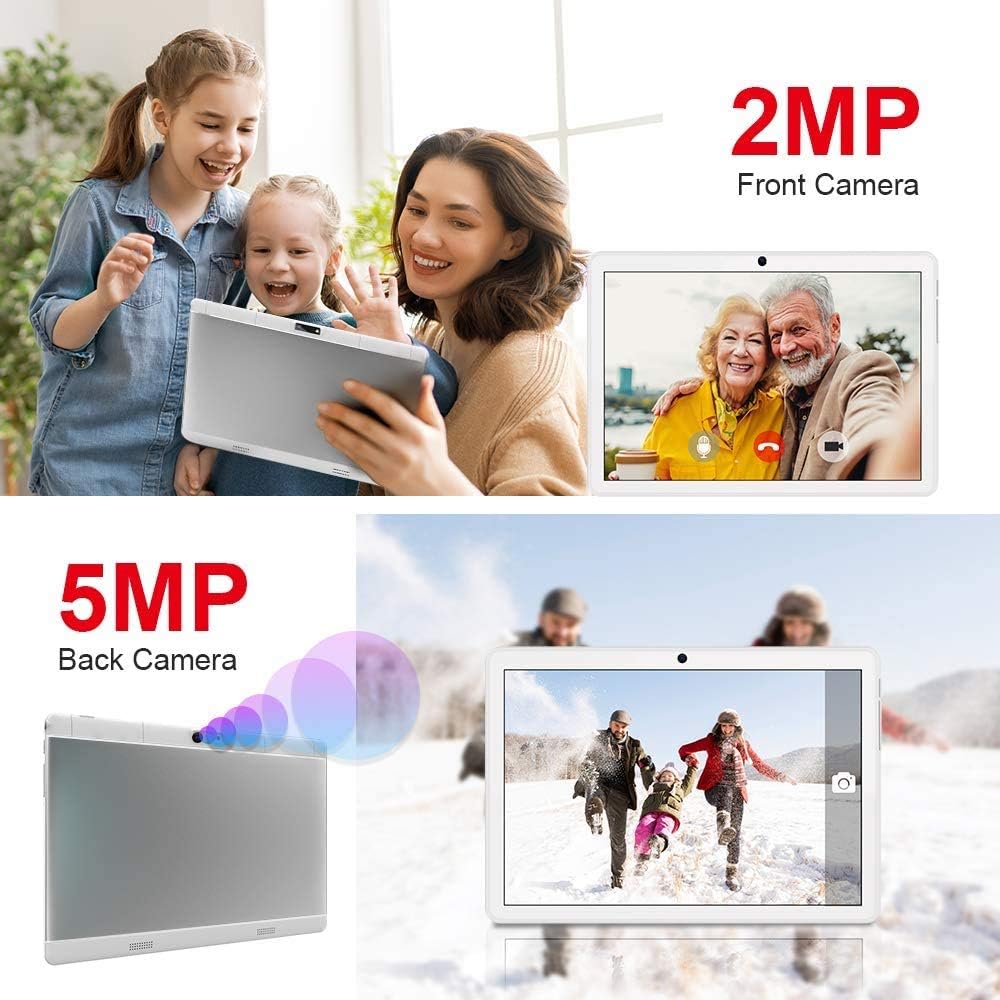
Abbildung 4: Installation der SIM- und SD-Karte
This image demonstrates the location and method for inserting an SD card, SIM1, and SIM2 into the tablet's dedicated slots, highlighting its dual SIM and expandable storage capabilities.
3. Ein-/Ausschalten
- So schalten Sie das Gerät ein: Press and hold the Power button until the MEIZE logo appears on the screen.
- So schalten Sie das Gerät aus: Halten Sie die Ein-/Aus-Taste gedrückt, bis ein Ausschaltmenü erscheint. Wählen Sie „Ausschalten“ und bestätigen Sie.
- Neustarten: Wählen Sie im Menü „Ausschalten“ die Option „Neustart“.
4. Ersteinrichtung
Beim ersten Einschalten führt Sie das Tablet durch die Ersteinrichtung. Diese umfasst in der Regel Folgendes:
- Wählen Sie Ihre Sprache.
- Verbindung mit einem Wi-Fi-Netzwerk herstellen.
- Einrichten Ihres Google-Kontos (optional, aber für App-Downloads empfohlen).
- Einstellen von Datum und Uhrzeit.
- Bildschirmsperroptionen konfigurieren.
Bedienungsanleitung
1. Grundlegende Navigation
The MEIZE tablet uses a capacitive touchscreen for interaction:
- Klopfen: To open an app, select an item, or press a button.
- Tippen und halten: Um auf Kontextmenüs zuzugreifen oder Symbole zu verschieben.
- Wischen: Zum Durchblättern von Seiten und Listen oder zum Wechseln zwischen Startbildschirmen.
- Prise: Um Bilder zu vergrößern oder zu verkleinern und web Seiten.
2. Verbinden mit Wi-Fi
- Gehe zu Einstellungen > Netzwerk & Internet > W-lan.
- WLAN ein-/ausschalten On.
- Wählen Sie das gewünschte WLAN-Netzwerk aus der Liste aus.
- Geben Sie gegebenenfalls das Passwort ein und tippen Sie auf Verbinden.
3. Bluetooth-Kopplung
- Gehe zu Einstellungen > Verbundene Geräte > Bluetooth.
- Bluetooth ein-/ausschalten On.
- Stellen Sie sicher, dass sich das Gerät, mit dem Sie eine Kopplung vornehmen möchten, im Kopplungsmodus befindet.
- Select the device from the "Available devices" list and follow on-screen prompts to complete pairing.
4. GPS verwenden
The tablet features built-in GPS for navigation and location-based services. Ensure location services are enabled in Einstellungen > Standort. You can then use pre-installed map applications or download others from the Google Play Store.
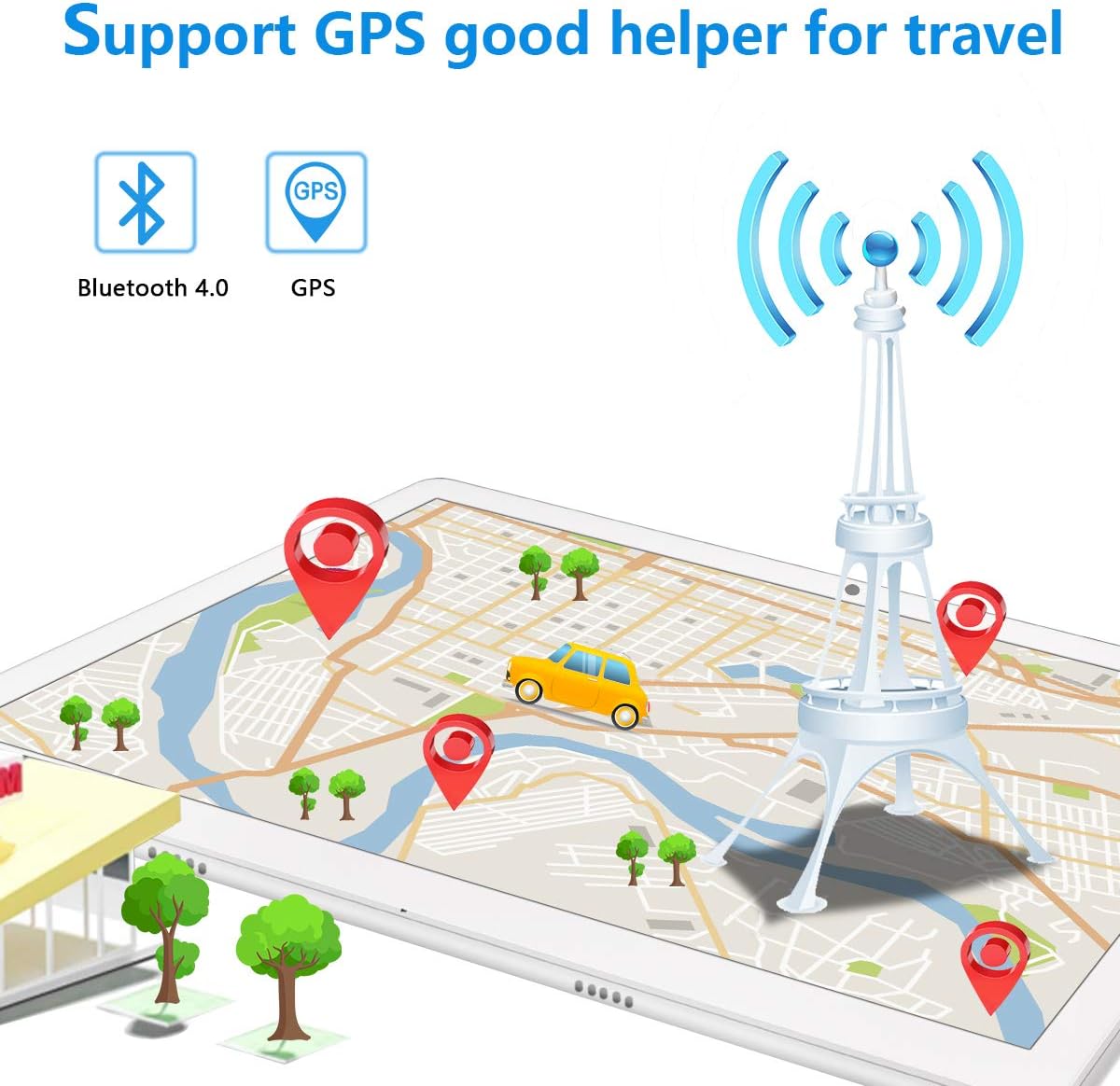
Figure 5: GPS and Bluetooth Functionality
This image illustrates the tablet's integrated GPS and Bluetooth 4.0 capabilities, showing a map with navigation points, indicating its utility for travel and connectivity with external devices.
5. Making Phone Calls (3G)
With a compatible 3G SIM card inserted, you can make and receive phone calls directly from your tablet.
- Öffnen Sie die Telefon Anwendung.
- Dial the desired number using the on-screen keypad or select a contact.
- Tippen Sie auf die Anrufschaltfläche, um den Anruf einzuleiten.
6. Kameranutzung
The tablet features a 5MP rear camera and a 2MP front camera for photos and videos.
- Öffnen Sie die Kamera Anwendung.
- Wechseln Sie mithilfe des Kamerasymbols zwischen Front- und Rückkamera.
- Tippen Sie auf den Auslöser, um ein Foto aufzunehmen oder ein Video aufzuzeichnen.
7. Speicherverwaltung
Your tablet comes with 32GB of internal storage. You can expand this by up to 128GB using a microSD card. To manage storage:
- Gehe zu Einstellungen > Lagerung Zu view Speicherplatznutzung optimieren und Platz freigeben.
- Regularly transfer photos and videos to your computer or cloud storage to prevent storage issues.

Figure 6: App and Media Enjoyment
This image showcases the tablet's ability to run various applications and display media, including social media, video streaming, and photo galleries, emphasizing its entertainment capabilities.
Wartung
1. Batteriepflege
Um die Akkulaufzeit und Lebensdauer zu maximieren:
- Vermeiden Sie extreme Temperaturen.
- Lassen Sie den Akku nicht vollständig entladen, bevor Sie ihn häufig wieder aufladen.
- Verwenden Sie das mitgelieferte Original-Ladegerät und -Kabel.
- For prolonged storage, charge the tablet to about 50% and power it off.
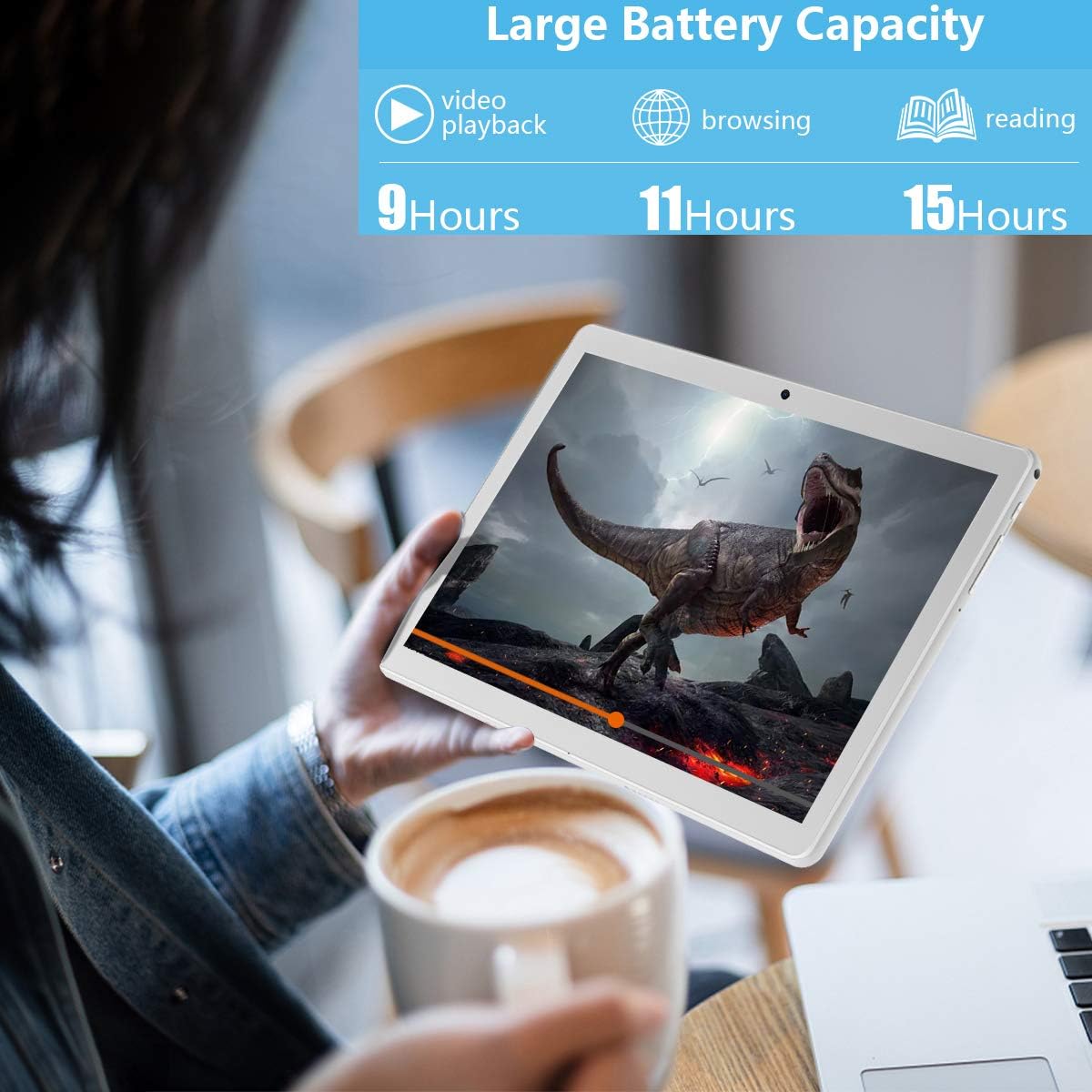
Abbildung 7: Verlängerte Akkulaufzeit
This image highlights the tablet's large battery capacity, indicating approximately 9 hours of video playback, 11 hours of browsing, and 15 hours of reading on a single charge.
2. Reinigung
Reinigen Sie Bildschirm und Gehäuse des Tablets mit einem weichen, fusselfreien Tuch. Vermeiden Sie die Verwendung aggressiver Chemikalien oder scheuernder Materialien.
3. Software-Updates
Prüfen Sie regelmäßig, ob Systemaktualisierungen verfügbar sind, um sicherzustellen, dass Ihr Tablet über die neuesten Funktionen und Sicherheitspatches verfügt. Gehen Sie zu Einstellungen > System > Systemaktualisierung.
Fehlerbehebung
If you encounter issues with your MEIZE tablet, refer to the following common solutions:
| Problem | Mögliche Lösung |
|---|---|
| Das Tablet lässt sich nicht einschalten. | Stellen Sie sicher, dass der Akku geladen ist. Schließen Sie das Gerät mindestens 30 Minuten lang an das Ladegerät an, bevor Sie es erneut einschalten. |
| Wi-Fi connection is unstable or drops frequently. | Starten Sie Ihren WLAN-Router neu. Entfernen Sie das Netzwerk von Ihrem Tablet und stellen Sie die Verbindung erneut her. Stellen Sie sicher, dass Sie sich in Reichweite des WLAN-Signals befinden. |
| Apps sind langsam oder stürzen ab. | Hintergrundanwendungen schließen. App-Cache leeren (Einstellungen > Apps und Benachrichtigungen > App auswählen > Speicher & Cache > Cache leeren). Restart the tablet. |
| Tablet is not charging. | Check if the charging cable and adapter are securely connected. Try a different power outlet. Inspect the charging port for any debris. |
| SIM-Karte nicht erkannt. | Ensure the SIM card is correctly inserted into the tray. Restart the tablet. Verify the SIM card is active with your carrier. |
If the problem persists after trying these solutions, please contact MEIZE customer support.
Technische Daten
| Besonderheit | Detail |
|---|---|
| Marke | MEIZ |
| Modellname | k105 |
| Betriebssystem | Android 9 Pie |
| Bildschirmgröße | 10.1 Zoll |
| Bildschirmauflösung | 1280 x 800 |
| Prozessor | 1.3 GHz Quad-Core |
| RAM | 2 GB SDRAM DDR3 |
| Interner Speicher | 32 GB |
| Erweiterbarer Speicher | Bis zu 128 GB (microSD) |
| Auflösung der Rückkamera | 5 Megapixel |
| Auflösung der Frontkamera | 2 MP (from image) |
| Kabelloser Typ | 802.11b (Wi-Fi), Bluetooth 4.0 |
| Batteriekapazität | 6000 mAh |
| Durchschnittliche Akkulaufzeit | 8 Stunden |
| Abmessungen (LxBxH) | 9.84 x 6 x 0.5 Zoll |
| Artikelgewicht | 1.65 Pfund |
| Farbe | Silber |
Garantie und Support
MEIZE offers customer support for its products. For any inquiries, technical assistance, or warranty claims, please refer to the contact information provided with your purchase or visit the official MEIZE website. The product typically includes a 30-day replacement service and lifetime support.
Weitere Unterstützung finden Sie unter MEIZE Store on Amazon.
Ask a question about this manual
Ask about setup, troubleshooting, compatibility, parts, safety, or missing instructions. Manuals+ will review the question and use this page’s manual context to help answer it.