
1. Produktüberschreitungview
The MEIZE 10-inch Android Tablet K105 is a versatile device designed for both productivity and entertainment. Featuring a 10.1-inch HD display, a quad-core processor, and the Android 9.0 Pie operating system, it offers a smooth user experience. This tablet supports dual SIM cards for cellular connectivity and includes a 6000mAh battery for extended usage.

Bild: Vorderseite view of the MEIZE 10-inch Android Tablet K105, displaying its home screen with various application icons.
2. Lieferumfang
Upon unboxing your MEIZE K105 tablet, please verify that all the following items are included:
- MEIZE 10-inch Android Tablet K105
- Netzteil
- USB-Kabel
- Benutzerhandbuch (dieses Dokument)

Image: The MEIZE tablet alongside its included accessories, such as the charging cable and power adapter.
3. Produktlayout und Komponenten
Machen Sie sich mit dem physischen Layout Ihres Tablets vertraut:
- Netzschalter: Befindet sich an der Seite und dient zum Ein-/Ausschalten des Tablets bzw. zum Aktivieren/Deaktivieren des Bildschirms.
- Lautstärketasten: Stellen Sie den Audioausgangspegel ein.
- USB-Anschluss: Zum Aufladen und zur Datenübertragung.
- Kopfhöreranschluss: Zum Anschließen von kabelgebundenen Kopfhörern.
- Frontkamera: Für Videoanrufe und Selfies (2.0 MP).
- Rückfahrkamera: For taking photos and videos (5.0 MP).
- Lautsprecher: Audio-Ausgang.
- SIM-/SD-Kartensteckplatz: Houses the dual SIM card slots and the microSD card slot for expandable storage.

Bild: Nahaufnahme view of the MEIZE tablet's side, showing the open cover for the SD card and dual SIM card slots.

Image: Diagram highlighting the locations of the 2.0 MP front camera and 5.0 MP rear camera on the MEIZE tablet.
4. Einrichtung
4.1 Aufladen des Tablets
Before first use, fully charge your tablet. Connect the USB cable to the tablet's USB port and the AC adapter, then plug the adapter into a power outlet. The battery indicator on the screen will show charging status.
4.2 Ein-/Ausschalten
- So schalten Sie das Gerät ein: Press and hold the Power button until the MEIZE logo appears.
- So schalten Sie das Gerät aus: Halten Sie die Ein-/Aus-Taste gedrückt, bis das Menü mit den Energieoptionen erscheint, und wählen Sie dann „Ausschalten“.
- Zum Schlafen/Aufwachen: Drücken Sie kurz die Power-Taste.
4.3 Ersteinrichtungsassistent
The first time you power on the tablet, you will be guided through an initial setup process. Follow the on-screen prompts to select your language, connect to Wi-Fi, set up your Google account, and configure other basic settings.
4.4 Einlegen von SIM-Karten und SD-Karten
The MEIZE K105 supports dual SIM cards and expandable storage via a microSD card.
- Locate the SIM/SD card slot cover on the side of the tablet.
- Öffnen Sie den Deckel vorsichtig.
- Insert your SIM cards into the designated SIM1 and SIM2 slots with the gold contacts facing down.
- Insert your microSD card (up to 128GB, not included) into the SD card slot until it clicks into place.
- Schließen Sie die Abdeckung des Steckplatzes fest.

Image: Detailed diagram showing how to correctly insert SIM cards (SIM1, SIM2) and an SD card into their respective slots on the MEIZE tablet.
5. Bedienung des Tablets
5.1 Navigation auf dem Startbildschirm
The home screen is your central hub. Swipe left or right to access different panels. Tap on app icons to open applications. Swipe down from the top of the screen to access the notification panel and quick settings.
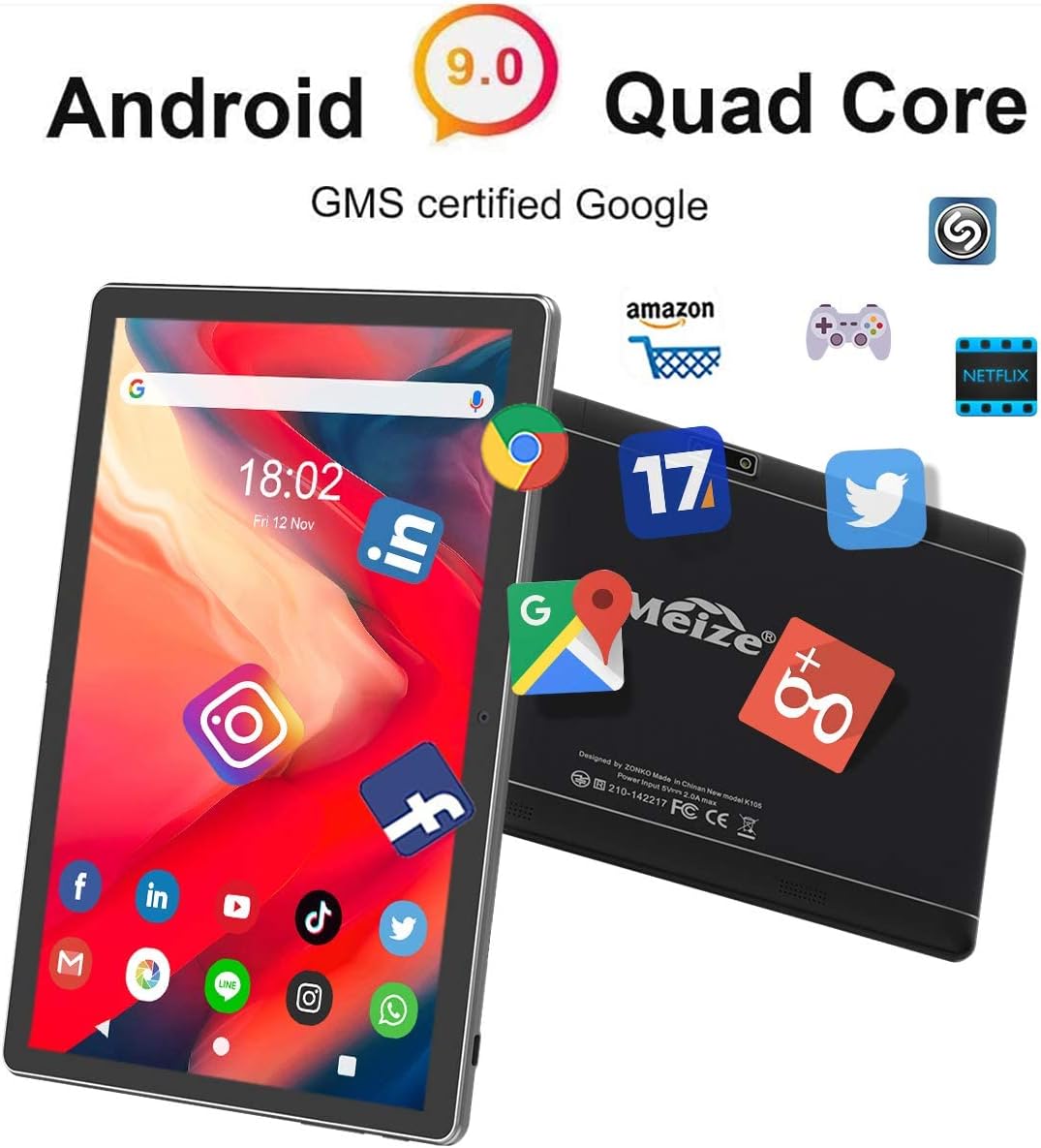
Image: The MEIZE tablet displaying its home screen filled with various application icons, demonstrating the user interface.
5.2 Mit WLAN verbinden
- Gehe zu Einstellungen > Netzwerk & Internet > W-lan.
- Schalten Sie WLAN ein.
- Wählen Sie das gewünschte WLAN-Netzwerk aus der Liste aus.
- Geben Sie gegebenenfalls das Passwort ein und tippen Sie anschließend auf Verbinden.
5.3 Bluetooth-Kopplung
- Gehe zu Einstellungen > Verbundene Geräte > Bluetooth.
- Schalten Sie Bluetooth ein.
- Ensure the device you wish to pair is in pairing mode.
- Wählen Sie das Gerät aus der Liste der verfügbaren Geräte aus und folgen Sie den Anweisungen auf dem Bildschirm, um die Kopplung abzuschließen.
5.4 Making Calls and Using Cellular Data
With inserted SIM cards, your tablet can function as a large phone. Use the pre-installed Phone app to make calls and the Messages app for SMS. Ensure mobile data is enabled in Einstellungen > Netzwerk & Internet > Mobilfunknetz to use cellular data.
5.5 Kameranutzung
Open the Camera app from your home screen or app drawer. You can switch between front and rear cameras, select photo or video mode, and adjust basic settings like flash or timer.
5.6 Speicherverwaltung
Your tablet comes with 32GB of internal storage. You can expand this by inserting a microSD card (up to 128GB). To view Speichernutzung, gehen Sie zu Einstellungen > Lagerung.
5.7 Installing and Uninstalling Apps
- Installieren: Open the Google Play Store app, search for your desired app, and tap Installieren.
- Deinstallieren: Gehe zu Einstellungen > Apps und BenachrichtigungenWählen Sie die App aus und tippen Sie auf Deinstallieren. Alternatively, long-press the app icon on the home screen or app drawer and drag it to "Uninstall."

Image: A person holding the MEIZE tablet, watching a video, demonstrating its use for entertainment.
6. Wartung
6.1 Reinigung
Reinigen Sie Bildschirm und Gehäuse des Tablets mit einem weichen, fusselfreien Tuch. Vermeiden Sie aggressive Chemikalien oder Scheuermittel, die die Oberfläche beschädigen könnten.
6.2 Batteriepflege
To prolong battery life, avoid exposing the tablet to extreme temperatures. It is recommended to keep the battery charge between 20% and 80% for optimal longevity. Avoid completely draining the battery frequently.
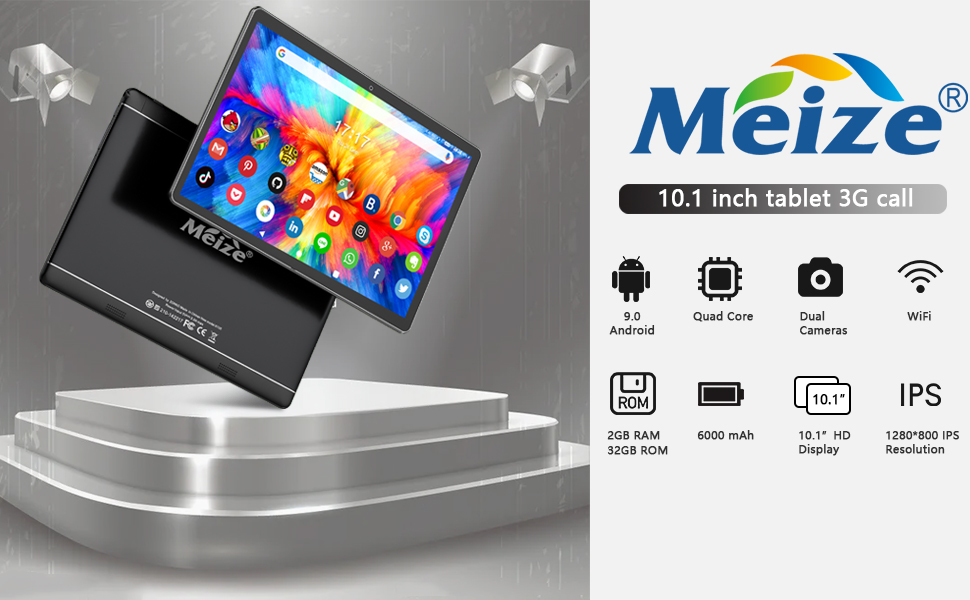
Image: Graphic illustrating the 6000mAh battery capacity of the MEIZE tablet, highlighting its endurance for video, browsing, and e-book reading.
6.3 Softwareaktualisierungen
Prüfen Sie regelmäßig, ob Systemaktualisierungen verfügbar sind, um sicherzustellen, dass Ihr Tablet über die neuesten Funktionen und Sicherheitspatches verfügt. Gehen Sie zu Einstellungen > System > Fortschrittlich > Systemaktualisierung.
6.4 Backup Data
Um Datenverlust zu vermeiden, sollten Sie wichtige Daten regelmäßig in einem Cloud-Speicher oder auf einem externen Speichermedium sichern.
7. Fehlerbehebung
Sollten Sie Probleme mit Ihrem Tablet haben, versuchen Sie die folgenden Lösungen:
- Das Tablet lässt sich nicht einschalten: Ensure the tablet is charged. Connect it to the charger for at least 30 minutes before attempting to power on again.
- Tablet is slow or unresponsive: Close unused applications. Restart the tablet. Clear cache data from apps in Einstellungen > Apps und Benachrichtigungen.
- Probleme mit der Wi-Fi-Verbindung: Ensure Wi-Fi is enabled. Restart your Wi-Fi router. Forget the network in tablet settings and reconnect.
- Apps stürzen ab: Ensure the app is updated to the latest version. Clear the app's cache and data in Einstellungen > Apps und BenachrichtigungenInstallieren Sie die App gegebenenfalls neu.
- Werksreset (letzter Ausweg): Sollten die Probleme weiterhin bestehen, müssen Sie möglicherweise einen Werksreset durchführen. Warnung: Dadurch werden alle Daten auf Ihrem Tablet gelöscht. Gehe zu Einstellungen > System > Fortschrittlich > Optionen zurücksetzen > Alle Daten löschen (Werksreset).
Sollten die Probleme durch diese Schritte nicht behoben werden können, wenden Sie sich bitte an den Kundendienst.
8. Spezifikationen
Key technical specifications for the MEIZE 10-inch Android Tablet K105:
| Besonderheit | Spezifikation |
|---|---|
| Anzeigegröße | 10.1 Zoll |
| Bildschirmauflösung | 1280 x 800 (HD) |
| Betriebssystem | Android 9 Pie |
| Prozessor | 1.3 GHz Quad-Core |
| RAM | 2 GB |
| Interner Speicher | 32 GB |
| Erweiterbarer Speicher | Bis zu 128 GB (microSD) |
| Rückfahrkamera | 5 Megapixel |
| Frontkamera | 2 Megapixel |
| Batteriekapazität | 6000 mAh |
| Kabellose Konnektivität | Wi-Fi (802.11bgn), Bluetooth, GPS |
| Cellular Support | Dual SIM (2G/3G) |
| Artikelgewicht | 1.85 Pfund |
| Technische Daten | 9.84 x 6 x 0.5 Zoll |
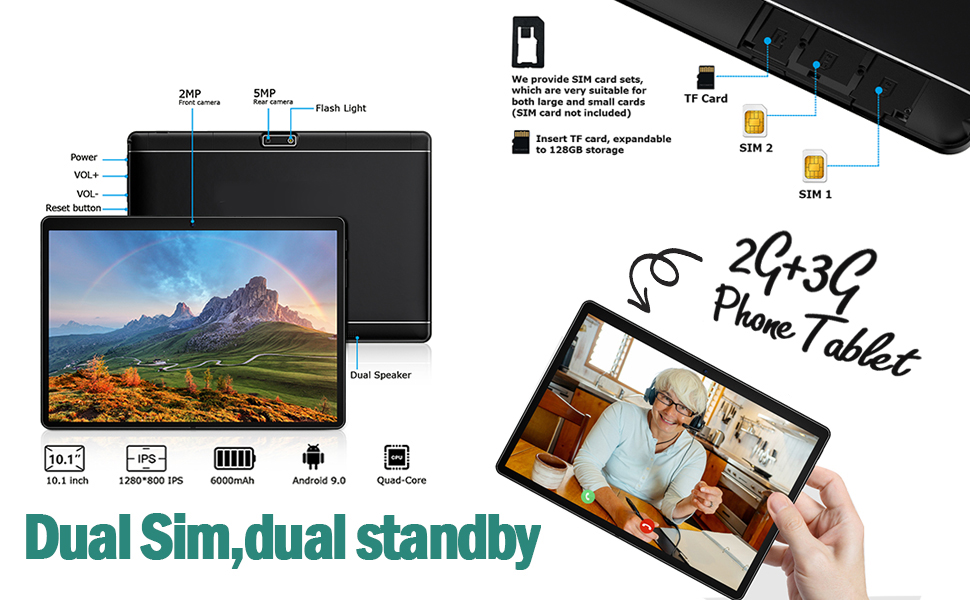
Image: A visual summary of the MEIZE tablet's technical specifications, including processor, memory, camera, and battery details.
9. Garantie und Support
MEIZE provides a 1-year return and exchange service for this product. If you have any questions or require assistance, please contact our customer service team. We are available to assist you 24 hours a day.
For customer service inquiries, please refer to the contact information provided with your purchase or visit the official MEIZE support webWebsite.