
1. Einleitung
Vielen Dank für Ihren Einkauf.asing the MEIZE Android 11 Tablet. This manual provides essential information for setting up, operating, and maintaining your device. Please read it carefully to ensure proper use and to maximize your tablet's performance. Keep this manual for future reference.
2. Produktüberschreitungview
The MEIZE Android 11 Tablet is a versatile device designed for various tasks, from entertainment to productivity. It features a vibrant 10.1-inch IPS display, a powerful 8-core processor, and a long-lasting battery.
Hauptmerkmale
- Hochleistungs-8-Kern-Prozessor: Equipped with a 1.6GHz 8-core CPU and a built-in gravity sensor, ensuring stable and fast operation for a smooth user experience.
- Betriebssystem Android 11: Runs on a stable and enhanced Android 11 system, offering a convenient user interface and excellent app performance.
- Wi-Fi-Konnektivität: Supports 2.4GHz Wi-Fi for stable and high-speed wireless communication, enabling efficient power saving for wireless devices. Compatible with popular apps like Facebook, Twitter, YouTube, Line, and InstagRAM.
- Hochauflösendes IPS-Display: Features a vivid 10.1-inch Full HD 1280x800 IPS display, providing clear and bright images with a 178-degree viewing angle. The wear-resistant touch panel enhances usability.
- Doppelkameras: Includes a 13MP rear camera and a 5MP front camera for capturing photos and engaging in video calls.
- Doppellautsprecher: Delivers immersive audio for an enhanced multimedia experience.
- Große Speicherkapazität: Comes with 32GB of internal storage, expandable up to 128GB via a microSD card (sold separately), allowing ample space for photos, files, e-books, videos, music, and games.
- 6000mAh Akku: A large-capacity battery provides up to 10 hours of continuous use on a single charge, ideal for commuting, travel, and extended entertainment.
- Multifunktional: Integrated GPS allows for offline navigation with downloaded maps. An FM radio function is included for radio enthusiasts. Bluetooth connectivity enables easy pairing with speakers and other compatible devices.

Abbildung 2.1: Vorder- und Rückseite view of the MEIZE Android 11 Tablet.

Figure 2.2: The tablet running Android 10.0 OS, showcasing its interface and app compatibility.
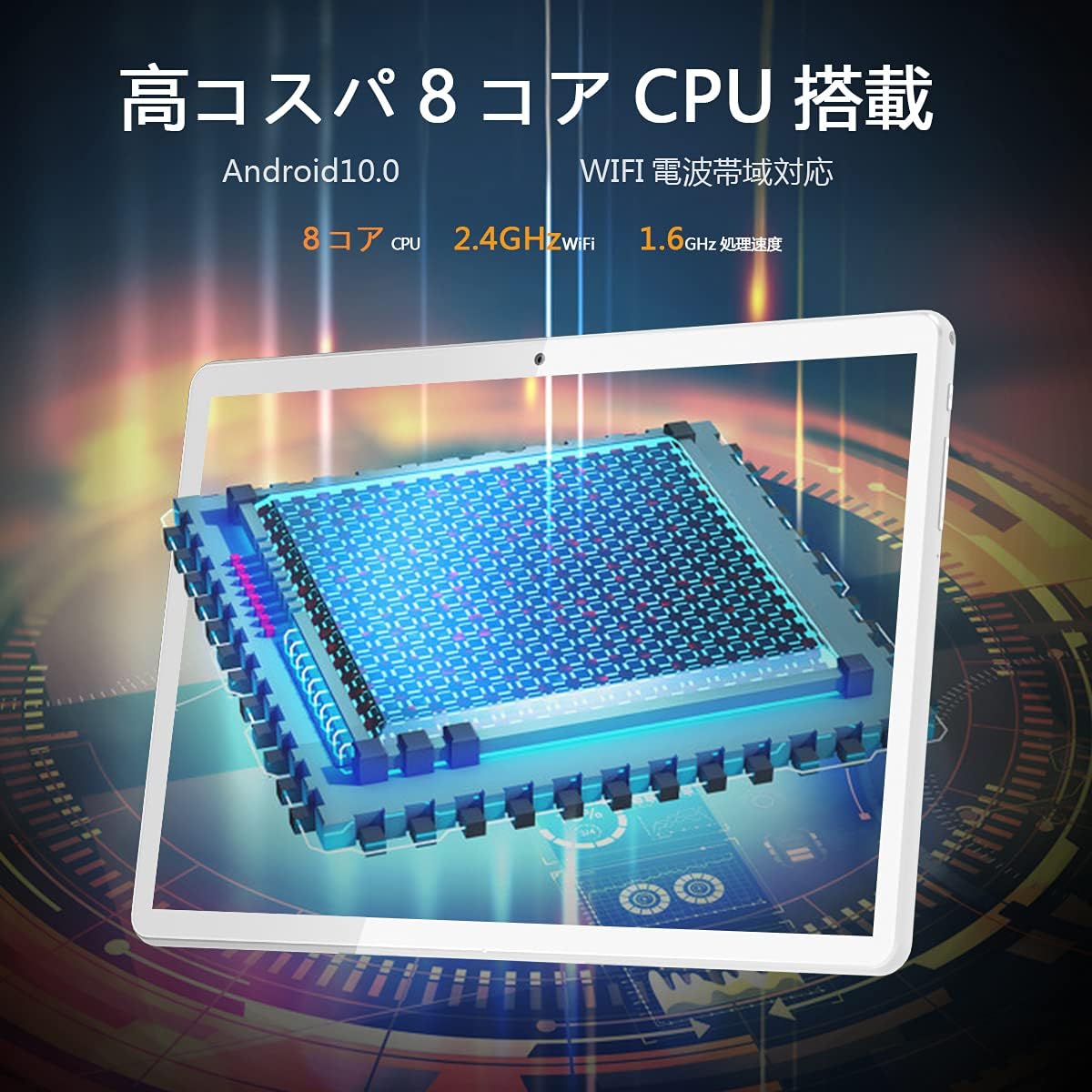
Figure 2.3: Illustration of the tablet's high-performance 8-core CPU.

Figure 2.4: The 10.1-inch Full HD IPS display showcasing vivid colors and wide viewwinkeln.

Figure 2.5: The tablet's large storage capacity (32GB ROM, 2GB RAM) and microSD expansion capability.

Figure 2.6: The tablet's dual camera system, featuring a 5MP front camera and a 13MP rear camera.
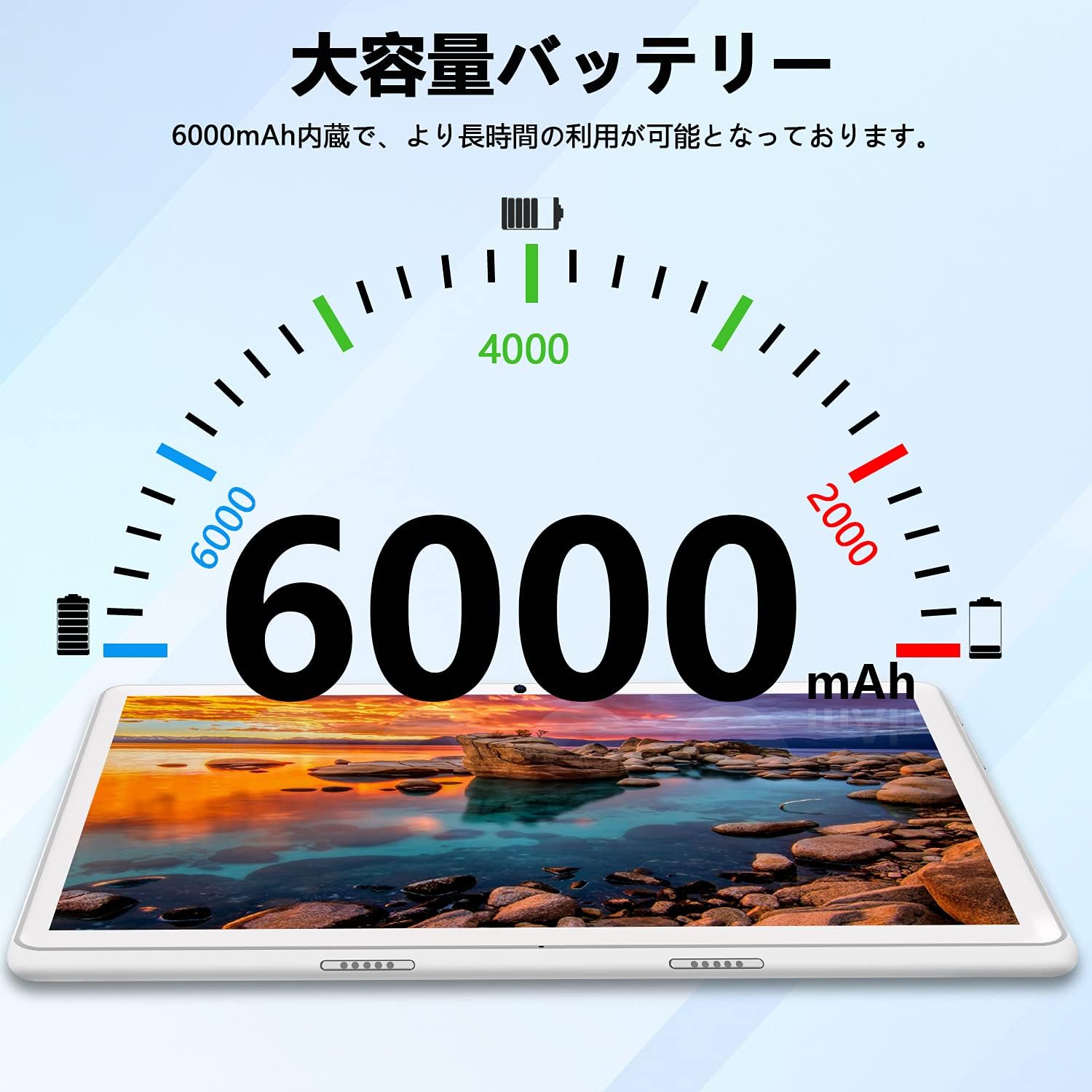
Figure 2.7: The tablet's 6000mAh large-capacity battery, providing extended usage time.
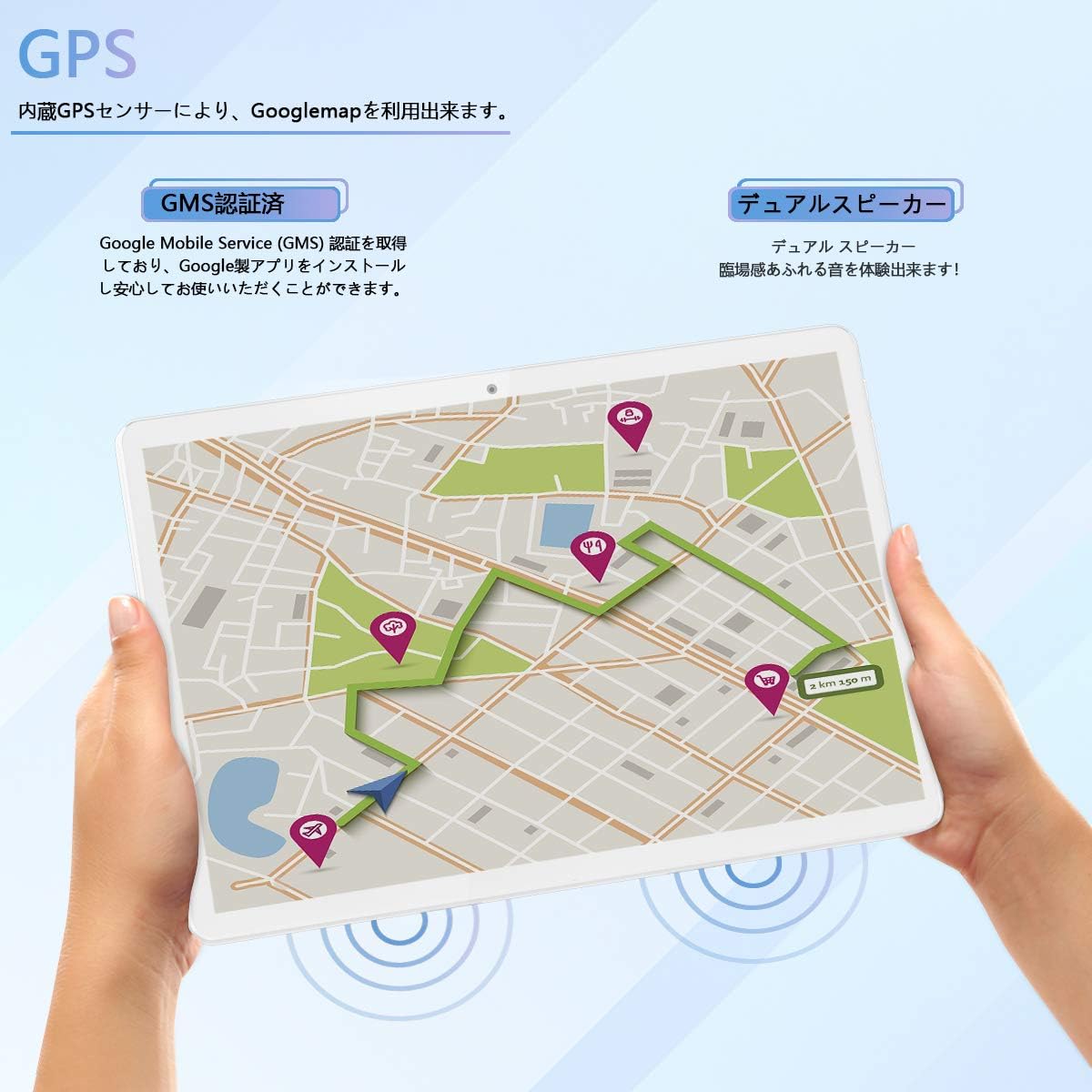
Figure 2.8: The tablet's GPS navigation capabilities and dual speaker system.
3. Einrichtung
3.1 Erstaufladung
Before first use, fully charge the tablet using the provided USB cable and power adapter. The battery indicator on the screen will show the charging status. A full charge typically takes several hours.
3.2 Ein-/Ausschalten
- So schalten Sie das Gerät ein: Press and hold the Power button until the MEIZE logo appears on the screen.
- So schalten Sie das Gerät aus: Press and hold the Power button until the power options appear. Select "Power off" and confirm.
- Neustarten: Halten Sie die Ein-/Aus-Taste gedrückt, bis die Energieoptionen angezeigt werden. Wählen Sie „Neustart“ und bestätigen Sie.
3.3 Wi-Fi-Verbindung
- Gehen Sie zu „Einstellungen“ > „Netzwerk & Internet“ > „WLAN“.
- Toggle the Wi-Fi switch to the "On" position.
- The tablet will scan for available Wi-Fi networks. Select your desired network from the list.
- If prompted, enter the network password and tap "Connect".
- Sobald die Verbindung hergestellt ist, erscheint das WLAN-Symbol in der Statusleiste.
3.4 Erste Android-Einrichtung
Follow the on-screen prompts to complete the initial Android setup, which includes selecting your language, connecting to Wi-Fi, setting up a Google account, and configuring security options.
4. Bedienungsanleitung
4.1 Grundlegende Navigation
- Berühren: Tippen Sie auf ein Symbol oder eine Option, um sie auszuwählen.
- Berühren und halten: Halten Sie ein Element gedrückt, um auf zusätzliche Optionen zuzugreifen oder es zu verschieben.
- Wischen: Ziehen Sie mit dem Finger über den Bildschirm, um durch Listen zu scrollen oder zwischen Startbildschirmen zu wechseln.
- Prise: Verwenden Sie zwei Finger, um Bilder zu vergrößern oder zu verkleinern. web Seiten.
4.2 Installation und Verwaltung von Apps
- Öffnen Sie die Google Play Store-App.
- Suchen nach die gewünschte App.
- Tap "Install" to download and install the app.
- To uninstall an app, go to "Settings" > "Apps & notifications", select the app, and tap "Uninstall".
4.3 Verwendung der Kamera
- Öffnen Sie die App „Kamera“.
- Tippen Sie auf das Kamerasymbol, um zwischen Vorder- und Rückkamera zu wechseln.
- Tippen Sie auf den Auslöser, um ein Foto aufzunehmen oder die Videoaufnahme zu starten/stoppen.
- Access photos and videos in the "Gallery" app.
4.4 GPS-Navigation
The tablet has a built-in GPS sensor. You can use navigation apps like Google Maps. For offline navigation, download maps in advance through the app settings.
4.5 Bluetooth-Konnektivität
- Gehen Sie zu „Einstellungen“ > „Verbundene Geräte“ > „Bluetooth“.
- Schalten Sie Bluetooth auf „Ein“.
- The tablet will scan for nearby Bluetooth devices. Select the device you wish to pair with.
- Befolgen Sie die Anweisungen auf dem Bildschirm, um den Kopplungsvorgang abzuschließen.
4.6 UKW-Radio
To use the FM radio, connect wired headphones (not included) to the 3.5mm audio jack. The headphones act as an antenna. Open the FM Radio app and scan for available stations.
5. Wartung
5.1 Reinigung des Tablets
Use a soft, lint-free cloth to clean the screen and body of the tablet. Avoid using harsh chemicals, abrasive cleaners, or aerosol sprays, as these can damage the device.
5.2 Batteriepflege
- Setzen Sie das Tablet keinen extremen Temperaturen (Hitze oder Kälte) aus.
- Lassen Sie den Akku nicht häufig vollständig entladen. Laden Sie ihn auf, bevor er 0 % erreicht.
- Verwenden Sie ausschließlich das Original-Ladegerät oder ein zertifiziertes kompatibles Ladegerät.
5.3 Softwareaktualisierungen
Periodically check for system updates to ensure your tablet has the latest features and security patches. Go to "Settings" > "System" > "System update" to check for updates.
5.4 Speicherverwaltung
Regelmäßig unnötige Dinge entfernen files and apps to maintain optimal performance. You can check storage usage in "Settings" > "Storage". Consider using a microSD card for additional storage.
6. Fehlerbehebung
| Problem | Mögliche Lösung |
|---|---|
| Das Tablet lässt sich nicht einschalten. | Stellen Sie sicher, dass das Tablet aufgeladen ist. Schließen Sie es mindestens 30 Minuten lang an das Ladegerät an und versuchen Sie dann erneut, es einzuschalten. |
| Probleme mit der WLAN-Verbindung. | Check if Wi-Fi is enabled in settings. Restart your router and the tablet. Ensure you have entered the correct password. |
| Das Tablet läuft langsam. | Close unused apps. Clear cache for frequently used apps. Free up storage space. Restart the tablet. |
| Apps stürzen ab. | Ensure apps are updated to their latest versions. Clear the app's cache and data in "Settings" > "Apps & notifications". Reinstall the app if necessary. |
| Der Bildschirm reagiert nicht. | Restart the tablet by holding the power button for about 10-15 seconds until it forces a restart. |
Sollten Sie auf Probleme stoßen, die hier nicht aufgeführt sind, oder sollten die vorgeschlagenen Lösungen das Problem nicht beheben, wenden Sie sich bitte an den Kundendienst.
7. Spezifikationen
| Besonderheit | Spezifikation |
|---|---|
| Marke | MEIZ |
| Modellnummer | Meize k106 |
| Betriebssystem | Android 11 |
| CPU | Spreadtrum SC9863A 1.6GHz 8-core |
| Bildschirmgröße | 10.1 Zoll |
| Maximale Bildschirmauflösung | 1280x800 pixels (Full HD IPS) |
| RAM | 2 GB |
| Interner Speicher | 32 GB |
| Erweiterbarer Speicher | Up to 128GB via microSD card (sold separately) |
| Rückfahrkamera | 13 Megapixel |
| Frontkamera | 5 Megapixel |
| Batteriekapazität | 6000 mAh |
| Kabelloser Typ | Wi-Fi (2.4GHz, 802.11bgn) |
| Konnektivität | Bluetooth, GPS, FM Radio, 3.5mm Headphone Jack |
| Farbe | Weiß |
| Artikelgewicht | 835 Gramm |
| GTIN/UPC | 779139339939 |
8. Garantie und Support
This product comes with a manufacturer's warranty. Please refer to the warranty card included in the packaging for specific terms and conditions. For any questions or technical assistance, our Japanese support team is available to respond within 24 hours via email. Please contact us through the email address provided in your purchase documentation.