
WisFox RH204RH
WisFox 2.4G Funkmaus – Benutzerhandbuch
Model: RH204RH
Einführung
Thank you for choosing the WisFox 2.4G Wireless Mouse. This manual provides detailed instructions for the setup, operation, and maintenance of your new device to ensure optimal performance and a comfortable user experience. Please read this manual thoroughly before using the mouse.

Image: The WisFox 2.4G Wireless Mouse, shown with its USB-A and USB-C receivers.
Packungsinhalt
- 1 x WisFox 2.4G Wireless Mouse
- 1 x USB-A Receiver (stored in the mouse battery compartment)
- 1 x USB-C-Adapter
- 1 x Benutzerhandbuch
Produkt überview
Familiarize yourself with the various components and buttons of your WisFox wireless mouse:
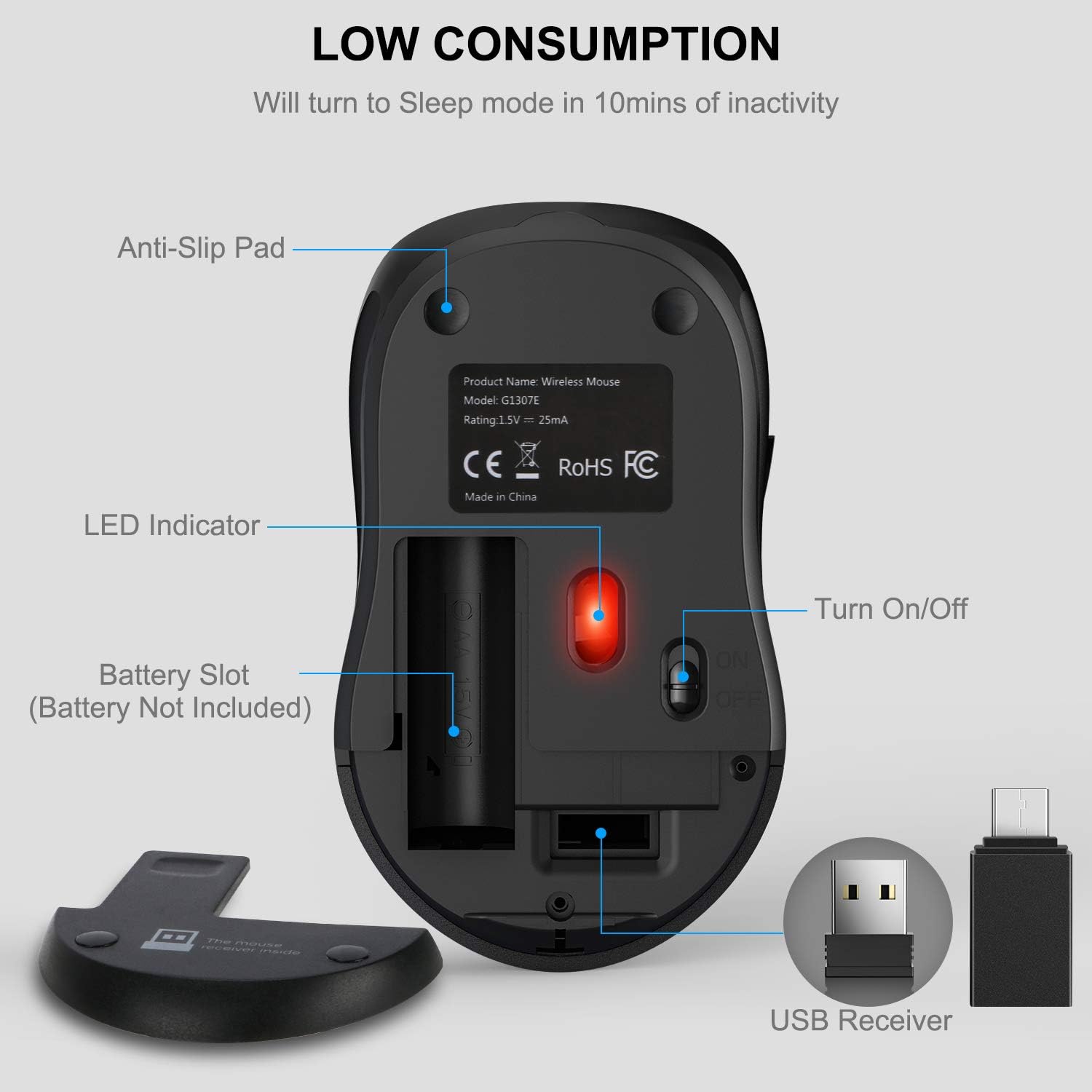
Image: A diagram illustrating the six buttons on the WisFox wireless mouse: Left Button, Right Button, Scroll Wheel, DPI Switch Button, Page Up Button, and Page Down Button.
- Linke Taste: Standard-Klickfunktion.
- Rechter Knopf: Standardmäßige Rechtsklick-Funktion.
- Scrollrad: Für vertikales Scrollen und Mittelklick-Funktion.
- DPI-Umschalttaste: Passt die Cursorempfindlichkeit (DPI-Stufen) an.
- Bild-auf-Schaltfläche: Navigates to the previous page in web browsers or documents.
- Bild-ab-Taste: Navigates to the next page in web browsers or documents.

Image: The underside of the WisFox wireless mouse, highlighting the battery slot (for 1 AA battery, not included), the storage compartment for the USB receiver, the LED indicator, and the On/Off switch.
Installationsanweisungen
- Batterie einlegen: Open the battery compartment cover on the bottom of the mouse. Insert one AA battery (not included), ensuring correct polarity (+/-). Close the cover.
- Retrieve Receiver: The USB-A receiver is stored inside the battery compartment for convenience. Remove it carefully.
- Receiver anschließen:
- For devices with a standard USB-A port: Plug the USB-A receiver directly into an available USB-A port on your computer.
- For devices with a USB-C port: Attach the provided USB-C adapter to the USB-A receiver, then plug the combined unit into an available USB-C port on your computer.
- Einschalten: Slide the On/Off switch located on the bottom of the mouse to the "ON" position.
- Automatische Verbindung: The mouse will automatically connect to your computer. No additional drivers are required for installation.

Image: The WisFox wireless mouse connected to a laptop via its 2.4G receiver, illustrating its wireless capability and effective range of 33 feet.
Bedienungsanleitung
Anpassen der DPI (Cursorgeschwindigkeit)
The WisFox wireless mouse features three adjustable DPI levels, allowing you to customize the cursor sensitivity to your preference. Press the DPI Switch Button (located behind the scroll wheel) to cycle through the settings:
- 800 DPI: Slower cursor movement, ideal for precise tasks.
- 1200 DPI: Standard cursor movement (default setting).
- 1600 DPI: Faster cursor movement, suitable for quick navigation.

Image: A visual representation of the three adjustable DPI settings (800, 1200, 1600) available on the mouse, with 1200 DPI indicated as the default.
Automatischer Schlafmodus
To conserve battery life, the mouse is designed with an automatic power-saving feature:
- The mouse will enter auto power-saving mode after 1 minute of inactivity.
- It will enter deep sleep mode after 8 minutes of inactivity.
- To wake the mouse, simply double-click any button.
Kompatibilität
The WisFox 2.4G Wireless Mouse offers broad compatibility with various operating systems and devices:

Image: The WisFox mouse in an office environment, with logos indicating compatibility with Windows, Mac OS, and Linux operating systems.
- Betriebssysteme: Windows 7/8/10/XP, Vista 7/8, Linux, Mac OS (V10.4 or higher).
- Geräte: Laptops, Desktop PCs, MacBooks, and other devices with a compatible USB-A or USB-C port.
Wartung
- Reinigung: Reinigen Sie die Maus mit einem weichen, trockenen Tuch. Bei hartnäckigem Schmutz leicht andrücken.ampBefeuchten Sie das Tuch mit Wasser oder einer milden Reinigungslösung. Vermeiden Sie aggressive Chemikalien.
- Batteriewechsel: When the mouse performance degrades or it stops responding, replace the AA battery. Ensure the On/Off switch is in the "OFF" position before replacing the battery.
- Lagerung: Wenn die Maus längere Zeit nicht benutzt wird, schalten Sie sie aus und bewahren Sie den USB-Empfänger in seinem dafür vorgesehenen Steckplatz im Batteriefach auf, um einen Verlust zu vermeiden.
Fehlerbehebung
| Problem | Lösung |
|---|---|
| Maus reagiert nicht |
|
| Cursor verzögert oder unregelmäßige Bewegung |
|
| Side buttons (Page Up/Down) not working |
|
Technische Daten
- Modell: RH204RH
- Konnektivität: 2.4-GHz-Funkfrequenz
- Betriebsbereich: Bis zu 33 Fuß (10 Meter)
- DPI-Stufen: 800 / 1200 (Standard) / 1600
- Tasten: 6 (Links, Rechts, Scrollrad, DPI-Umschalter, Bild auf, Bild ab)
- Bewegungserkennung: Optisch
- Energiequelle: 1 x AA-Batterie (nicht im Lieferumfang enthalten)
- Automatischer Schlaf: After 1 minute (power-saving), after 8 minutes (deep sleep)
- Haltbarkeit: 5-Millionen-Tastenanschläge-Test
- Produktabmessungen: 4.09 x 2.4 x 1.57 Zoll (10.39 x 6.1 x 3.99 cm)
- Artikelgewicht: 2.4 Unzen (68 Gramm)
Garantie und Support
WisFox provides a 24 Monate Garantie für dieses Produkt, zusammen mit einem 90-tägiges Rückgaberecht ohne Angabe von Gründen. Our customer service team is available 24/7 to assist you with any questions or concerns.
For support, please contact WisFox customer service through the platform where you purchased the product or visit the official WisFox webWebsite für Kontaktinformationen.
Ask a question about this manual
Ask about setup, troubleshooting, compatibility, parts, safety, or missing instructions. Manuals+ will review the question and use this page’s manual context to help answer it.