
Einführung
This manual provides detailed instructions for the installation, operation, and maintenance of your Decdeal WiFi Thermostat for Gas Boilers. Please read this manual thoroughly before installation and use to ensure proper function and safety. This thermostat features a large LCD touchscreen, app control, voice control compatibility with Alexa and Google Home, and programmable scheduling for optimal comfort and energy efficiency.
Produkt überview

Front view of the Decdeal WiFi Thermostat, showcasing its sleek design and large LCD display.
The Decdeal WiFi Thermostat (Model GC) is designed for gas boiler systems. It offers advanced features for managing your home's heating, including:
- Programmierbare Modi: 5+1+1 weekly programming for customized heating schedules.
- APP-Steuerung: Remote control via the "My Smart Life" app (or Tuya Smart app) from your mobile device.
- Sprachsteuerung: Compatible with Amazon Alexa, Google Home, and Tmall Genie.
- Modern LCD Screen: 4.8-inch backlit color LCD touchscreen for easy readability and operation.
- Multifunctional Assistant: Integrated humidity sensor display, time, and UV index.
- Kindersicherung: Option to fully or partially lock the touchscreen to prevent accidental changes.
Aufstellen
1. Physische Installation und Verkabelung
Wichtig: Installation should be performed by a qualified electrician. Ensure power is turned off at the main circuit breaker before beginning any wiring.

Wiring diagram for the GC model thermostat, showing connections for gas/water boiler, power supply, and optional sensor.
The GC model is specifically for water/gas boiler systems. Refer to the diagram above for correct wiring connections:
- Clean Contacts (Boiler): An die Klemmen 1 und 2 anschließen.
- Neutral Line (N): Connect to terminal 3.
- Stromführendes Kabel (L): Connect to terminal 4.
- Temperatursensor (optional): An die Klemmen 5 und 6 anschließen.
The thermostat is suitable for standard wall switch boxes (86mm, European 60mm round, or 503 installation boxes).
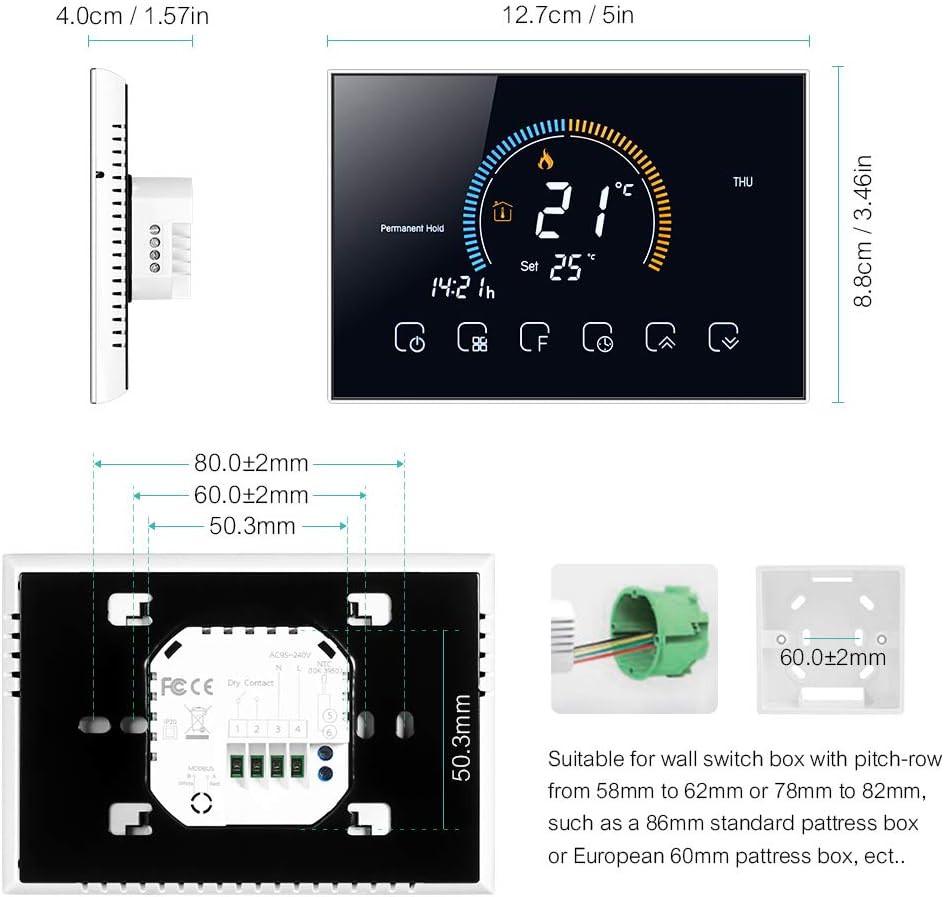
Detailed dimensions and mounting plate for the thermostat, indicating compatibility with various wall boxes.
2. App-Installation und WLAN-Verbindung
The thermostat connects to your home Wi-Fi network (2.4 GHz only) for remote control via a smartphone app. Download the "My Smart Life" app (or Tuya Smart app) from your mobile app store.
- Ensure your mobile device is connected to a 2.4 GHz Wi-Fi network. The thermostat does not support 5 GHz networks.
- Turn off the thermostat screen by pressing the power button.
- Press and hold the "Up" arrow button (usually the rightmost arrow) for approximately 8 seconds until the Wi-Fi icon on the thermostat screen starts blinking rapidly. This indicates pairing mode.
- Open the "My Smart Life" app on your smartphone.
- Select "Add Device" or the "+" icon to add a new device.
- Choose the corresponding thermostat type from the list of devices (e.g., "Thermostat (Wi-Fi)").
- Follow the on-screen instructions in the app to complete the connection. You may need to confirm the Wi-Fi network and enter its password.
Video demonstrating the Wi-Fi connection process and basic app operation for the thermostat.
For a detailed multilingual manual, including Italian, scan the QR code below:

Scan this QR code to access the comprehensive multilingual user manual online.
Bedienungsanleitung
1. LCD-Displayview

Detaillierte view of the thermostat's LCD display, highlighting various indicators and touch buttons.
The LCD display provides real-time information and allows interaction via touch buttons. Key elements include:
- (1) Heating On: Zeigt an, wann die Heizungsanlage aktiv ist.
- (2) Periods: Zeigt den aktuellen Programmzeitraum an.
- (3) Monday to Sunday: Wochentagsanzeiger.
- (4) External Sensor: Indicates if an external sensor is connected.
- (5) Down Button: Senkt die Temperatur oder navigiert durch Menüs.
- (6) Up Button: Erhöht die Temperatur oder navigiert durch Menüs.
- (7) Clock: Zeigt die aktuelle Uhrzeit an.
- (8) Advanced Options: Ermöglicht den Zugriff auf erweiterte Einstellungen.
- (9) Mode: Switches between operating modes (Manual, Program, Economy).
- (10) Leistung: Schaltet den Thermostat ein/aus.
- (11) Time: Aktuelle Zeitanzeige.
- (12) Set Temp: Gewünschte Temperatureinstellung.
- (13) Menu: Greift auf Menüoptionen zu.
- (14) Room Temp: Aktuelle Raumtemperatur.
- (15) Lock: Indicates if the screen is locked.

Close-up of the LCD display and responsive touch keys for easy interaction.
2. Betriebsarten
Das Thermostat bietet verschiedene Betriebsmodi, die Ihren Bedürfnissen gerecht werden:
- Manueller Modus: In this mode, you can manually set the heating temperature according to your immediate needs. The thermostat will maintain this set temperature until changed.
- Programmable Mode (5+1+1): This mode allows you to set a weekly heating schedule with different temperature settings for weekdays (5 days), Saturday (1 day), and Sunday (1 day). You can define up to 6 periods per day. The thermostat will automatically follow this schedule.
- Economy-Modus: In this mode, the temperature is maintained at a fixed 20°C (or other preset economy temperature) and cannot be adjusted manually. This is ideal for energy saving when you are away or during specific times.

The thermostat display showing weather information and the mobile app interface for setting a 6-period programmable schedule.
3. App-Steuerung
Control your thermostat remotely using the "My Smart Life" app. This allows you to adjust settings, change modes, and monitor your home's temperature from anywhere.

The mobile app interface showing remote control capabilities for the thermostat, including temperature adjustment and mode selection.
4. Sprachsteuerung
The thermostat is compatible with popular voice assistants like Amazon Alexa and Google Home. Once connected to your smart home system, you can use voice commands to control your heating.
- Example-Befehl: "Alexa, stelle das Schlafzimmer auf 25 Grad ein."
- Example-Befehl: "Hey Google, schalte die Heizung ein."
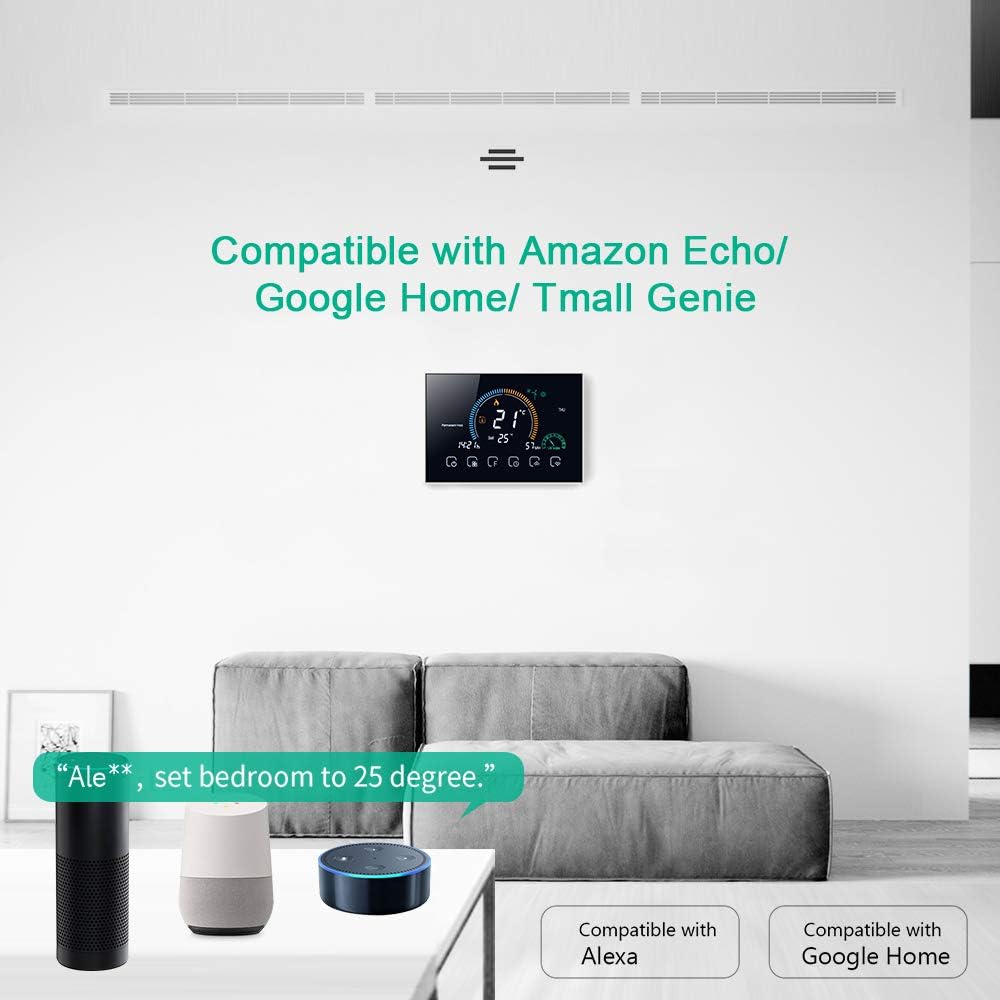
The thermostat displayed in a living room setting with Amazon Echo and Google Home devices, illustrating voice control compatibility.
5. Kindersicherung
To prevent accidental changes to settings, the thermostat features a child lock. Press and hold the lock button (usually the padlock icon) for 5 seconds to activate or deactivate the lock. You can choose between a full lock (all buttons disabled) or a partial lock (only temperature adjustment disabled).
Wartung
- Reinigung: Wipe the screen and body with a soft, dry cloth. Do not use abrasive cleaners or solvents.
- Software-Updates: Ensure your app is up-to-date for the latest features and performance improvements. Firmware updates for the thermostat may be available through the app.
- Aus- und Wiedereinschalten: Wenn der Thermostat nicht reagiert, versuchen Sie, die Stromzufuhr am Sicherungsautomaten für einige Minuten abzuschalten und sie dann wiederherzustellen.
Fehlerbehebung
| Problem | Mögliche Ursache | Lösung |
|---|---|---|
| Thermostat schaltet sich nicht ein. | Falsche Verkabelung oder keine Stromversorgung. | Verify wiring connections (L and N terminals) and ensure power is supplied to the thermostat. Consult a qualified electrician if unsure. |
| Verbindung zu WLAN/App nicht möglich. | Incorrect Wi-Fi frequency (5GHz), incorrect password, or device not in pairing mode. | Ensure your router is broadcasting a 2.4 GHz Wi-Fi signal and your phone is connected to it. Put the thermostat into pairing mode (hold Up button for 8 seconds). Re-enter Wi-Fi password carefully. |
| Flame icon flickering / High temperature protection. | External sensor not connected or incorrectly configured. | If an external sensor is not used, ensure the thermostat's sensor type setting is correct. Access advanced settings (hold 'F' button), navigate to 'AL', and adjust to 'IN' if necessary. |
| Ungenaue Temperaturanzeige. | Thermostat calibration needed. | Access advanced settings to calibrate the temperature. (Specific steps for calibration are not detailed in the provided data, refer to the full manual via QR code). |
| Clock losing time / Program not running correctly. | Internal clock drift or Wi-Fi connection issues preventing time synchronization. | Ensure a stable Wi-Fi connection for automatic time synchronization. If issues persist, a factory reset and re-pairing might be necessary. |
| Thermostat frequently loses app connection. | Unstable Wi-Fi signal or router interference. | Ensure the thermostat is within good range of your 2.4 GHz Wi-Fi router. Try restarting your router. If issues persist, consider repositioning the router or using a Wi-Fi extender. |
Technische Daten
| Besonderheit | Detail |
|---|---|
| Marke | Decdeal |
| Modellname | GC |
| Technische Daten | 4P x 12.7L x 8.8H cm |
| Controllertyp | Amazon Alexa, Google Assistant, Button |
| Besondere Merkmale | APP Control, Voice Control, Humidity Sensor |
| Spezifische Verwendungen | Kessel |
| Konnektivitätstechnologie | Wi-Fi (2.4 GHz) |
| Stromquelle | Wechselstrom |
| Bandtage | 240 Volt |
| Anzeigetyp | LCD |
| Bildschirmgröße | 4.8 Zoll |
| Montagetyp | Wandhalterung |
| Hintergrundbeleuchtung | Ja |
| Elektrische Leistung | 1.5 Watt |
| Artikelgewicht | 231 Gramm |
| Materialien | PC + ABS |
Garantie und Support
For warranty information and technical support, please refer to the documentation included with your product or contact Decdeal customer service. You can also find additional resources by scanning the QR code provided in the Setup section.