Apevia Genesis Pro G-PRO-BK Mid Tower Gaming Case Instruction Manual
Model: G-PRO-BK | Brand: Apevia
Einführung
This manual provides detailed instructions for the installation, operation, and maintenance of your Apevia Genesis Pro G-PRO-BK Mid Tower Gaming Case. This case is designed to accommodate various PC components, offering excellent airflow and customizable RGB lighting. Please read these instructions carefully before beginning assembly to ensure proper setup and functionality.
1. Einrichtung und Installation
1.1 Auspacken und Vorbereitung
Carefully remove the case from its packaging. Place it on a stable, flat surface. Identify all included accessories, such as screws, standoffs, and cable ties.
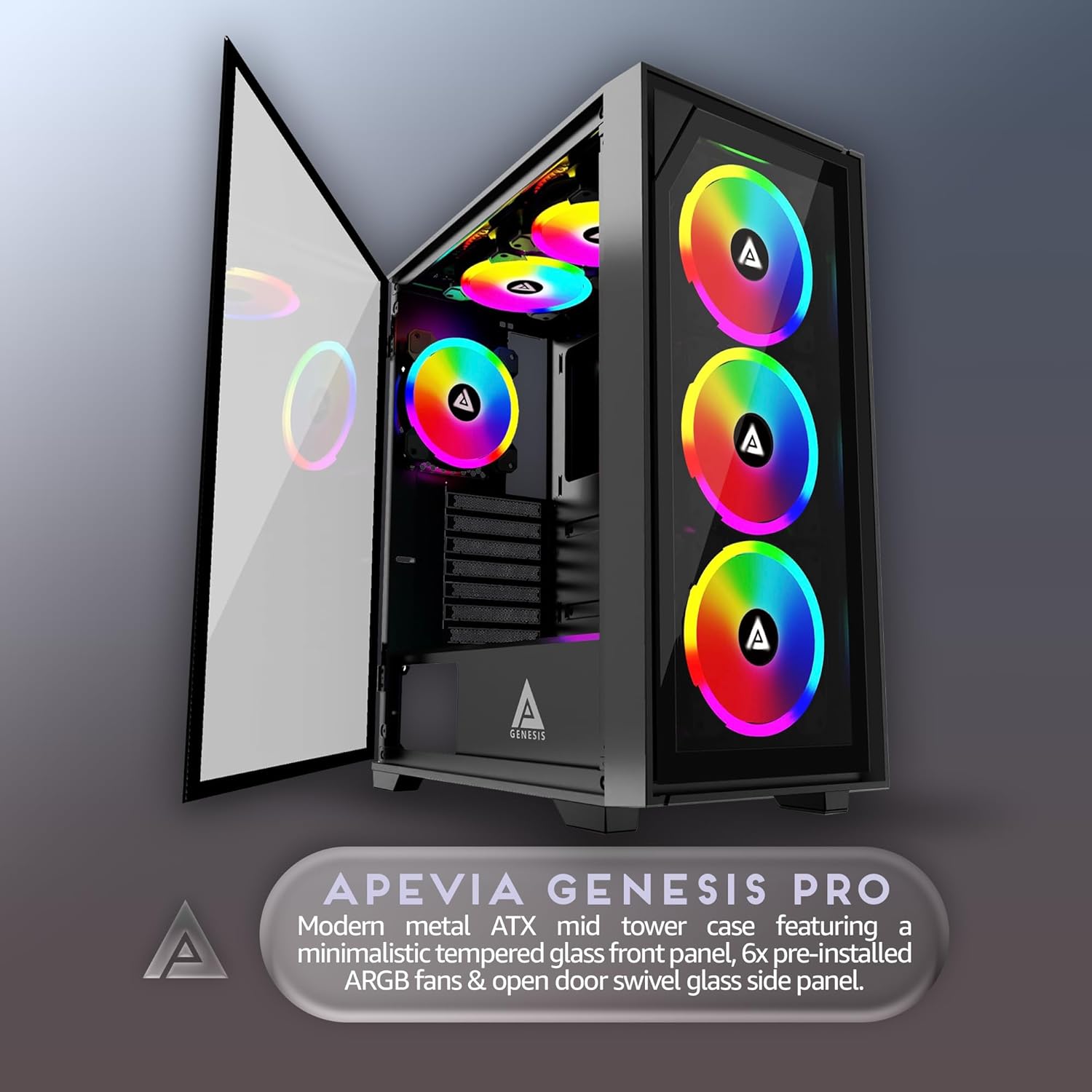
Figure 1: Apevia Genesis Pro G-PRO-BK with side panel open.
The case features two tempered glass panels: one on the left side and one on the front. The left side panel is typically secured with thumbscrews at the rear, while the front panel may be magnetically attached or secured with clips. Exercise caution when handling glass panels to prevent damage.
1.2 Motherboard-Installation
Install the necessary standoffs for your motherboard form factor (ATX, Micro-ATX, or Mini-ITX). The case supports standard ATX, Micro-ATX, and Mini-ITX motherboards.
Setzen Sie die I/O-Blende in die hintere Öffnung des Gehäuses ein.
Richten Sie Ihr Motherboard sorgfältig an den Abstandshaltern und der I/O-Blende aus und befestigen Sie es anschließend mit Schrauben.
1.3 Installation der Stromversorgung
The power supply mounts at the top of the case. Secure your power supply unit (PSU) into the designated bay using the provided screws.
1.4 Installation des Speicherlaufwerks
The case supports up to two 3.5-inch hard drives and two 2.5-inch solid-state drives (SSDs). Locate the drive bays and secure your storage devices using the appropriate screws.
Figure 2: Internal layout with drive bay locations and cable management options.
1.5 Installation der Grafikkarte (GPU)
Install your graphics card into the appropriate PCIe slot on your motherboard. The case supports video cards up to 350mm in length. Secure the GPU with the expansion slot screws.
1.6 Cooling System Installation (Fans & Radiators)
The Genesis Pro G-PRO-BK comes with six pre-installed 120mm RGB fans. It supports up to six 120mm fans in total and up to 240mm radiators in the top and front positions. CPU coolers up to 160mm in height are supported.
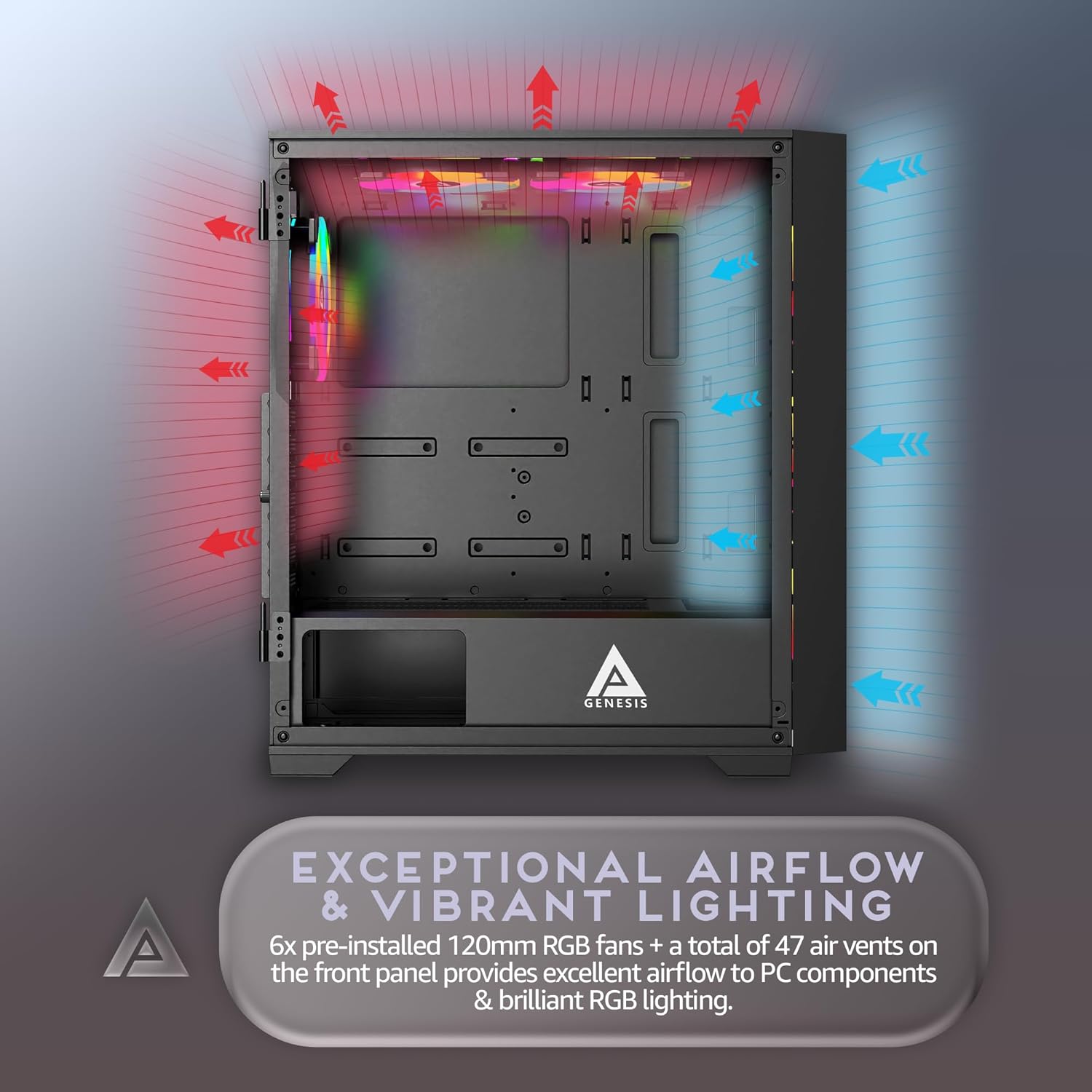
Abbildung 3: Luftstromdiagramm für optimale Kühlung.
Ensure all fans are connected to the fan hub or motherboard headers for power and RGB control.
1.7 Kabelmanagement
Nutzen Sie die Kabeldurchführungen und Befestigungspunkte hinter dem Mainboard-Tray, um die Kabel ordentlich zu verlegen. Dies verbessert die Luftzirkulation und die Optik.
Video 1: Ein überview of a similar Apevia case, demonstrating internal layout and build considerations. This video provides visual guidance for component placement and cable routing.
2. Bedienungsanleitung
2.1 Einschalten
After all components are installed and connected, ensure the power supply switch is in the 'ON' position. Press the power button located on the top I/O panel to start your system.
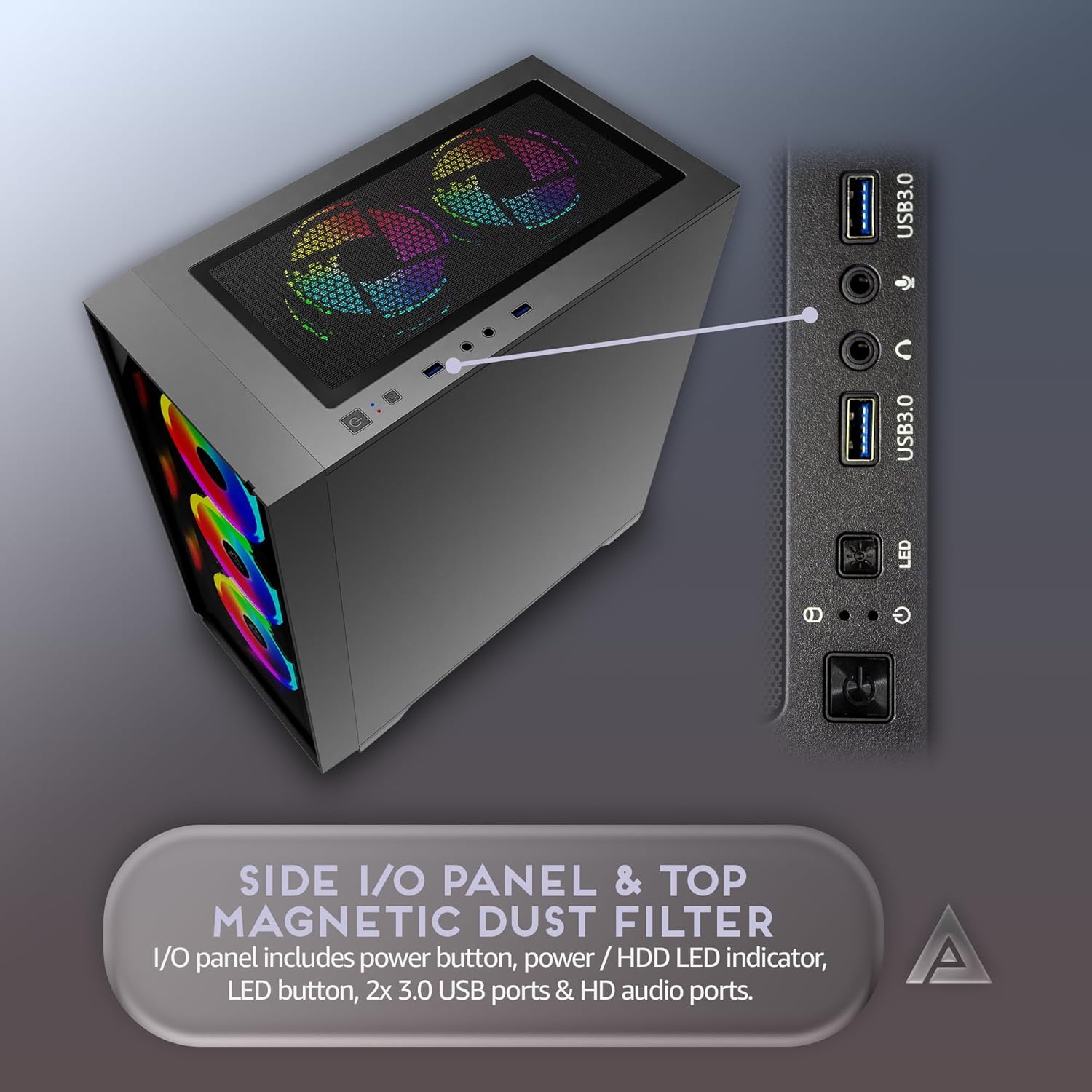
Figure 4: Top I/O panel with power and control buttons.
2.2 RGB-Beleuchtungssteuerung
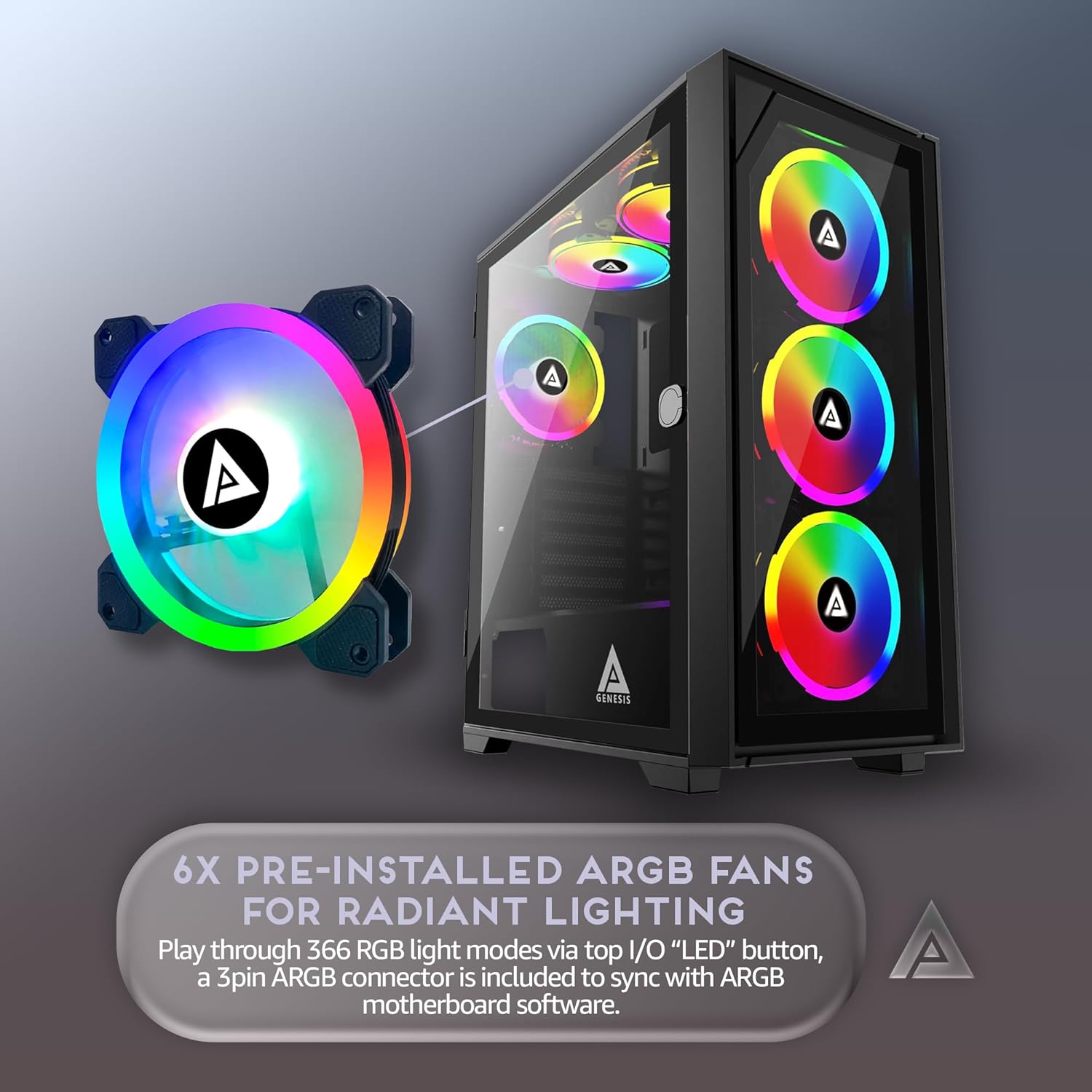
The pre-installed RGB fans can be controlled via the "LED" button on the top I/O panel. This button cycles through 16 lighting modes, offering 30 total play-through options including RGB, Breathing, Single Color, and Light Off. The fans are proprietary to this case.
Figure 5: Detail of an RGB fan, showcasing its lighting capabilities.
3. Wartung
3.1 Reinigung von Staubfiltern
The case includes a magnetic dust filter on the top panel. Regularly remove and clean this filter to maintain optimal airflow and prevent dust buildup inside the system. Gently wash with water and mild soap, then allow to air dry completely before reattaching.
Figure 6: Top panel with magnetic dust filter.
3.2 Allgemeine Reinigung
Use a soft, dry cloth to wipe down the exterior of the case. For tempered glass panels, use a glass cleaner and a microfiber cloth. Avoid abrasive cleaners or solvents that could damage the finish.
4. Fehlerbehebung
4.1 System lässt sich nicht einschalten
Ensure the power supply is properly connected to the wall outlet and the PSU switch is 'ON'.
Verify all power cables (24-pin ATX, CPU, GPU, etc.) are securely connected to the motherboard and components.
Check the front panel header connections to the motherboard (Power SW, Reset SW).
4.2 RGB Fans Not Lighting Up or Functioning
Confirm that the fan hub (if used) is receiving power and is correctly connected to the motherboard or power supply.
Ensure all fan RGB cables are properly connected to the fan hub or motherboard RGB headers.
Press the "LED" button on the top I/O panel to cycle through lighting modes.
4.3 Überhitzungsprobleme
Verify that all case fans are spinning correctly and are oriented for optimal airflow (intake/exhaust).
Clean all dust filters and internal components to remove any dust buildup.
Ensure CPU cooler and GPU fans are functioning properly.
5. Spezifikationen
Besonderheit
Detail
Modellname
G-PRO-BK
Gehäusetyp
Mittlerer Turm
Farbe
Schwarzer Rahmen
Material
Metall, gehärtetes Glas
Motherboard-Kompatibilität
ATX, Mikro-ATX, Mini-ITX
Erweiterungssteckplätze
7
Maximale GPU-Länge
350 mm
Maximale Höhe des CPU-Kühlers
160 mm
Vorinstallierte Lüfter
6 x 120-mm-RGB-Lüfter
Kühlerhalterung
Up to 240mm (Top & Front)
Laufwerksschächte
2 x 3.5"-HDD, 2 x 2.5"-SSD
Front I / O Ports
1 x USB 3.0, 2 x USB 2.0, HD Audio, Power, Reset, LED Control
Artikelgewicht
16 Pfund
Figure 7: Internal dimensions and component compatibility.
6. Garantie und Support
For warranty information and technical support, please refer to the official Apevia webBesuchen Sie die Website oder kontaktieren Sie direkt den Kundenservice. Bewahren Sie Ihren Kaufbeleg für Garantieansprüche auf.
Apevia is a U.S. based computer hardware brand delivering reliable, performance-driven PC components. Specializing in PC cases, power supplies, and cooling solutions, Apevia brings modern design, efficiency, and affordability for gamers, creators, and builders.
Ask a question about this manual
Ask about setup, troubleshooting, compatibility, parts, safety, or missing instructions. Manuals+ will review the question and use this page’s manual context to help answer it.