
Einführung
The Hyper Drive GEN2 12-in-1 USB-C Docking Station is designed to expand the connectivity of your USB-C enabled laptop or tablet. This docking station provides a comprehensive solution for connecting multiple peripherals, external displays, and power delivery through a single USB-C port. It supports high-speed data transfer, multiple 4K video outputs, and efficient power charging for enhanced productivity.
Produkteigenschaften
The Hyper Drive GEN2 12-in-1 USB-C Docking Station offers a wide array of ports and capabilities:
- Dual HDMI 4K60Hz HDR: Connect up to two external displays with stunning 4K resolution at 60Hz, supporting High Dynamic Range (HDR) for vibrant visuals.
- DisplayPort 4K60Hz: Connect an additional external display via DisplayPort, also supporting 4K resolution at 60Hz.
- USB-C Power Delivery (PD) 100W: Charge your host laptop or tablet with up to 100W of power through the dedicated USB-C PD port.
- 2x USB-A 10Gbps (USB 3.1 Gen 2): Experience ultra-fast data transfer speeds for compatible USB-A devices.
- 2x USB A 2.0: Connect standard USB peripherals such as keyboards, mice, or printers.
- Gigabit Ethernet: Enjoy stable and high-speed wired network connectivity.
- MicroSD UHS-II (300MB/s): Fast data transfer for MicroSD cards, ideal for photographers and videographers.
- SD UHS-II (300MB/s): Fast data transfer for standard SD cards.
- 3.5-mm-Audiobuchse: Schließen Sie Kopfhörer oder Lautsprecher für die Audioausgabe an.

Abbildung 1: Vorderseite view of the Hyper Drive GEN2 12-in-1 USB-C Hub, highlighting MicroSD, SD, 3.5mm Audio, and two USB-A 10Gbps ports.
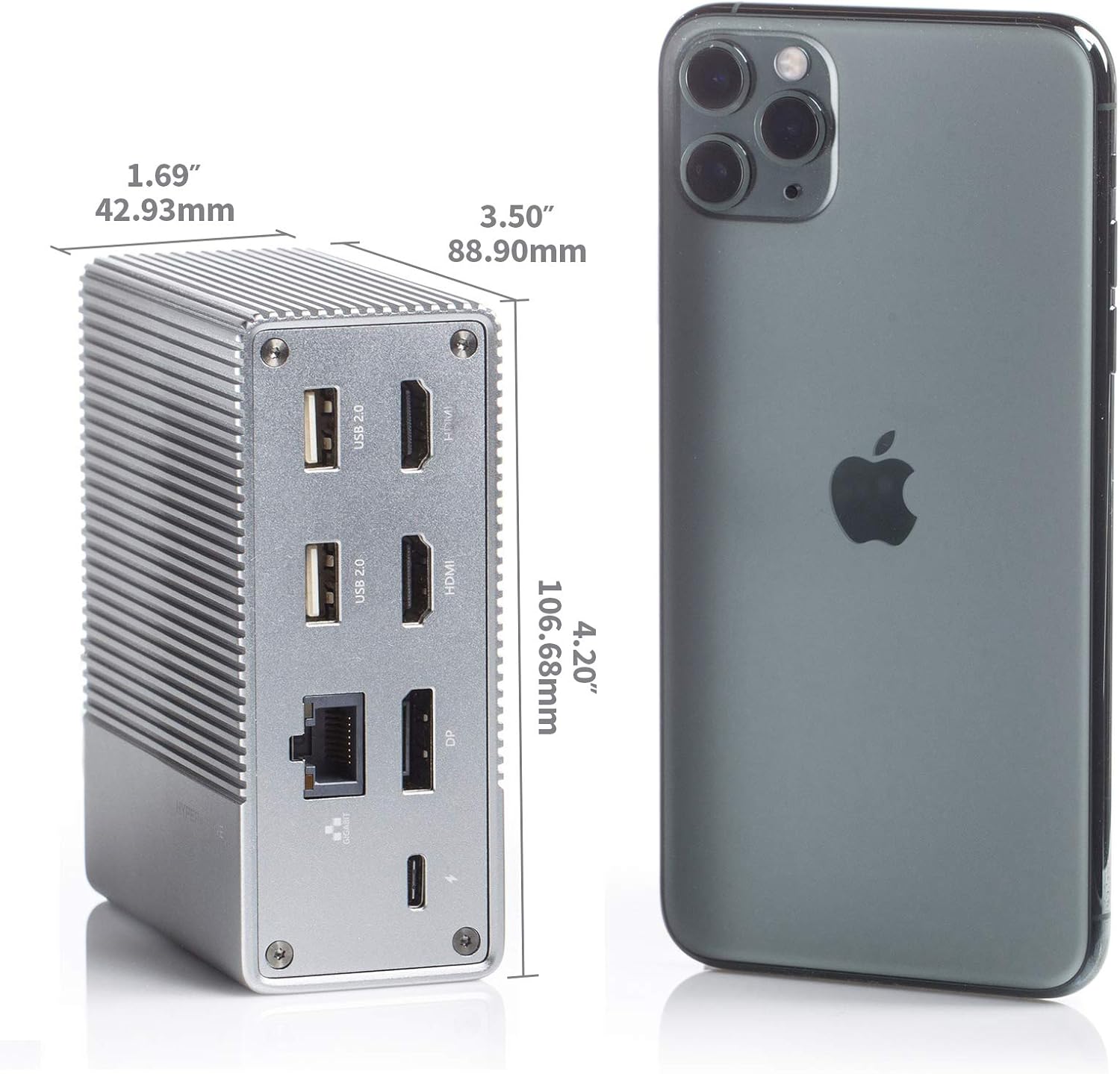
Abbildung 2: Rückseite view of the Hyper Drive GEN2 12-in-1 USB-C Hub, highlighting USB-C Power Delivery, Gigabit Ethernet, DisplayPort, two HDMI, and two USB-A 2.0 ports.
Installationshandbuch
- Verbindung zum Hostgerät herstellen: Plug the integrated USB-C cable from the docking station into an available USB-C port on your laptop or tablet. Ensure the USB-C port on your host device supports DisplayPort Alternate Mode (Alt Mode) and Power Delivery for full functionality.
- Stromanschluss (optional, aber empfohlen): For optimal performance and to charge your host device, connect your laptop's USB-C power adapter to the USB-C PD port on the docking station. The docking station supports up to 100W power delivery.
- Anschluss externer Bildschirme:
- Schließen Sie Ihre HDMI-Monitore an die HDMI-Anschlüsse der Dockingstation an.
- Schließen Sie Ihren DisplayPort-Monitor an den DisplayPort-Anschluss der Dockingstation an.
Notiz: For macOS, only one extended display is supported with the same image on all external displays at 4K60Hz. Windows/Chrome OS supports Multi-Stream Transport (MST) for up to three extended displays.
- Peripheriegeräte anschließen: Plug your USB devices (keyboard, mouse, external drives), Ethernet cable, and audio devices into the corresponding ports on the docking station.
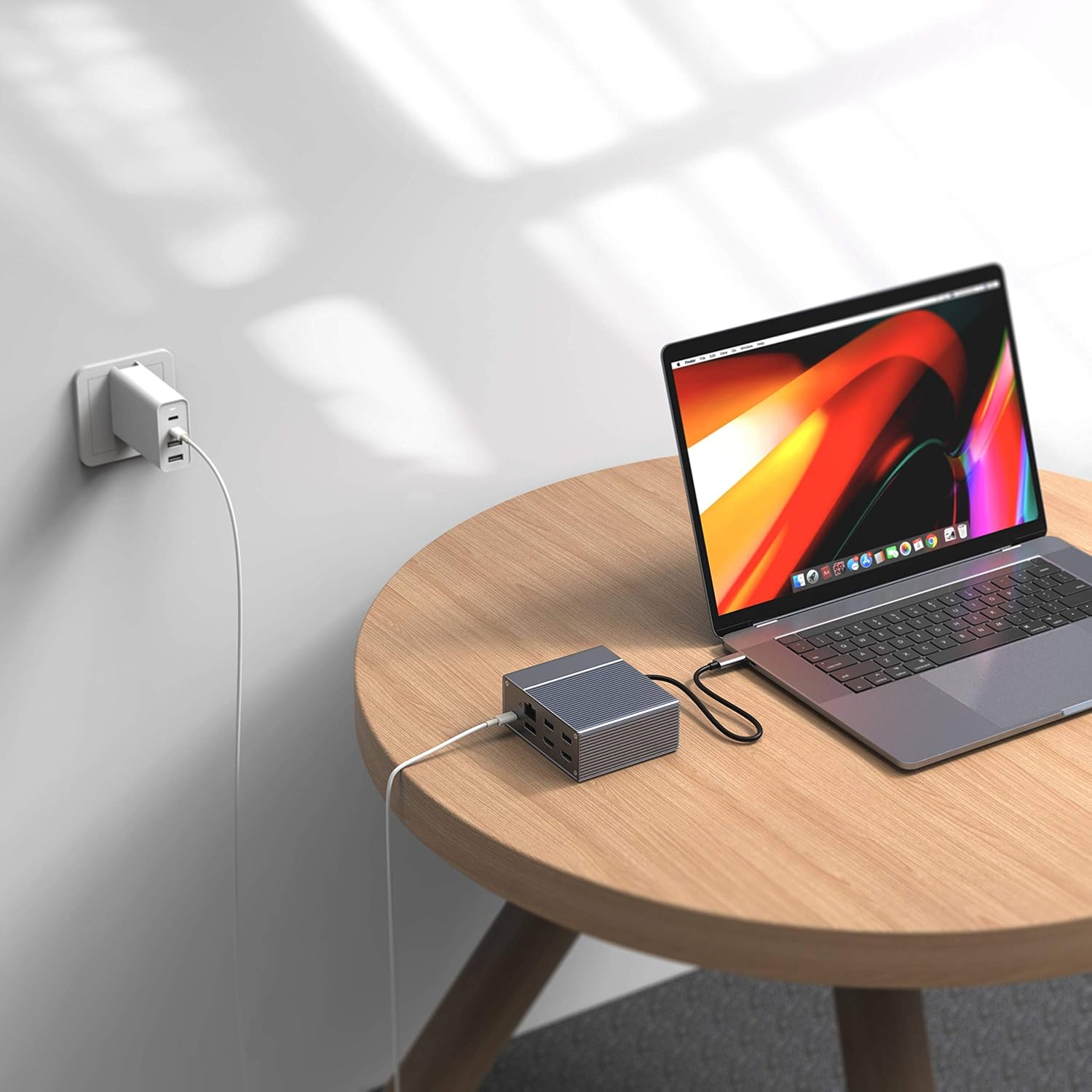
Figure 3: Laptop connected to the docking station and a power adapter for charging.
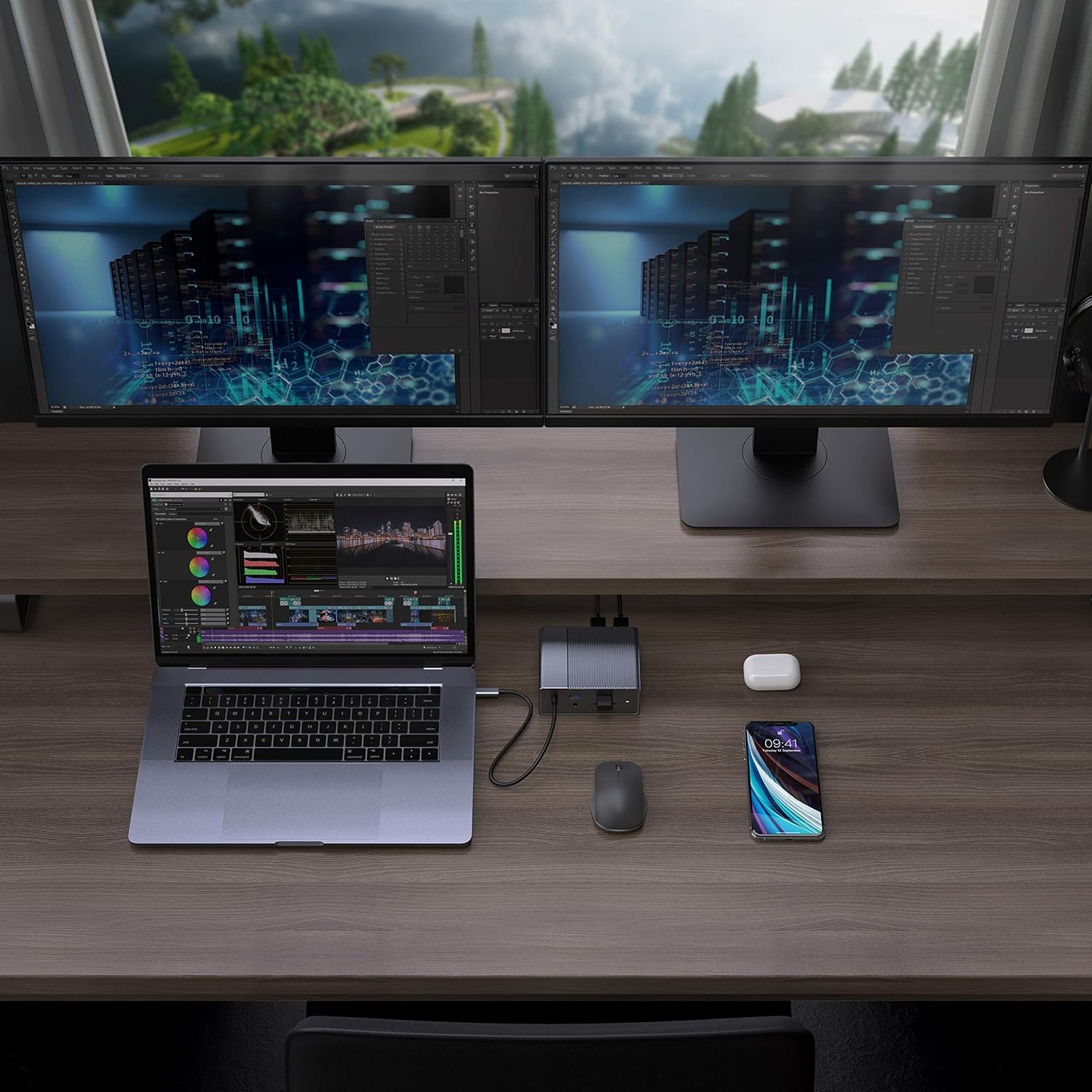
Figure 4: A typical setup showing a laptop connected to the docking station with multiple peripherals and external displays.
Bedienungsanleitung
Anzeigemodi
Die Dockingstation unterstützt je nach Betriebssystem verschiedene Anzeigekonfigurationen:
- macOS: Supports one extended display with the same image mirrored across all external displays at 4K60Hz. macOS does not support Multi-Stream Transport (MST) for independent extended displays.
- Windows/Chrome OS: Supports Multi-Stream Transport (MST), allowing for up to three extended displays with independent content at 4K60Hz.

Figure 5: Illustration of display modes for macOS (mirror mode) and Windows (mirror and extended modes) using the docking station.
Data Transfer and Power Delivery
- USB-A 10Gbps Ports: Use these ports for high-speed data transfer with compatible external hard drives, SSDs, or other USB 3.1 Gen 2 devices.
- USB-A 2.0-Anschlüsse: Ideal for connecting standard peripherals like keyboards, mice, or USB flash drives where high-speed data transfer is not critical.
- SD/MicroSD Card Slots: Insert your memory cards for quick access and transfer of photos and videos at up to 300MB/s (UHS-II speeds).
- USB-C-PD-Port: Connect your laptop's power adapter to this port to charge your laptop while using the docking station. This port also supports data transfer.
Video 1: Offiziell vorbeiview of the HyperDrive GEN2 USB-C Hub, demonstrating its speed, power, and various port functionalities.
Wartung
- Bewahren Sie die Dockingstation in einer sauberen, trockenen Umgebung auf.
- Vermeiden Sie es, das Gerät extremen Temperaturen oder direkter Sonneneinstrahlung auszusetzen.
- Reinigen Sie die Außenseite mit einem weichen, trockenen Tuch. Verwenden Sie keine flüssigen Reiniger oder Sprays.
- Sorgen Sie für eine ausreichende Belüftung rund um das Gerät, um eine Überhitzung zu vermeiden.
Fehlerbehebung
- Keine Bildausgabe oder flackernder Bildschirm:
- Stellen Sie sicher, dass der USB-C-Anschluss Ihres Host-Geräts den DisplayPort-Alt-Modus unterstützt.
- Check all cable connections (USB-C to host, HDMI/DP to monitors).
- Versuchen Sie es mit einem anderen HDMI- oder DisplayPort-Kabel.
- Verify your monitor input settings are correct.
- For macOS, remember that only one extended display is supported, with other external displays mirroring the extended one.
- USB-Geräte werden nicht erkannt:
- Reconnect the USB device to the docking station.
- Versuchen Sie einen anderen USB-Anschluss an der Dockingstation.
- Stellen Sie sicher, dass die Dockingstation ordnungsgemäß mit Ihrem Hostgerät verbunden ist.
- If using high-power USB devices, ensure the docking station is connected to a power source via its USB-C PD port.
- Laptop lädt nicht:
- Ensure your laptop's original USB-C power adapter is connected to the USB-C PD port on the docking station.
- Vergewissern Sie sich, dass Ihr Laptop USB-C Power Delivery unterstützt.
- Prüfen Sie Netzteil und Kabel auf Beschädigungen.
Technische Daten
| Besonderheit | Spezifikation |
|---|---|
| Modell | GEN2 12-in-1 USB-C Hub |
| Marke | Hyper |
| HDMI-Anschlüsse | 2x HDMI 4K60Hz HDR |
| DisplayPort | 1x DisplayPort 4K60Hz |
| USB-C PD-Port | 1x USB-C-Stromversorgung 100 W |
| USB-A-Datenports | 2x USB-A 10Gbps (USB 3.1 Gen 2), 2x USB-A 2.0 |
| Ethernet | 1x Gigabit Ethernet |
| Kartenlesegeräte | 1x MicroSD UHS-II (300MB/s), 1x SD UHS-II (300MB/s) |
| Audio-Buchse | 1x 3.5-mm-Audiobuchse |
| Kompatibles Betriebssystem | macOS, Windows, Chrome OS |
| Artikelgewicht | 480.8 Gramm |
| UPC | 817110014519 |
Garantie und Support
For warranty information and technical support, please refer to the official Hyper webBesuchen Sie die Website oder kontaktieren Sie den Kundenservice. Bewahren Sie Ihren Kaufbeleg für Garantieansprüche auf.
Online-Hilfe: www.hyper.com/support