
1. Einleitung
Thank you for choosing the Sharkoon CA300T ATX PC Case. This full tower case is designed for high-performance gaming systems, offering extensive compatibility, efficient cooling, and advanced cable management features. This manual provides essential information for the proper setup, operation, and maintenance of your new PC case.
2. Sicherheitshinweise
- Vor dem Einbau oder Ausbau von Komponenten im PC-Gehäuse muss immer die Stromversorgung von der Steckdose getrennt werden.
- Handle components with care to avoid damage from electrostatic discharge. Consider using an anti-static wrist strap.
- Halten Sie Kleinteile und Verpackungsmaterialien von Kindern fern.
- Avoid placing the PC case in direct sunlight, near heat sources, or in environments with high humidity.
- Do not attempt to modify the case structure, as this may void your warranty and cause damage.
3. Packungsinhalt
Bitte überprüfen Sie den Packungsinhalt, um sicherzustellen, dass alle Artikel vorhanden sind:
- Sharkoon CA300T ATX PC-Gehäuse
- Accessory box (screws, cable ties, standoffs, etc.)
- RGB lighting controller (if applicable)
- Bedienungsanleitung (dieses Dokument)
4. Produktüberschreitungview und Funktionen
The Sharkoon CA300T is a premium full tower ATX PC case designed for enthusiasts. It features a modern design with robust construction, tempered glass panels, and advanced cooling options.
Hauptmerkmale:
- Full Tower Design: Ample space for high-end components and custom liquid cooling solutions.
- Paneele aus gehärtetem Glas: Side panels made of tempered glass for a clear view von internen Komponenten.
- RGB-Beleuchtung: Integrated RGB lighting for customizable aesthetics.
- Optimierter Luftstrom: Includes three 120mm fans and supports multiple radiators for superior cooling.
- Erweitertes Kabelmanagement: Features an openable cable pocket/channel and ample routing options for a clean build.
- Staubfilter: Three-layer top plate with a dust filter to maintain system cleanliness.
- Umfangreiche Konnektivität: Front panel includes 2x USB 3.0 ports and additional USB ports.
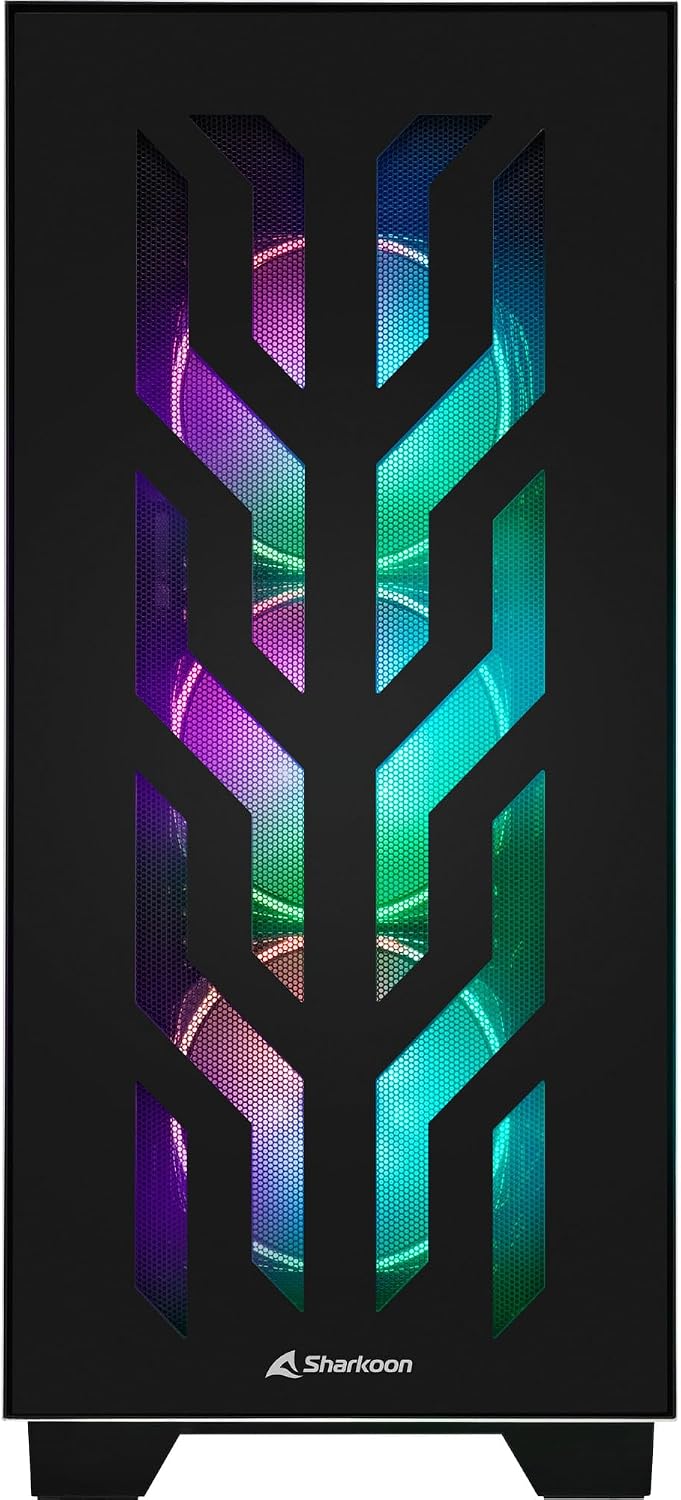
Abbildung 4.1: Vorderseite view of the Sharkoon CA300T PC case, showcasing the illuminated RGB fans behind the mesh panel.
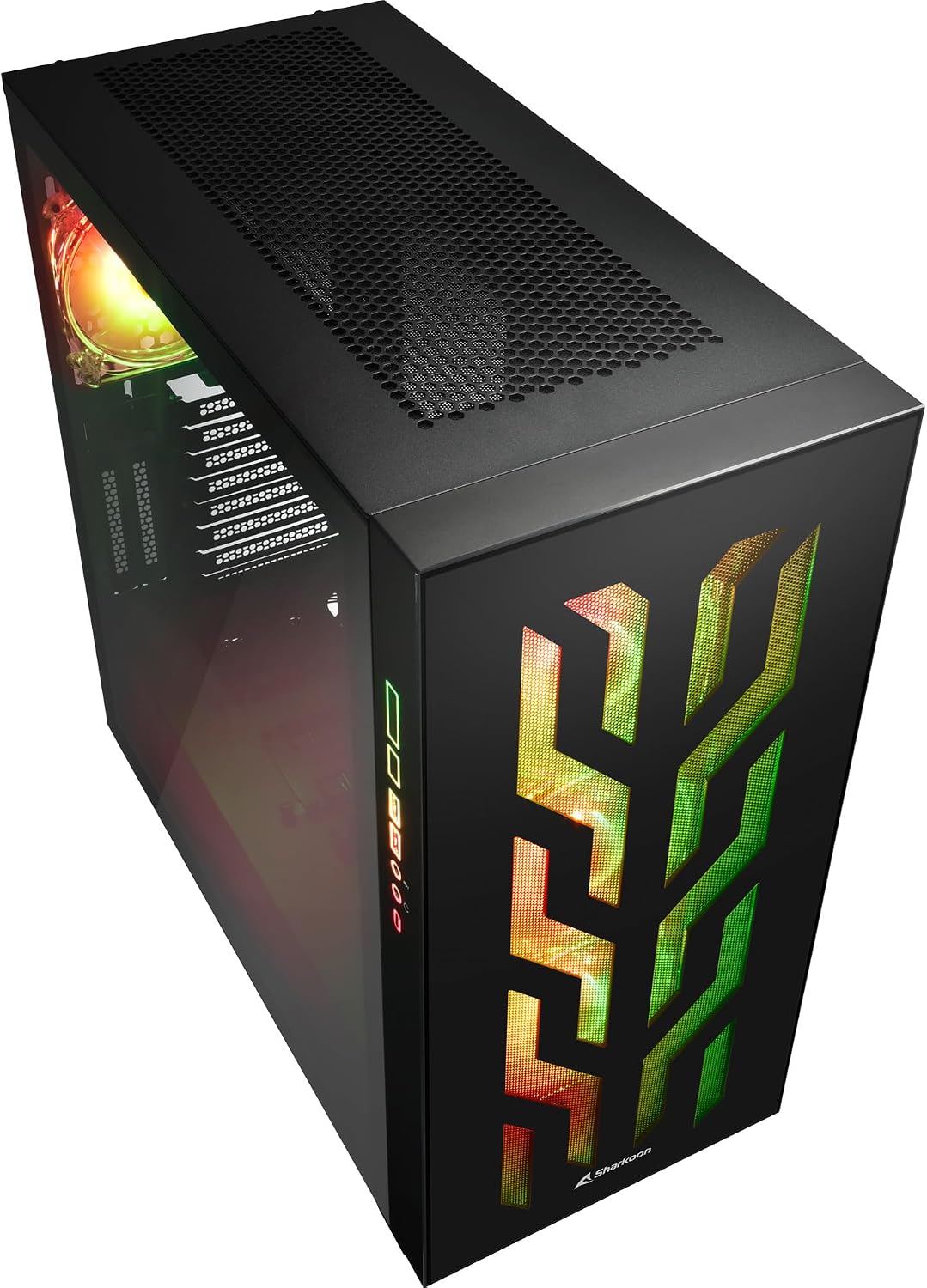
Abbildung 4.2: Schräg view of the Sharkoon CA300T PC case, showing the tempered glass side panel and the vibrant RGB lighting from the interior.
5. Einrichtung
5.1 Auspacken
- Nehmen Sie das PC-Gehäuse vorsichtig aus der Verpackung.
- Inspect the case for any signs of damage during transit. Contact your retailer if any damage is found.
- Locate the accessory box inside the case, which contains screws and other installation hardware.
5.2 Entfernen der Seitenverkleidungen
The Sharkoon CA300T features tempered glass side panels for easy access to components.
- Locate the two screws on the rear of the case securing the side panel.
- Diese beiden Schrauben lösen.
- Gently pull the panel upwards and away from the case to remove it. Repeat for the other side if necessary.

Abbildung 5.1: Innenraum view of the Sharkoon CA300T PC case, showing the main compartment with the left tempered glass panel removed, ready for component installation.

Abbildung 5.2: Innenraum view of the Sharkoon CA300T PC case with the left side panel completely removed, exposing the motherboard tray and various mounting points.
5.3 Motherboard-Installation
- Install the necessary standoffs onto the motherboard tray according to your ATX motherboard's screw holes.
- Carefully place your ATX motherboard onto the standoffs, aligning the screw holes.
- Befestigen Sie das Motherboard mit den mitgelieferten Schrauben.
5.4 Installation des Netzteils (PSU)
The CA300T supports bottom-mounted power supplies.
- Schieben Sie das Netzteil in das dafür vorgesehene Fach an der unteren Rückseite des Gehäuses.
- Befestigen Sie das Netzteil von hinten mit Schrauben am Gehäuse.
5.5 Laufwerksinstallation
The case provides internal bays for 3.5-inch and 2.5-inch drives.
- Locate the drive cages or mounting points for your 3.5-inch or 2.5-inch drives.
- Mount your drives using the appropriate screws or tool-less mechanisms.
5.6 Installation der Grafikkarte und der Erweiterungskarte
The case offers multiple expansion slots and supports vertical GPU mounting.
- Entfernen Sie die erforderlichen Erweiterungssteckplatzabdeckungen von der Rückseite des Gehäuses.
- Stecken Sie Ihre Grafikkarte oder andere Erweiterungskarten in die PCIe-Steckplätze auf Ihrem Motherboard.
- Secure the cards with screws. For vertical GPU mounting, an additional riser cable (not included) is required.
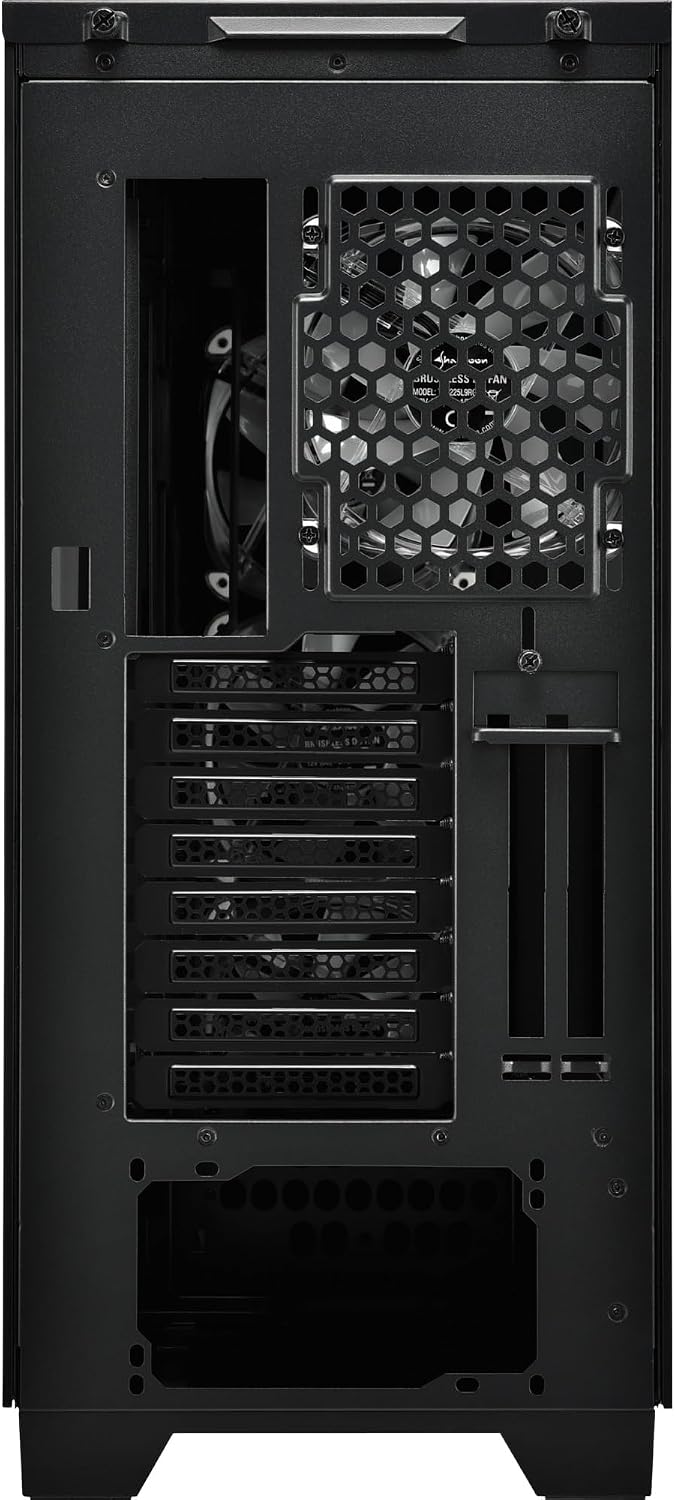
Abbildung 5.3: Rückseite view of the Sharkoon CA300T PC case, illustrating the expansion slots, rear fan mount, and PSU opening.
5.7 Kabelmanagement
Nutzen Sie die Kabelführungskanäle und Befestigungspunkte hinter dem Motherboard-Tray, um die Kabel so zu organisieren, dass die Luftzirkulation verbessert und die Optik optimiert wird.

Abbildung 5.4: Innenraum hinten view of the Sharkoon CA300T PC case, highlighting the dedicated cable management area behind the motherboard tray.
6. Betrieb
6.1 Ein-/Ausschalten
After all components are installed and cables are connected, press the power button on the front panel to turn on your system. Press it again to turn off, or use your operating system's shutdown function.
6.2 RGB-Beleuchtungssteuerung
The integrated RGB lighting can be controlled via the dedicated RGB controller (if included) or through compatible motherboard software, depending on how the RGB components are connected. Refer to your motherboard manual for software control options.
7. Wartung
7.1 Reinigung von Staubfiltern
The Sharkoon CA300T features a three-layer top plate with a dust filter. Regularly clean all dust filters to maintain optimal airflow and cooling performance.
- Schalten Sie Ihren PC aus und trennen Sie ihn vom Stromnetz.
- Carefully remove the dust filters (e.g., from the top, front, and bottom).
- Clean the filters using compressed air or by gently washing them with water. Ensure they are completely dry before reinstallation.
7.2 Allgemeine Pflege
- Wischen Sie die Außenseite des Gehäuses mit einem weichen, fusselfreien Tuch ab.amp Tuch. Scheuermittel vermeiden.
- Stellen Sie sicher, dass alle Kabel fest angeschlossen sind und den Luftstrom nicht behindern.
8. Fehlerbehebung
Sollten Sie Probleme mit Ihrem PC-Bau feststellen, beachten Sie die folgenden gängigen Schritte zur Fehlerbehebung:
- Kein Strom: Ensure the power supply is properly connected to the wall outlet and the motherboard. Check all power cables (24-pin, CPU, GPU).
- Lüfter drehen sich nicht: Verify that all fan headers are correctly connected to the motherboard or fan controller. Check BIOS settings for fan control.
- Kein Bildschirm: Confirm that your monitor is connected to the graphics card (not the motherboard's integrated graphics, unless intended). Reseat the graphics card and RAM modules.
- RGB funktioniert nicht: Check RGB cable connections to the motherboard or controller. Ensure any necessary software is installed and configured.
- Überhitzung: Ensure all fans are spinning correctly and dust filters are clean. Verify proper thermal paste application on the CPU cooler.
For more complex issues, consult the manuals for your individual components (motherboard, GPU, PSU) or seek professional assistance.
9. Spezifikationen
| Besonderheit | Spezifikation |
|---|---|
| Marke | Sharkoon |
| Modellname | CA300T |
| Gehäusetyp | Voller Turm |
| Motherboard-Kompatibilität | ATX |
| Empfohlene Verwendung | Spiele |
| Farbe | Schwarz |
| Material | Metall |
| Power Supply Mount Type | Untere Montage |
| Kühlmethode | Luft |
| Lüftergröße | 120 mm |
| Anzahl der Lüfter | 3 |
| Gesamtzahl der Erweiterungssteckplätze | 4 |
| Total USB 3.0 Ports | 2 |
| Anzahl USB-Anschlüsse | 3 |
| Besondere Merkmale | RGB Lighting, Openable Cable Pocket, Three-layer Top Plate with Dust Filter |
| HDD Bay Size | 3.5 Zoll |
| Number of Internal Bays | 4 |
| Kompatible Geräte | ATX Motherboards, 3.5-inch Hard Drives |
| Lichtfarbe | RGB |
| Artikelgewicht | 14.7 Kilogramm |
10. Gewährleistung
The Sharkoon CA300T PC Case comes with a 2 Jahr HerstellergarantieBitte bewahren Sie Ihren Kaufbeleg für Garantieansprüche auf. Die Garantie deckt Material- und Verarbeitungsfehler bei normalem Gebrauch ab. Sie deckt keine Schäden ab, die durch Missbrauch, Unfälle, unbefugte Änderungen oder unsachgemäße Installation verursacht wurden.
11. Unterstützung
For technical support, warranty inquiries, or further assistance, please visit the official Sharkoon website or contact their customer service department. You may find contact information and FAQs on their support pages.
Offiziell WebWebsite: www.sharkoon.com