
1. Einleitung
The i-tec USB-C Quattro Docking Station is designed to expand the connectivity of your USB-C enabled laptop or tablet, allowing for connection of up to four external displays, multiple USB peripherals, Gigabit Ethernet, and audio devices. It also provides up to 85W Power Delivery to charge your host device. This manual provides detailed instructions for setting up, operating, and maintaining your docking station.
2. Packungsinhalt
Bitte überprüfen Sie, ob alle unten aufgeführten Artikel in Ihrem Paket enthalten sind:
- i-tec USB-C Quattro Docking Station
- Netzteil
- Stromkabel
- USB-C-auf-USB-C-Kabel
- Kurzanleitung

Abbildung 2.1: Package Contents. The image displays the docking station, its power adapter, a power cable, and a quick setup guide.
3. Produktüberschreitungview
Familiarize yourself with the ports and indicators on your i-tec USB-C Quattro Docking Station.
3.1 Frontplatte

Abbildung 3.1: Front Panel. This image shows the front of the docking station with a power button, microphone input jack, headphone output jack, one USB-C data port, and one USB 3.0 port.
- Netzschalter: Zum Ein-/Ausschalten der Dockingstation.
- Microphone Jack (3.5mm): Schließen Sie ein Mikrofon an.
- Kopfhöreranschluss (3.5 mm): Schließen Sie Kopfhörer oder Lautsprecher an.
- USB-C-Datenanschluss: Zum Anschluss von USB-C-Peripheriegeräten.
- USB 3.0-Anschluss: For connecting USB 3.0/2.0 peripherals.
3.2 Rückseite

Abbildung 3.2: Rear Panel. This image displays the rear of the docking station, featuring the DC 20V power input, USB-C PD host connection, two DisplayPort outputs, two HDMI outputs, a Gigabit Ethernet (LAN) port, and four additional USB 3.0 ports.
- DC 20V Stromeingang: Schließen Sie das mitgelieferte Netzteil an.
- USB-C PD Host Port: Connect to your laptop/tablet for data, video, and power delivery.
- 2x DisplayPort: Externe Monitore können über DisplayPort-Kabel angeschlossen werden.
- 2x HDMI: Connect external monitors via HDMI cables.
- GLAN (RJ-45) Port: Stellen Sie eine Verbindung zu einem kabelgebundenen Netzwerk her.
- 4x USB 3.0-Anschlüsse: Connect USB 3.0/2.0 peripherals.
4. Einrichtungsanweisungen
Follow these steps to set up your i-tec USB-C Quattro Docking Station:
- Strom anschließen: Connect the power adapter to the DC 20V input on the rear of the docking station, then plug the power cable into a wall outlet.
- Verbindung zum Hostgerät herstellen: Use the provided USB-C to USB-C cable to connect the docking station's USB-C PD Host Port to your laptop's USB-C port. Ensure your laptop's USB-C port supports DisplayPort Alternate Mode and Power Delivery for full functionality.
- Anschluss externer Bildschirme: Connect your monitors to the DisplayPort and/or HDMI ports on the rear of the docking station. You can connect up to four displays simultaneously.
- Peripheriegeräte anschließen: Plug your USB devices (keyboard, mouse, external drives) into the available USB 3.0 or USB-C data ports. Connect an Ethernet cable to the GLAN port for wired network access. Connect headphones/speakers and a microphone to the respective audio jacks on the front panel.
- Einschalten: Press the power button on the front of the docking station. Your operating system should automatically detect the connected devices.
- Treiberinstallation (falls erforderlich): For optimal performance or specific features, visit www.i-tec.cz/setup to download and install any required drivers for your operating system.
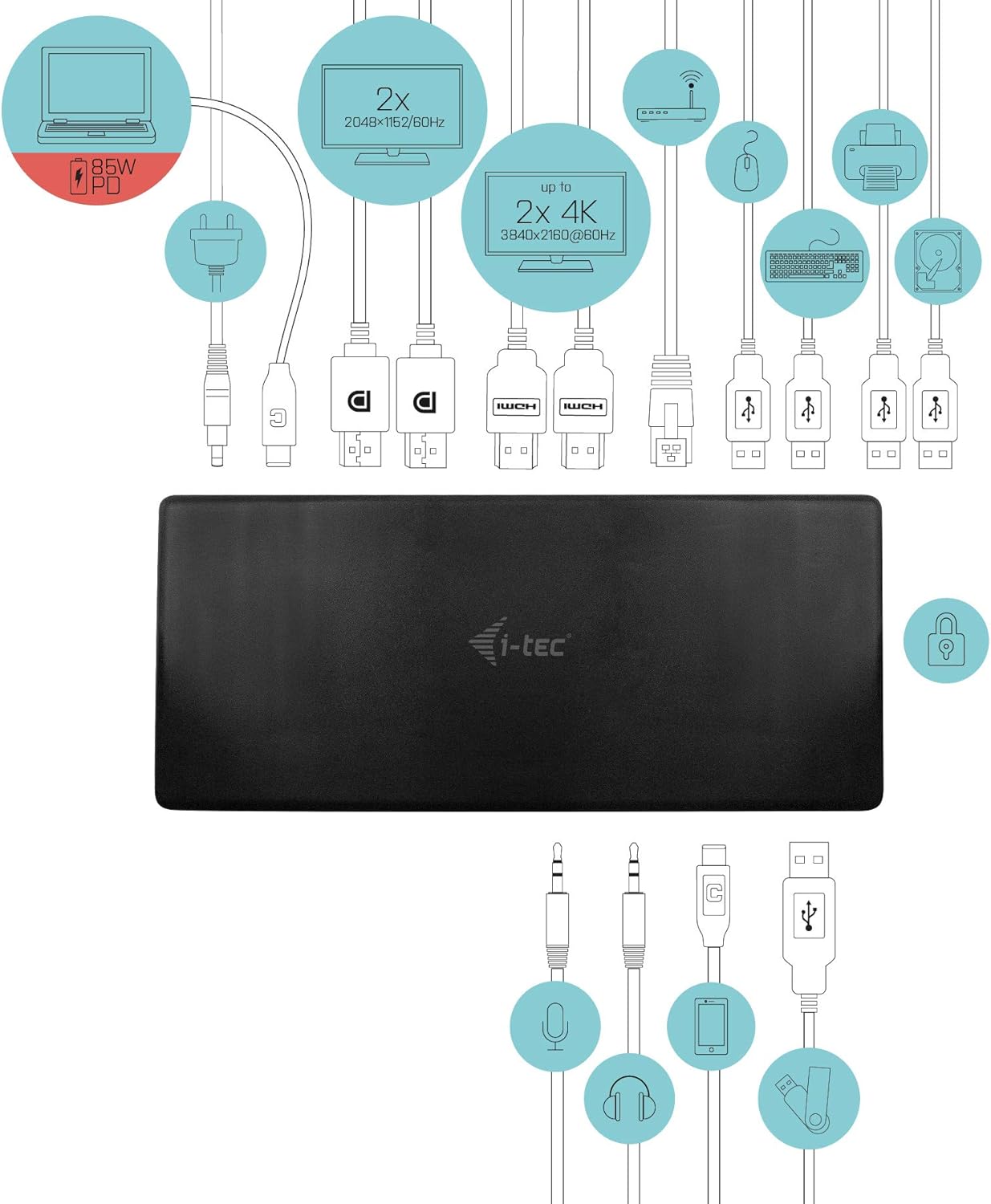
Abbildung 4.1: Connection Diagram. This diagram shows the various connections to the docking station, including power, host laptop, multiple monitors (DisplayPort and HDMI), Ethernet, and USB peripherals like a mouse, keyboard, and external storage.
5. Bedienungsanleitung
Once set up, your docking station provides enhanced functionality for your workspace.
5.1 Konfiguration mit mehreren Bildschirmen
The docking station supports up to four external displays. You can configure these displays in various modes (extended, mirrored) through your operating system's display settings.
- Beschlüsse: Supports up to 2x 2048x1152@60Hz and 2x 4K/60Hz, depending on your host device's capabilities and display connections.
- Windows: Right-click on the desktop, select 'Display settings' to arrange and configure your monitors.
- macOS: Go to 'System Preferences' > 'Displays' to adjust settings.

Abbildung 5.1: Four-Display Setup Example. This image illustrates a workstation with a laptop connected to the docking station, driving four external monitors simultaneously, showcasing a multi-tasking environment.
5.2 Stromversorgung
The USB-C PD Host Port provides up to 85W of power to charge your connected laptop or tablet, eliminating the need for a separate power adapter for your host device.
5.3 USB-Konnektivität
Utilize the 5x USB 3.0 ports and 1x USB-C data port for connecting various peripherals such as external hard drives, USB flash drives, keyboards, mice, and printers. USB 3.0 ports offer high-speed data transfer.
5.4 Gigabit Ethernet
The GLAN RJ-45 port provides a stable and high-speed wired internet connection (10/100/1000 Mbps), which is often more reliable than Wi-Fi.
5.5 Audiofunktionen
Connect your headphones, speakers, or microphone to the 3.5mm audio jacks on the front panel for integrated audio input and output.

Abbildung 5.2: Productivity Setup. This image shows a professional desk environment where the docking station facilitates a multi-monitor setup for enhanced productivity, displaying various applications and data across four screens.
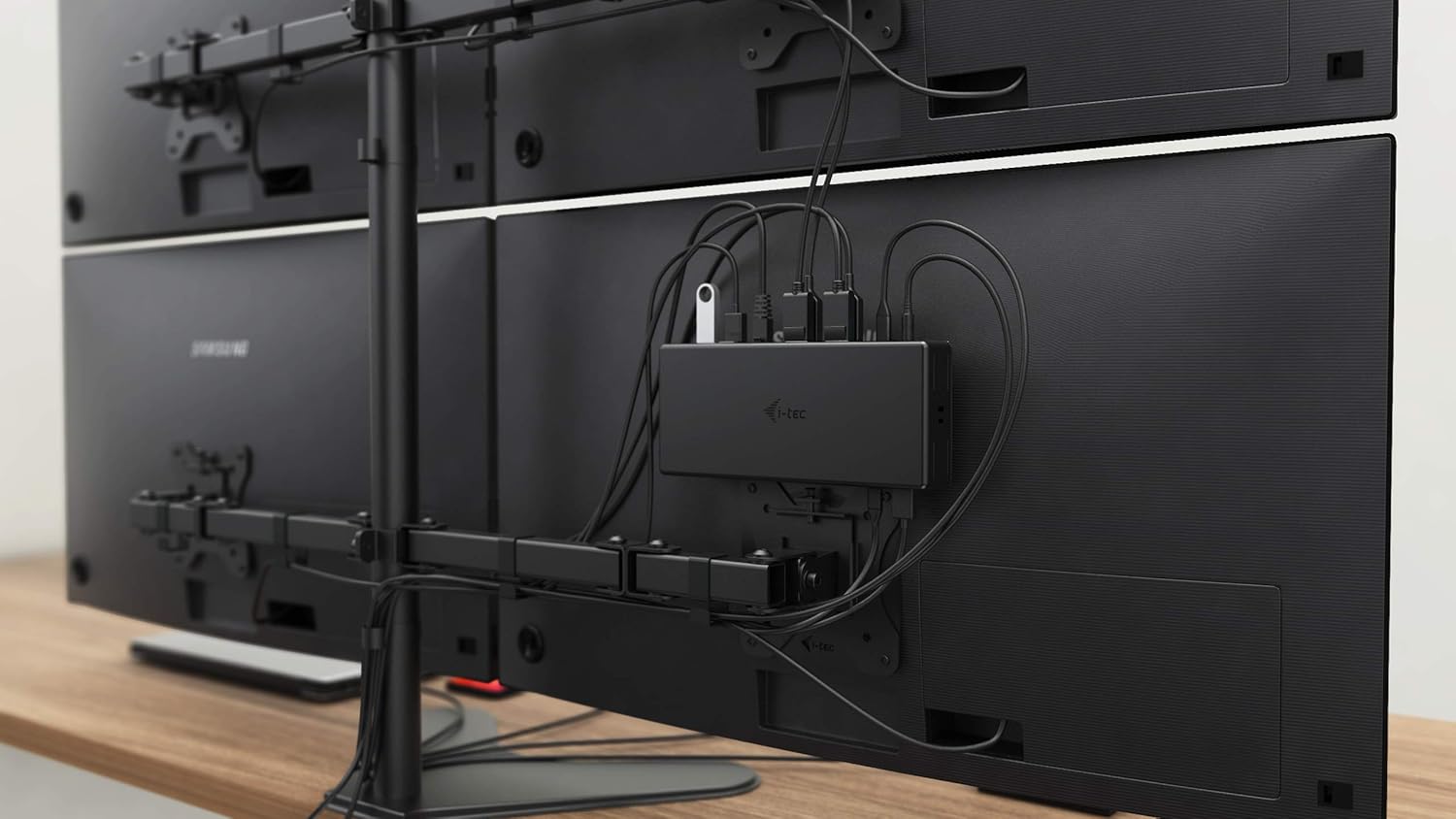
Abbildung 5.3: VESA Mounting. The docking station is shown mounted vertically on the back of a VESA-compatible monitor, demonstrating its space-saving installation capability and organized cable routing.

Abbildung 5.4: Connected Workstation. This image provides a close-up of the docking station on a desk, connected to a laptop via USB-C, and featuring various peripherals plugged into its front ports, including a USB drive and audio devices.
6. Wartung
Um die Langlebigkeit und optimale Leistung Ihrer Dockingstation zu gewährleisten, beachten Sie bitte folgende Wartungsrichtlinien:
- Reinigung: Reinigen Sie die Außenseite der Dockingstation mit einem weichen, trockenen Tuch. Verwenden Sie keine flüssigen Reiniger oder Sprays.
- Belüftung: Stellen Sie sicher, dass die Dockingstation in einem gut belüfteten Bereich aufgestellt wird, um eine Überhitzung zu vermeiden. Blockieren Sie keine Lüftungsöffnungen.
- Handhabung: Vermeiden Sie es, die Dockingstation fallen zu lassen oder starken Stößen auszusetzen.
- Umfeld: Halten Sie das Gerät von extremen Temperaturen, Feuchtigkeit und direkter Sonneneinstrahlung fern.
- Kabelmanagement: Ensure cables are not excessively bent or strained to prevent damage to ports and cables.
7. Fehlerbehebung
Sollten Sie Probleme mit Ihrer Dockingstation haben, beachten Sie bitte die folgenden häufig auftretenden Probleme und Lösungen:
7.1 Keine Displayausgabe
- Verbindungen prüfen: Ensure all display cables (HDMI/DisplayPort) are securely connected to both the docking station and the monitors.
- Host-Verbindung: Verify the USB-C cable from the docking station is firmly connected to your laptop's USB-C port.
- Leistung: Confirm the docking station is powered on and receiving power from the adapter.
- Laptop-Kompatibilität: Stellen Sie sicher, dass der USB-C-Anschluss Ihres Laptops den DisplayPort-Alternativmodus unterstützt.
- Treiber: Install the latest drivers from www.i-tec.cz/setup.
- Bildschirmeinstellungen: Adjust your operating system's display settings to detect and extend/mirror displays.
7.2 USB-Geräte funktionieren nicht
- Erneut verbinden: Disconnect and reconnect the USB device to a different port on the docking station.
- Leistung: Stellen Sie sicher, dass die Dockingstation eingeschaltet ist.
- Host-Verbindung: Verify the USB-C connection to your laptop.
- Energieverbrauch: If connecting high-power USB devices, ensure the docking station's power adapter is correctly connected and providing sufficient power.
7.3 No Network Connection (GLAN)
- Kabelprüfung: Stellen Sie sicher, dass das Ethernet-Kabel sowohl mit der Dockingstation als auch mit Ihrem Router/Modem fest verbunden ist.
- Router/Modem: Überprüfen Sie, ob Ihr Router/Modem ordnungsgemäß funktioniert.
- Treiber: Ensure the latest network drivers are installed for the docking station.
7.4 Laptop Not Charging (Power Delivery)
- Netzteil: Confirm the docking station's power adapter is correctly connected and functioning.
- USB-C-Kabel: Ensure the USB-C cable connecting the dock to your laptop supports Power Delivery.
- Laptop-Kompatibilität: Verify your laptop's USB-C port supports Power Delivery input.
8. Spezifikationen
| Besonderheit | Detail |
|---|---|
| Modellnummer | C31QUATTRODOCKPDUK |
| Marke | i-tec |
| Technische Daten | 10 x 2 x 2.7 Zoll (25.4 x 5.08 x 6.86 cm) |
| Artikelgewicht | 10.2 Unzen (0.29 kg) |
| Hardware-Schnittstelle | DisplayPort, Ethernet, HDMI, USB, USB 3.0, USB Type C |
| Kompatible Geräte | Laptop, Monitor, Tablet with USB-C (DisplayPort Alt Mode & Power Delivery support recommended) |
| Anzahl USB-Anschlüsse | 6 (5x USB 3.0, 1x USB-C Data) |
| Gesamtzahl der HDMI-Anschlüsse | 2 |
| Gesamt DisplayPort | 2 |
| Ethernet | Gigabit Ethernet (RJ-45) |
| Audio-Buchsen | 1x Microphone (3.5mm), 1x Headphone (3.5mm) |
| Stromversorgung | Up to 85W to host device |
| Farbe | Schwarz |
| Betriebssysteme | Windows 10, macOS, Android, Linux |
9. Garantieinformationen
The i-tec USB-C Quattro Docking Station is covered by a manufacturer's warranty. Please refer to the warranty card included in your package or visit the official i-tec webDie detaillierten Garantiebedingungen finden Sie auf der Website. Bewahren Sie Ihren Kaufbeleg für Garantieansprüche auf.
10. Kundendienst
For further assistance, technical support, or to download the latest drivers and firmware, please visit the official i-tec support webWebsite:
You may also find helpful resources and FAQs on the product's dedicated setup page: www.i-tec.cz/setup