
1. Einleitung
Thank you for choosing the iClever GK08 Wireless Keyboard and Mouse Combo. This full-size keyboard with a numeric keypad and a silent mouse offers a stable 2.4 GHz connection, USB-C recharging, and dual-layout compatibility for Mac and Windows systems. This manual provides detailed instructions to help you set up, operate, and maintain your new device.
2. Sicherheitshinweise
- Halten Sie das Gerät von Wasser, Feuer und hohen Temperaturen fern.
- Versuchen Sie nicht, das Gerät zu zerlegen oder zu modifizieren.
- Verwenden Sie zum Aufladen ausschließlich das mitgelieferte USB-C-Kabel.
- Lassen Sie das Gerät nicht fallen und setzen Sie es keinen starken Stößen aus.
- Batterien und elektronische Bauteile sind gemäß den örtlichen Vorschriften verantwortungsvoll zu entsorgen.
3. Installationsanleitung
3.1 Packungsinhalt
- iClever GK08 Wireless Keyboard
- iClever Wireless Mouse
- USB-A Nano Receiver (stored inside the mouse)
- USB-C-Ladekabel
- Washable Dust Cover
- Bedienungsanleitung
3.2 Erstaufladung
Before first use, ensure both the keyboard and mouse are fully charged.
- Connect the provided USB-C charging cable to the keyboard's USB-C port (located on the top edge).
- Verbinden Sie das andere Ende des Kabels mit einer USB-Stromquelle (z. B. einem USB-Anschluss am Computer oder einem USB-Netzteil).
- The charging indicator light on the keyboard will illuminate during charging and turn off when fully charged.
- For the mouse, connect the USB-C cable to its charging port. The mouse also has an indicator light.
- A full charge takes approximately 2 hours and provides up to 45 days of use for the keyboard.
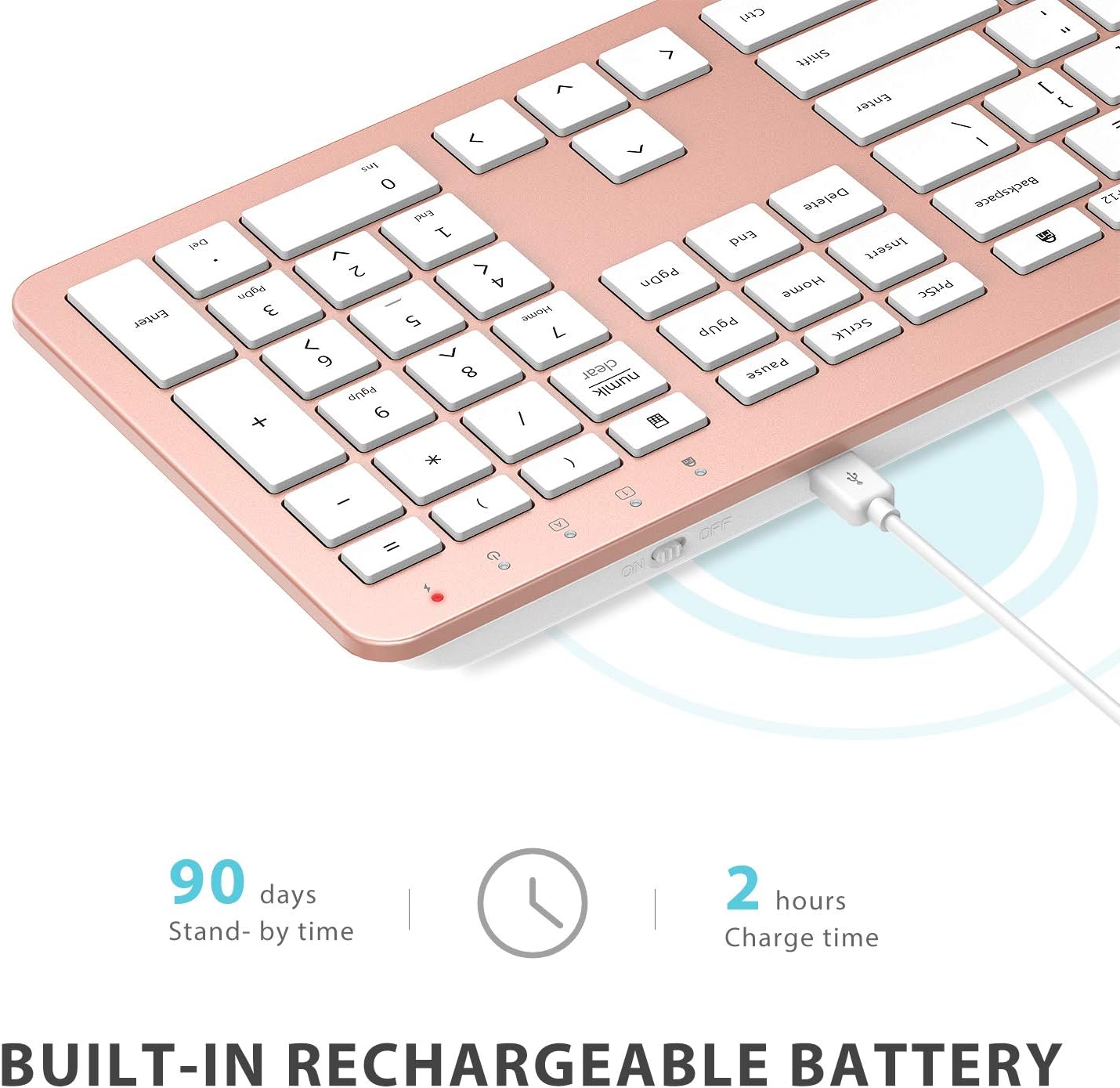
Image: The iClever GK08 keyboard connected to a USB-C charging cable, illustrating the charging process and battery life indicators.
3.3 Connecting to Your Computer (2.4 GHz Wireless)
The keyboard and mouse connect via a single 2.4 GHz USB-A nano receiver.
- Locate the USB-A nano receiver. It is typically stored in a compartment on the underside of the mouse.
- Stecken Sie den Nano-Empfänger in einen freien USB-A-Anschluss Ihres Computers.
- Turn on the keyboard using the ON/OFF switch (usually on the top edge).
- Turn on the mouse using the ON/OFF switch (located on the underside).
- Your computer should automatically detect and install the necessary drivers. The devices are ready for use once recognized.
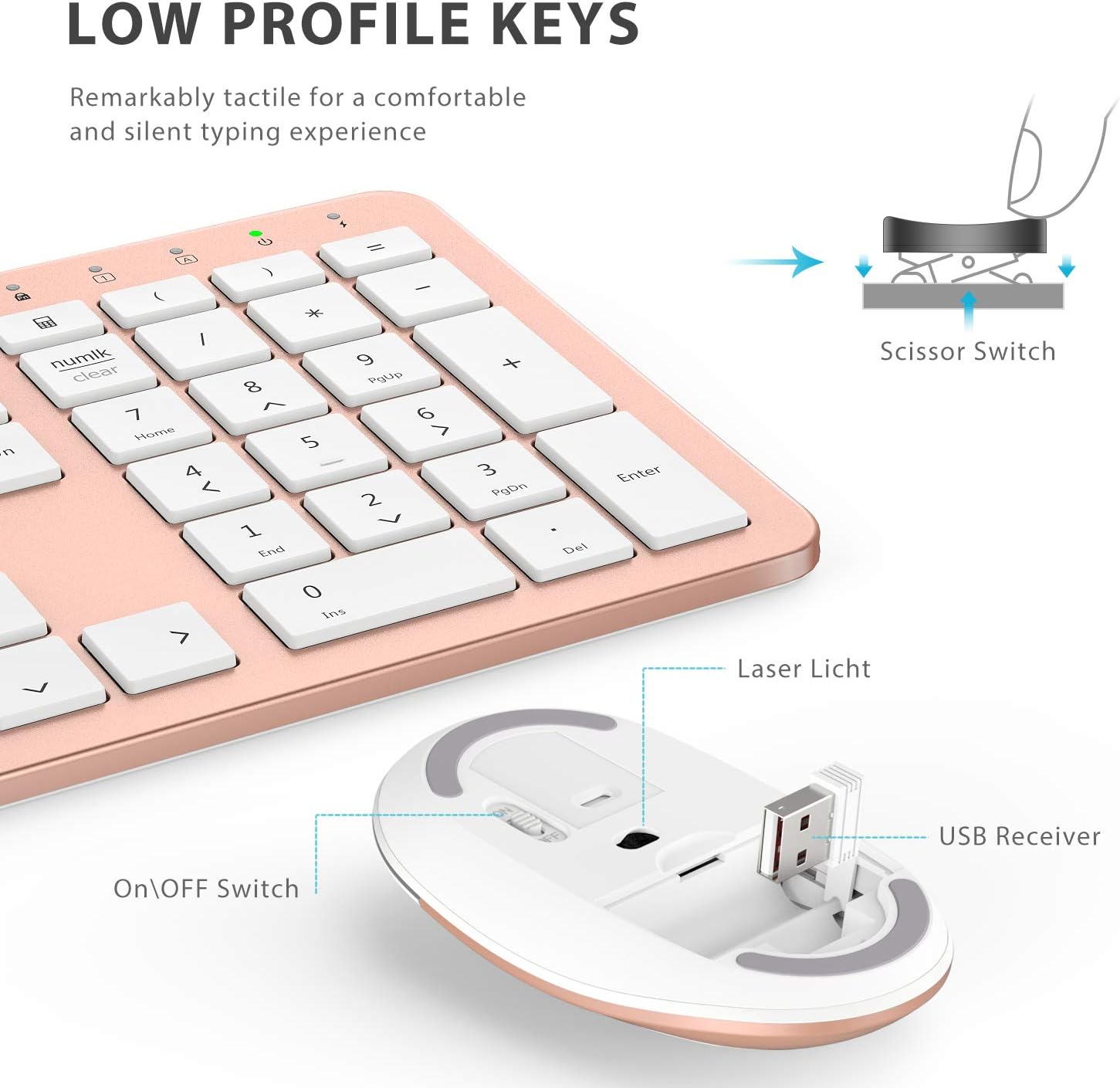
Bild: Eine Nahaufnahme view of the iClever mouse, highlighting the compartment where the USB nano receiver is stored for convenience.
3.4 Kompatibilitätsprüfung
This combo requires an available USB-A port for the nano receiver. For newer Macs with only USB-C ports, a USB-C to USB-A adapter (not included) is required. It is compatible with:
- Windows 10/11 PC & laptop
- macOS desktops / notebooks with USB-A port (e.g., iMac Retina 4K/5K, MacBook Air/Pro ≤ 2017)
- Chrome OS

Image: A visual representation emphasizing the requirement of a USB-A port for the 2.4G wireless receiver, with a note about USB-C adapters for newer devices.
4. Bedienungsanleitung
4.1 Tastaturfunktionen
- Layout in voller Größe: The keyboard features a 110-key layout with a dedicated numeric keypad for efficient data entry.
- Leise Scherenschaltertasten: Enjoy a comfortable and quiet typing experience with low-profile keys that produce less than 50 dB of sound.
- Media Shortcuts: Access common media functions directly from the keyboard.
- Dual-Layout Compatibility: The keyboard has clearly printed Mac and PC legends.
Switching Between Mac and Windows Layouts:
- Für Windows: Drücken Sie Fn + W to activate Win, Alt, NumLK functions.
- Für Mac OS: Drücken Sie Fn + Q to activate Alt (Option), Cmd, Clear functions.

Image: The iClever GK08 keyboard displaying the dual Mac and Windows key legends, with instructions for switching between operating system layouts using the Fn key combinations.
4.2 Mausfunktionen
- Leiser Klick: The mouse is designed for quiet operation, minimizing distractions.
- Einstellbare DPI: The mouse features 3 adjustable DPI levels (800/1200/1600) to customize cursor sensitivity. Press the DPI button (usually located near the scroll wheel) to cycle through the settings.

Image: A visual demonstrating the quiet operation of the iClever mouse and the three adjustable DPI settings (800, 1200, 1600) for varied precision needs.
4.3 Automatische Schlaffunktion
To conserve battery life, both the keyboard and mouse will enter an auto-sleep mode after 10 minutes of inactivity. To wake them up, simply press any key on the keyboard or move the mouse.
Video: A seller-provided video demonstrating the plug-and-play functionality and long battery life of the iClever Wireless Keyboard and Mouse. This video highlights the ease of setup and extended usage between charges.
5. Wartung
- Reinigung: Verwenden Sie ein weiches,amp cloth to clean the surfaces of the keyboard and mouse. Avoid harsh chemicals.
- Staubschutzhülle: Utilize the included washable dust cover to protect the keyboard from dust and spills when not in use.
- Lagerung: When not in use for extended periods, turn off both devices to conserve battery. Store the USB receiver inside the mouse.
6. Fehlerbehebung
- Keine Verbindung:
- Ensure both keyboard and mouse are turned ON.
- Verify the USB nano receiver is securely plugged into a working USB-A port on your computer.
- Versuchen Sie, den Empfänger an einen anderen USB-A-Anschluss anzuschließen.
- Check if the devices are charged.
- Verzögerung oder intermittierende Verbindung:
- Ensure the devices are within the 33 ft / 10 m operating range of the receiver.
- Vermeiden Sie es, den Empfänger in der Nähe starker Störquellen (z. B. anderer drahtloser Geräte, großer Metallgegenstände) aufzustellen.
- Re-pair the devices by unplugging and re-plugging the receiver.
- Keyboard Not Typing Correctly (Mac/Windows):
- Ensure you have selected the correct operating system layout using Fn + W für Windows oder Fn + Q für Mac.
- Der Mauszeiger springt oder ist ungenau:
- Passen Sie die DPI-Einstellung mit der DPI-Taste an der Maus an.
- Stellen Sie sicher, dass der Maussensor sauber und frei von Verunreinigungen ist.
- Verwenden Sie die Maus auf einer geeigneten Oberfläche (nicht stark reflektierend oder transparent).
7. Spezifikationen
| Besonderheit | Detail |
|---|---|
| Marke | IClever |
| Modellnummer | GK08 |
| Farbe | Roségold |
| Konnektivitätstechnologie | 2.4 GHz wireless (USB-A nano receiver) |
| Drahtlose Reichweite | Bis zu 33 m |
| Tastaturlayout | QWERTY, Full-size 110-key with Numpad |
| Schlüsseltyp | Scissor Switch (Quiet typing < 50 dB) |
| Stromquelle | Rechargeable Lithium Ion Battery (Keyboard) |
| Ladeanschluss | USB-C |
| Ladezeit | Ca. 2 Stunden |
| Akkulaufzeit (Tastatur) | Bis zu 45 Tage (bei typischer Anwendung) |
| Maus-DPI-Einstellungen | 800 / 1200 / 1600 DPI |
| Kompatible Betriebssysteme | Windows 8/10/11, macOS, Chrome OS |
| Besondere Merkmale | Dual Mac/Windows layout, 10-min auto-sleep, Washable dust cover |
8. Garantie und Support
iClever products typically come with a standard manufacturer's warranty. Please refer to the warranty card included in your product packaging or visit the official iClever webAuf der Webseite finden Sie die detaillierten Garantiebedingungen.
Für technischen Support, Hilfe bei der Fehlerbehebung oder sonstige produktbezogene Anfragen wenden Sie sich bitte an den iClever-Kundendienst über dessen offizielle Website. webWebsite oder die in Ihrer Produktdokumentation angegebenen Kontaktinformationen.
Online-Hilfe: www.iclever.com/support