
SUNMI TF700
SUNMI M2 MAX Industrie-Tablet – Benutzerhandbuch
Modell: TF700
Einführung
This manual provides comprehensive instructions for the safe and efficient use of your SUNMI M2 MAX Industrial Tablet, model TF700. Please read this manual thoroughly before operating the device and retain it for future reference.

Abbildung 1: Vorderseite view of the SUNMI M2 MAX Industrial Tablet, showing its display with various application icons.
Aufstellen
1. Auspacken und erste Inspektion
Nehmen Sie alle Komponenten vorsichtig aus der Verpackung. Überprüfen Sie, ob alle unten aufgeführten Teile vorhanden und unbeschädigt sind:
- SUNMI M2 MAX Industrial Tablet (TF700)
- Netzteil
- USB-Typ-C-Kabel
- Hand Strap (optional, if included with your model)
2. Aufladen des Geräts
Before first use, fully charge the tablet. Connect the USB Type-C cable to the tablet's charging port and the other end to the power adapter. Plug the power adapter into a wall outlet. The charging indicator will illuminate.
The tablet is equipped with an 8360mAh non-removable lithium polymer battery. A full charge can provide over 12 hours of continuous operation.
3. Installing SIM Card and MicroSD Card (Optional)
The device supports MicroSIM or NanoSIM cards (Config 1) and an eSIM (Config 2). It also supports MicroSD cards up to 128GB for expanded storage.
- Suchen Sie den SIM-/MicroSD-Kartensteckplatz an der Seite des Tablets.
- Use the provided SIM ejector tool (if applicable) or a small paperclip to open the tray.
- Carefully place the SIM card(s) and/or MicroSD card into the tray according to the diagram on the tray.
- Schieben Sie die Ablage vorsichtig zurück in den Schlitz, bis sie einrastet.

Abbildung 2: Rückseite view of the SUNMI M2 MAX, highlighting the camera, pogo pin charging interface, and the location of the SIM/MicroSD card slot.
4. Attaching the Hand Strap (Optional)
If your model includes a hand strap, attach it to the designated points on the back of the tablet for secure handling during mobile operations.
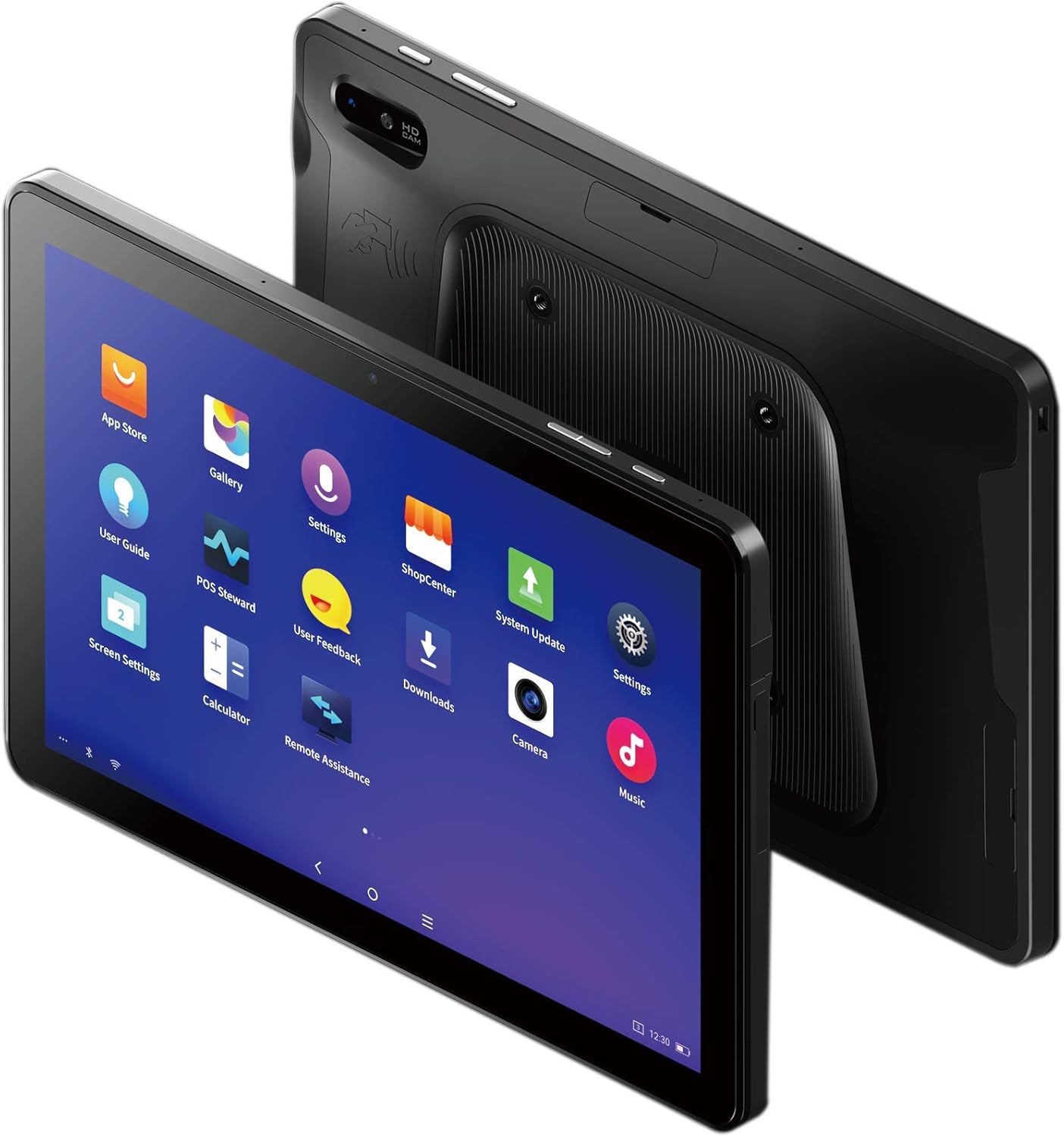
Figure 3: The SUNMI M2 MAX Industrial Tablet being held with an optional hand strap, demonstrating enhanced portability and secure grip.
Bedienung des Geräts
1. Ein-/Ausschalten
- Einschalten: Press and hold the Power button (located on the side) until the SUNMI logo appears on the screen.
- Ausschalten: Press and hold the Power button until a power-off menu appears. Select "Power Off" and confirm.
- Neustart: Wählen Sie im Ausschaltmenü die Option „Neustart“, um das Gerät neu zu starten.
2. Grundlegende Navigation
The SUNMI M2 MAX runs on the Android operating system. Navigation is primarily touch-based:
- Klopfen: Um ein Element auszuwählen oder eine Anwendung zu öffnen.
- Wischen: Zum Durchblättern von Listen oder zum Wechseln zwischen Bildschirmen.
- Pinch-to-Zoom: Um Bilder zu vergrößern oder zu verkleinern web Seiten.
- Home "Button: Kehrt zum Startbildschirm zurück.
- Zurück-Schaltfläche: Kehrt zum vorherigen Bildschirm zurück.
- Schaltfläche „Letzte Apps“: Zeigt zuletzt verwendete Anwendungen an.
3. Verbindung zu Netzwerken
The tablet supports Wi-Fi (2.4GHz/5GHz, 802.11 a/b/g/n/ac) and cellular networks (2G, 3G, 4G).
- W-lan: Gehe zu Einstellungen > Netzwerk & Internet > WLANSchalten Sie WLAN ein, wählen Sie das gewünschte Netzwerk aus und geben Sie gegebenenfalls das Passwort ein.
- Mobilfunkdaten: Ensure a valid SIM card is inserted. Go to Einstellungen > Netzwerk & Internet > Mobilfunknetz to enable mobile data and configure APN settings if necessary.
- Bluetooth: Gehe zu Einstellungen > Verbundene Geräte > Bluetooth to pair with Bluetooth devices (supports Bluetooth 5.0).
4. Using NFC
The SUNMI M2 MAX is equipped with NFC (Near Field Communication) for contactless transactions and data exchange. To use NFC, ensure it is enabled in settings and hold the tablet near a compatible NFC reader or device.
5. Kamerabedienung
The tablet features a 13 MP rear camera with flash and autofocus, and a 5 MP front camera. Open the "Camera" application to capture photos or record videos.
Wartung
1. Reinigen des Geräts
Mit einem weichen, fusselfreien Tuch leichtampened with water or a screen cleaner to wipe the display and exterior. Avoid using harsh chemicals, abrasive cleaners, or excessive moisture.
2. Batteriepflege
- Vermeiden Sie es, das Tablet extremen Temperaturen (unter -20 °C oder über 70 °C) auszusetzen.
- Lassen Sie den Akku nicht häufig vollständig entladen.
- Use only the original or certified compatible power adapter and cable.
3. Software-Updates
Prüfen Sie regelmäßig, ob Systemaktualisierungen verfügbar sind, und installieren Sie diese, um optimale Leistung und Sicherheit zu gewährleisten. Gehen Sie zu Einstellungen > System > Systemupdate.
4. Umweltschutz
The SUNMI M2 MAX is designed with IP68 protection and a 1m drop specification, making it suitable for demanding environments. However, avoid intentional drops or prolonged submersion in water.
Fehlerbehebung
| Problem | Mögliche Ursache | Lösung |
|---|---|---|
| Gerät lässt sich nicht einschalten. | Schwacher Akku, Softwareabsturz. | Laden Sie das Gerät mindestens 30 Minuten lang auf. Halten Sie die Einschalttaste 10–15 Sekunden lang gedrückt, um einen Neustart zu erzwingen. |
| Es kann keine Verbindung zum WLAN hergestellt werden. | Incorrect password; Wi-Fi disabled; router issue. | Verify password. Ensure Wi-Fi is enabled in settings. Restart router. Forget and reconnect to the network. |
| Touchscreen reagiert nicht. | Vorübergehender Softwarefehler. | Durch Gedrückthalten des Netzschalters kann ein Neustart des Geräts erzwungen werden. |
| Applications crashing. | Insufficient RAM; app bug. | Close background apps. Clear app cache/data (Settings > Apps). Update the app. |
Technische Daten
The following table outlines the key technical specifications of the SUNMI M2 MAX Industrial Tablet (Model: TF700).

Figure 4: Comprehensive technical specifications for the SUNMI M2 MAX Industrial Tablet.
- Modell: TF700
- Betriebssystem: Android 9.0 (SUNMI OS)
- Prozessor: Kryo-260, Octa-core 2.2GHz (Qualcomm)
- Erinnerung: 3GB RAM + 32GB ROM (eMMC)
- Anzeige: 10.1-inch FHD, 1920x1200, Capacitive multitouch, Corning Gorilla Glass 3
- Kameras: Front: 5MP FF; Rear: 13MP AF + Flashlight, supports 1D/2D barcode recognition
- NFC: Type-A&B card, Mifare card, Felica card, ISO/IEC 14443 and ISO/IEC 15693 compliant
- Speaker/MIC: 1W Speaker, 2x MIC
- PSAM-Kartensteckplatz: 1x PSAM
- SIM-Kartensteckplatz: 1x MicroSD (TF), 1x MicroSIM or 1x NanoSIM (TF700 Config 1), eSIM (TF700 Config 2)
- Netzwerk: 2G & 3G & 4G
- W-lan: 2.4GHz/5GHz, 802.11 a/b/g/n/ac
- Bluetooth: Supports Bluetooth 2.1/3.0/4.2/5.0 (BLE)
- Geographisches Positionierungs System: Supports AGPS, GPS, GLONASS, Beidou (Config 2)
- Sensor: Gravity sensor, light sensor, compass, Hall
- Tasten: 1x Power (lock screen), 2x Volume (+/-)
- Häfen: 1x Type-C (supports OTG), 1x Audio Jack, 1x MicroSD (up to 128GB expansion)
- Batterie: Non-removable Lithium Polymer battery, 8360mAh
- Netzteil: Input: AC 100-240V, Output: DC 5V/2A
- Abmessungen (LxBxH): 249.8 x 160 x 9.9 mm (0.39 x 6.3 x 9.84 Zoll)
- Gesamtgewicht: 673 g (1.48 Pfund)
- Schutz: IP68, 1m drop spec
- Betriebstemperatur: -20°C bis 55°C
- Lagertemperatur: -40°C bis 70°C
Garantie und Support
For warranty information and technical support, please refer to the documentation provided with your purchase or visit the official SUNMI webBewahren Sie Ihren Kaufbeleg für Garantieansprüche auf.
SUNMI Official WebWebsite: www.sunmi.com
Ask a question about this manual
Ask about setup, troubleshooting, compatibility, parts, safety, or missing instructions. Manuals+ will review the question and use this page’s manual context to help answer it.